
Data is one of the most precious assets of all for individuals, businesses and organizations. Whether it’s personal photos, videos, financial records, work projects, school assignments, or business records, important files are frequently kept digitally, making data protection more critical than ever. But if there is some unforeseen circumstance, like a hard drive crash, accidental deletion, ransomware attacks, flooding, fire or other natural disasters, important information becomes inaccessible at a moment’s notice. In such cases, many individuals will immediately think about how to recover their lost files and if their lost data is recoverable. The positive side is that the right actions and a good backup plan can often help them recover. This knowledge of what to do after the crash can help to avoid permanent loss of data and raise the likelihood of retrieving valuable information.
Data recovery heavily relies on the cause of data loss. A loss of files due to an error needs a different approach than a loss caused by a physical damage to the storage device, and a disaster loss will need files to be recovered from safe backup sites. Users should not make unnecessary modifications or changes to the impacted device as new data may be overwritten and lower the chances of a recovery. It is important to understand what to do in each case to recover. When data cannot be accessed normally due to hardware failure, specialized recovery techniques might be available to Restore lost data after hardware failure from damaged storage devices. Knowing what is wrong with the device and how to retrieve the data is one of the most crucial parts of the process of recovering data.
Understanding Why Data Loss Occurs
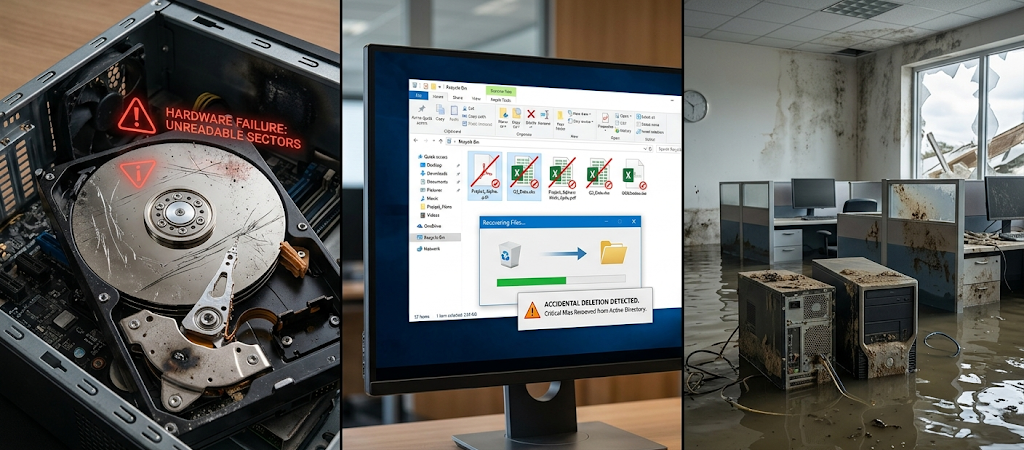
There are a number of reasons why data may be lost, and it is important to know the cause so that the right solution can be identified for data recovery. One of the most frequent reasons is due to hardware failures, as storage devices like hard drives, solid-state drives, memory cards, and external drives can wear out over time, suffer mechanical issues, or malfunction due to electronic problems or physical damage. The storage device can become corrupt or damaged, causing a computer to recognize the drive no longer or to show error messages or not boot. In such cases, trying to make random fixes and repeatedly switching on and off the device might make the issue worse. In some cases, particularly if the storage media is badly damaged, professional recovery services might be necessary.
Another frequent cause of lost data is accidents. Users can delete, remove or empty files, delete the wrong drive, delete important folders etc. without knowing about their significance. Files deleted from the computer may seem as if they are erased, but they are not until they are overwritten by new data. Thus, prompt action is essential since the longer the device is used the less likely it is to get better. Recovery software will generally scan the storage device and find out if there are files that have not been overwritten.
Natural disasters pose another type of challenge because they can affect several devices simultaneously. Computers or external drives, as well as office equipment, can be damaged during floods, fires, storms, and earthquakes. In such cases, it is dangerous to depend solely on the local storage package since the backup device may be damaged and destroy the data with it. Cloud backups, remote servers, and off-site storage services help to ensure that copies of valuable data are not stored at the same site as the fire or other threat.
Step-by-Step Guide on How to Recover Lost Data
Step-by-Step Guide on How to Recover Lost Data is a helpful tutorial that you can follow to retrieve your lost information.
Step 1: Discontinue Use of the Affected Storage Device
The first step is to cease using the affected storage device. Before anything else, it is crucial to refrain from using the device that has lost data as soon as possible. After losing some important information, many people may go ahead and open files, install applications, or download new data. But, these activities can replace the precise areas where the missing files are found. If it is written over, it is difficult, if not impossible, to recover it.
If the hard drive in a computer has failed, do not make repeated attempts to restart the computer. A failing drive can have parts that are broken, and further use can cause additional physical damage. Rather, if possible, unplug the device and make ready for a proper recovery attempt. When files are accidentally deleted, don’t save new files in the same place. The aim is to keep the data intact until a recovery technique can be used.
Step 2: Review Available Backup Copies
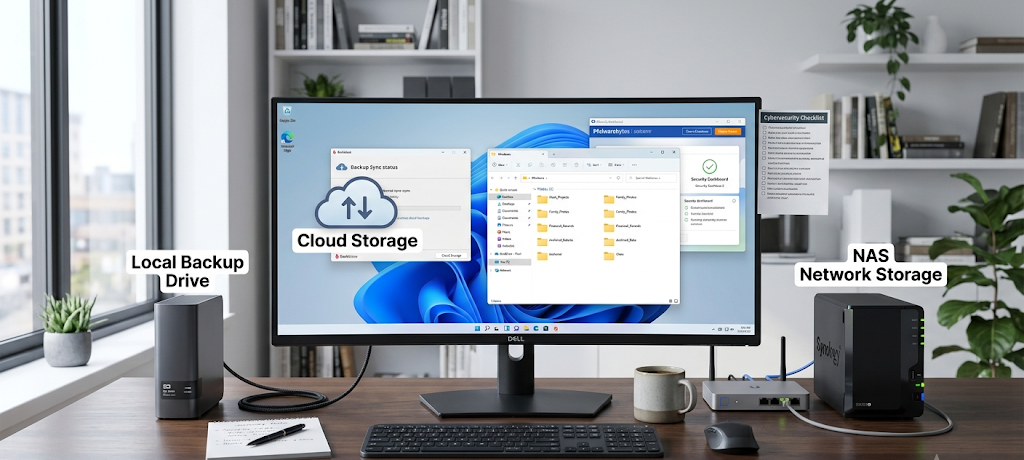
If recovery software or professional services are being used, verify that there is a backup available prior to use. When there is a place where data is safely stored, users are spending unnecessary time locating the lost data. Backups can be stored on external storage devices like hard drives, network storage, USB drives or online cloud storage.
A good back-up system typically adheres to the three-two-one rule: Make three copies of important data, store on two separate types of storage media and keep one copy off-site. This helps to safeguard files from hardware failures, file theft, accidental deletion, and natural disasters. Usually, restoring the files from a backup is faster, safer, and more reliable than trying complicated recovery procedures.
Recovering Data After Accidental Deletion
Using Data Recovery Software

When you delete something by accident, you can recover it. If something is accidentally deleted, it can be recovered. If files have been accidentally deleted and there is no backup, then recovery software can be useful in locating and restoring missing files. The programs operate by the fact that they search for file structures that continue to exist even after being deleted. They are able to retrieve documents, pictures, videos, and other types of files, depending on the condition of the storage device.
When running the recovery program, it is important to run it on a hard-drive other than the one that lost its data. When software is installed on the affected drive, it could overwrite recoverable information. Once you install the program, do a thorough scan of the storage device and check the list of recoverable files. Choose the appropriate files and store them elsewhere, e.g., on an external storage device.
Popular recovery software usually offers various scanning choices. A quick scan can find recently deleted files, and a thorough scan can find older or fragmented files. It is important for users to be aware that recovery may be dependent on the amount of use the storage device has undergone since the data was lost.
How to Restore a Previous Version in Windows
For Windows users, there’s another backup recovery option available, either by using File History or Windows Previous Versions. These tools can be used to recover previous versions of files if they have been set up in advance to the data loss. The users can access the folder of missing files and determine if there were previous versions of the files, and restore the needed information.
This is particularly helpful for accidentally altered or deleted documents. It only works if these backup/restore features were turned on prior to the issue. These features should be set regularly by the user to provide further protection from loss of data.
How to Recover Data When Hardware Fails
Checking the Condition of the Storage Device
Hardware failure requires careful handling as it could be that there is no problem with the deleted files, but damage to the storage device. Common hardware failure symptoms are odd noises from the hard drive, repeated system disconnections, performance problems, missing files or inability to recognize the storage device.
The first thing to be done is to see if the device can still be accessed. If the drive seems to be functioning normally, but with corrupted files, recovery software might be helpful. But when the drive that is physically damaged or outright unresponsive, specialist data recovery services might be required. Advanced equipment and controlled environments are used to access data from damaged storage devices, and it is often done by specialists.
Restoring From a System Image
System image: A full backup of the computer system, including the operating system, software, settings and files. It enables users to recover from major failures and restore their entire computer environment. This is a great technique if you have replaced the hard drives, and you want to restore your system to its previous condition.
Typically, users will have to access the recovery environment offered by their operating system in order to restore from a system image. The system image backup can be chosen and the restore will restore the damaged system with the saved system image. System images are created to capture a lot of information, so they should be produced frequently and kept safely.

Recovering Data After Natural Disasters
Retrieving Files From Cloud Backups
One of the best ways to preserve data following natural disasters is by means of cloud storage. Services which automatically sync files to online storage enable users to access their information, even in the event their physical devices are destroyed. Cloud backups are stored remotely from the original location, which means that they are not susceptible to many local disasters.
In order to retrieve files from the cloud, users need to log in to their backup provider account and find the backed-up files or versions. Some cloud services offer a recovery feature that lets users recover from deleted files or restore files to previous versions. This feature is particularly valuable for businesses that need to quickly recover operations after unexpected events.
Using Remote Backup Systems
Many businesses have remote backups that automatically backup important information to a secure outside location. These systems help minimize downtime as important files can be recovered without having to wait for damaged hardware to be repaired. There are many types of files that can be backed up remotely, such as databases, customer data, financial records, and operation documents.
These backups should be included in the disaster recovery plan with clear instructions on how to access them. Organizations can have backups in place but not be able to recover the data rapidly enough in case of an emergency if it is not planned well.
How to Avoid Future Data Loss
Develop a Sound Backup Plan
The best way to handle data loss is to prevent it before it happens. An effective backup plan safeguards against the loss of valuable data due to unforeseen occurrences. Users are encouraged to regularly back up data and check backups are operating as desired.
One of the benefits of automatic backups is that they eliminate the need to know the manual backup cycle. With proper implementation, external drives, cloud storage, and network backup solutions can offer extra security.
Test Backups Regularly
While making backups is one thing, users need to routinely test them, too. In the event of an emergency, a backup that cannot be recovered is not helpful. Testing makes sure that files are available, full and ready when they are required.
Organizations also need to have a recovery plan that is documented for their employees to know what they should do in the event of a data loss. Clear planning minimizes confusion and aids in the quicker restoration of normal operations.
Conclusion
Individuals and businesses rely on valuable information, and knowing how to pull lost data back from hardware failures, accidental deletion and natural disasters could help prevent that information from being lost. Depending on the cause, it can be achieved through recovery software, system image recovery or cloud backup file recovery. Prompt action, prevention of additional damage and the use of sound recovery equipment can all help to increase the possibilities of successful restoration.
The best way to avoid losing that important data, though, is to be prepared. Having a good backup strategy means that significant data is not lost in case of unforeseen issues. With local backups, cloud storage, and frequent testing, individuals can ensure that their digital data will be safe from future perils. Losing data can be stressful but sometimes it’s possible to recover.