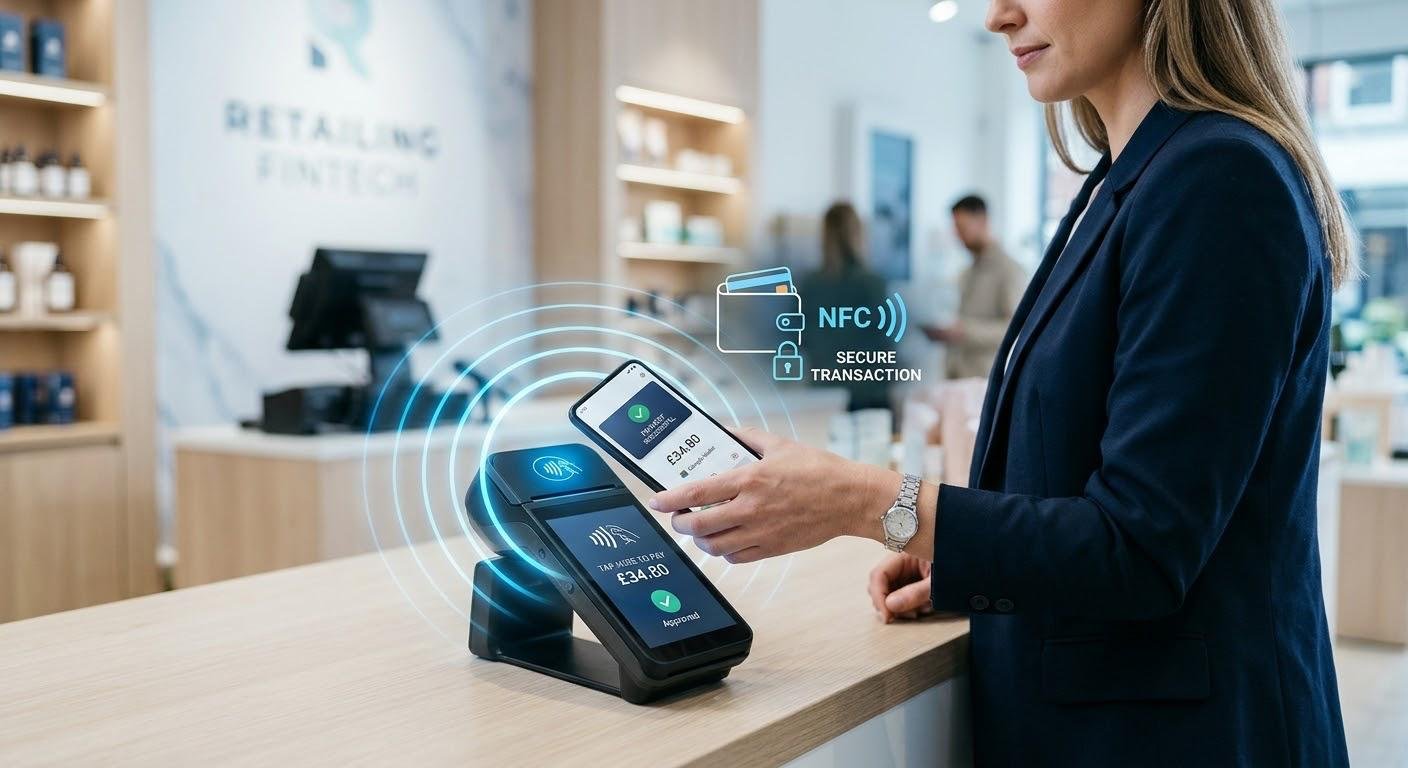
Passwords and multi-factor authentication protect sign-in, but they cannot stop someone using a session left open at a desk. Email, patient records or financial tools may remain accessible after the employee walks away.
A proximity computer lock monitors a device carried by the user and locks the workstation when it moves out of range. This adds a departure signal instead of relying on inactivity or a remembered keyboard shortcut.
Why Timers and Habits Fall Short
Short inactivity timeouts can interrupt someone reading a document or listening on a call. Longer intervals leave an unattended screen exposed until the timer expires. Manual locking avoids that delay, provided the employee remembers.
The consequences extend beyond viewing sensitive information. At a reception desk or shared clinical terminal, another person could make changes through the open session. Records may then attribute those actions to the account owner rather than the person responsible.
How Proximity Detection Works
The workstation monitors Bluetooth signal strength from an enrolled smartphone or supported hardware key. When the signal crosses a configured threshold, the locking process is triggered. Hideez allows teams to adjust these thresholds, and its proximity logic can operate without an Internet connection.
Signal strength indicates the device’s proximity, not an exact physical boundary or proof that its owner is present. If an employee leaves the phone on the desk, it cannot indicate their departure. The device therefore needs to stay with the user.
Thresholds need testing in the actual workspace. The aim is to distinguish leaving the desk from movement while working. Inactivity timeouts and manual locking can remain useful alongside proximity detection.
Locking Is Only Half the Workflow
Returning employees need a suitable way to resume work. Hideez supports automatic proximity unlocking on personal workstations, depending on configuration.
Shared computers require a deliberate handover because several authorized employees may be nearby. Tap-and-Go lets a user select a workstation by bringing a supported phone or key near its Bluetooth adapter. Test that the intended person gains access and that the previous employee’s applications are not left exposed.
Planning a Rollout
Before deployment, confirm:
- whether each role will use a phone or a supported hardware key;
- suitable thresholds for personal desks and shared terminals;
- integration with Active Directory or Microsoft Entra ID;
- which sign-in and locking events need to appear in access logs.
A pilot should include movement, shift changes and loss of Bluetooth connectivity. Check both missed locks and unnecessary interruptions before expanding to other teams. Enrollment alone does not establish that the same settings will suit every room or working pattern.