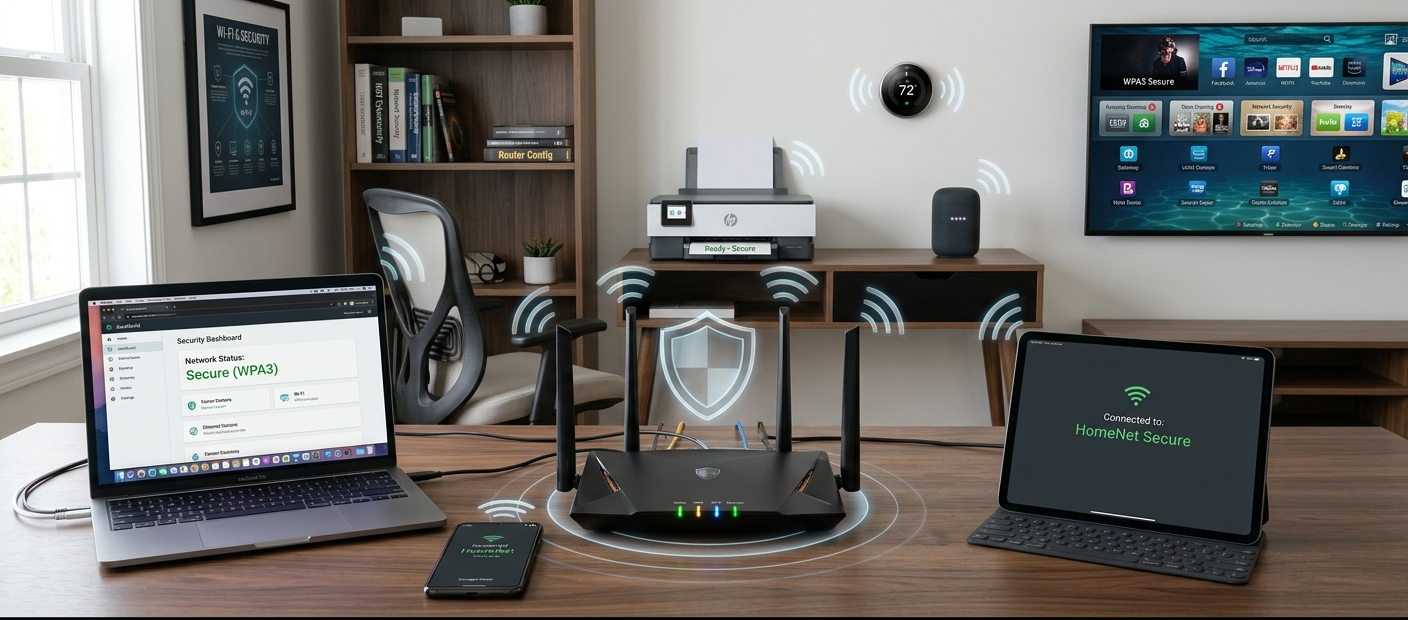
Why a Secure Home Network Is Important
A home network is the backbone of a network at your house that lets computers, smartphones, smart TVs, game consoles, printers and smart home devices communicate with one another and with the internet. Beginning network setup can be a daunting task, but contemporary routers have been made much simpler. But it isn’t sufficient to just set up a router and connect devices to make a home network safe. Security issues often occur when users do not change default settings, set weak passwords, don’t install security updates, or don’t set up critical security settings.
A secure home network safeguards all of your personal information, keeps others out of your home network, and ensures that your devices are running well. Poorly protected networks are frequently the victims of these criminals’ attacks and the process of stealing data, monitoring online activity, or accessing devices connected to them. Even a novice will be able to build a secure and efficient home network by adhering to a step-by-step checklist. This guide will tell you everything you need to know for connecting your router for the first time, and keeping it secure for years to come!
Understanding the Basics of a Home Network
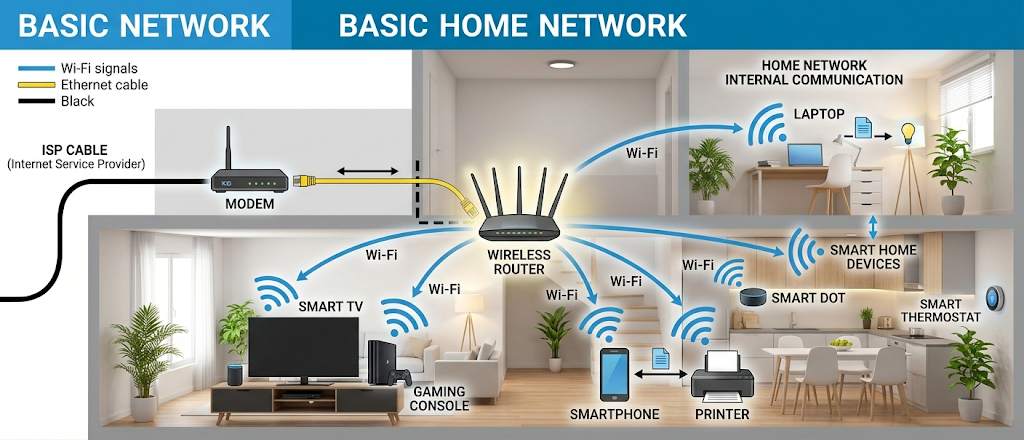
Prior to establishing a secure network, it is important to know the key components. A basic home network consists of an Internet connection from an Internet Service Provider (ISP), a modem, a router, and devices that are connected. You have an internet service from the provider and it is fed into the modem; The modem then passes on the internet service to the router, which then provides a wired Ethernet service or wireless Wi-Fi service to the various devices.
Your home network’s central control is the router. It helps to communicate among devices and the internet, and offers security features like firewalls, encryption settings, parental controls, and guest networks. Wireless routers also send out Wi-Fi signals that allow for the wireless connection of items like mobile phones and laptops. The understanding of these basic elements will make the setup process simpler as you will know what each of these devices is doing and why certain security settings are important.
Step 1: Choose the Right Home Router
The initial step towards a safe and effective home network is choosing the right router. The features, speeds, coverage and security options of routers vary and it is important to select one that is appropriate for your needs. While a small home with a few devices might suffice with a basic router, a larger home with numerous devices connected may need a more powerful router that can deliver better wireless coverage and enhanced management features.
Some of the key factors to take into account when selecting a router are Wi-Fi standards, speed, security support, and the number of devices that can be handled. Most routers with the latest wireless protocols will offer greater security, greater efficiency, and better performance. Choosing a reputable brand that provides continuous firmware updates also helps in improving the security of a router, since security updates are crucial and require continuous software support.
Step 2: Properly Wire Your Router
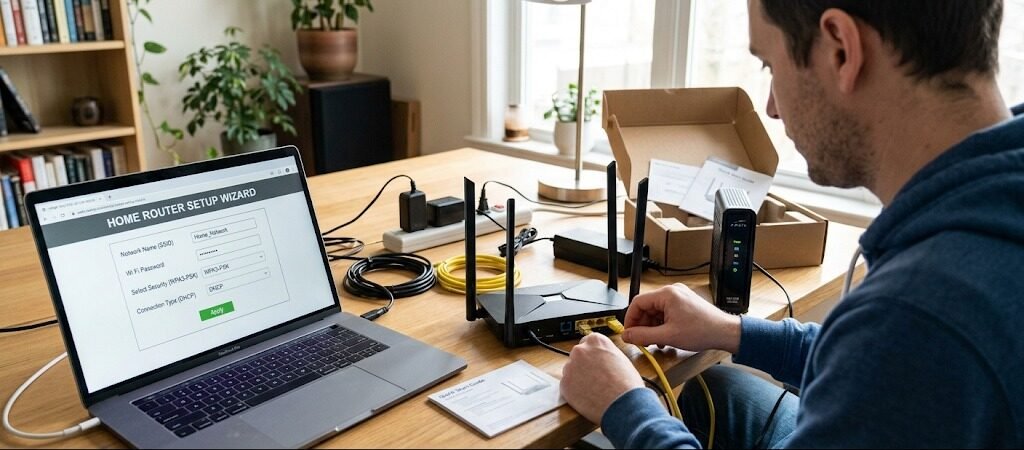
Choosing a suitable router is just the first step; the hardware must be connected to it correctly. Firstly, use a router to connect the modem that comes with the internet service provider to the internet (WAN) port of the router via Ethernet. Next, plug in the power cord of the router and allow several minutes for the router to power up. Most routers have indicator lights to determine if the internet connection and wireless network are operating properly.
After the router is turned on, connect a computer, a smartphone or a tablet into a router. You can typically connect via Wi-Fi, by using the default network name and password printed on the router’s label or by using an Ethernet cable to get a more stable connection while setting up. It is essential to follow the manufacturer’s instructions since the steps for installation may vary from model to model.
Step 3: Visit the Router Administration Page
Once connected to your router, log into the administration screen and set up security. In most cases the management interface of the router is accessed via a web browser using a specific address (normally an IP address included in the router’s manual). Common router addresses are 192.168.0.1 or 192.168.1.1, but can vary depending on the manufacturer.
The router’s admin username and password will be required to log in when you open the admin page. A lot of routers have default login information that is easily obtainable from the Internet and thus is a security risk. When left as default, the credentials may expose your router settings to attackers who are familiar with the default credentials. Change the administrator login information as soon as you log in to the router dashboard.
Step 4: Change Default Router Settings
One of the most critical steps to making your home network safe is to adjust the settings. Installation defaults make it easier for manufacturers to get the product in place, but are also common knowledge to attackers. An administrator account that has not been changed, default network names or poor security policies/metrics can make a weak target.
The first step is to replace the default router username and password. Make a complex password using a mix of capital letters, lower case letters, numbers and special characters. Never guess or use common passwords, names, birthdays, etc. With a strong administrator password, unauthorized users are unable to change your network settings or disable security features.
Be sure to change the name of the default Wi-Fi network, or Service Set Identifier (SSID). Do not use personal information like your name, address or family information in the network name, as this can make the network name too revealing for those listening. Using a unique but general network name improves privacy and makes it easier to find your home network.
Step 5: Ensure That Your Wi-Fi Is Secure
One of the most critical components in securing your home network is Wi-Fi security, since the signal can be transmitted outside the home. Any person in the vicinity can try to log on to an unprotected network or use poor security practices. Make sure the router has modern encryption to stop unauthorized access.
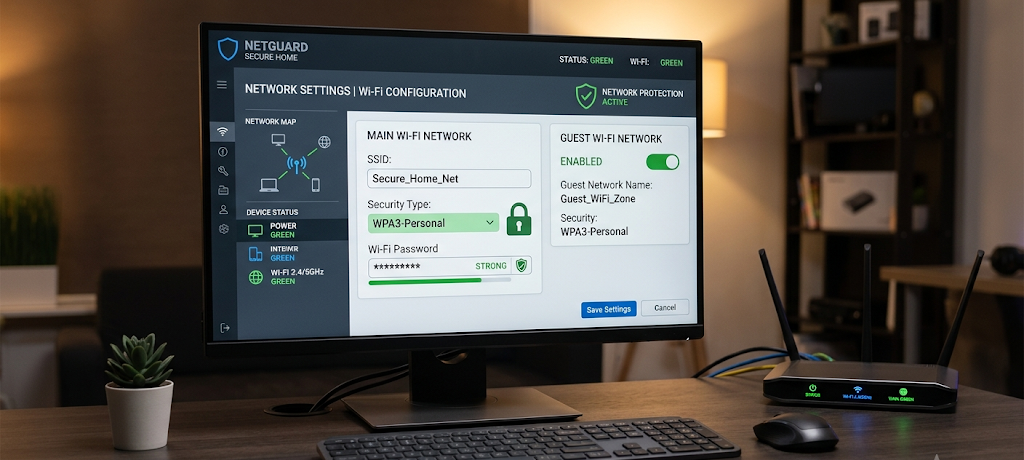
Most modern routers support WPA3 encryption which is recommended for security. If your router doesn’t support WPA3, then you can use WPA2, which offers decent security if you configure it properly. Avoid older security options such as WEP because they are outdated and can be easily compromised.
Set a solid password for the wireless network, which is separate from the password you use as the Wi-Fi router administrator. If you use the same password for both, then there is a risk that the person who breaks one password will gain access to the other. Many people prefer a long password or passphrase that is composed of a series of unrelated words, which is more difficult for the adversary to guess but may be easier for the user to remember.
Step 6: Create a Guest Network for Visitors
Guest Network is a dedicated wireless network used to provide internet access to guests while not granting them access to your home wireless network. This feature will be particularly beneficial as guests may be bringing in devices that are not fully secured or even updated. Guest devices are isolated from personal devices to decrease the chance of inadvertent exposure.
When establishing a guest network, make use of a separate network name and password. Most current routers will be able to offer guest Internet access via the management dashboard. You can also restrict some features, including restricting guest devices from communicating with devices on your network.
A guest network is also beneficial for smart home gadgets like smart speakers, cameras, and linked home appliances. Depending on the device, some Internet of Things (IoT) devices are less secure than others, so having a separate network will minimize the damage in the event of a breach.
Step 7: Update Router Firmware Regularly
Firmware is the software that is embedded in your router to keep it running. Firmware updates are created to make improvements in performance, bug fixes, and security vulnerabilities. Router users often overlook router updates, but the network can be left exposed to attacks that are known and have been disclosed based on the outdated firmware.
Make sure to review your router settings frequently for possible updates. Some routers will install the updates automatically and others will have to be manually installed. If your router can be programmed to do it automatically, you might want to do so to get critical security patches as soon as possible.
When updating to a new firmware, make sure to read the instructions from the manufacturer. The update process can be interrupted and when it gets to the incorrect firmware, there will be issues associated with the router. One of the easiest methods for securing the long-term security of a network is to maintain up to date firmware.
Step 8: Enhance Wi-Fi Speed and Performance
Security is paramount, but a good home network is also one that performs well. The location of the router can significantly affect how quickly and far Wi-Fi signals reach. Position the router in a middle of the room spot, out of the way of thick walls, heavy metal items, and electronic equipment that could affect wireless signals.
Don’t mount your router in cabinets or near the floor as this can affect the signal. The router will most likely have better coverage in your home if it is kept in an open and raised position.
It is also recommended to routinely monitor network devices. Some routers offer a features section that lets you see a list of all the computers, phones, and smart devices you are connected to. Elimination of unknown devices enhances security, and can impact performance if devices are ‘taking up’ the network unnecessarily.
Step 9: Turn On Other Security Settings
Some of the modern routers also come with other security features, which can offer additional security. Built-in firewalls, malware protection, parental controls and access restrictions can make managing your network a bit easier.
A firewall is a system that regulates traffic to and from a network and can prevent suspicious connections. If you have this feature turned on, it adds an extra layer of protection between your home devices and online threats.
Set up notifications if your router can do it, for weird activity, new device connections or security alerts. With these notifications you can easily detect issues before they start to cause security concerns.
Step 10: Adopt Good Network Security Behaviours
Protecting a home network is an on-going process. After initial setup, keeping good security practices is still necessary. Use a different password for the Wi-Fi network, particularly if you think someone has gained unauthorized access.
Don’t give out your key password for your main Wi-Fi network. Instead, use your guest network when you want to allow guests to connect. Also, ensure all connected devices are up-to-date as they can pose security threats when running outdated software.
Exercise caution when connecting devices to your network that you do not know. When installing smart home devices, check with the manufacturer about their security practices, and find out if the device is regularly updated. As each device becomes connected, there’s one more potential entry point, and awareness is a must.
Common Home Network Setup Errors to Steer Clear Of
There are some common but easy mistakes that beginners often make that make their network security weak. A common problem is using default passwords which are easier to remember. Another error is not updating the router due to the apparently normal Internet connection. Security issues can be hidden till the unauthorised activity takes place.
Other errors involve weak Wi-Fi passwords, lack of encryption, poor placement and sharing the same network with all devices. By avoiding these issues, security and performance can be enhanced.
A few extra minutes during set-up can save you from the big issues. A properly configured router will make the online world a more safe place for all household members.
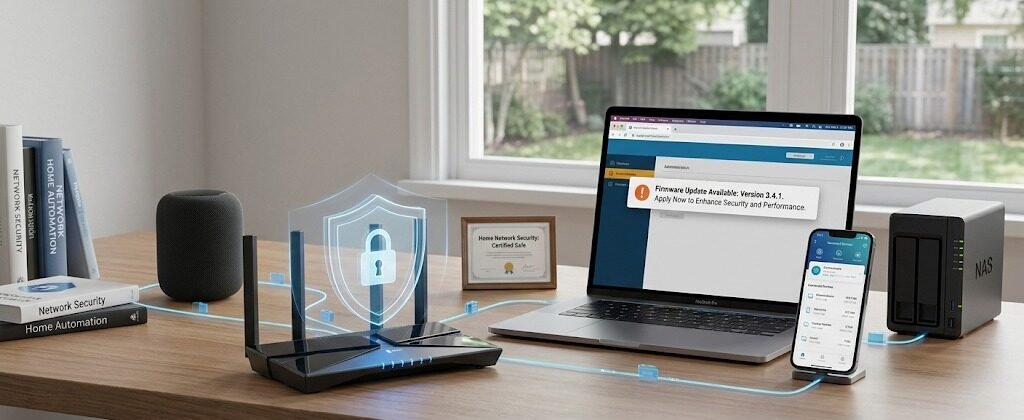
Final Home Network Security Checklist
Building a secure home network doesn’t demand a lot of technical expertise. Starting from the basics and taking it step-by-step builds a secure connection while maintaining privacy and connected devices. Changing default router settings, making strong passwords, using modern Wi-Fi encryption, using a guest network, updating the firmware and watching connected devices are the most crucial actions.
A secure network is not a “one and done” proposition. New devices connect to the internet, new security risks emerge and technology evolves. With proper maintenance and good security practices, your home network can stay fast, private, and secure.
This checklist can help newcomers to the Internet create a safer digital world for family members to explore, learn, work, and enjoy online services with a lighter sense of responsibility.