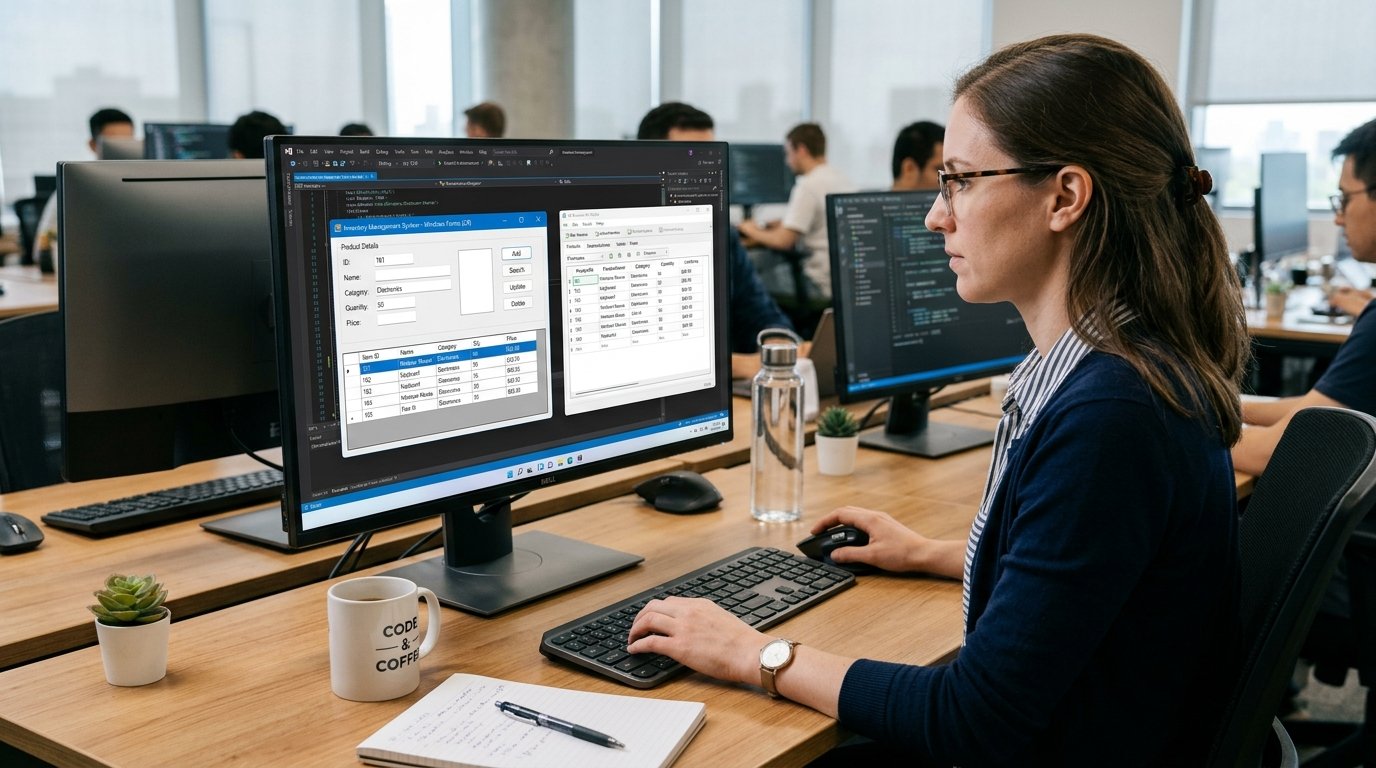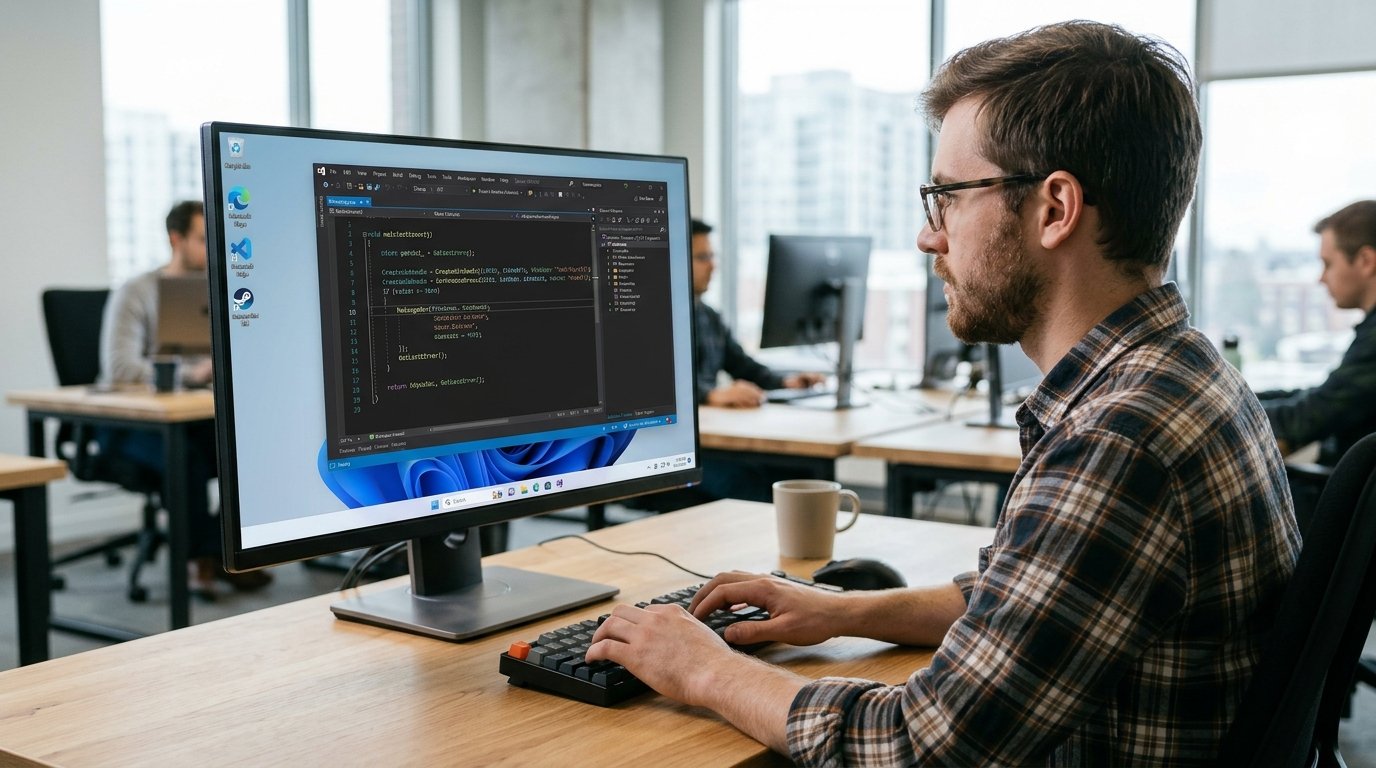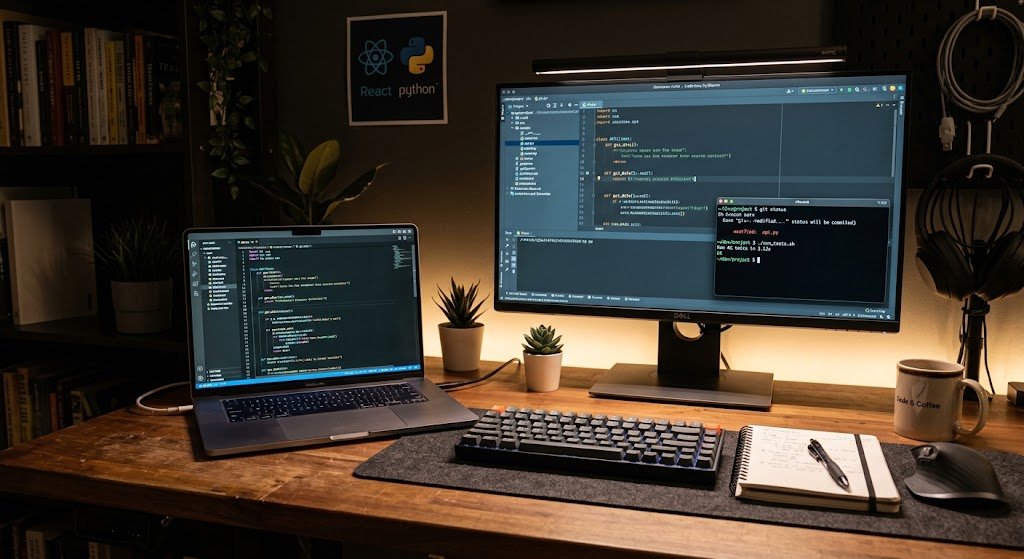
Programming is not about entering the lines of code into a text editor. Today, a developer uses a variety of tools to help them write, structure, run, test, debug, document, and maintain software efficiently. When you are just starting out, it can be much easier to use all of these tools as each one addresses a specific problem in the programming working process. A code editor is a software application used to create and edit the source code of a program, and an integrated development environment (IDE) is a single application that combines a number of programming functions.
Terminals offer a seamless interface for working with operating systems and development tools, whereas debuggers can be used to identify and comprehend issues within programs. Version-control systems make it easy for developers to keep tabs on changes to their projects, and package managers make external libraries easy to add. The workflow is completed by repositories, documentation tools and testing frameworks, assisting the developers in collaboration, understanding, verification and maintenance of software over time.
Why Programming Tools Matter
Programming tools are important because software development doesn’t just consist of coding. A novice could either develop a simple program in a code editor or as the project expands, handling files, locating bugs, installing libraries, testing functions, and managing changes could become cumbersome. These tasks can be addressed by the right tools that give organized solutions and decrease the amount of repetitive work which developers need to do manually.
They can also facilitate collaboration among developers, allow for code sharing, track changes, maintain a history of the project, and document software usage. Educating beginners on these tools early could thus help them understand the profession of software development. It is highly beneficial for the beginner to view programming as a whole process, one that includes planning, coding, execution, debugging, testing, documentation, collaboration, and maintenance.
Code Editors
The first programming tools that a beginner is going to use are going to be a code editor. It is a computer program designed for producing and editing source-code files, and typically offers some features that make programming easier than using a standard text editor. Some of the features that could be helpful are syntax highlighting, auto-indent, auto-completion, search/replace, file navigation, extensions, and formatting.
For instance, syntax highlighting uses different colors to distinguish programming keywords, variables, strings, comments and other things from the code which makes it easier to read. There are code editors for various programming languages that can handle a variety of projects, from small scripts to big applications. A beginner can learn to create files, organize a project in folders and can start to learn the structure and syntax of a programming language without getting overwhelmed with unnecessary complexity in a code editor.
How the Code Editors Facilitate Development
When developers are working with several files or large projects, code editors prove to be very helpful. Developers can browse a project’s structure with features like project explorers, quick file searches, integrated terminals, extensions, and code navigation without having to do it by hand. Some modern editors also can follow code formatting and offer suggestions as the code is typed, assisting the programmer to keep code consistent and identify some errors as early as possible.
Extensions can provide support for programming languages, frameworks, databases, version control, testing, and more. But a novice should know that editing doesn’t necessarily result in a good programmer. It is still important for developers to learn programming concepts, interpret error messages, think about and solve problems, and then write code to solve the problem. The editor merely offers a space which allows these activities to be more convenient, organised and efficient.
Integrated Development Environments
An integrated development environment, or IDE, is a program that integrates a number of programming properties in one application. Developers can typically do multiple of these things in a single development environment, rather than using different programs to edit code, run applications, debug, and manage project files. Get to know what integrated development environments (IDEs) offer: code completion, project management, debugging tools, build systems, testing support, syntax highlighting and more.
These are especially helpful for large applications with numerous components that need to interact with each other. Popular IDEs vary from language to language and platform to platform and some IDEs are geared towards specific software development. For beginners it is important to know that IDE is not a learning tool for programming basics. Rather, it gathers together a number of helpful tools and provides a structured area for developers to write, run, view and develop their projects.
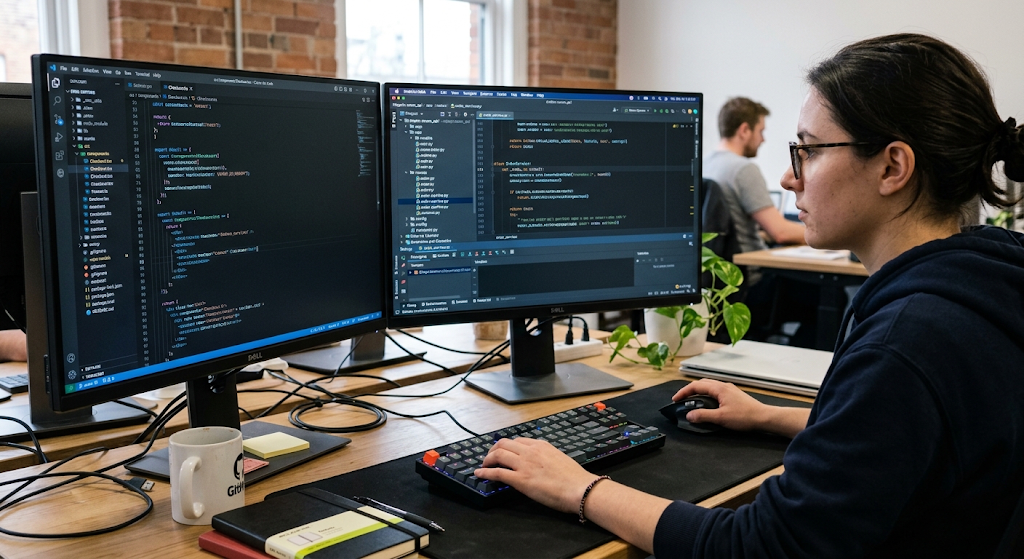
Compare Code Editors and IDEs
While code editors and IDEs may look the same, they’re typically built differently and with varying degrees of integration. A basic code editor is used for editing and managing source-code files, while an IDE typically provides editing and other development functions like debugging, building, testing and project management. Not everything is always different, as code editors could be given many IDE-like features via extensions and plugins. One of the most critical things to remember when selecting a tool with lots of features for a beginner is not to select the tool with the most features, but to see what features are helpful in the project you are building.
If the programming exercise is a simple one, it might suffice with a light editor and a terminal; if it is a larger application, it may be advantageous to use the integrated project management, debugging, testing and build features of an IDE. Understanding the two notions helps novices grasp the rationale behind the development environment choices of various projects.
Terminals and Command-Line Tools
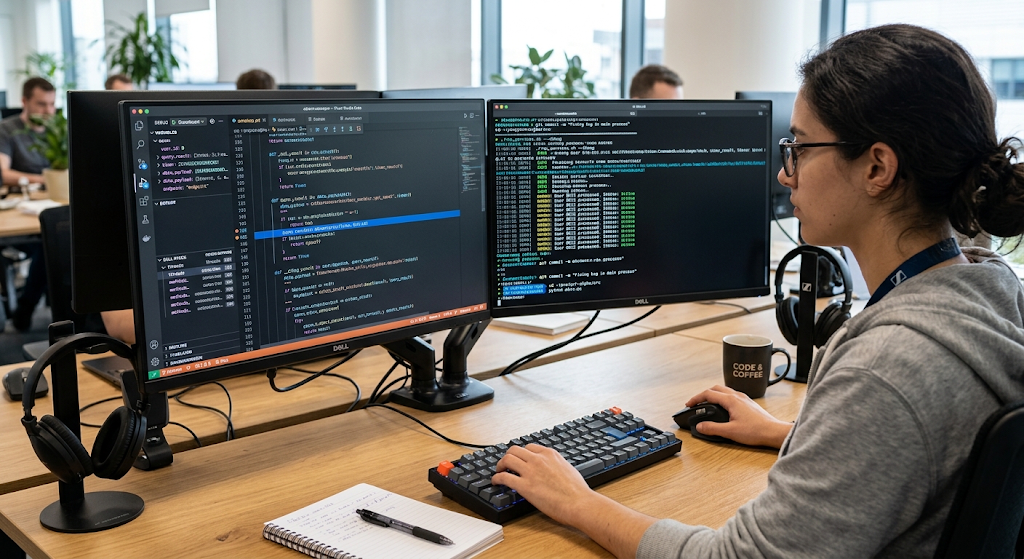
A terminal is a text-based interface that lets the user interact directly with an operating system and enter commands. While handy, graphical interfaces can be useful in programming only when certain actions are easier or faster to achieve in the command line. Terminals can be used to create and navigate directories, run programs, install packages, execute tests, start development servers, manage repositories, and automate repetitive operations. It is therefore important for a novice to get comfortable with basic terminal commands to get in touch with the development environment.
The terminal also gives context to the software running because the developer can see what commands, arguments, output, warning and error messages are appearing directly in the terminal. There are many professional development workflows that heavily rely on command line tools, particularly when developers are operating remote servers, cloud services, automated systems, containers and deployment environments where a graphical interface is not available.
Why Should Beginners Learn the Terminal?
The terminal is not always the easiest to use for beginners, as commands may not be as familiar as clicking buttons in a graphical application. But there’s a lot that can be gained from knowing a handful of essential commands. Various commands to navigate between directories, view files, run programs, install package dependencies, run testing tools, and use version-control systems. The most important part of understanding the terminal is to realise that many graphical development tools are running command(s) or operation(s) in the background.
After the beginners have got a grasp of how to use a terminal, they should be able to find programming tutorials more easily and be able to fix any problem in which a GUI was not sufficient in providing information. They can also script and automate repetitive processes with command line utilities. The idea is not to learn hundreds of commands, but to get familiar with reading the syntax of commands, arguments, interpreting output, and looking through documentation for unfamiliar commands.
Debuggers
Debugger: A program used to examine the execution of a program. If the software gives an unexpected output, it may not be possible to see what is happening in the code by reading it. A debugger is a program that enables a developer to look at what is happening in the program while it is running and see the values of variables, program flow and other information that might help to explain what’s going on. The breakpoint is one of the most helpful features of the debugger; it can cause the execution of a program to stop at a specific line of code.
The developers can then step through the code one line at a time and observe variables. This is often a more effective solution than the iterative code change and printing of temporary information. Debuggers are particularly helpful when you have logic that is complex, values that are unusual, conditional logic, and problems that you cannot easily reproduce by simply looking at your code.
How to Use Debuggers to Gain an Understanding of Errors
A debugger shouldn’t be used just to “automatically fix errors. It is principally used to gain insight into the operations of programs. For instance, if one of the programs gets the wrong answer, the programmer can stop the program at key points and see what values are used to calculate the answer. The developer can find out where the actual behavior differs from the expected behavior as he walks through the program.
This allows logical problem solving as the developers have to make a hypothesis about the problem, and evidence from the running program can be used to check their hypothesis. The use of breakpoints, stepping controls, variable inspection and call stacks are helpful to the beginner. As programs grow in size, and as errors are harder to find by reading line-by-line, these concepts take on more and more importance.
Package Managers
A package manager is a program that assists developers in installing, upgrading, removing and managing external software libraries and dependencies. Modern applications do not usually include only code that is written from scratch. Many developers have pre-made libraries which they use because they have been tested and work well; otherwise the developer might have to take the time to create all of the functionality. These libraries can be easily downloaded and version controlled by package managers.
They can also address interdependency conflicts, enabling developers to install multiple packages without having to do the work of finding each of the necessary components. There are various programming ecosystems and each has its own package-management system, but they all serve the same purpose. Beginners should be able to understand that by learning how package managers work, they can learn how modern projects use existing software components without needing to build the entire application again, while keeping track of all the software that an application requires to build and run.
Managing Dependencies Carefully
While external packages are convenient, it is also the developers’ responsibility to manage those dependencies. A project can require multiple libraries, and a library can require other packages. Package managers can ease the organization of these relationships and can keep track of project versions. This is a very important point as changes to a dependency without taking into account the compatibility can cause unforeseen issues. The beginning programmer must learn how to read dependency files, understand version requirements and depend upon the documentation given by package maintainers.
They should also do their best to not install packages just because they might seem useful without knowing what they do or if they’re suitable for the project. Well managed dependencies increase the software project’s predictability and simplify installation, reproduction, testing and maintenance by other developers. It also is significant when software is created in a collaborative fashion or when deployed on several computers and multiple environments.

Version-Control Systems
Version control systems are used by developers to track and document the changes of files through time. This is critical as software projects can change quickly, and developers require an accurate method to find out what has changed, when it happened and why the change has been made. A version control system can save older versions of a project so that the version of the project can be compared with the changes and the project can be put back to the earlier version when needed. It also enables collaborative development, which means that it can be used by a number of developers to work on the same project and record their individual contributions.
When various copies of a project are made like “project-final”, “project-final-new” and “project-final-really-new”, the developers can keep a clean history of the project using version control. Early exposure to version control teaches new users professional habits and the ways in which contemporary software development teams collaborate on changes to a shared codebase.
Repositories and Collaborative Development
A repository is a place to store and maintain files, versions and other information for a project. Repositories can be within the local machine of one of the developers or housed on a host machine. By enabling remote repositories, developers can share projects, collaborate with teammates, even check others’ changes, and have an important code backup. A common scenario is to create and/or edit a file, commit the changes to the version control system, and then synchronize the change to a remote repository.
Branches are also useful for developers to use when developing features or fixes isolated from the main project. Knowing about repositories is a valuable primer for people new to collaborative software development. It demonstrates how code can be developed in an individual developer’s workspace, and then shared with other developers to review, test, improve and maintain.
Documentation Tools
Documentation Tools assist developers in explaining how software works, how to use it and how different components relate to each other. Documentation may be written project instructions, installation instructions, API reference, configuration information, examples, technical explanations, and comments in source code. Good documentation is critical because developers often have to learn software that they didn’t build. Even a programmer who has written a program may require documentation at some point in time, when he returns to a project after a few months.
Documentation tools can be used to create a reference from the source code, organize written guides and present technical information in readable format. One of the best habits to get into when programming is to write down notes on decisions and instructions, because not everything is easy to understand. When there’s good documentation, there’s less confusion, and future developers will know how the project can be installed, used, modified and maintained.
Documentation as Part of Development Process
Documentation is not just for when it’s done, it’s for when it’s happening. It can be incorporated into the development from the start. Developers can write installation instructions, dependencies, how the important functions of the project work, and how users interact with the software. Documentation can also be used to clarify decisions that might not be easily apparent in the code. For instance, a developer might select a certain method due to a technology constraint or compatibility requirement.
If it is recorded, future developers won’t have to do the same investigation. For novices, it is a good rule of thumb to begin at the very basic stages by keeping a straight-forward project README file, adding helpful comments where they may be required, and documenting how to set up the project. As they work on increasingly complicated projects, they can develop specific documentation processes to create API documentation and structure larger technical knowledge bases.
Testing Frameworks
Testing frameworks offer a structured approach to testing software and ensuring that it behaves according to expectation. Rather than having to manually test all the features every time the code changes, developers can write automated tests that will repeat their tests and provide a report on whether the specified components of an application are still functioning. Depending on the testing approach, tests can be used to check individual functions, sets of components or larger sections of an application. It will enable developers to identify issues at an early stage and give them confidence when they modify existing code.
Testing frameworks typically include capabilities to organise tests, execute them, report errors, and possibly create additional information about test results. Some beginners might believe that testing is only needed for big professional applications, but doing the bare minimum of what is necessary to learn basic testing concepts in small projects can benefit programing practices. Writing tests invites developers to consider those conditions, as well as the behavior they anticipate, and uncommon inputs, and how components of a program should behave under various conditions.
Types of Tests
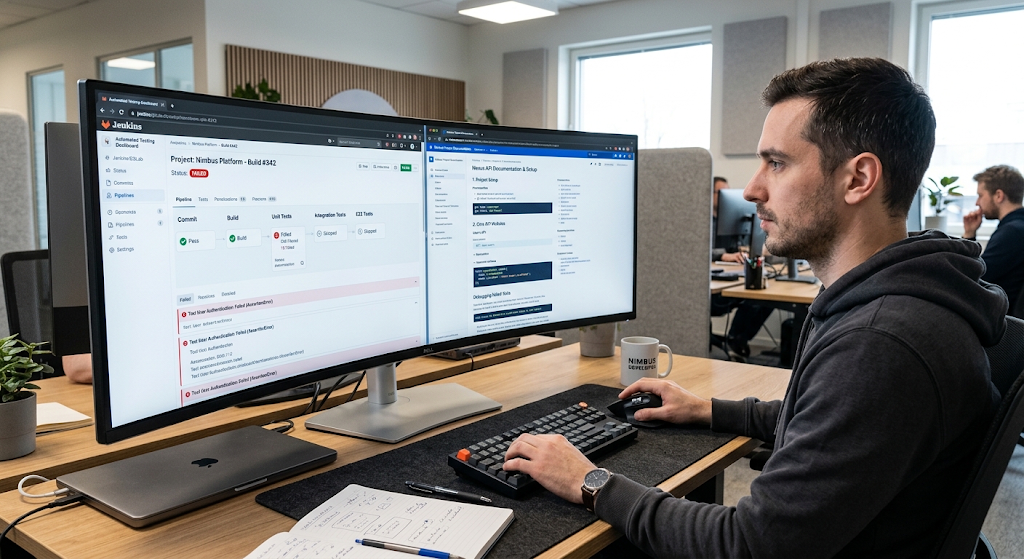
There are different levels of software testing and it is important to understand the levels for beginners to see why one method of software testing might not always be a substitute for another. Typically unit tests are on a fairly small unit of functionality, either a single function, or a single method. Multiple components may be combined, tested for correct interaction, and then integration tests may be applied, which can test the entire application workflows. They each serve a different purpose and developers may use multiple types of testing depending upon the needs of the project.
Testing is also related to debugging since the results of tests can give them valuable insights into the areas where software is behaving differently than they expected. A test, however, can’t be a guarantee that software is problem free. Only specific tests are used to assess specific conditions. It is the developers’ responsibility to write tests that have value, keep them current when the requirements evolve, and to combine tests with code review, debugging, documentation and other quality assurance techniques.
How Different Tools Work Together
When considering programming tools as such, it is easier to see their real value when these tools are looked upon as a single, connected flow of work. A developer can start coding with a code editor or an IDE, and organize a project. The terminal can then be used for the program to be used, installed dependencies, run tests or other commands. A package manager is used to supply the external libraries that are necessary for the application, and a debugger can be used to explore unexpected behavior. A version-control system keeps track of the changes made while developing a project, and a repository is where the project and its version-control history are kept.
Documentation tools describe the project and how it can be used and tested to ensure that unwanted behavior is not introduced because of changes made in the project. These tools provide functions and services at various phases of the same process, which helps with the transition from writing software ideas to writing software that can be tested, understood, shared and maintained.
How to Create a Practical Beginner Workflow
A novice programmer doesn’t have to learn all the programming tools, one at a time. One good way to learn them is to do small projects, learning them one at a time. Use a code editor or an entry level IDE to develop, save, arrange, and execute source-code files. Then get accustomed to some of the basic command-line operations and how output from programs is displayed. After projects start incorporating external libraries, get acquainted with the package manager for the language.
Version control can then be added in order to maintain a record of all significant changes and share projects via repositories. Then, novices can start to learn some basic debugging skills, write simple automated tests, and document their projects. The gradual process helps keep the development environment from overwhelming new programmers and introduces them to the key areas of tool usage that are common to all professional software development.
Conclusion
Programming tools are a system of tools that are interrelated and provide for almost all aspects of software development. The code editors and integrated development environments assist developers to develop and organize the source code, and the terminals give developers direct access to commands and development operations. Debuggers aid in exploring unexpected program behaviour and package managers ease the use of external libraries and dependencies. Version control systems keep track of projects and allow them to be collaborated on, and repositories hold and share projects.
Documentation tools help to make software more understandable and manageable, while testing tools enable developers to confirm that software continues to act the way they expect. It doesn’t matter if the beginner becomes an expert in all of these tools at once. Rather, they can be gradually acquired through actual projects and the significance of every tool in the bigger development procedure. This allows them to program more orderly, collaboratively, testable, and manageable as it becomes more complex during project development.