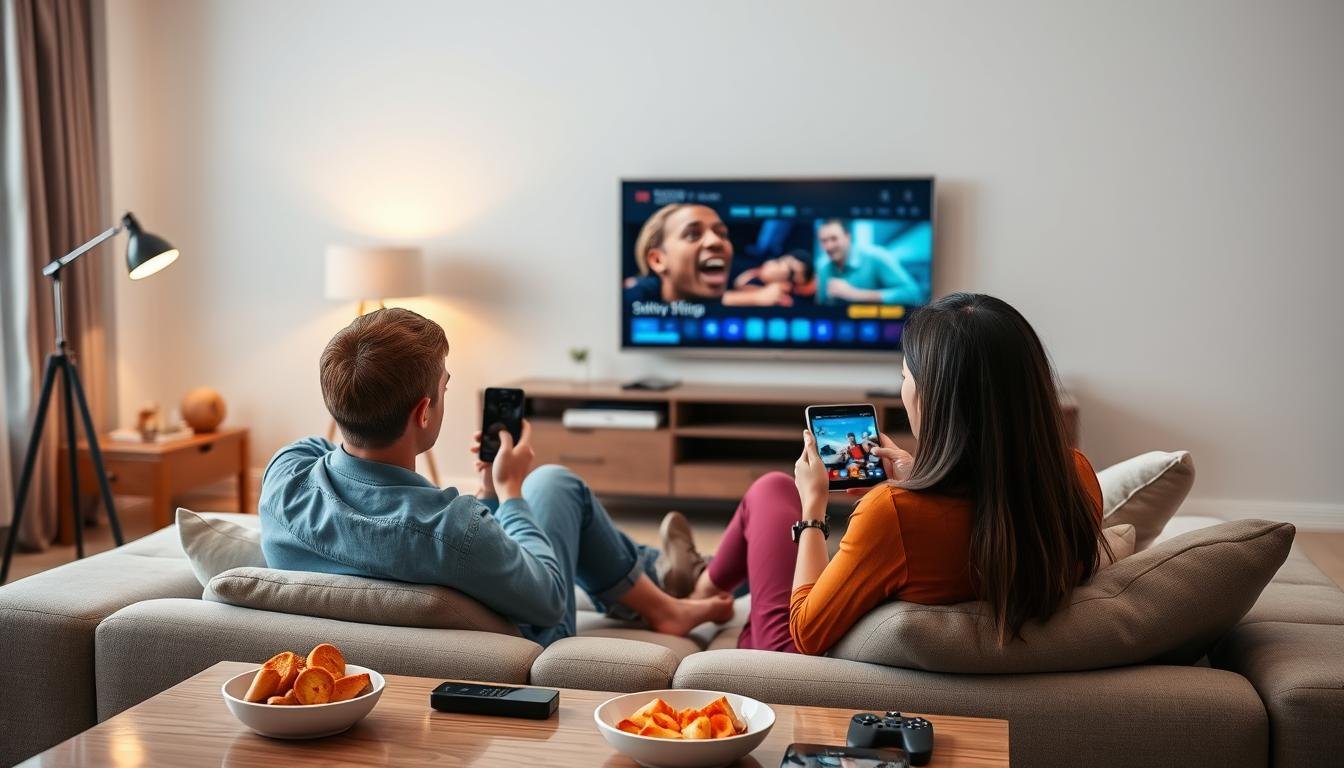
Streaming has become the centre of home entertainment in Sweden, but a fast internet plan does not automatically guarantee a smooth experience. A television can still buffer, lose picture quality or take too long to open a stream even when a speed test appears normal.
The reason is simple: reliable streaming depends on the complete route between the content source and the screen. The internet subscription matters, but so do the router, Wi-Fi conditions, television hardware, player application and settings inside the home.
Before changing providers or purchasing a new television, it is worth examining each part of that route. A few careful adjustments can often improve stability more than paying for a faster broadband package.
Start with the real source of the problem
When a programme freezes, many people immediately blame the streaming service. Sometimes that is correct, but several other factors can produce the same symptom.
The first useful test is to compare devices. Open the same lawful stream on the television and then on a phone or computer connected to the same network. If every device has trouble, the connection or content source may be responsible. If only the television struggles, the issue is more likely to involve its application, network connection or processing power.
Next, compare different services. If one application buffers while other major streaming applications work normally, the problem is probably not the entire internet connection. It may involve that application, its configuration or the source it is trying to access.
Testing one variable at a time is important. Restarting the router, reinstalling an application and changing several settings simultaneously may appear productive, but it makes the actual cause difficult to identify.
A speed test is useful, but it does not tell the whole story
Broadband speed is usually presented as one large number. That figure shows how quickly data was transferred during a short test, but video playback also depends on consistency.
A connection can reach a high peak speed and still suffer from brief interruptions. These interruptions may be almost invisible while browsing websites, yet noticeable during live video because the player must continuously receive new data.
Latency and packet loss can also affect the experience. Latency describes the time required for data to travel between points. Packet loss occurs when parts of that data never arrive correctly. Live streams are particularly sensitive because there is less time to recover than with a fully downloaded file.
Run several tests at different times of day rather than relying on one result. Test close to the router and again beside the television. A large difference between the two locations suggests that the problem is inside the home network.
Ethernet remains the simplest stability upgrade
For a stationary television or streaming box, a wired Ethernet connection is often the most dependable option. It avoids interference from neighbouring networks, thick walls and other wireless devices.
This does not mean Ethernet always produces a higher headline speed. Its main advantage is consistency. A stable connection is generally more useful for television than a faster connection that repeatedly rises and falls.
If the router is far from the television, a long cable may not be practical. A properly installed network cable through the wall is the cleanest solution, but a mesh Wi-Fi system may be a reasonable alternative in larger homes.
Powerline adapters can also carry network data through electrical wiring, although their performance varies considerably between buildings. The condition and layout of the electrical system influence the result, so they should be tested rather than assumed to work perfectly.
Improve Wi-Fi before replacing the router
When a wired connection is impossible, router placement becomes important. Wi-Fi performs poorly when the router is hidden inside a cabinet, placed behind a television or surrounded by large metal objects.
Position it in an open and reasonably central location. Elevating it from the floor can also help. The objective is not to make the router visible as a decorative object, but to reduce the number of obstacles between it and the devices using it.
Modern routers commonly provide different frequency bands. The 5 GHz band can deliver strong performance over shorter distances, while 2.4 GHz often reaches farther but is more exposed to congestion. The better choice depends on the distance, walls and nearby wireless activity.
If the television is in the next room, 5 GHz may work well. If it is several rooms away, 2.4 GHz may produce a steadier connection despite its lower potential speed. Test both instead of selecting one based only on its name.
In apartments, neighbouring routers may compete for the same channels. Automatic channel selection normally handles this, but restarting the router occasionally allows it to reassess the local environment.
The television itself may be the bottleneck
Smart televisions are designed to perform many tasks at a competitive price. Their internal processors and storage can therefore be modest compared with dedicated streaming devices.
An older television may display an excellent picture while its software has become slow. Menus begin to lag, applications close unexpectedly and programme guides take longer to load. This is not necessarily an internet problem.
Start by removing applications that are no longer used. Check for television firmware updates and install updates for the player application. Restarting the television completely can also help, especially if it normally remains in standby mode for weeks.
A full restart means disconnecting power briefly rather than simply pressing the remote’s power button. This clears temporary processes that may continue running during standby.
If the screen remains good but the smart platform feels outdated, replacing the entire television is unnecessary. A certified streaming device can provide a newer operating system, better application support and more responsive navigation.
Choose a device according to the household
There is no single streaming device that suits everyone. Apple TV may appeal to households already using iPhones and Macs. Android TV or Google TV devices offer a broad selection of applications, while Fire TV products provide another compact option.
The important distinction is between certified devices and generic boxes carrying misleading specifications. A low-cost box may advertise large amounts of memory or advanced video support but receive few security updates and have limited compatibility with major applications.
Before buying, check:
- whether the device receives regular system updates;
- whether the required applications are available in its official store;
- whether its remote is comfortable for daily use;
- whether it supports the television’s resolution and audio equipment;
- whether it includes Ethernet or supports a reliable adapter;
- whether the manufacturer clearly identifies the operating system version.
Apple users who want device-specific instructions can consult this practical Apple TV setup and application guide before selecting a player.
Understand the difference between a service and a player
This distinction prevents many configuration problems. A player application is the software used to organise and play media. It does not automatically include channels, films or a subscription.
A separate service provides access credentials or a compatible playlist. Users should choose sources that are transparent about their identity, terms and rights to distribute the content they offer.
This distinction applies whether someone searches for IPTV, IPTV Sverige or another form of television delivered through an internet connection. Installing a player does not create a content package, and purchasing access does not necessarily provide the best player for every device.
Compatibility must therefore be checked in both directions. The service must provide a format supported by the application, and the application must work properly on the chosen television or streaming device.
For households comparing devices and setup options, Real Stream IPTV provides Swedish information about compatibility, subscriptions and multi-screen configurations. Any service should still be evaluated according to its current terms, device requirements and content permissions.
Keep applications and login information organised
Many streaming problems begin with small configuration errors. A copied server address may include an extra space. A password may contain a character that looks similar to another. A playlist may have expired, or a television may still hold outdated information in its cache.
Store the original setup email or instructions safely. Avoid sharing credentials in public messages or screenshots. If an application suddenly stops working, verify the account status and details before deleting everything.
Clearing an application’s cache can resolve problems involving outdated local data. However, clearing all application data may also remove saved profiles and settings. Record the required details before performing a full reset.
Reinstallation should normally be a later step, not the first response to every problem. Begin with a restart, verify the network and refresh the application’s content. Reinstall only when simpler checks fail.
Readers configuring a new device can follow this step-by-step streaming installation guide to understand the general process before entering any account information.
Configure the programme guide carefully
An electronic programme guide, commonly called an EPG, makes live television easier to navigate. When it displays the wrong programme or time, users often assume the entire service is broken.
Sweden uses Central European Time and observes seasonal clock changes. An incorrect time-zone setting can shift the guide even when the streams themselves work normally.
First, ensure the television obtains its date and time automatically. Then check whether the player application includes an EPG offset. Avoid changing several time controls at once, because one adjustment may duplicate another.
If the guide is empty, refresh its data manually. Large programme guides may take time to process on older televisions, particularly when storage is limited. Reducing unnecessary categories or using a more capable external device can improve responsiveness.
Multi-screen use requires more than fast broadband
A household may have a television in the living room, another in a bedroom and several mobile devices. Installing an application on all of them does not necessarily mean they can stream simultaneously.
The service must permit the required number of concurrent connections. If the account allows only one stream, starting another may stop the first or produce an authentication error.
The home network must also carry the combined traffic. Two stable streams, cloud backups, video calls and game downloads can compete for the same connection. Problems during busy evening hours may therefore reflect household activity rather than a fault with one application.
Router features such as device prioritisation can help, but they are not a substitute for sufficient capacity. Schedule large downloads outside viewing hours and connect fixed devices by Ethernet where possible.
The terms Nordic IPTV and IPTV Nordic are often used when describing services designed for Scandinavian viewers, but the same technical rule applies: the number of registered devices and the number of simultaneous streams are not always identical.
Picture problems are not always network problems
Buffering receives the most attention, but picture and sound problems can originate elsewhere.
A black screen with working audio may indicate a decoding issue. The stream is reaching the device, but the player cannot display its video format correctly. Switching between the application’s available hardware and software decoding options may help.
Sound without dialogue can involve the audio format or television output settings. If a device is connected through a receiver or soundbar, test the television speakers directly. This isolates the external audio equipment.
Unnatural colours or a blank screen after enabling high dynamic range may result from an HDMI cable, port or display setting. Use a suitable cable and test another HDMI input before changing the entire setup.
Automatic resolution switching can improve compatibility, but some televisions react slowly when moving between frame rates. If the screen repeatedly flashes during playback, try a fixed resolution and compare the result.
Build a simple troubleshooting routine
A consistent order saves time when something goes wrong:
- Confirm whether the issue affects one stream, one application or every service.
- Test another device on the same network.
- Restart the player application.
- Restart the television or streaming device completely.
- Restart the router and allow it to reconnect.
- Test Ethernet or move temporarily closer to the router.
- Verify account details and service status.
- Refresh the playlist or programme guide.
- Update the application and device software.
- Reinstall the player only after recording the required settings.
Write down what changed and whether it improved the problem. This may seem unnecessary, but it prevents repeating the same steps and provides useful information if technical support is needed.
Security should be part of the setup
Download applications from official stores whenever possible. Unverified installation files may contain modified software, intrusive advertising or malicious code.
Review permissions before granting access. A television player may reasonably need network and media access, but unrelated requests should be treated cautiously.
Use a unique password for the customer account and avoid sending credentials through public channels. If payment is required, check that the checkout page uses HTTPS and identifies the merchant and applicable terms.
Security also includes software maintenance. Devices that no longer receive updates gradually become less suitable for sensitive accounts. A supported external player can extend the useful life of the television without depending on obsolete smart software.
A stable system is built, not purchased in one step
The best home-streaming experience rarely comes from one dramatic upgrade. It comes from several sensible choices working together: a consistent internet connection, a well-positioned router, suitable hardware, current software and a compatible, lawfully sourced service.
Begin by identifying where the problem occurs. Use Ethernet for stationary equipment when practical, keep applications updated and distinguish the player from the content provider. In multi-screen homes, confirm both network capacity and the number of permitted simultaneous connections.
Most importantly, avoid making several changes at once. Careful testing produces a more reliable result and makes future problems much easier to solve. For Swedish households, that methodical approach is often the difference between repeatedly chasing buffering and enjoying a television setup that simply works.