In today’s world, where everything is connected through the internet, having control over your home or office Wi-Fi is essential. Whether you want to change your password, manage connected devices, or set parental controls, accessing your TP-Link router’s login page is the very first step.
But here’s the catch: many users often struggle with finding or logging into their TP-Link dashboard. The process may sound technical, but the good news is—it’s much easier than you think. In this article, we’ll walk you through everything you need to know about accessing your TP-Link login page easily, along with troubleshooting tips, examples, and insights to help you manage your network like a pro.
Why Do You Need to Access Your TP-Link Login Page?
Before jumping into the step-by-step guide, it’s important to understand why accessing the login page matters.
- Change or update Wi-Fi password: If your neighbors or guests know your Wi-Fi password, you might want to reset it.
- Improve network security: Updating firmware or settings ensures your router is protected from threats.
- Manage connected devices: You can see who’s connected and block unauthorized users.
- Set parental controls: Keep your kids safe online by managing what websites they can access.
- Optimize performance: Adjust settings like channel selection or bandwidth for smoother browsing.
In short, the TP-Link login page is your control center for managing your Wi-Fi efficiently.
Step-by-Step Guide: How to Access the TP-Link Login Page
Accessing the login page is simple, but you need to follow the steps correctly. Here’s a clear guide to make sure you get it right.
Step 1: Connect to Your TP-Link Network
Make sure your device (PC, laptop, or smartphone) is connected to the TP-Link router’s Wi-Fi or via Ethernet cable. If you’re not connected, you won’t be able to access the page.
Step 2: Open a Web Browser
On your connected device, open any browser (Google Chrome, Firefox, Safari, or Edge).
Step 3: Enter the Default IP Address
In the browser’s address bar, type one of the following default IP addresses and hit Enter:
- 192.168.0.1
- 192.168.1.1
Alternatively, you can try entering tplinkwifi.net or tplinklogin.net.
👉 For a detailed breakdown of this process, you can check this guide on TP-Link login.
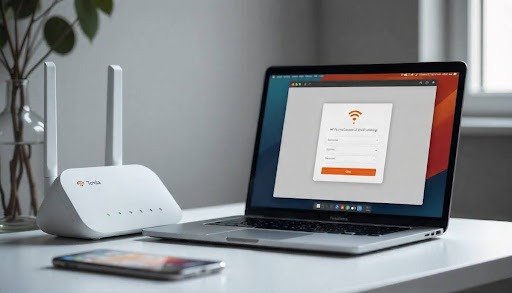
Step 4: Enter Login Credentials
A login window will appear asking for your username and password. For most TP-Link routers, the default credentials are:
- Username: admin
- Password: admin
(Note: If you have changed your credentials in the past, you must use your updated login details.)
Step 5: Access Router Settings
Once logged in, you’ll land on the TP-Link dashboard where you can manage all router settings, including network, security, and advanced features.
Common Login Issues and How to Fix Them
Even though the process is straightforward, many users face challenges accessing the TP-Link login page. Let’s look at common problems and their solutions.
Problem 1: Forgot Login Credentials
If you’ve changed your username or password and forgotten it, the easiest solution is to reset your router.
- Press and hold the reset button (usually at the back of the router) for about 10 seconds.
- The router will reboot and return to factory settings.
- Use the default credentials (admin/admin) to log back in.
Problem 2: IP Address Not Working
Sometimes typing 192.168.0.1 or 192.168.1.1 won’t load the login page. Here’s what to do:
- Check your router’s label (usually underneath) for the correct IP.
- On Windows, open Command Prompt and type ipconfig. Look for the Default Gateway—that’s your router’s IP.
- On Mac, go to System Preferences > Network > Advanced > TCP/IP to find the router’s IP.
Problem 3: Login Page Not Loading
- Clear your browser cache.
- Try a different browser.
- Disable VPN or proxy settings.
- Restart your router and device.
Problem 4: No Internet Connection
Even if your router has no internet access, you can still log in locally. Just make sure your device is connected directly to the router via Ethernet or Wi-Fi.
Tips for Securing Your TP-Link Router
Once you’re logged in, it’s smart to secure your Wi-Fi network. Cybersecurity threats are real, and routers are often the first target. Here’s what you can do:
Change the Default Login Credentials
Leaving your username and password as “admin” is risky. Change them to something unique and secure.
Update Firmware Regularly
TP-Link releases firmware updates to patch vulnerabilities. Go to System Tools > Firmware Upgrade and check for updates.
Use WPA3 (or WPA2) Encryption
Under Wireless Security, make sure you’re using WPA3 or WPA2 encryption instead of outdated WEP.
Hide Your SSID
If you don’t want your network visible to everyone, you can hide the SSID. This adds another layer of security.
Enable Firewall
Turn on your router’s built-in firewall for additional protection against attacks.
Advanced Settings You Can Access from the TP-Link Login Page
Once you’re inside the TP-Link dashboard, you’ll notice several advanced features. Some popular ones include:
Parental Controls
Restrict internet access for specific devices or block inappropriate websites.
Quality of Service (QoS)
Prioritize bandwidth for important tasks like gaming or video calls.
Guest Network
Create a separate Wi-Fi network for visitors so they don’t use your main password.
MAC Filtering
Allow or block devices based on their MAC address for tighter security.
Port Forwarding
Set up advanced configurations for gaming consoles, servers, or cameras.
Why TP-Link Stands Out Among Routers
TP-Link is one of the most popular router brands worldwide—and for good reason. According to IDC market reports, TP-Link has consistently been among the top router vendors globally, serving millions of households.
Some benefits of TP-Link routers include:
- Affordable pricing: High performance without breaking the bank.
- Easy setup: Even non-technical users can set up in minutes.
- Variety of models: From budget-friendly to high-end gaming routers.
- Reliability: Known for stable connections and long-lasting hardware.
If you’re considering upgrading or replacing your router, you can explore the latest models here: TP-Link.
Real-Life Example: How One Family Solved Their Wi-Fi Issues
Take the case of a family in New York. They noticed their internet was lagging, especially during online classes and video calls. After accessing their TP-Link login page, they:
- Changed the Wi-Fi channel to reduce interference.
- Set up a guest network for visitors.
- Limited gaming console bandwidth during work hours.
The result? A smoother, faster internet experience with zero interruptions during important calls. This simple step of accessing the login page completely transformed their network management.
Frequently Asked Questions (FAQs)
1. Can I access my TP-Link login page from my phone?
Yes! Simply connect your smartphone to the router’s Wi-Fi, open a browser, and enter the default IP address.
2. What if I don’t know my TP-Link router model?
The model number is usually printed on the back or bottom of the router.
3. Is TP-Link free to use?
Yes, accessing the login page and managing your router settings does not cost anything.
4. Can I manage my router remotely?
Yes, with the TP-Link Tether App, you can log in and manage your network from anywhere.
5. How often should I update my router settings?
It’s recommended to review and update settings (like passwords) every 3–6 months.
Conclusion
Accessing your TP-Link login page isn’t as complicated as it seems. By following the simple steps of connecting to your network, entering the default IP, and using your credentials, you can easily manage and secure your Wi-Fi.
From setting parental controls to optimizing bandwidth, the TP-Link dashboard gives you the power to take full control of your internet. And if you’re thinking about upgrading your router, TP-Link remains one of the most reliable and affordable choices in the market.
So, the next time you want to tweak your Wi-Fi settings, don’t stress—it’s just a few clicks away.