Introduction
For enterprises, educational institutions, software developers, and everyday users, Windows desktop applications are critical for accessing dependable tools for daily computing. Native Windows apps can take advantage of the OS features directly, and can offer quick and responsive experience without relying on the web browser entirely, from productivity software, inventory management systems, and financial applications, to creative products. Yet the expectations of the users have shifted. The modern applications should be expected to have an attractive user interface, easy navigation, accessibility, efficient performance, and easy installation. Developers are therefore required to have frameworks that will blend the dependability of desktop software with modern design approaches. WinUI 3 and the Windows App SDK deliver the technologies to fulfil these expectations, while still delivering a seamless application that supports the Windows environment.
WinUI 3 is a new native user interface framework for the Windows desktop platform, which lets UI developers use XAML and C# or C++ to build Windows desktop apps. The Windows App SDK offers a wider suite of APIs, libraries, and development features that can complement the use of WinUI 3 and be used with applications developed using other frameworks. These technologies can work together, enabling contemporary desktop applications to be developed without having to write everything within a Web browser. They provide important information for developers on how they work, how to set up a development environment, and how to package, navigate, and implement controls and notifications. This guide will discuss these concepts with examples and Microsoft documentation.
Getting Started in WinUI 3 and Windows App SDK
WinUI 3 is the new native user interface (UI) framework for Windows desktop applications, developed by Microsoft. It offers styling, layout containers, controls, and a programming model based on XAML which developers can leverage to build interfaces in line with today’s Windows application design. It has buttons, text fields, and other navigation elements, lists and menus that are essential for many common desktop interactions. When suitable for a project, developers can mix XAML markup with C# application logic, or leverage C++ when required. WinUI 3 is not a standalone framework, but rather comes as a part of Windows App SDK. This arrangement provides applications with access to the latest UI components and a growing number of Windows development APIs and allows it to support desktop application scenarios.
The Windows App SDK is more than just an interface design tool, it also offers APIs for window management, application lifecycle management, notifications and more of Windows application features. A significant difference is that the Windows App SDK is not a user interface framework per se, as is WinUI 3. Instead, it offers a collection of technologies to develop with WinUI 3 or integrate into an existing application developed with Windows Presentation Foundation (WPF), Windows Forms, and Win32. It’s also released independently of the Windows OS so that the company can release supported features and enhancements without having to wait for every capability to come with Windows OS updates. Developers should still review the documentation for each API’s requirements and supported Windows versions before deciding on features for production applications, however.
Set Up the Development Environment
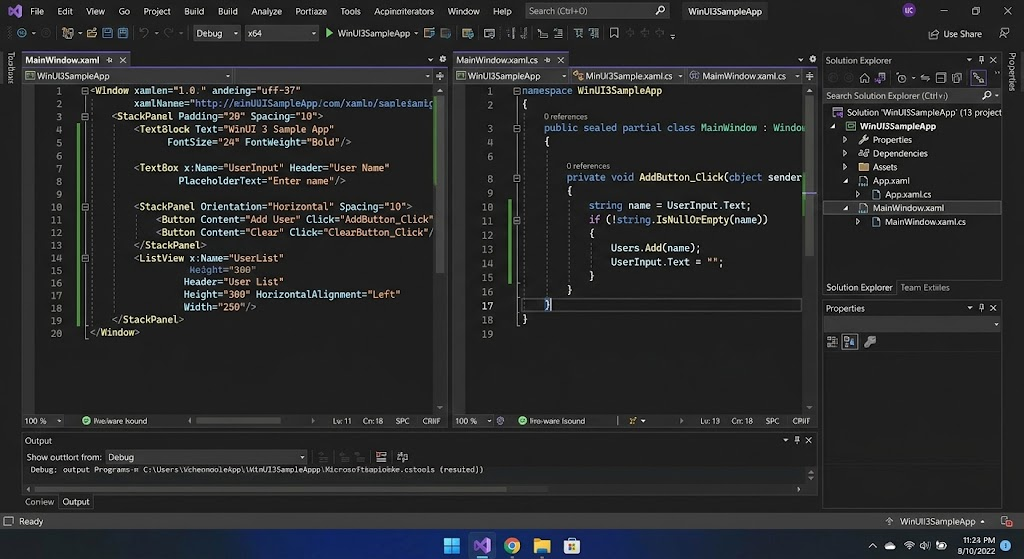
The first step in a successful WinUI 3 project is to get the development environment right. Visual Studio is a popular developer environment for a Windows machine, and Visual Studio.NET is the one for a PowerPC machine.NET Development Components and Windows App SDK Tooling installed. The environment may need the Windows App SDK extension, a compatible .The relevant Windows SDK components and NET version. The exact requirements may vary from release to release and so it is best to check Microsoft’s setup instructions prior to installation to avoid compatibility issues. The developers also need to ensure that their computers can be used with the version of Windows they plan to develop for, and that the project type they chose is compatible with the programming language and deployment model used.
Once installed, open Visual Studio and use the WinUI application template to create a new project. If you prefer to work with . (c#), you should choose a C# project.NET would be the choice if the application requires native C++ development, then go with a C++ option. Enter a project name, select a location, and set up the desired settings from the installed template. After creation, Visual Studio generates the initial structure of the application, which consists of XAML files for its interface and source files relating to its logic. The developers can then execute the starter application, and look inside its default window and edit the contents. See the Getting started with Windows app development documentation on the Microsoft website for more information on choosing the right way to develop a Windows app and preparing a development environment.
Creating Win UI 3 Controls-Based User Interfaces
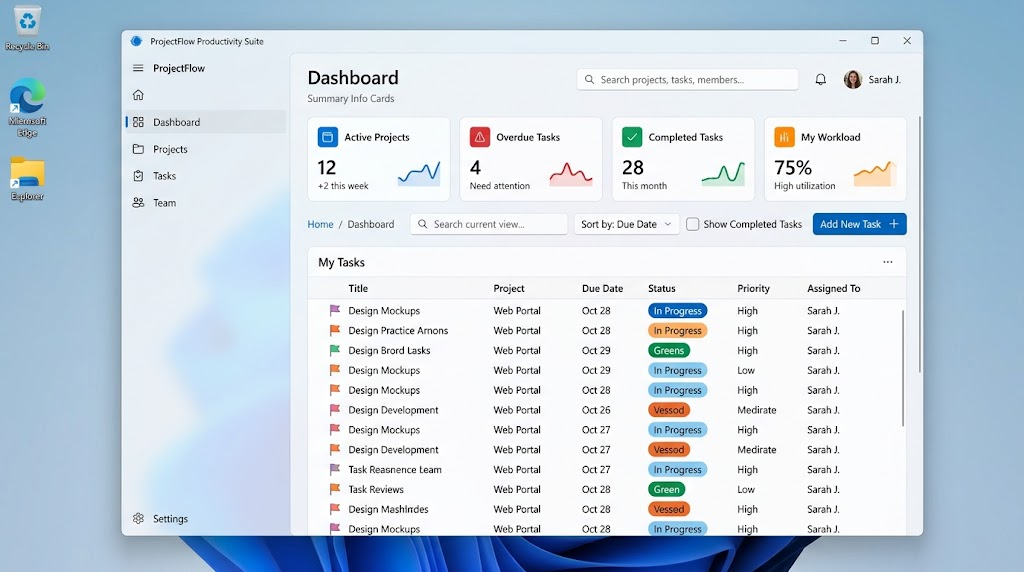
WinUI 3 offers a library of UI components that are available to desktop app developers to help them use the same component in multiple projects. Button: Clicks a button to perform an action, TextBox: Text entry, CheckBox: An independent selection, and ComboBox: A set of options presented. ListView or a similar collection control can be used to display multiple records and a navigation control may be added to an application where there are several pages or functional areas. Most of the visual structure can be specified in XAML, thereby separating the visual structure from the C# logic code for the application. The separation allows interfaces to be easily monitored, maintained, and updated as the project evolves.
Built-in controls also make applications more interactive as they follow the Windows interaction pattern. For instance a settings page can include text labels, toggle controls, selection fields, buttons and so on, while all of these need not be designed from scratch. You can adjust spacing, alignment, size, colors, and typography, but still retain the underlying control behavior of the control. But the customization should not compromise on accessibility and usability. Communicate the function of controls, make keyboard elements accessible, and keep text readable. But if a standard control already exists which is sufficient for the application, it is generally better to use the existing control than to create an alternative one. Microsoft’s official documentation for WinUI is available and details the framework capabilities and offers tools and resources for you to learn about the available controls and design practices.
XAML and Application Logic
XAML is a declarative markup language that describes an application’s interface. Developers can not only define controls, layouts, properties, and relationships in a readable markup structure, but they can also construct every visual element using procedural code. Generally, a XAML file in a WinUI 3 app defines the look of a window or page and a C# file defines events and other application behaviour. In XAML, for instance, a button may have a handler that specifies the method for handling the click event, and the C# method may change the content of a label that shows a message in the user interface. This is a nice way to differentiate between presentation and behavior, but for larger projects, you may need to use other architectural patterns, for example, the Model-View-ViewModel (MVVM) pattern.
As an application scales up, markup and application logic become more useful to separate. A small utility may have just one window and a couple of controls and maybe just a few event handlers, whereas a larger business application may have data models, services, navigation logic, validation, and persistent storage. Having these duties as separate classes simplifies testing and maintenance. Do not place all operations within one window – this results in needless dependency and makes it difficult to change in future. They must also verify the input from the user and process error conditions that are likely to occur – don’t assume that all operations will go without a hitch! For a beginner, it is better to begin by learning from a simple interface and progressively add more classes to learn how WinUI 3 integrates declarative UI design and traditional programming practices.
Creating Navigation Between Application Pages
Navigation helps users to shift among the various sections of an application without being disoriented on where to find information or features. A simple utility may require just one page, whereas a customer management, inventory control or project management application could require multiple pages. WinUI 3 includes navigation-related controls such as NavigationView that displays destinations in a sidebar, an adaptive navigation pane or other supported configuration. Developers can link navigation items to various pages for each of the various functions, such as a dashboard, records list, settings screen, or a help section. Giving the interface a familiar layout makes it easier for users to locate features more easily and provides structure to the application.
A common use of Navigation is to make a link between a NavigationView selection event and some logic that will load the relevant page in a content area. The application recognizes the selected destination and guides to the appropriate page in the frame/navigation structure of the project. When navigating from one location to another, developers should keep in mind that users may need to go back to the previous page, save or remember their search results, or remember what they had filled in on a form. These choices impact the overall experience, especially in apps that have a complicated workflow. Navigation can be keyboard-driven and should be accessible with other assistive technologies, not just by mouse. Microsoft’s Windows app controls and design documentation offers tips on selecting and organizing controls to facilitate user-friendly, consistent application navigation.
Using Remainder and Blockquotation in Writing
A Responsive Layout Design is when an app can be resized or run on an app with a different screen dimension without losing usability. In desktop mode, applications can be maximized, placed next to other windows or used in small window sizes. A fixed width interface can be hard to use if the amount of space varies. The layout containers Grid, StackPanel, and RelativePanel are supported in WinUI 3, which can be used to group controls based on the available space and the layout relationships. Elements can be presented in rows and columns using a grid and in a sequence using a stack panel. With these containers, layouts can be built up that change more naturally than layouts with fixed coordinates.
Developers need to think about what will happen to the interface if it is smaller than its intended size, but not when the app is almost finished. A wide window could be designed with a navigation pane on the side, and a narrow window could have a more compact design. These changes can be controlled with adaptive visual states, window-size checks and layout properties. All text should flow correctly, essential controls should not be buried, and collection views should not require horizontal scrolling that is not necessary. Test with multiple window sizes and various display scaling options as an interface that fits on one screen can be different on another. The Windows app layout documentation from Microsoft discusses the principles and techniques of windows app layout to create interfaces that will work well when window size changes.
Integrating Windows Notifications
Applications can use Windows notifications to share useful information even when the users are using applications in other parts of the computer. Some examples are reminders, completed downloads, sync results, and alerts for changes that need to be addressed. App notifications are an API introduced in Windows App SDK for desktop modern apps. This is the suggested starting point for new WinUI 3 apps, instead of automatically copying over old apps that use the UWP-specific ToastNotificationManager API. Notification should be relevant, concise and should be directly related to an application event. For example, an inventory application could alert an authorized user that a scheduled report has been ready, or a task manager could remind an authorized user of an upcoming deadline.
Developers must refer to the API requirements for the packaging model and Windows App SDK version of the API to implement notifications. Local notifications triggered by an app are also not the same as push notifications sent via a cloud service, and background notifications may add to the configurations. The application also has to register and manage notifications in the supported API pattern. Developers should take care not to send too many alerts, or to send sensitive information that may be shared on a screen. A proper notification should tell the users what happened and where applicable give a clear entry point into the app to view the relevant section of the app. The Windows notifications documentation from Microsoft describes the different approaches to notifications, the differences between them, and the guidance for implementing notifications in the current Windows application development.
Designing Web Applications Using JavaScript and PHP
Packaging dictates the method used to install, identify, update and distribute an application to users. New projects using WinUI 3 are usually set to be packaged using the MSIX packaging model, which is a standard way of packaging projects and can be integrated with Windows features that need package identity. MSIX can enable cleaner installation and removal, reliable package management, and distribution via Microsoft Store. Where an application requires some platform integrations such as some background activities and notification scenarios, package identity is particularly important. Understanding how packaging isn’t just a last step in exporting, but it can impact on the way the application accesses the features of Windows and how users are updated.
There are a number of deployment options to be considered. A packaged application can either be self-contained with necessary Windows App SDK runtime components, or framework-dependent deployment can be used if the target computer is running the Windows App SDK runtime. The former may lead to a smaller application distribution while the latter may lead to a smaller runtime distribution, but a larger application distribution. Some packages that already exist could leverage a package identity that is external to the package and still include an existing package installer and application file structure. For supported scenarios, packaged deployment is also available, and again with different elements and restrictions. The distribution of a developer’s apps should depend on the type of users, update process, necessary platform features, and installation environment. These options are described in more detail in the following Microsoft’s official packaging and deployment guide: https://learn.microsoft.com/en-us/windows/apps/package-and-deploy/.
A Simple WinUI 3 Sample Application
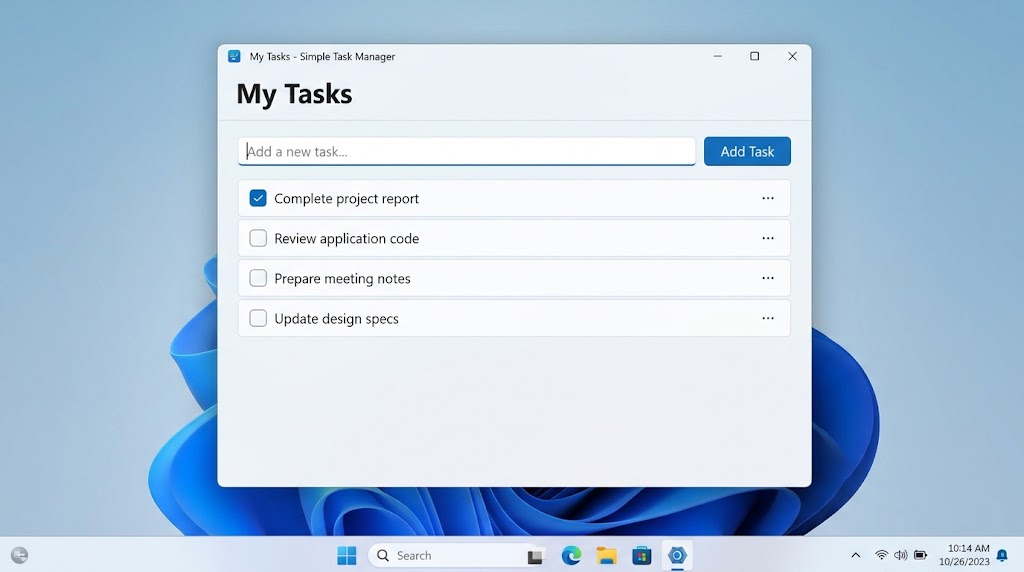
The 9. A Simple WinUI 3 Sample Application provides a complete sample application for WinUI 3.
A small application that allows the entry of tasks is a good example of an application that can be made by combining the ideas discussed above. The following example is a textfield where users can type in a task, a button to save the task to a list, and a list of tasks to view while the application is running. It shows an XAML element representing the visual interface and C# handling an event for a button click. The sample does not use the database or external service, allowing new users to concentrate on how the controls relate to the logic in the application. You can test it by creating a new C# WinUI 3 project in Visual Studio, and replacing both MainWindow.xaml and the related MainWindow.xaml.cs with the following examples.To test it, you can create a new C# WinUI 3 project in Visual Studio and replace the contents of both MainWindow.xaml and the associated MainWindow.xaml.cs with the following examples. Maintain the same namespace as your project’s generated namespace.
The first step is to create the user interface.
Open MainWindow.xaml and add the following markup to create the window and controls. The layout is a vertical stack of controls containing the heading, input field, button and task list. The title and dimensions set for a window give a quick-start layout, and the Spacing property adds consistency to the spacing between the elements. The text box has a hint for what it is intended for, and the button has an event handler that will be coded in C#. As a task is added, it will be displayed in the ListView in a dedicated area. This is an intentional minimal interface, which can later be expanded with navigation, validation messages, persisted storage or a responsive, multi-column layout.
<Window
x:Class=”TaskManager.MainWindow”
xmlns=”http://schemas.microsoft.com/winfx/2006/xaml/presentation”
xmlns:x=”http://schemas.microsoft.com/winfx/2006/xaml”
Title=”Task Manager”>
<StackPanel
Padding=”24″
Spacing=”12″>
<TextBlock
Text=”My Tasks”
Font Size=”28″
FontWeight=”SemiBold” />
<TextBox
x:Name=”TaskInput”
PlaceholderText=”Enter a task” />
<Button
Content=”Add Task”
HorizontalAlignment=”Left”
Click=”AddTask_Click” />
<ListView
x:Name=”TaskList” />
</StackPanel>
</Window>
The Next Step Is to Implement the Application Logic
Then, open up MainWindow.xaml.cs and paste in the following C# code. The constructor calls InitializeComponent() to set up the interface, binding the XAML-defined controls to the window’s code. The user clicks Add Task, and the method AddTask_Click reads the text that he or she has typed in the input box and trims off any excess spaces. If the string that results is empty, the method does not add a blank item. If not, the task would be entered in the list and the text box would be cleared, allowing the user to type another task. The key feature of this is that the program reacts to the user rather than runs a fixed sequence of operations, a feature which is seen in desktop applications.
using Microsoft.UI.Xaml;
namespace TaskManager
{
public sealed partial class MainWindow : Window
{
public MainWindow()
{
InitializeComponent();
}
private void AddTask_Click(
object sender,
RoutedEventArgs e)
{
string task = TaskInput.Text.Trim();
if (string.IsNullOrWhiteSpace(task))
{
return;
}
TaskList.Items.Add(task);
TaskInput.Text = string.Empty;
}
}
}
The Next Step Is to Run and Extend the Application
Save both and debug the project with the Visual Studio debugging controls. Once the application opens, enter a task in the box and click on Add Task. The task should show up in the list and the text box should be cleared. Explore adding multiple tasks to see how the collection expands and test to see that empty input is ignored. Tasks stored in this sample do not survive closing and reopening the application as they are only stored in the application’s current in-memory list. For a production version, it would require persistent storage, proper error handling, and maybe even a data model to store task details like completion status and due dates. The developers might also add a NavigationView for multiple screens or add the ability to make notifications for reminders.
Windows UI 3 vs. Previous Windows Development Methods
WinUI 3 is not the only way to develop a desktop application for the Windows platform, and deciding on a framework should not be based on looks. Windows Forms offers a pretty simple means to create classic desktop applications, especially business tools that feature traditional-looking forms and data entry controls. WPF has more complete XAML modeling, data binding, templates and styling features, and is appropriate for rich desktop applications that are already dependent on the .NET ecosystem. For applications that need access to specific Windows APIs or compatibility with existing desktop architectures, Win32 is also significant and offers low-level access to Windows APIs. The frameworks still have roles to play, and don’t necessarily have to be rewritten just because of the existence of newer UI frameworks.
Modernization isn’t just easier, it’s more flexible with Windows App SDK, as developers can add supported APIs to current WPF, Windows Forms, and Win32 applications without changing their entire interface framework. A team can, for instance, keep a stable WPF app along with a new Windows App SDK capability to enhance its integration with the OS. WinUI 3 is particularly appealing when a modern Windows experience is desired for a project and the development team is willing to leverage the XAML controls, the tooling, and the deployment model. But when choosing a framework, there are a number of factors to consider, such as your current code, the developer’s experience, third-party libraries, test requirements, performance features, and the maintenance of the framework. While it’s important to consider these factors, it’s better to carefully evaluate each one before assuming that all modern frameworks are inherently better for all projects.
Timeframes for Pick Developers to Consider WinUI 3
For new Windows desktop apps that need a modern native UI and access to Windows platform features, WinUI 3 is an excellent choice. It can be used for productivity tools, business applications, desktop utilities, and software to which Windows integration is a primary concern. It may be familiar to developers who have worked with C# and XAML, and offers a native development option for those with C++ experience. The Windows App SDK also provides a way for desktop teams to begin using some of the new features in the Windows app incrementally. Before deciding to use, developers should make sure that the framework will meet the necessary controls, target Windows versions, accessibility requirements, distribution and dependencies. Checking into the official documentation and creating a small prototype can expose valuable compatibility challenges before significant investments are made.
Other methods may be suitable where the requirements of the project are not the same. If you need to have a program that runs the same way on Windows, macOS and mobile platforms, a web-based or cross-platform application might be best. If you have a more developed WPF application that uses lots of custom controls, it might be more effective to modernize rather than migrate all the way. You might not require all the features that are provided by WinUI 3. Other factors to take into account are deployment complexity, update responsibility, testing resources, and expected maintenance requirements for their users. It is simply a practical engineering choice – the framework that is the best choice would be the one that is functional and technical for the application and which is maintainable across the application’s lifetime.
Conclusion
The Windows App SDK and the Windows UI Foundation 3 provide a modern base for developers to create native Windows desktop apps that feature modern interfaces and access to Windows features. Knowing this relationship helps the developer to set up an appropriate development environment, build user interfaces that incorporate a set of reusable controls, organize navigation, design responsive layouts, incorporate notifications, and prepare apps for distribution. The task-manager example shows how imperative the connection is between XAML markup and C# event handling, and offers a foundation for experimenting with the more sophisticated features. Developers can continue to add data persistence, validation, architectural patterns, accessibility enhancements and other features as they develop the project.
In modern desktop development, the issues of compatibility, packaging and long-term maintenance must be carefully considered. While other deployment models can be helpful in specific situations, MSIX can streamline the installation and distribution process. It is possible that existing Windows Forms, WPF, and Win32 applications will still fit the bill, and the Windows App SDK also has options for adding new capabilities without having to rewrite the application immediately. It’s important for developers to follow Microsoft’s official documentation as it will change over time, as will API, tooling and deployment requirements. By carefully choosing the right frameworks, testing processes, and usability considerations, developers can leverage WinUI 3 to build desktop applications that seamlessly integrate with today’s Windows operating systems and are easy to maintain and distribute.