SSD data recovery has become one of the most critical challenges for modern computer users. In the past, when computers relied entirely on traditional Hard Disk Drives, recovering a mistakenly deleted file was relatively straightforward. You simply ran a basic scanning tool, and the software pieced the data back together. However, as Solid-State Drives have taken over the market due to their blazing-fast speeds, the underlying mechanics of file deletion have completely changed.
When you click “Delete” on a modern operating system, you are not just clearing a folder; you are triggering a complex cascade of digital events. To successfully rescue your lost files, you must understand what happens behind the scenes of your storage hardware. This comprehensive guide will dissect the digital anatomy of a deleted file and provide a step-by-step framework to achieve successful SSD data recovery before it is too late.
Where Do Deleted Files Go on SSD?
When you delete a file on a traditional HDD, the operating system only removes the directory pointer. The actual data remains intact on the magnetic platter until new files overwrite it.
However, SSDs utilize flash memory, which cannot overwrite data directly. It writes data in pages but must erase it in larger blocks. When you delete a file, the OS marks that space as “unallocated.” While the electrical charges representing your files physically stay inside the NAND flash chips temporarily, they become completely invisible to the operating system.
How Does SSD TRIM Affect Data Recovery?
While mechanical drives leave deleted data untouched until overwritten, Solid-State Drives rely on an optimization command called TRIM. Understanding how does SSD TRIM affect data recovery is critical for salvaging lost files.
When you delete a file, the OS sends a TRIM command telling the SSD controller that those memory sectors are no longer needed. The drive then initiates “Garbage Collection,” actively wiping the electrical charges and resetting the blocks to zero.
Once TRIM executes and the sectors are physically cleared, SSD data recovery becomes impossible at a hardware level. Fortunately, TRIM is rarely instant, leaving a vital window of opportunity to deploy PandaOffice Drecov Data Recovery Software and rescue your data before the background purge completes.
The Ultimate Solution: PandaOffice Drecov Data Recovery Software
When you face sudden data loss on a solid-state drive, time is your absolute worst enemy. Because the drive controller works relentlessly in the background to clean up unallocated space, choosing a generic scanning utility will likely result in failure. You need a specialized tool that can interact directly with complex file systems before the background purge completes. This is exactly where PandaOffice Drecov Data Recovery Software excels.
Engineered specifically to address the unique challenges of modern flash memory and NVMe architectures, this professional-grade utility offers an industry-leading success rate for SSD data recovery. While standard operating systems throw up hands and declare unallocated space as completely empty, the software utilizes deeply optimized, low-level scanning algorithms. These proprietary algorithms can read raw sectors directly, mapping out file fragments even if the main partition directory suffers from heavy corruption.
Furthermore, the application features an intuitive, user-friendly interface that eliminates the stressful guesswork usually associated with technical data salvage. It supports a vast array of file formats—ranging from corporate Excel spreadsheets and PDF reports to heavy 4K video files and RAW photographic formats.
Whether your data loss stemmed from an accidental Shift+Delete shortcut, an unexpected partition format, or a sudden power surge that corrupted your file system allocation table, the utility provides a secure, read-only scanning environment. This ensures that the recovery process itself will never overwrite or further damage your vulnerable data.
Step-by-Step Practical Framework for SSD Data Recovery
If you discover that vital files have vanished from your solid-state drive, you must act methodically. Follow this precise blueprint to maximize your chances of a successful rescue using PandaOffice Drecov Data Recovery Software.
Step 1: Stop All Activity Immediately
The moment you realize files are missing, halt all disk activity. If the data sat on your primary boot drive, shut down the computer completely. Continued usage generates system logs and temporary cache files that can instantly overwrite your unallocated space, making SSD data recovery impossible.
Step 2: Establish a Safe Recovery Environment
Never install ssd data recovery software onto the partition containing your lost data. If you are rescuing files from an external SSD, you can proceed normally. However, for a primary system drive, connect it to another PC as a secondary drive or run the utility from a separate USB flash drive to prevent accidental overwriting.
Step 3: Deploy the Advanced Scanning Tool
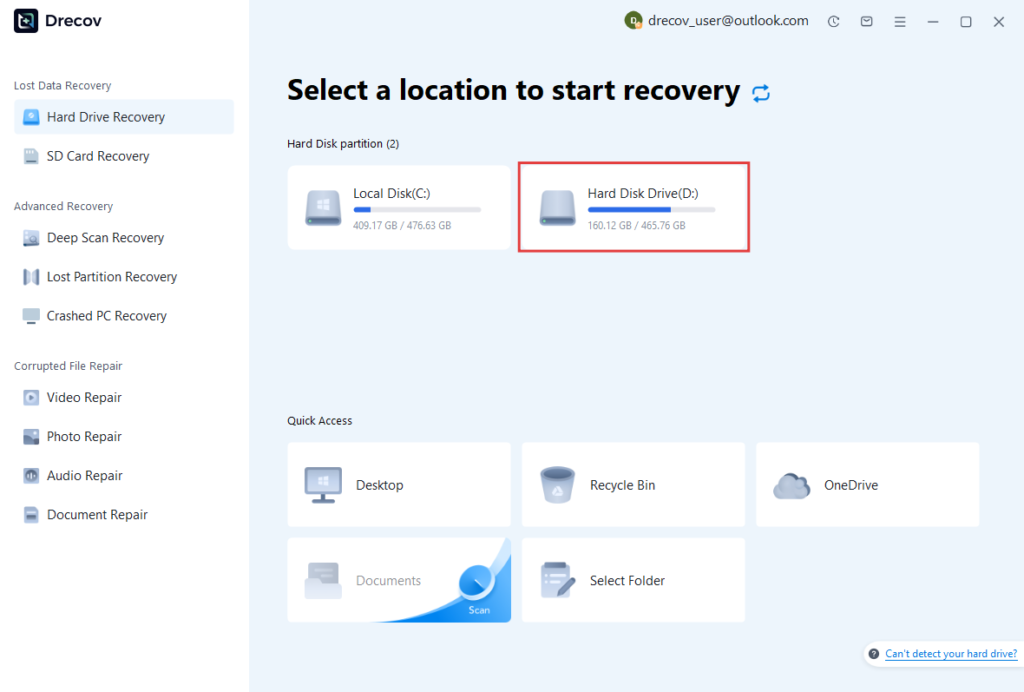
Launch the application and select your target SSD partition. The software provides two distinct scanning paths:
- Quick Scan: Best for immediate recovery, it quickly checks the file system index for recently deleted paths.
- Deep Scan: Crucial for complex SSD data recovery, this mode performs a block-by-block raw sector search to piece together fragmented files.
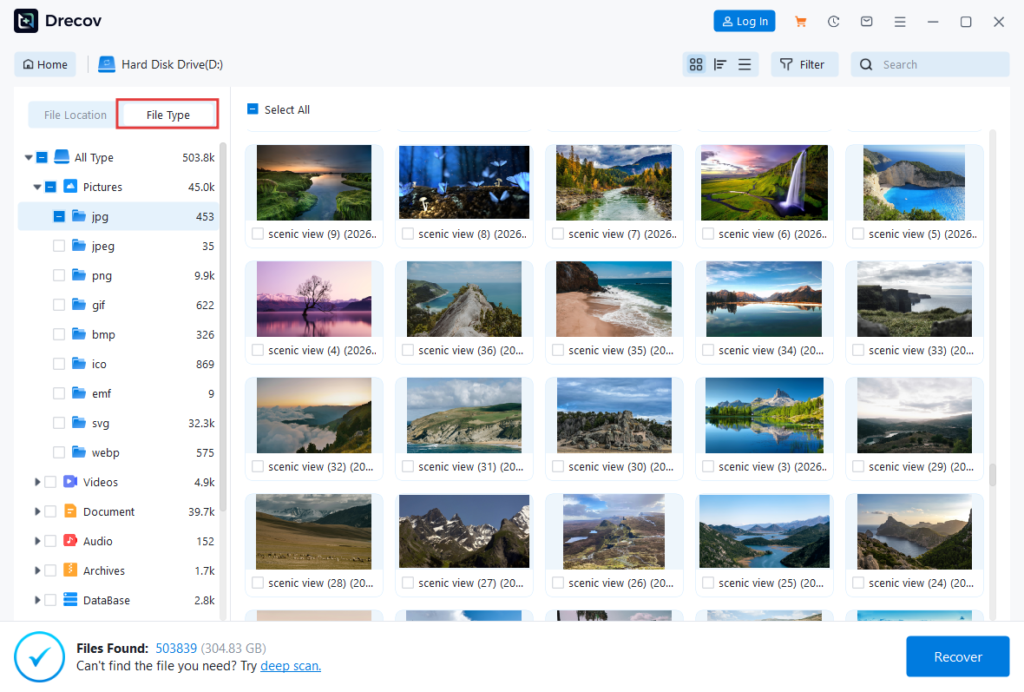
Step 4: Preview and Filter the Results
As the scan progresses, the software organizes discovered items by file type. Use the real-time preview feature to inspect documents and images before saving them. This step allows you to verify if the data blocks are fully intact or already corrupted by TRIM.

Step 5: Save to a Separate Drive
Once you locate your files, click “Recover” and choose a destination. Crucial Warning: Always save recovered files to a different physical drive. Saving them back to the original SSD will actively overwrite your remaining data fragments, permanently destroying any chance of further rescue.
Proactive Strategies: Preventing Modern Data Loss
While PandaOffice Drecov Data Recovery Software provides an incredible safety net, prevention remains the best defense. Solid-state drives often fail without the warning noises typical of traditional HDDs, making regular maintenance essential.
Ultimately, knowing how modern operating systems handle file deletion helps you act quickly when disaster strikes. Although the TRIM command makes data loss a race against time, deploying a dedicated tool like PandaOffice Drecov gives you the best mathematical chance to outrun background cleanup and reclaim your digital assets safely.