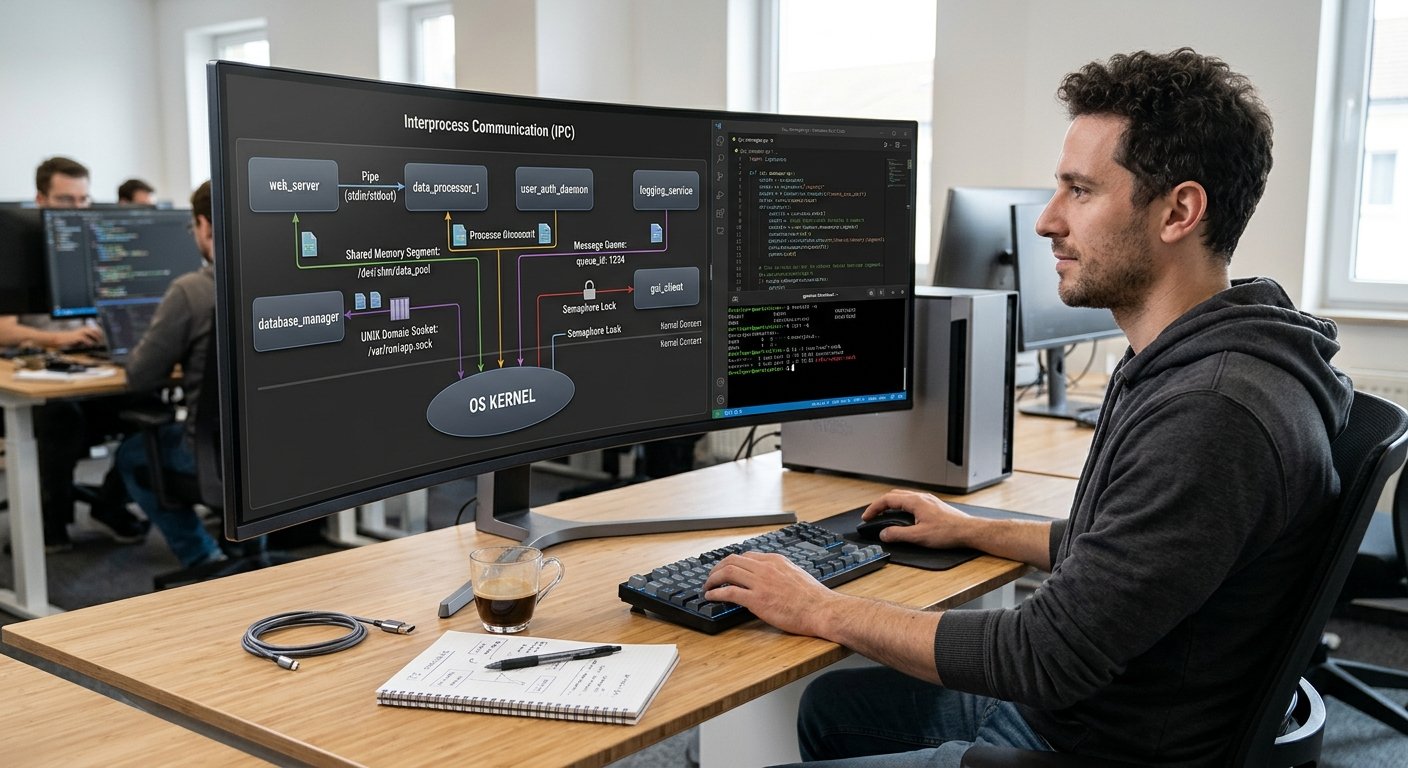
Modern container technologies like Docker and Kubernetes use core Linux system programming features to isolate processes, manage resources, and keep the applications secure. Whilst developers interact with containerisation in an easy way, there are several features within the Operating System that help give containers capabilities.
Understanding Linux Namespaces, control groups (cgroups), process isolation, Linux capabilities, and Seccomp will improve your knowledge of how containers work. Multiple applications can be run on the Linux host and have their own isolated environment and limited access to resources within the Operating System. Understanding these features will help you as a developer, DevOps, Cloud Admin and Cybersecurity professional.
Understanding Linux Containers & System Programming
What Are Linux Containers?
Linux Containers are a light-weight method of running applications separately while still using the same kernel. They take advantage of features within the Linux kernel to help isolate processes.
This means that each container can have its own view of its file system, network, process IDs and hostname. However, whilst they can have an isolated environment, they still use the host kernel. Docker and other container platforms use these features to help create, start, manage and stop containers using the kernel.
How Linux System Programming Can Help
Linux has a range of features that can be used to help create containers. This includes system calls, kernel configuration, process management, and file system management. For example, the clone() system call can be used to create processes with selected namespaces. The cgroup interfaces can be used to help configure resource limits. The prctl() system call can be used to configure some security features within processes such as Seccomp.
Container runtimes use these features to help create isolated environments. When a container is created, the runtime will set up its file system, namespaces, resource limits, security policies and start the application. This shows that containerisation isn’t a fully separate technology, but makes use of features within the Linux OS.
Linux Namespaces
What Are Linux Namespaces?
Linux Namespaces are a feature of the kernel that help isolate resources. This means that processes within a namespace will have a different view of the system resources compared to processes outside of the namespace. They are very important within containerisation to help create the illusion of having multiple operating systems without multiple kernels.
For example, a container can have its own process ID, network interfaces, hostname and mount points. This means that applications won’t automatically be able to see certain information about other processes. Container runtimes will configure multiple namespaces when creating containers.
Types Of Linux Namespaces
There are various namespaces available within Linux.
Understanding what they do will help you understand how container runtimes create isolated environments.
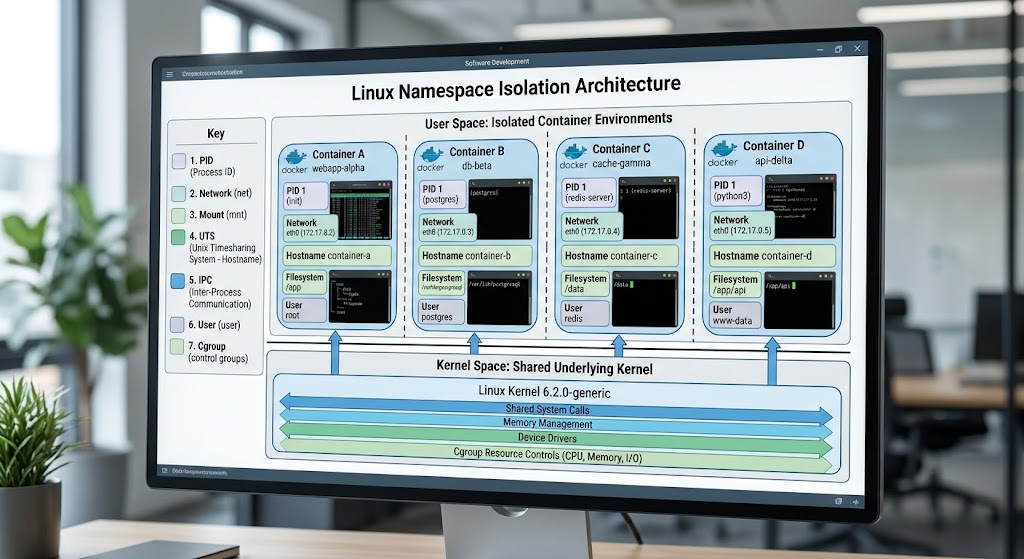
1. PID Namespace
The PID namespace helps isolate process IDs. Within a container processes will only see processes running within their own container. The first process created within the new PID namespace will have a PID of 1 within that namespace. This will mean that it looks like the main process for the container.
This helps prevent applications from interacting with unrelated processes using their process ID. However, they aren’t fully isolated as processes are still managed by the host kernel. As an administrator you can use tools like ps to see process information.
2. Network Namespace
The network namespace helps isolate network resources. This can include network interfaces, routing tables, firewall rules, etc. This allows containers to have their own network environment. Docker uses these to help connect containers using virtual network interfaces.
Depending on what network mode has been selected, containers can communicate via bridge networks, host network, etc. These are useful when deploying applications that require different network setups. They can also help with organising the networks within containers.
3. Mount Namespace
The mount namespace helps isolate mount points within the file system. This means that a container can have its own file system setup. Container runtimes will use this to give containers their own file system. This can include application directories, temporary storage and mounted volumes.
As an example, a container could be given access to a specific directory on the host. This is very important as it helps to create the file system environment for containerised applications. However, if the mounts are not set up properly, especially giving access to sensitive directories on the host, this can reduce the isolation within the container.
4. UTS Namespace
The UTS namespace helps isolate the hostname and domain name. UTS stands for UNIX Time-Sharing System. This allows containers to have their own hostnames without changing the hostname of the underlying Linux machine.
As an example, a container running a web application can have a hostname of web-server. This makes it easier to identify individual containers and organise applications.
5. IPC Namespace
The IPC namespace helps isolate some inter-process communication resources. This includes System V IPC objects and POSIX message queues. This allows processes to communicate with each other.
Without this isolation, applications could interact with IPC resources. This helps prevent this from happening. This is useful when running multiple applications on the same host.
6. User Namespace
The user namespace helps isolate user and group IDs. This means that a process can have a different user within a namespace. For example, a process can appear as the root user within the container, but map to an un-privileged user on the host. This helps reduce some security issues as the root within the container doesn’t have the same privileges as the host.
This is very useful when designing environments that require better privilege separation. However, they need to be properly configured and you shouldn’t assume that ALL containers will use user namespace isolation.
7. Cgroup Namespace
The Cgroup namespace helps give an isolated view of the cgroups. This means that processes will see a cgroup path relative to the namespace. This helps give a more organised look to the resource management within containers.
However, this does not actually enforce any CPU, Memory, etc limits. This is done using the Linux Cgroup system.
Control Groups (Cgroups)
What Are Control Groups?
Control Groups (often known as cgroups) are part of the Linux kernel that help organise processes and manage the resources that they use. Whereas namespaces help isolate what processes can see, control groups help determine how much of the host resources they can use. Without this, containers could use too much CPU, Memory, etc. This allows you as an administrator to place limits, monitor resources being used and prioritise workloads.
For example, a container running a background processing service can be given a set amount of memory so that it doesn’t use resources that other applications need. Docker and Kubernetes use cgroups to help enforce resource management policies.
CGroups v1 & v2
Linux has two main versions of the cgroup system. The first version (v1) will have separate hierarchies for each resource controller. This can make resource management a bit more complex as you need to understand multiple hierarchies. The second version (v2) will have a single hierarchy for ALL the resource controllers. This helps with resource management and makes it easier to interact with different controllers.
Modern Linux distributions are increasingly supporting v2. Recent container runtimes and orchestration platforms can now use this to manage the resources within containers. As an administrator it’s important to understand what version your host is using as there may be differences in the configuration files available.
Common Cgroup Controllers
There are multiple controllers available to help manage different resources.

1. CPU Controller
The CPU controller helps manage how much CPU time processes can use. You can configure the CPU quotas and weights to ensure that individual containers don’t use too much.
For example, a background task may have less CPU allocated than an important application request. This is useful when multiple services are running on the same server and can help you investigate performance issues caused by applications using too much CPU.
2. Memory Controller
The memory controller helps manage how much RAM processes can use within the control group. You can set memory limits to ensure that one container doesn’t use up ALL the RAM on the host.
When a container reaches its limit the kernel will enforce the appropriate memory management policy. Depending on how it’s configured, processes may suffer from memory pressure or be killed by the out of memory mechanism. This is very important when running multiple applications as it can impact unrelated services.
3. Block I/O Controller
The block I/O controller helps manage access to block storage. You can set limits or priorities on the input/output of the storage. This helps prevent one container from causing too much disk activity.
For example, a container could be doing large background data processing tasks and therefore may require different storage priorities to a database service. This helps to ensure consistent performance with storage.
4. Process Controller
The process controller helps manage how many processes/tasks can run within the control group. The pids.max setting will give a maximum number of processes/threads that can be created.
This can help reduce the impact of applications that cause too many processes to be created unexpectedly. Without proper limits, poorly designed software could use up system resources by creating too many processes.
Viewing Cgroups
There are multiple ways to view control groups on Linux.
To view the control groups information for your shell:
cat /proc/self/cgroup
If you are using cgroups v2 you can view the available cgroup hierarchy:
mount | grep cgroup
To view the memory information for your control group:
cat /sys/fs/cgroup/memory.max
To view the CPU quota:
cat /sys/fs/cgroup/CPU.max
To view the process limit:
cat /sys/fs/cgroup/pids.max
These are common examples of cgroups v2. Your container will depend on how it’s been configured on your host.
As a Docker user, you can view the resource limits:
docker inspect container_name
This will show you detailed information about your container including the resource settings. This will help you understand how Linux manages resources within containers.
Process Isolation
How Process Isolation Works
Process isolation helps ensure that applications can run separately without automatically seeing processes and resources from unrelated workloads. This is done using a mixture of namespaces, permissions, capabilities and other kernel security features.
When a container is started the runtime will ensure that the isolation features are set up. The process will then have an isolated view of selected resources. This includes process IDs, network and mounted file systems. However, it doesn’t mean that the process is running outside of the kernel. All processes within containers still rely on the host kernel. This is why care needs to be taken when securing containers.
How Container Runtimes Create Isolated Processes
Container runtimes will use a mixture of system calls and kernel features to create the container. For example, clone() can be used to create a new process with selected namespace features. The unshare() system call can be used to isolate processes from current namespaces. The setns() system call can be used to join an existing namespace if you have the right permissions.
These can be used at a low level to set up isolated processes. Higher level container runtimes will use these along with file system, cgroups and security settings to set up the container. Docker commonly uses containerd and lower level runtimes to manage containers. Kubernetes also uses container runtimes to start and manage workloads on worker nodes. Applications can benefit from the isolation features of Linux without having to manually setup ALL the kernel features.
Linux Capabilities
What Are Linux Capabilities?
Traditionally Linux has used permissions to help differentiate between root (privileged) users and normal users. However, giving a process full root privileges can introduce unnecessary security risks. Many applications only need a few privileged actions. Linux capabilities help break down the traditional root permissions into smaller permissions. For example, CAP_NET_BIND_SERVICE allows a process to bind to ports under 1024. CAP_NET_ADMIN gives some network administration privileges.
Container runtimes can be configured to set the capabilities to decide what privileged actions an application can do. This follows the principle of least privilege which suggests that applications should only have the permissions they need.
Managing Capabilities In Docker
Docker offers the ability to add or remove Linux capabilities. This can help reduce unnecessary privileges and improve container security.
For example, the following command will start a container with ALL Linux capabilities removed:
docker run –rm \
–cap-drop=ALL \
nginx
As an administrator you can then add back in a specific capability if the application really needs it.
For example:
docker run –rm \
–cap-drop=ALL \
–cap-add=NET_BIND_SERVICE \
nginx
This shows how Docker allows you to customize the privileges of your container. The correct capabilities will depend on what your application needs. Try to avoid adding unnecessary capabilities. Removing excess capabilities will help reduce the amount of sensitive kernel actions that your application can do.
Seccomp

What Is Seccomp?
Seccomp (Secure Computing Mode) is a kernel security feature that helps limit what system calls can be made. System calls are used to request services from the kernel. This includes file system, process creation, memory management and network. Whilst applications need system calls to run, they may not need to use ALL the available kernel interfaces.
Seccomp filtering can be used to set policies to decide what system calls can be made. This can help reduce the attack surface available to containerised applications. Docker supports Seccomp profiles which can be used to help limit the system calls made when starting a container.
How Seccomp Filtering Works
Seccomp uses filters to decide what system calls can be made. A popular filter to use is BPF (Berkeley Packet Filter). This allows the programme to analyse the system call information. Depending on the policy, the kernel can allow the system call, return an error, notify or kill the process. Container runtimes can use pre-defined or custom profiles to limit the system calls that applications don’t need.
Docker has a default Seccomp profile which will block certain system calls that aren’t needed for typical container workloads. As a developer it’s important to understand that Seccomp policies need to be tested to ensure they match your application requirements. If they’re too strict they may stop your software from running.
Using Seccomp With Docker
Docker supports Seccomp. You can specify a custom profile:
docker run –rm \
–security-opt seccomp=/path/to/profile.json \
nginx
The profile will define what system calls should be used and what filtering should be done.
You can also view the security settings for a running container:
docker inspect container_name
Seccomp can be very useful if your application has predictable system call requirements. It will help reduce the amount of kernel interfaces that potentially compromised applications can use. However, it shouldn’t be seen as a complete solution. It works best when combined with other security features such as the correct namespaces, cgroups, capabilities, file system limitations and access controls.
How Docker Uses Namespaces, CGroups, Capabilities and Seccomp
Docker is a containerisation tool and to achieve isolation doesn’t just use one single feature but instead uses a range of features within the Linux kernel. Namespaces provide separation of resources, CGroups regulate the amount of resources (CPU, Memory etc.) processes can use. Capabilities in Linux ensure only certain privileged processes can be used. Lastly Seccomp filters provide a level of security by limiting which system calls can be used.
Together they provide a secure way for each application to run independently within their own environment whilst all using the host kernel. This can be seen with an example from a web application container. This could have their own network namespace, limited process tree, specific memory limit, limited capabilities and a Seccomp profile. This ensures the container is as isolated as possible whilst not having to use a separate OS.
Example Of Docker Container Isolation
You can look at these features by creating a basic container:
Run Nginx container with some limits:
docker run -d \
–name test-container \
–memory=256m \
–cpus=0.5 \
–pids-limit=100 \
nginx
This will create a container with limits of 256MB of memory, 0.5 CPU and 100 processes.
Now we can view what setup we have using:
docker inspect test-container
View what processes are running:
docker top test-container
View namespace information inside the container:
docker exec test-container ls -l /proc/self/ns/
This will show the reference of the namespaces that are being used for resources like PID, Network, Mount and User namespaces. This shows they are running in a set namespace.
View resource usage:
docker stats test-container
This will show us information on CPU, Memory usage, Network and Block I/O. This provides examples of how Docker uses the container configuration to translate into features within the Linux kernel.
Once you finish you can stop and remove the container:
docker stop test-container
docker rm test-container
Common Mistakes With Container Security
Running As Root
A common mistake made with container security is running the application as root without considering if it requires it. Even though the containers are isolated with namespaces, running as root can cause issues. This is made worse when you give too many capabilities.
If your application becomes compromised then having too many capabilities can cause more issues. Developers should create a new USER to run the application and set the container image to use this account. Docker can do this by using the USER command within the Dockerfile. Administrators should also check the capabilities of the container and avoid using a privileged container unless needed.
Privileged Containers
Privileged containers have much more access to resources on the host machine and the kernel. This can reduce the isolation of the container and make the application more vulnerable. Sometimes developers will run a container as privileged to fix permission issues without knowing what capability/device the application needs. A better approach would be to work out exactly what permission the application needs and give them only that.
Docker has a number of options to help with this including –cap-add, –cap-drop and limiting device access. This will help admins apply more specific permissions. Avoiding using any unnecessary privileged containers will help keep them well separated.
No Resource Limitations
If you don’t set limitations on your container you can cause issues with performance. If your application receives a surge of traffic, isn’t efficient or has a bug it could cause the container to use too much CPU/Memory. This could cause issues with other services running on the host machine as there might be multiple containers running. CGroups can help with this issue by setting limits on resources.
Developers should set appropriate limits for CPU, Memory and Processes based on the application. You should also regularly check these are set as the application may change depending on the traffic or functionality. Correctly setting resource limitations will help improve the stability of the system.
Disabling Seccomp
Another mistake made with containers is disabling security features. If your application has an unexpected permission or system call issue you might disable Seccomp. This can cause issues with the container as it will now have access to more kernel features. Work out what system call/permission the application needs and carefully update the security policy.
If using custom Seccomp profiles then test these in a development environment before deploying. Administrators shouldn’t assume that the default security features are enough for all workloads. They should take into account what the application is doing, where it is being deployed and what risks could occur.
Mounting Sensitive Host Folders
Mounting sensitive folders can cause issues with the file system. Giving the container more access than needed to important configuration files and runtime folders can cause issues.
Developers should be careful with the volumes set up with Docker. Avoid mounting host folders if possible. If you have to mount host folders then set them to read only where possible and only give access to the smallest directory required. This will help reduce the risk of them being accidentally changed.
Kubernetes
Kubernetes uses container runtimes to manage application workloads across a group of machines (nodes). Whilst Kubernetes offers higher level features, the containers still use Linux kernel features to provide isolation. Kubernetes does allow admins to set resource requests and limits. This helps the scheduler to assign workloads to the correct place.
Security can also be set with Kubernetes. This can include USER permissions, linux capabilities, Seccomp profiles. An example of this would be setting a workload to run as a non-root USER and with a limited Seccomp profile. Understanding the Linux features will help admins troubleshoot any issues with deployment, security issues and to set the workloads correctly.
Resource Requests and Limits
Kubernetes has two types of resource configuration: requests and limits. Requests show what resources (CPU/Memory) the container would be expected to use. Limits set the maximum resources the container can use for supported resources. The scheduler will use resource requests to determine where to deploy workloads. The container runtime and Linux resource features will enforce any limits.
This means admins can manage workloads with varying resource requirements. For example a database service may require a predictable amount of memory whereas a background process may need a more flexible CPU. Setting the resources correctly will help distribute workloads and avoid issues with resource intensive containers affecting other applications running on the same node.
Best Practice For Securing Linux Containers
Securing containers requires knowledge of the OS, careful configuration and monitoring. Start off by running the application as a non-root USER. Remove any unnecessary Linux capabilities. Set appropriate limits for CPU, Memory and Processes using CGroups. Ensure Seccomp profiles are enabled unless there has been a clear requirement identified by the application.
Avoid mounting any unnecessary host folders, use trusted container images, ensure the host OS is up-to-date and regularly review container configurations. If you are using Kubernetes then security contexts and admission policies can help make sure there are consistent security requirements. This follows the principle of least privilege and will reduce any issues caused by vulnerabilities in your application.
Conclusion
Linux system programming is fundamental for modern container technologies. Namespaces provide a way to isolate processes, networking, file systems and more. CGroups help to control resources and provide predictable performance. Linux capabilities break down the traditional root privileges into smaller permissions. Seccomp provides an extra layer of security with limiting the system calls that can be used. Both Docker and Kubernetes use these features to provide lightweight isolation, resource control and security.
Understanding these Linux features will help developers, DevOps Engineers, Cloud admins and Cybersecurity professionals create secure container environments. It will also help troubleshoot any issues and avoid common mistakes. Knowing how the Linux Kernel enforces isolation, controls resources and limits access will help you effectively manage your containers.