Introduction
Running a slow computer can be maddening, particularly if it starts to impact schoolwork, productivity or even easy daily tasks like surfing the web, streaming videos or composing documents. As time goes on, even the fastest Windows laptop can slow down because of background programs, cluttered files, software updates, and other issues that cause wear and tear. Fortunately, the problems in most performance issues aren’t permanent failures of the hardware, they’re more likely to be due to software overload or bad system maintenance practices that can be corrected with a little know-how. This article will give you some quick and effective ways to get your device back to normal performance without resorting to complex technical solutions or costly repair work. For more in-depth, step-by-step advice on system optimization, you can also read about performance improvements on a broader level using external best-practice guides.
If you would like to learn additional strategies to improve laptop performance, several best-practice resources provide broader optimization techniques that complement the troubleshooting methods discussed in this guide.
The Reasons for Slow Laptops Over Time
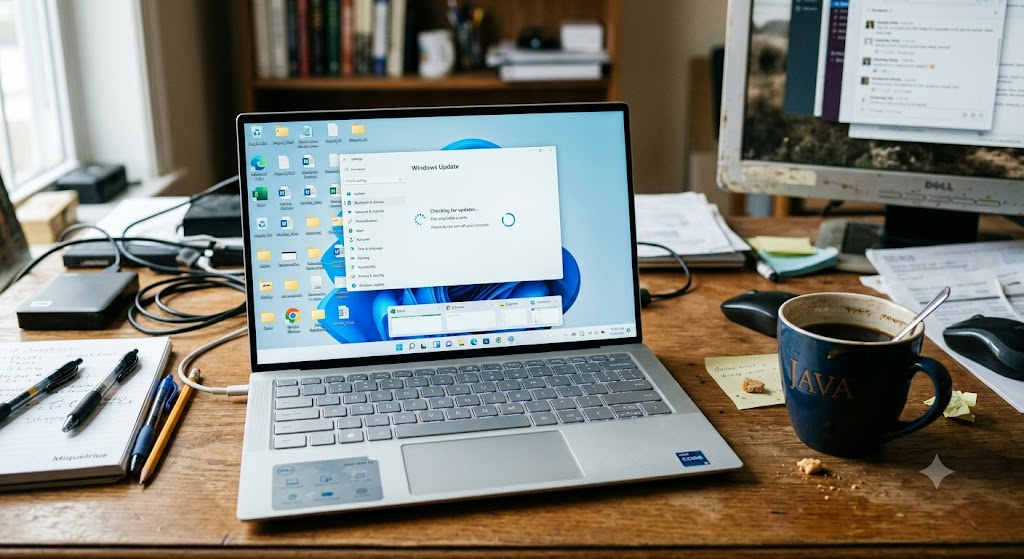
If you want to fix your slow laptop computer, you should first find out why your computer is slow. The most common reasons for Windows laptops slowing down are too many programs that start up automatically, storage drives that are filling up, memory that is being used by programs in the background, and malware and adware that are running in the background without the user’s knowledge. Also, out-of-date drivers, inaccurate system updates, and user’s RAM limitations with the newer applications can all help cause lag. Thermal throttling is another that isn’t mentioned enough, and it refers to dust build-up that occurs within the cooling system, which makes the processor overheat and automatically slow its clock rate down to avoid damage. The issues develop over time, so the user might not be able to tell when the laptop first slowed down. When you know the causes, you can implement targeted solutions and get more effective and lasting results from troubleshooting.
Optimizing the Start-Up Process and Background Load
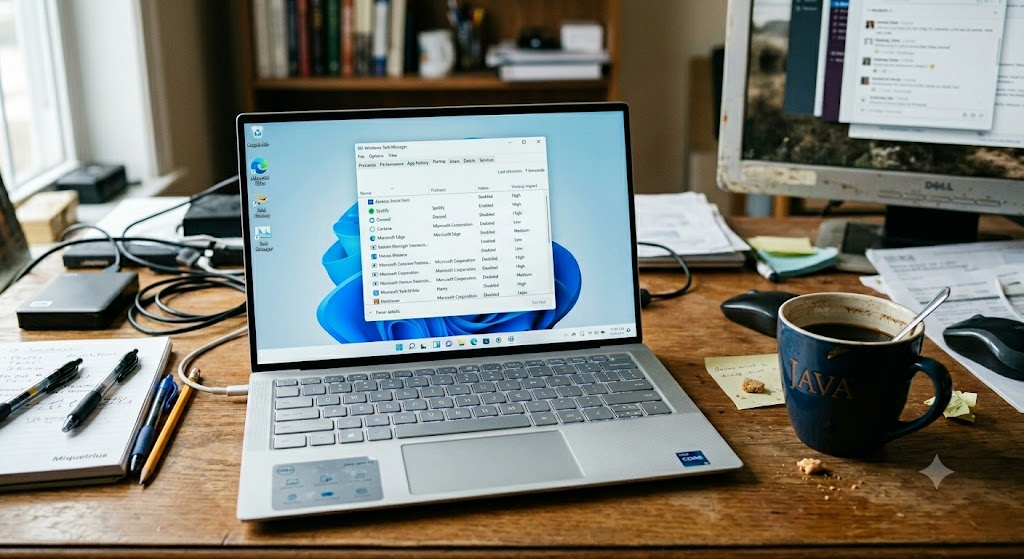
Optimizing startup programs is one of the best methods to make a slow laptop fast. A lot of applications are configured to start automatically whenever Windows boots, even if the apps are not used right away. This can result in slower boot-up times and decreased system response from the start. To rectify this, users can launch the Task Manager, move to Startup tab, and terminate unwanted programmes like update helpers, chat applications or third party devices which do not require to be running in the background. Minimal system services started up means fewer resources used to start up, and fewer resources used in memory.
Also, periodically check installed programs and uninstall programs that are not used often, in addition to disabling startup programs. A lot of laptop computers include “bloatware” that remains active within the background even when not used. Not only are these applications removed to speed up the boot process but they take up system resources that can be used for more critical applications. Having a clean, bare and optimized startup environment will help your laptop run faster and smoother throughout the day.
Clean Up and Manage Disk Space for Improved Performance
In any laptop, storage speed is a crucial factor in laptop computer speed, particularly when the laptop is using a conventional hard drive (HDD). Having a full disk can cause issues when the system has to create temporary files, resulting in slower performance and response times. Hence, it is important to run the disk cleanup regularly to maintain the efficiency of the system. Windows includes disk cleanup and storage sense to help free up temporary files, system cache, recycle bin files, and old files containing unnecessary update files that can build up over time.
It is also important for users to take note of large files that take up a lot of disk space like videos, downloads and un-used applications. By transferring them to external storage or cloud, you release up internal memory, and the system performs better. Defragmentation is another key step for HDD users which reorganizes data fragments to enhance access speed. For SSD users, however, defragmentation isn’t required, and should be replaced with TRIM optimization. Properly managing storage ensures that the operating system is able to run efficiently without having to wait around for extra storage to be freed up or blocked by it.
Remove Malware and Optimize Systems.
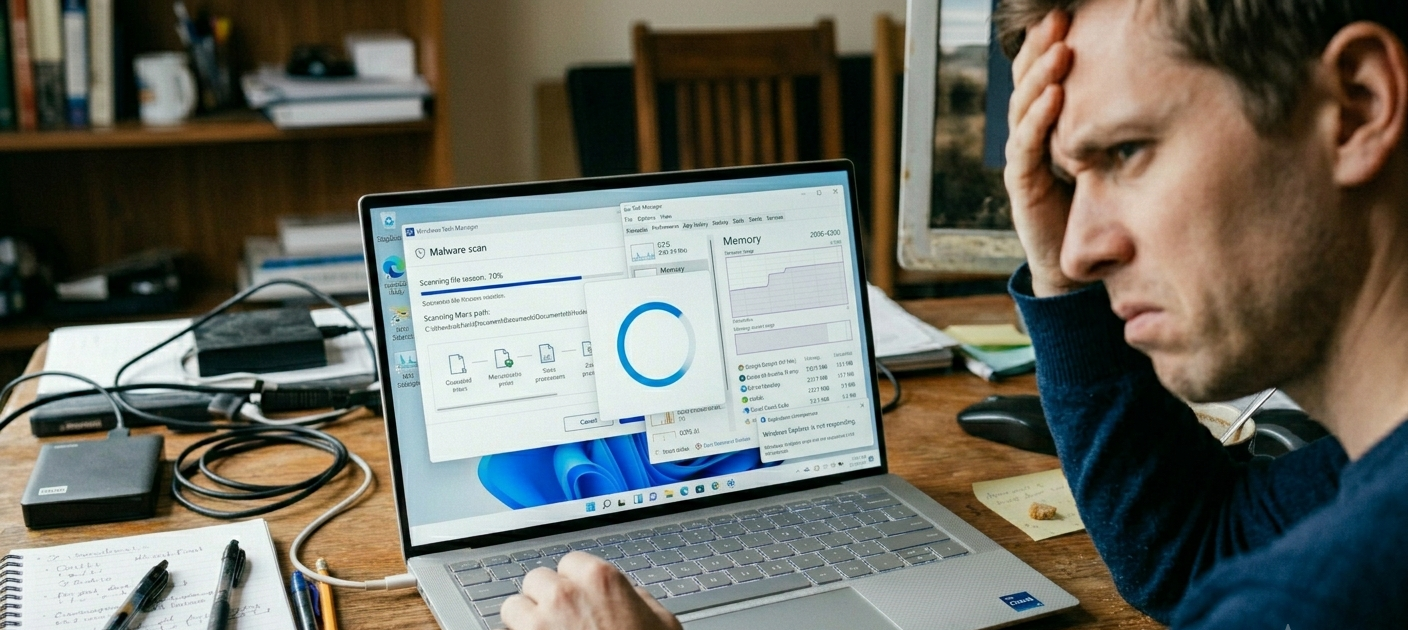
The most common hidden reasons for slow laptop performance are malware and unwanted background programs. These malicious files will typically operate without the user’s knowledge and will use your processor, memory and bandwidth without you realizing it. They can also show unwanted ads or redirect Internet activity, decreasing the efficiency of the system. To counter this, it is crucial to perform frequent full-system scans with Windows Defender or an antivirus software program. Real-time protection is enabled, thereby preventing infections from impacting performance.
Users should also keep an eye out for software downloaded from unofficial sources and websites, as many malware infections come from sources other than antivirus scanning. If your browser has been slowed down, remove suspicious browser extensions and reset browser settings. In more serious cases, a special malware removal software might be needed to deal with tougher malicious software. A clean and secure system not only is faster, but it will also help keep your personal information secure from cyber threats.
Effective Use of RAM and Optimization of Multitasking Operations
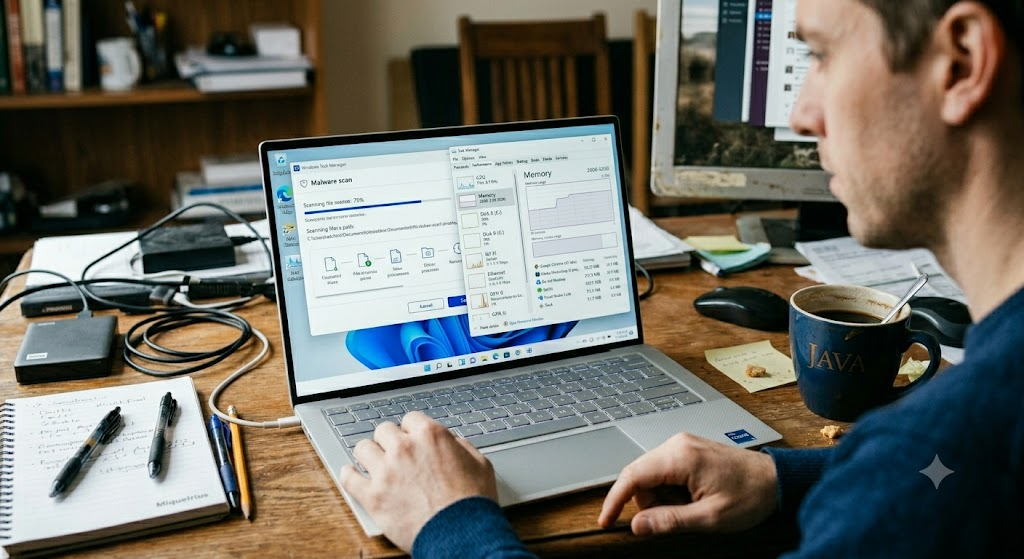
Random Access Memory (RAM) is an important factor in the performance of a laptop and its ability to run multiple applications simultaneously. If RAM runs full, the system starts to use virtual memory on the hard drive, and that’s much slower and can slow the speed of the system. Another effective way to clean up RAM usage is to shut down unnecessary apps and browser tabs—particularly background applications that aren’t being used. Users often don’t know that having lots of tabs open in browsers can use up a significant amount of system memory.
Another good approach would be to check memory use in Task Manager and determine which applications are using too much. There are also lightweight alternatives to heavy software that can help to alleviate RAM strain. For instance, if you use simpler text editors rather than resource intensive office applications, that could make older machines respond faster. In some situations, it’s the best permanent fix: If you’re on a newer operating system and need more RAM to operate a laptop, increasing it is the best long-term answer.
Optimize for Improved System Performance Using Advanced Techniques
In addition to troubleshooting, there are more advanced techniques that can help to enhance laptop performance. A one way approach is to install system driver updates, particularly graphics, chipset and storage drivers, that directly impact on hardware communications and speed. Older drivers can lead to inefficiency, accidents and poor performance in normal and challenging applications. An advanced step is to change the Windows power settings to “High Performance” so the processor can be used at full capacity rather than saving energy.
It is possible to turn off such visual effects as transparency and animated effects in Windows for better performance, although they can be pretty appealing. Also, doing a clean boot can be helpful to see what is slowing the system down because all the background services and drivers are not loaded with the start of Windows. If you are still facing slow performance after trying other methods, reinstalling Windows or resetting the operating system can give you a fresh start, by wiping away all the errors and unnecessary files that normal cleaning programs can’t remove.
Maintain Your Laptop for Long-Term Performance
Keeping laptops speedy doesn’t end once and for all, it’s an ongoing process. The system is regularly updated, disk is cleaned up at regular intervals and malware is scanned periodically for optimal system health. Additionally, do not add too many extra applications to the laptop as they all run in the background and take up space. Leaving a minimum of 15-20% of storage space free at all times helps to keep your system running smoothly and avoid spiked slowdowns.
Good physical care is also crucial, because dust accumulation can impact cooling performance and cause thermal throttling. Air vents should be cleaned and the laptop should be placed on a firm surface rather than a soft surface such as cushions or beds to ensure the adequate ventilation and prevent over heating. Users should also try to power on their laptops periodically and not leave them in sleep mode for too long to remove temporary memory utilization. If combined with physical care, these good digital habits can help users live longer and have their laptop operate better.
Conclusion
Sometimes, a slow laptop does not need to be repaired professionally or even costly. Most of the time, software and maintenance problems prevent the system from performing as well as it could, with unnecessary start-up programs, storage overload, malware and a lack of a good memory usage being the main causes. Users can revert to speed and responsiveness with structured optimization methods such as disk cleaning, RAM optimizations, start-up control, and security scan. Regular maintenance practices also contribute significantly to achieving long-term performance stability. Even older laptops can remain productive and capable of performing tasks effectively without undue delay or frustration, with proper planning and utilization.