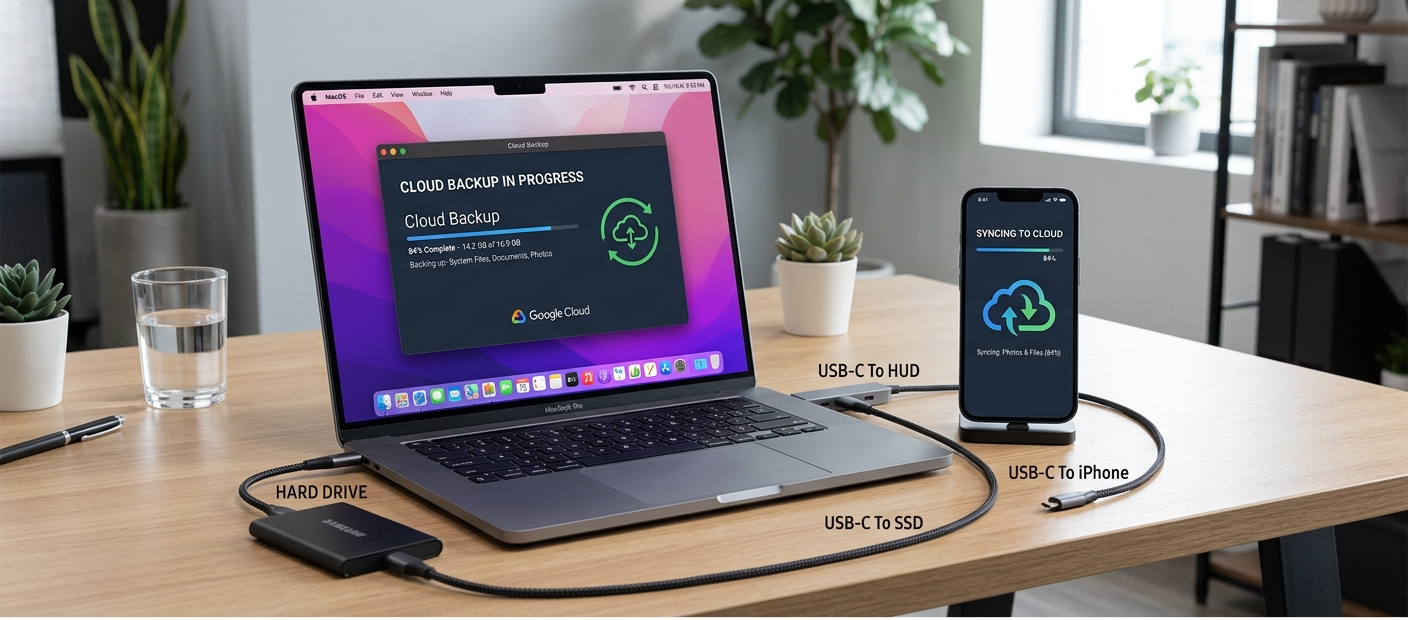
Today, people have to create and store more important information than ever before in the digital world. Every day, videos, school files, business information, personal projects, photos, contacts and so much more are stored on computers and cell phones. When it comes to backups, however, many people only think about them when they encounter a problem: it’s a problem with the device, they’ve accidentally deleted something, they’ve been attacked by malware, or the system has unexpectedly crashed. People are often losing valuable data and one of the major reasons is the lack of available backup technology but forgetting. Numerous users know they need to backup their files and they delay until it’s too late. An automatic backup system can help with this as it ensures a system that backs up without constant reminders.
With a set-it-and-forget-it backup workflow, your important files will be backed up regularly, even when you’re busy or distracted. Today’s operating systems come with robust backup capabilities that will automatically back up your files to an external hard drive or cloud storage. Windows can use features like File History, Mac users can use Time Machine, and smartphone users can make use of the built-in cloud backup feature. These solutions make data protection easier without the need to make manual copies and keep in mind complex backup schedules. Once you know how these systems operate, you can establish a dependable backup solution to safeguard your digital life.
The Importance of Automatic Backups – How to Avoid Loss of Data

Loss of data may occur for numerous reasons and the majority of all data loss is sudden and unforeseen. This can be a laptop that breaks, a smartphone that gets broken, an important file that’s deleted by accident, or a storage device that goes down. These issues can also arise with careful users because flaws in technology are not to be taken for granted. If there is no backup system through which to retrieve lost information, the chances of retrieving the information may be lost or very costly. This is why it is crucial for anyone with important digital files to ensure that they have automatic backup.
One of the most frequent reasons for data loss is human error. Individuals tend to neglect to make copies of new files, forget to back up or assume that devices will always operate properly. Creating a document now may be the only time it is ever saved elsewhere, and if the document’s original device fails, it will not be saved anywhere else. An automatic backup system eliminates this vulnerability by scheduling backups, thereby eliminating the need for daily management. The system can then be set up to continue to protect the files in the background while users are working, studying or performing other activities.
One of the benefits of automated backups is consistency. Manual backups rely on memory and motivation, and thus, they are frequently sporadic. Some users may only be performing a backup every few months, creating significant “windows” where new data is not being backed up. Automatic systems generate a routine by saving the new files at regular time intervals. This way you will never lose the information you may have stored recently and you will feel secure that the information is being protected at all times.
Understanding the Different Types of Automatic Backups
It is important to become familiar with the various types of backups before activating automatic backups. There are several common methods such as local backups, cloud backups, and synchronization services. Each approach is different with pros and cons and together they provide greater protection against various kinds of issues.
Local Backups
Local backups are simply copies of files that are stored on a physical storage medium like an external hard drive, USB storage device, or network storage system. These backups tend to be quick, as the files are merely being transferred from device to device.
Local backups can be helpful for backing up a lot of files such as videos, photos and even system files. But, there is also the possibility of physical storage devices becoming damaged, lost or impacted by environmental issues.
Cloud Backups
Cloud backups are backups that are stored on servers located in the cloud and managed by service providers. Cloud storage solutions that back up files over the internet are examples.
Cloud backups ensure that your data is safe even if something happens to your device, as it is stored somewhere else. They also simplify the access to files from various devices. But cloud backups rely on the internet and could involve subscription charges to store more.
Synchronisation Services
Other helpful services are synchronisation services. Synchronization tools update the files on various devices, unlike traditional backups which make copies. For instance, if you make changes to a document on a computer, it will automatically be made available on your cell phone or tablet.
Although it’s handy, users should note that if a file is deleted from one synced location, it will be deleted from the other synced devices. The synchronization should be always used in combination with an appropriate backup system for maximum protection.
How to Automate Backups on Windows Using File History
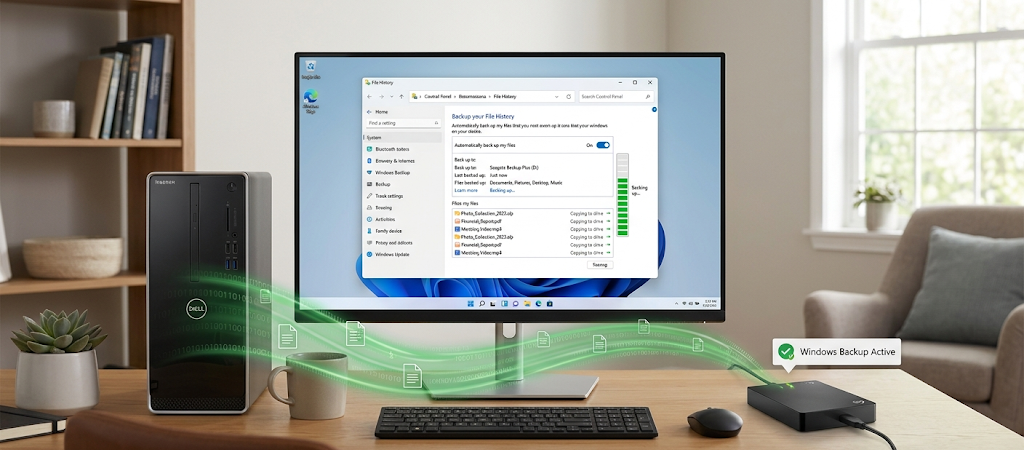
Windows provides inbuilt backup capabilities which can help users to safeguard their files automatically. One of the most helpful features is the ability to create regular backups of personal files on folders like Documents, Pictures, Videos, and Desktop, with File History. File History automatically saves previous versions of files every time they change, without requiring manual copying – according to a schedule set by the user.
If you are looking to learn how to set up automatic backups using built-in tools, then you should begin reading about File History. The feature enables the user to plug a connected storage media in, set back-up parameters and have the system take care of back-uping the media in the future. File History is activated and starts to back up files located in certain folders if there are changes.
Set up File History: Connect an external hard drive to a Windows computer. Open Settings application, go to Backup and reset and select File History. Choose the connected drive, and set it to back up files automatically. Users have the ability to modify backup frequency, retain backup versions for a certain period of time, and specify what folders to back up and which to skip.
One of the greatest advantages of File History is that it allows for versioning recovery. Users can roll back to previous versions of a document when the document has been accidentally modified or deleted without losing the file permanently. It’s particularly helpful for students, professionals, and creators who need to edit crucial paperwork frequently. These features enable Windows to automate backups, minimizing the chance of losing important work due to mundane errors.
How to Make Auto Backup on Mac with Time Machine
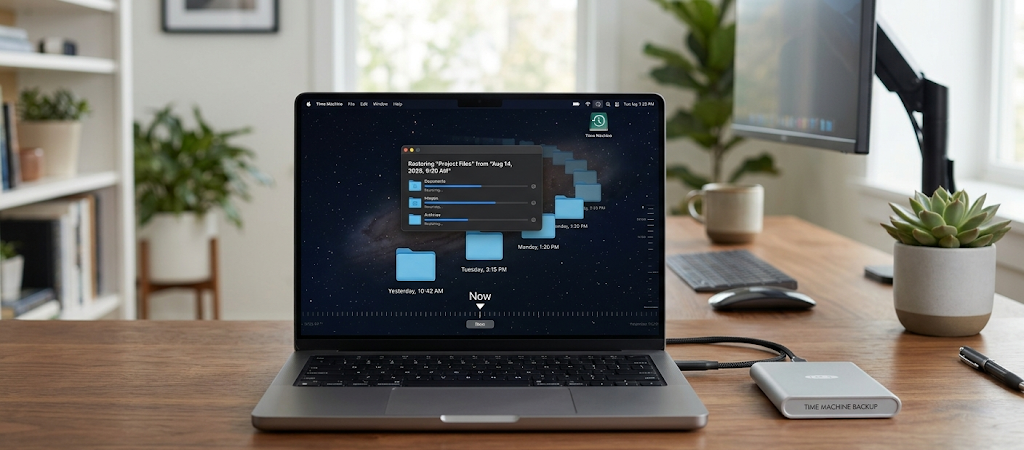
Apple’s Mac computers come with a powerful backup feature—Time Machine. Created by Apple, Time Machine automatically backs up all of a user’s files, everything from documents to applications and settings, photos to other personal files. The tool generates a history of backups which enables the recovery of files from particular points in time.
It’s easy to set up a Time Machine. External storage device(s) will need to be plugged in with sufficient space to store the backup. Mac OS will prompt you if it should use the drive for Time Machine backups. Once confirmed, automatic backups start. Future backups are performed on a regular basis whenever the backup drive is plugged in.
Time Machine is more than just the usual file copying tool: it stores multiple versions of files. Users can roll back to previous versions of a document, recover accidentally deleted files or even move information to a new Mac computer. Time Machine’s ability to roll back to previous versions is useful in case of errors or unforeseen technical issues.
Ideally, Mac users should have their backup drive available, if possible. Time Machine runs in the background and keeps files current while you’re using the computer. This automated method ensures that backups are made regularly, rather than users being left to their own devices to remember to back up regularly.
How to Automate Backup on Smartphones
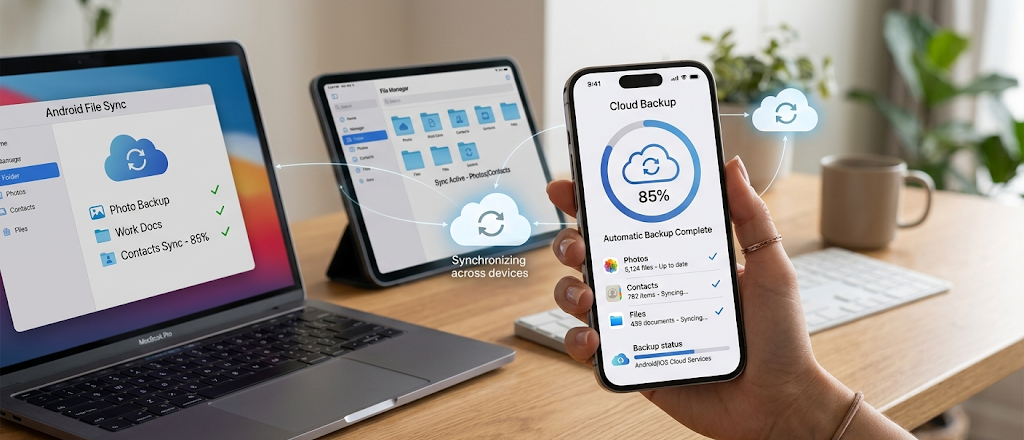
Some of the most important personal information that people hold is on their smartphones. Photos, contacts, messages, notes and application data are often only kept on mobile devices. If you don’t have a backup, a lost smartphone can result in losing years of memories and important information. Luckily, there is an automatic backup option for both Android and iPhone devices.
Google’s backup services allow Android users to automatically backup important data. Backups may contain contacts, application data, device settings, and photos, depending on the device settings. Through the phone’s settings, users can make automatic backups, and choose where information should be stored – in the chosen account.
iPhone owners have iCloud Backup, which automatically backs up critical device data when it is turned on. Depending on storage and preferences, iCloud will store settings, information about the apps, photos, messages and more. Users can backup their iPhone and restore it easily when changing to a new iPhone.
Cloud photo services also prove beneficial in preserving photos and videos. For photo backup applications, they can automatically upload new photos when they connect to the Internet. This will help avoid the hassle of losing valuable memories due to a broken or lost mobile device.
Using Cloud Sync Apps with Automatic Backup Systems
Cloud sync apps also offer some additional protection by having vital files on several devices. Cloud storage services enable users to store files online and access them across computers, tablets and mobile devices. This facilitates cross-device access, and provides extra copies of critical data.
Cloud syncing should not be used in place of backup, however, users should be aware of this. Sync services are not primarily for protection or security. If it’s accidentally deleted or corrupted, the change can also show up on synced devices. It is important to have both synchronization and independent backup in your complete backup strategy.
A good workflow is a combination of multiple strategies. A student could use cloud synchronization to access the documents they are working on at school, File History to access the Windows computer they are working on, and smartphone cloud backups to access their personal documents. It’s a layered approach with multiple lines of defense, ensuring that your critical files are protected without being inaccessible.
Creating a Set-It-and-Forget-It Backup Plan
The aim of an effective backup solution is to achieve automatic, little-to-no-daily-effort protection. The first step is to identify the important data to be protected. This can be work papers, school assignments, photos, video, financial records, creative projects, etc. After determining the important files, users can select appropriate back up strategies.
Backups should be regularly scheduled, automated and have several copies of files, and should be stored in various locations. A great many recommend multiple copies of important information as the one backup place can fail. For instance, an external hard drive plus cloud storage gives extra security compared to just one of these.
It’s also advisable for users to periodically check their backups. If there is no way to retrieve files from an automatic backup system, then it’s useless. Restoring files and periodically making backups to make sure the files are being backed up properly.
Common Backup Errors to Avoid
Automatic backups make data protection easier, but it can still be ineffective if there is a mistake. A common error is to think that a device will have a backup activated when it doesn’t. Users should verify if features such as backups are active and functioning.
One of the other errors is keeping backups only a single place. If the external drive is damaged or lost, the backup could be lost as well as the original files. Local and Cloud backups offer more protection.
Also, some users do not consider storage space. Capacity of cloud services/external drives is limited and backs up should be reviewed periodically. Keeping the system reliable by removing unnecessary files and upgrading storage as required.
Conclusion
One of the largest reasons for data loss is that important files are not backed up, and automatic backups are a simple remedy. Users can build systems that automatically save their data in the background, rather than relying on memory and manual work. There are windows File History, Mac Time Machine, syncing apps and even smartphone cloud backups, which makes it easier to keep a consistent backup method.
The most effective back-up plan is an automated backup solution. Automatic backup ensures that users can save important data from accidental deletion, hardware failure and unanticipated issues by spreading backup across computers and smartphones. Taking a few minutes to get the back up tools set up today will save a lot of stress and possible data loss in the future. Protecting digital files is easy if there is an automated workflow in place.