Introduction
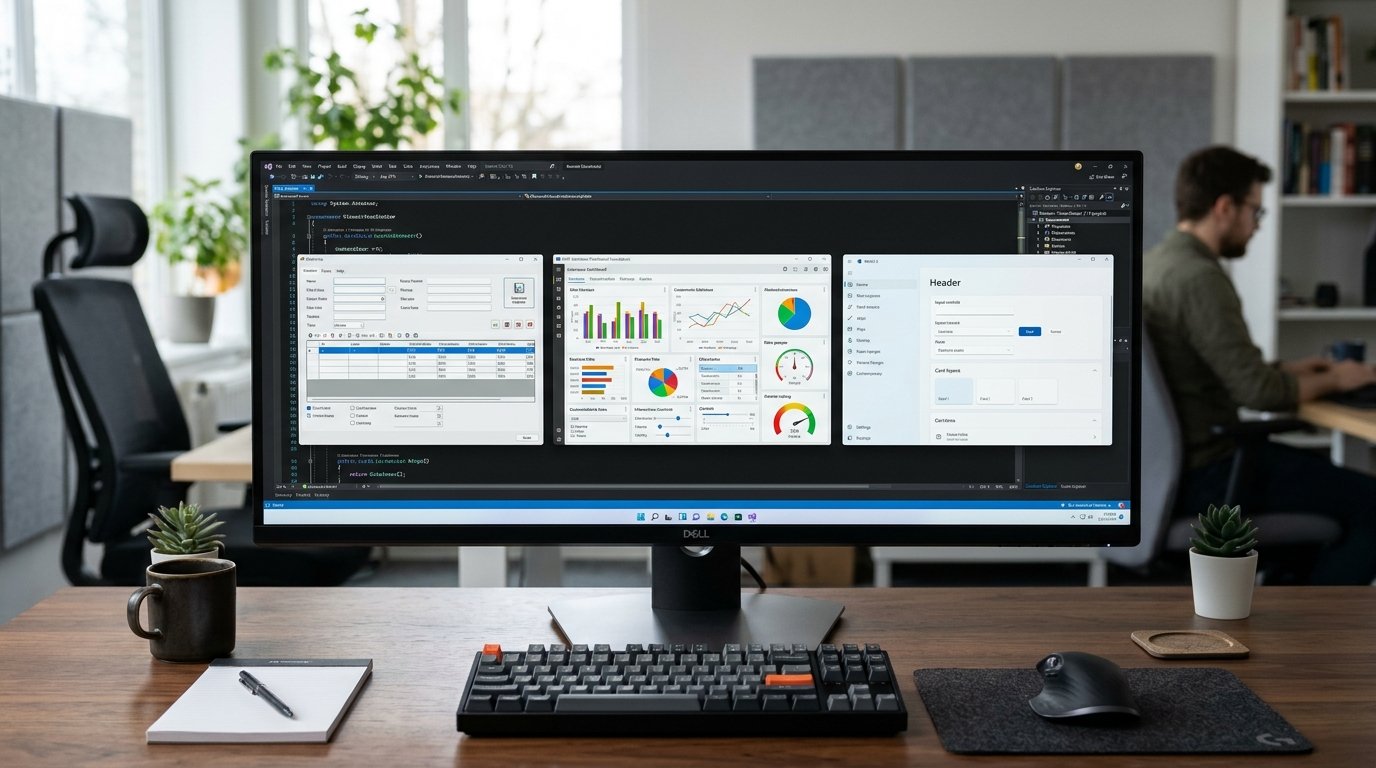
All Windows applications need to run reliably, to serve users well. Even well-designed software, though, can pose issues, including slow startups, memory leaks, unresponsive interfaces and a high CPU usage, as well as unexpected crashes. Such problems can cause disenchantment with an application, hinder crucial tasks and decrease confidence in the application. Debugging and optimizing the performance allows developers to find out the root cause of these issues, fix the problem and enhance software quality.
Developers should consider making decisions based on systematic investigation, reliable diagnosis tools, and measurable results, rather than on assumptions when modifying code. If you know how to pinpoint common performance issues, analyze application behaviour, and validate performance enhancements, you’ll be better able to keep Windows software stable over its lifecycle.
Debugging and Performance Optimization
Debugging is the process of detecting, investigating and fixing errors that result in an application running incorrectly. Typical mistakes that are encountered are miscalculations, errors in operations, unexpected exceptions, and application state issues, all of which are considered bugs. Performance optimization, on the other hand, is optimized software that uses the system resources most efficiently and processes the user inputs the most quickly. The two activities are closely related but do not have the same focus on software quality. An application could give a correct answer but take “too long” to get there, or it could get there rapidly, but crash if a user enters an unexpected input. Correctness and efficiency are therefore issues to consider when developing Windows applications. The first steps to troubleshooting involve reproducing the problem, gathering evidence, determining the cause of the problem, applying a specific correction, and testing the correction under realistic conditions.
The most appropriate debugging method depends on the application, and Windows developers use a variety of frameworks, programming languages and development environments. Different diagnostic techniques might be needed for a C# application created from the Windows Presentation Foundation (WPF) as well as a modern application created with WinUI 3, a traditional Windows Forms application. However, the underlying concepts of these technologies are similar. Developers need to know how the application is expected to behave and set measurable targets for the performance, and choose the tools that will show what is going on during execution. This documentation by Microsoft gives framework-specific guidance for developers who are creating modern Windows desktop apps: WinUI applications. Visual Studio is a helpful starting point, since it gives you one development environment that lets you debug your code in the source code, inspect exceptions, profile performance, and analyze memory usage. The default application is Windows Performance Toolkit and .NET diagnostic utilities are available in some cases where the issue needs to be investigated further.
Why Developers Should Measure Performance Before Optimizing.
Performance measurement sets a standard to which they can compare future performance of their application and to see if a proposed change would improve it or not. If you don’t have any numbers, you could waste hours optimizing a method that doesn’t have that much impact on the overall performance, only to discover that a call to the database or to a rendering operation is what is causing most of the delay. Start with the scenarios that are critical to the application, like when launching the application, opening a specific screen, searching records, loading a large document, or saving the changes.
Note down pertinent parameters like CPU utilization, memory usage, start up time, etc., and the time taken for each operation. Repeat tests under similar conditions to minimize the effect of background processes and temporary system activity. To ensure reliable results, test Release builds on representative hardware and differentiate between cold and warm starts. Microsoft’s guidance for Windows application performance includes measuring actual user scenarios and determining expensive operations from the result; it suggests that you do the same again after optimization.
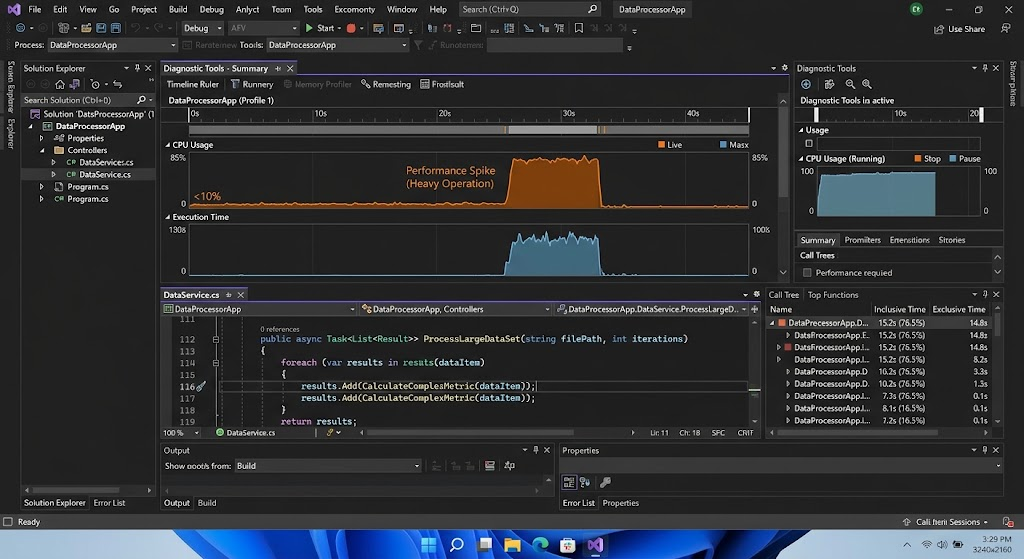
Slow start-up is when it takes too long for users to have an application that is usefully usable. Typical examples are initiating unnecessary operations, loading too many resources, reading in large configuration files, making synchronous network requests, building complicated user interfaces and showing the main window first. To explore the issue, use a timer to determine how long the app takes to launch, and see what happens before the first useful screen is reached. Visual Studio’s Performance Profiler and Windows Performance Toolkit can be used to diagnose expensive methods or file operations, and other startup tasks. Developers should concentrate on work that needs to be completed before the user will be able to interact with the application. Secondary data (data that is not used in the initial interface) and rarely used features can often be delayed for the time after the initial interface. A desktop inventory app must show the inventory screen window before downloading and viewing detailed product history, for instance. It can load key records first, if needed, and load more data later, and there is no blocking of the initial interface.
Another thing to consider when developing with WinUI 3 is the expense of building XAML, loading resources, and building control objects. If you use hundreds of unnecessary visual elements in a screen, then it will take longer to start up than a simpler screen with the same functionality. Avoid needless controls, limit repeated templates and leverage UI virtualization to handle large lists, if possible. Virtualization makes it possible to generate visual content to be shown only for the content that should be shown, not for all the content. Similarly, developers can postpone creating user elements that are not required when the application starts up. Such changes should be based upon profiling results, not indiscriminately. The benefits of caching can be improved start up performance or navigation and successive operations, but too much caching can consume more memory. The goal is to get the application up and running as fast as possible, yet not too fast that it doesn’t use enough resources and is too hard to maintain.
Finding Memory Leaks and Excessive Memory Usage.
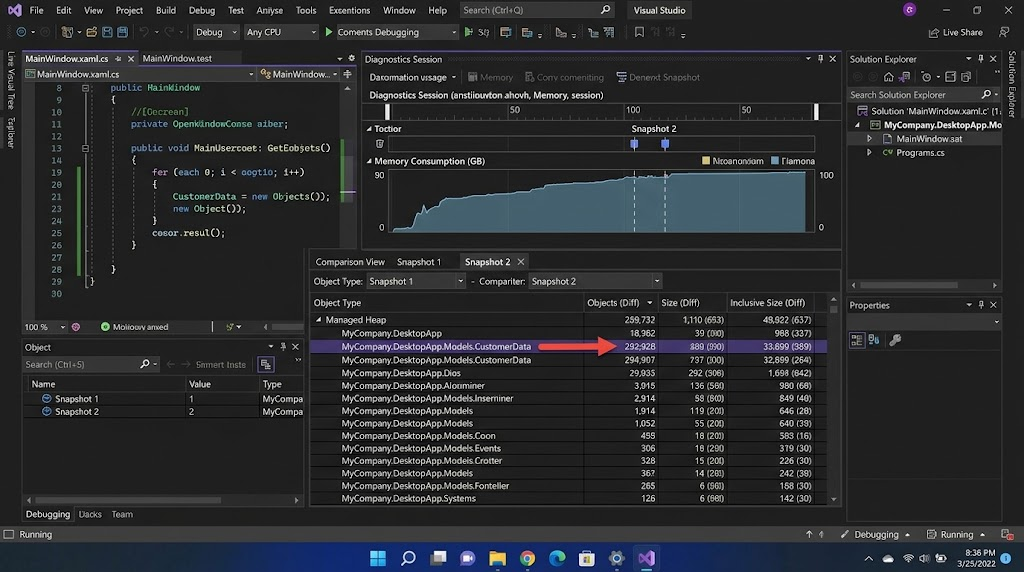
Memory problems can happen when an application uses too much RAM, grows in memory continuously or keeps objects that are not needed in memory. Too much RAM can cause software to run slower, lead to more garbage collection within managed programs, and impact other software programs running on the computer. Memory Leaks happen when an object is not removed from memory even though it is no longer being used by the application. This can occur in C# if there are objects in event handlers, static collections become too large or cached data is not purged. Visual Studio Memory Usage tools, object allocation tracking, and memory snapshots can be used by developers to explore these issues. By comparing an image of the site before and after repeated operations, one can see what type of objects are still being built. For instance, if the number of window objects being retained grows on repeated opening and closing of a window to show customer details, the developer should examine event subscriptions, references, and window-cleanup code. They should also be able to tell the difference between normal memory caching and a true leak when they want to change the implementation.
One approach to exploring memory growth is to start the application, determine how much memory is consumed, and repeat an operation that you know happens repeatedly, and see how much memory is used again. Repeat several times and see if memory remains stable or keeps on rising. In managed .NET applications, the garbage collector will automatically recover objects that it can, but it will not recover objects that are reachable through active references. Developers should therefore seek out superfluous references, not rely on the fact that they have to invoke garbage collection themselves. Close streams, close database connections, unregister event handlers as needed and set reasonable limits on the number of caches used. For instance, a document viewer that keeps all the documents that are opened in the past can gradually take up too much memory. A bounded cache may offer performance benefits and help to conserve resources when replacing the unlimited collection. Once changes have been made, repeat the test and compare the measurements of memory to determine if there is an improvement.
Troubleshooting Unresponsive User Interfaces
An unresponsive interface is usually a sign that the application’s user interface (UI) thread is doing something that blocks it from accepting input from the user and sending the updated screen to the display. It can occur when developers are doing long calculations, synchronously accessing network data, reading large files or directly executing database operations on the main UI thread. The application might look frozen, as buttons don’t react, windows won’t slide in and out easily, and progress indicators won’t update. Try to reproduce the slow interaction and observe CPU activity, the behavior of the threads and the length of each operation. Visual Studio’s diagnostic tools can be used to identify costly code paths, and Windows Performance Analyzer can be used to get more details about CPU activity and thread scheduling. Depending on the cause: If the wait operation is done in asynchronous I/O, it cannot block the interface; if the calculation is costly, it can be executed on a background worker. The updates to the UI still need to adhere to the requirements for thread affinity in the framework.
Review a program that loads thousands of records and totals all the records every time someone opens a report. If the operation is done on the UI thread, then the window may become unresponsive until the operation is complete. The following are suggestions for developers to be more responsive:
- Fetch data asynchronously.
- Shift appropriate calculations off the UI thread.
- Update the interface when data is ready.
Async and await can be helpful in C# with asynchronous operations, particularly waiting on files, databases, or network services. But just by using a method async does not imply that the CPU intensive task moves automatically to a background thread. The developers need to select the right execution strategy for every operation and should not needlessly switch threads. With UI elements, the general rule with WinUI 3 is that if they’re operating in a background thread, they should be returned back to the UI thread safely. It is important to split up big operations into smaller ones, and present a meaningful indication of progress to the user.
Identifying and Addressing CPU Bottle-necks.
A high CPU usage can be a sign of an application using too much computation, or repeatedly executing unwanted operations, or using an inefficient algorithm. Common reasons are the processing of the same data more than once, inefficient searching of large sets of data, frequent polling loops and recalculating of data which is reused. Task Manager will give you a first clue if an application is using a lot of processing resources, but it typically won’t tell you what is causing the problem. Visual Studio’s CPU Usage profiler offers more information about execution time-consuming functions and call paths. Developers need to replicate the workload, take a profile and review the top CPU expensive functions. For instance, a “product search” function could constantly go through the whole product line every time a character is typed. Depending on the data structure and requirements, it may be possible to do a better search, use an appropriate index, or carefully design a filter to decrease the amount of work. Any improvement to be made should be checked with the original workload to ensure that it is worthwhile.
Optimization of the CPU needs to be focused on algorithms, data structures, and the amount of work done, not just on the number of lines of code. The first implementation might be slower, depending on how many objects are being allocated repeatedly, or if it takes expensive operations. The first implementation could be slower if it allocates objects many times and does expensive operations. The first step is to determine the dominant cost, after which there are a number of other potential avenues to explore, including:
- Avoiding duplication of calculations.
- Improving the lookups in collections.
- Avoiding unnecessary creation of objects.
- Avoiding background tasks that compete for CPU time.
Multithreading can be useful if the work can be safely split into threads, but can also lead to synchronization overhead, race conditions, and complexity. So high CPU usage should not be considered a general solution to parallel processing. Developers should also investigate if the apparent bottleneck is in the code of some external service, or if there is contention with another process. Profiling offers the evidence to select the right solution, and avoids premature optimization.
How to use Logging and Exception Handling to Diagnose Crashes
Uncontrolled exceptions, invalid application states, missing files, failed network requests, invalid input data and issues with external dependencies can all cause unexpected crashes. If the crash is repeatable in a development environment, it may be possible to get more diagnostic information from a debugger, but if it is a production problem, it may not be. Logging is important events and errors so that developers can figure out what led to the failure. Some useful log entries will be the time, the name of the operation performed, the severity of the operation, any identifiers that may be relevant, and exception details. For instance, a document-processing application could log the following: A file could not be opened, the action attempted, and the exception. Logs should contain sufficient information to investigate a problem, but not include unnecessary information on passwords, authentication tokens or personal information. Specific log retention and access policies should also be set by the developer as diagnostic information might include operational information that could be sensitive.
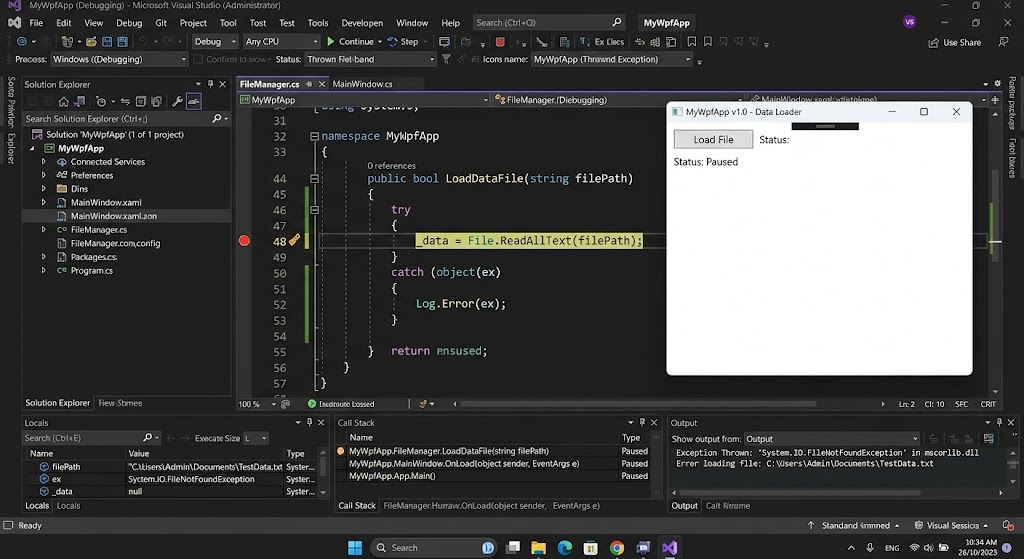
Exception handling enables applications to react in a predictable manner to the failure of an operation. The try, catch, and finally keywords in C# allow programmers to catch exceptions that they expect and recover as much information as possible to learn about what went wrong and to perform cleanup if it’s needed. A file-loading operation, for instance, should consider the case of its file not being found, of it not being properly accessible, and of the contents not being accepted. The program may show a helpful message, record the problem, and suggest a suitable course of action without crashing because of the expected error. But there is a need to avoid catching all exceptions without taking any meaningful action as it can mask bugs and cause inconsistent behavior in the application. Exceptions should be dealt with at the point where the software can recover safely, or provide clear communication of failure. If a production problem occurs repeatedly, the developers can use the crash information and telemetry to look for trends on the devices, and then prioritize work based on the frequency and severity of the problem.
Practical Debugging and Profiling Tools for Windows Developers
The selection of a proper diagnostic tool helps in troubleshooting in an efficient manner. It is useful for investigating incorrect behaviour and reproducible crashes in Visual Studio through the use of breakpoints, variable inspection, call stack and stepping through the code. It has a Performance Profiler with both CPU Usage and Memory Usage tools to help detect costly methods and memory issues. Depending on the framework and version of Visual Studio, the available timeline and responsiveness diagnostics can be used for XAML applications to help the developer estimate the cost of layout, rendering, and other interface operations. For complex CPU, disk, scheduling and memory behavior, the Windows Performance Toolkit provides system-level analysis using Windows Performance Recorder and Windows Performance Analyzer. Other tools that offer insight into runtime metrics, execution traces and process dumps are .NET diagnostic utilities like dotnet-counters, dotnet-trace and dotnet-dump. Developers should choose the tools to answer the question they are asking, not to gather all the possible diagnostic traces.
Logging and exception handling can help make loading a file easier to troubleshoot in a C# Windows application, as shown in the example below. A production implementation might involve a logging library, but here is a good example of using a built-in abstraction.
public async Task<string?> LoadFileAsync(
string filePath,
ILogger logger)
{
try
{
logger.LogInformation(
“Starting file load: {FilePath}”,
filePath);
string content = await File.ReadAllTextAsync(filePath);
logger.LogInformation(
“File loaded successfully: {FilePath}”,
filePath);
return content;
}
catch (IOException ex)
{
logger.LogError(
ex,
“The file could not be read: {FilePath}”,
filePath);
return null;
}
}
This example logs the beginning of a file loading operation, verifies successful completion and gathers information about an I/O error if it happens. Return null means that the caller should handle the failure as it invalidates the result of the function, but a real application should provide the appropriate information for failure to the user and tell the difference between expected failure and other failures. Also, the example shows how to use structured logging—storing the file path as a named property in the log, not just part of the unstructured message. Recorded paths should not include any unnecessary information. Other exception types might need to be caught as well, depending on the application’s needs, and unforeseen programming bugs should not be suppressed. Most of all, logging should not be used as a substitute for good error handling, validation or automated testing code.
Repeatable Workflow for Debugging and Optimization
The uniform troubleshooting procedure enables the developers to squash bugs quickly and safely without creating new bugs. Begin by describing the symptom in detail, such as affected features, steps to reproduce the symptom, conditions when it happens. Then, set a baseline by recording a baseline measurement of the relevant behavior(s). Reduce the scope of investigation to a particular operation or resource by using logs, breakpoints, performance profiles or memory snapshots. Understand the potential cause, and make targeted changes instead of fixing unrelated code. Repeat the test with the same setup and compare the results with the baseline measurement. Lastly, assess features related to the test, examine logs for fresh error messages, and keep studying the results of subsequent modifications. This process is applicable for functional defects as well as performance issues since it provides a linkage from every proposed fix to the observable evidence rather than intuition.
If, for instance, a Windows inventory application needs a few seconds to show its dashboard, and it freezes when the users are searching for products. The developer will measure the startup time and search time, and then profile to see if it takes longer to initialize the dashboard, or if it takes longer to search for multiple collections. The developer can be able to postpone needed remote requests and show more important information at the beginning if the start time is delayed by unnecessary remote requests. When the developer does the searching repeatedly over a large collection, he or she can test a more efficient way of searching. The application is then run again with the same data and hardware environment. The developer is able to compare the performance of the startup time, responsiveness to searches, CPU use, and memory consumption, and can determine whether the changes will result in a better feature to implement vs. unacceptable trade-offs. Key functionality should be tested using automated regression tests, and repeatable performance tests are helpful for identifying slowdowns in the future. Carefully recording the original problem, evidence and correction, then the final measurements helps keep the solution easy to maintain.
Conclusion
Debugging and performance optimization are essential practices for building reliable Windows applications. Slow startup, excessive memory consumption, unresponsive interfaces, CPU bottlenecks, and unexpected crashes each require a systematic investigation supported by appropriate diagnostic tools. Developers can use Visual Studio to inspect code execution and resource usage, Windows Performance Toolkit to analyze system-level behavior, and .NET diagnostic utilities to investigate runtime problems. Logging and exception handling provide additional evidence when failures occur, particularly in deployed applications that cannot be examined directly with a debugger.
However, successful optimization depends on more than knowing which tools to use. Developers must measure performance before making changes, identify the actual cause of a problem, implement a targeted solution, and repeat the original tests afterward. By following this evidence-based workflow, beginners and experienced programmers can improve application responsiveness, reduce unnecessary resource consumption, prevent recurring defects, and maintain dependable Windows software as user expectations and technical requirements evolve.