When an employee’s laptop develops a problem during a client meeting, the person responsible for fixing it might be miles away. For IT managers supporting employees across different offices, or managed service providers looking after computers for multiple businesses, travelling to every location takes time that could be spent resolving other requests.
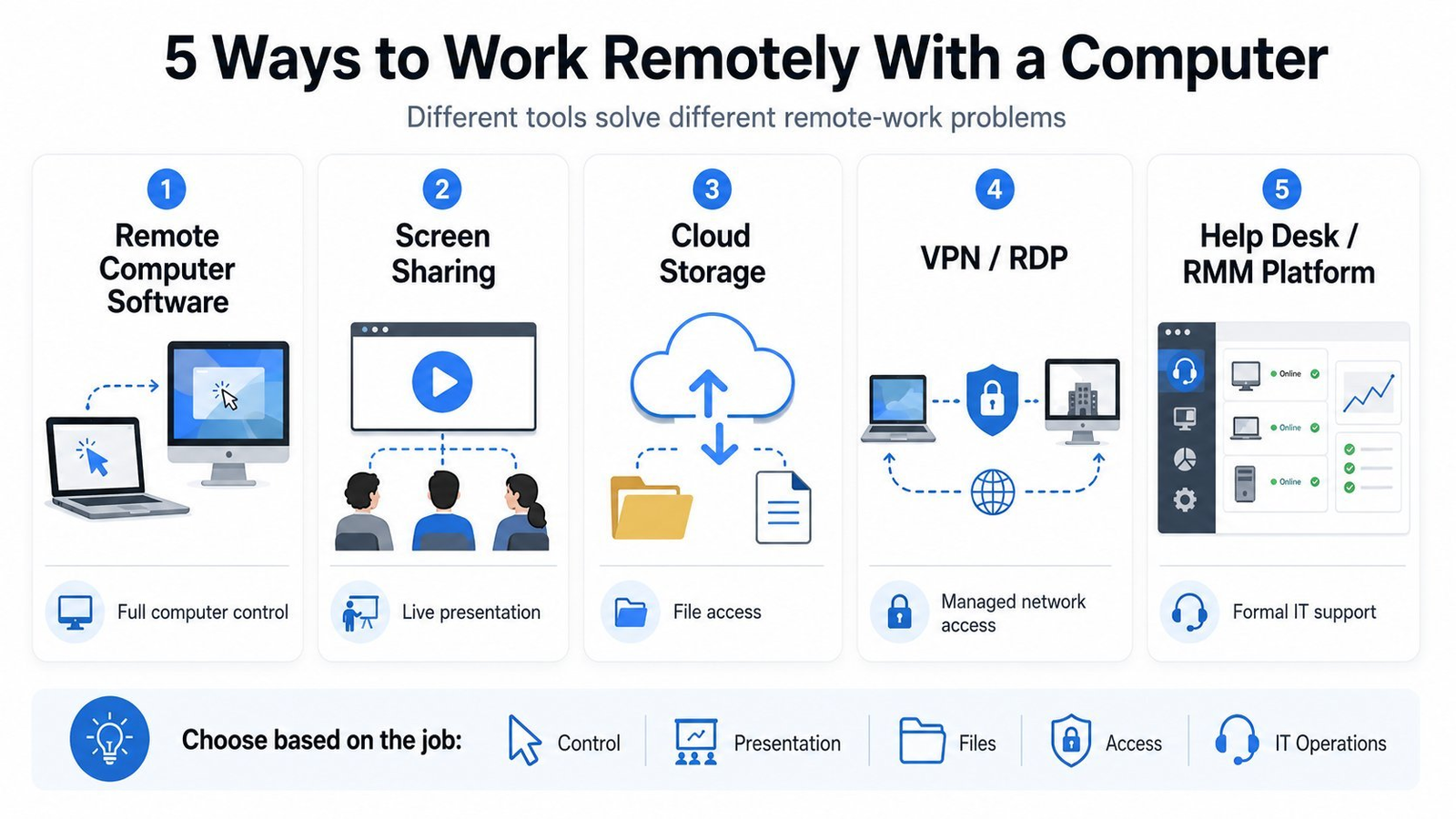
Remote management software covers different types of IT work, from monitoring device health to controlling a computer during a support call. The challenge for buyers is identifying which tasks their team needs to handle and whether a product provides the right tools without adding unnecessary administration or expense.
Decide Whether Devices Need Monitoring or Hands-on Help
Remote monitoring and management (RMM) software helps IT professionals oversee computers and servers from a central location. Depending on the product, technicians might receive alerts about low disk space, check device health or schedule operating system updates. These functions matter when an organisation maintains many computers and needs to spot problems before employees report them.
Remote support addresses a different situation. An employee might encounter an error message or lose access to a printer without knowing what caused it. Rather than asking the employee to describe every setting, a technician can view the screen and investigate the problem directly.
A remote assistance tool usually focuses on screen sharing, keyboard and mouse control, file transfers and communication during a support session. Some products also allow technicians to connect to computers configured for unattended access, even when nobody is present.
The distinction matters when deciding what to purchase. An internal helpdesk that mainly responds to employee requests might need remote IT support software rather than an extensive monitoring platform. An MSP responsible for maintaining computers across client sites might need both types of functionality, whether in one platform or separate products.
Ticketing deserves attention as well. Some remote management products include systems for recording support requests, while others connect to an existing helpdesk application. Buyers should check how these functions work before assuming a single product handles every part of the support process.
What Happens During Attended and Unattended Sessions
An attended support session normally begins when someone reports a problem. The employee launches the connection application and provides the necessary access details, allowing the technician to inspect the computer. Depending on the software, the technician can control the mouse and keyboard, transfer files or communicate using an integrated chat window.
Helpdesks handling live calls and maintenance outside office hours need remote support software for IT teams that covers both attended and unattended sessions. TSplus Remote Support lets technicians view an employee’s screen during a live call or connect to a previously authorised Windows computer when nobody is at the keyboard.
Unattended access requires preparation. With TSplus Remote Support, someone with administrator privileges must activate the feature and configure a dedicated password before technicians can connect using this method. The computer owner can later change that password or disable unattended access.
This arrangement suits maintenance outside working hours or situations where an employee cannot remain at their desk while a problem is investigated. It also requires clear procedures for deciding which computers technicians are permitted to access without someone approving each session.
The connection process deserves attention during product selection. Some tools require the employee to launch a small application, while others depend on installed software or browser access. These differences affect how quickly a helpdesk can assist someone who has never used the product before.
Organise Support Without Mixing Up Clients or Permissions
For an internal IT department, keeping track of computers might involve a relatively small collection of devices. An MSP supporting different businesses faces another responsibility. Technicians need to identify the correct customer computer and avoid accessing equipment belonging to another client.
Device organisation becomes particularly useful when technicians share responsibility for customer accounts. TSplus Remote Support provides an Administration Console where subscription administrators can organise registered computers into folders and assign folder access to different teams.
Folder permissions determine which saved computers appear in a team’s list, but they are not a substitute for connection credentials or separate security settings. Folders created at the top level are visible to all subscription members by default, so administrators should review the folder structure and how remote access is authorised before sharing customer computers with technicians.
Security also depends on the accounts used to establish connections. Multi-factor authentication (MFA) requires another identity check beyond a password. Businesses should examine the authentication settings available in their chosen software and review access permissions whenever technicians change responsibilities or leave, removing access that is no longer needed.
Session records provide another way to review support activity. Knowing when a connection occurred and which computer was accessed helps administrators investigate unexpected activity. Recording a session can provide further detail, although stored recordings need protection because they might contain confidential information.
The ability to transfer files also needs appropriate controls. Technicians may need to send a configuration file or retrieve an error report, but unrestricted transfers could expose information that should remain on the customer’s device.
These considerations matter even when a business has only a few technicians. Remote support gives people access to computers they do not physically control, so permissions and account management should be established before the software becomes part of everyday helpdesk work.
Match Trial Results to the Number of Live Sessions
The number of supported computers does not necessarily determine the price of remote support software. Some products charge according to technician accounts or registered devices, while others use a model based on concurrent connections.
Each active remote support session counts as one concurrent connection. The licence determines how many sessions can operate at the same time.
TSplus Remote Support uses subscription licensing based on concurrent connections, with no fixed limit on the number of registered technicians or supported devices. A helpdesk with six technicians might normally have only two active sessions, although busy periods could require more connections.
Understanding that pattern matters before choosing a subscription. The person responsible for purchasing software should ask technicians how many requests they handle simultaneously, rather than relying exclusively on the number of employees or customer computers.
A trial offers an opportunity to check those assumptions against everyday support work. Using test scenarios based on the requests employees and clients normally make gives the helpdesk more to assess than a successful connection alone.
- Attended assistance. Ask an employee to initiate a session without detailed instructions and check whether the technician can establish control.
- Unattended maintenance. Connect to a previously authorised computer and verify that access can be changed or revoked afterwards.
- File transfers and multiple screens. Test whether technicians can exchange files and work across connected displays when necessary.
- Interrupted connections. Observe what happens when an employee temporarily loses internet access and whether the session can be resumed.
- Simultaneous requests. Run multiple sessions to see how the connection allowance affects technicians during busy periods.
TSplus Remote Support offers a free trial, allowing IT teams to examine its screen-sharing and remote-control functions before purchasing a subscription. Testing with the computers and operating systems already used by the organisation also helps identify compatibility issues.
By the end of the trial, the team should know whether the software handles its usual support requests, whether the connection allowance covers busy periods and how much administration it requires. If technicians also need automatic device checks or scheduled maintenance across client computers, those functions should be assessed separately before purchasing.