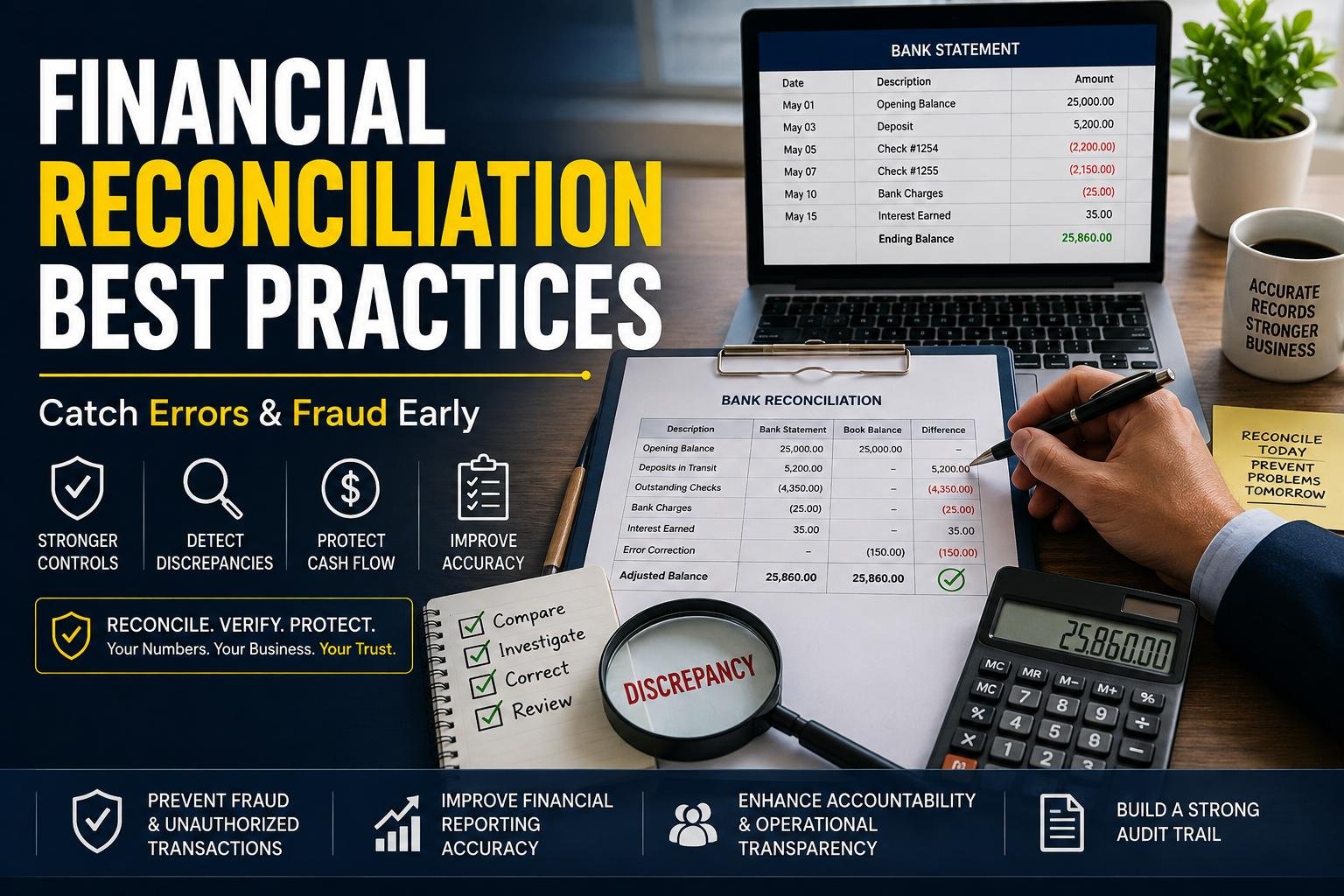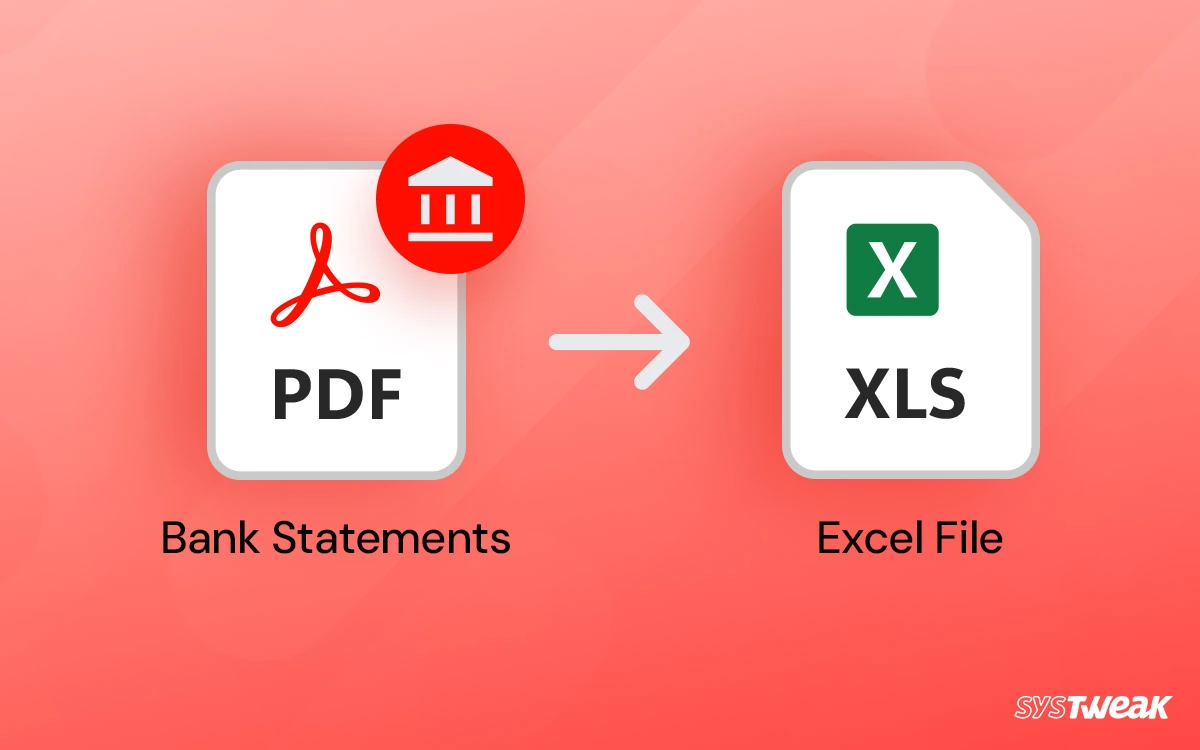
Anyone who has ever attempted to import his or her bank statement into accounting software or tax software or even into a basic spreadsheet has encountered a wall of file formats. You get a PDF from your bank. Your software is expecting a csv. Along the way, Excel comes into the picture. No one tells you which is which or why or what to do if the formats don’t match.
This is a quiet but regular torment for most Americans who are doing their own finances, whether they work alone, are small business owners or just individuals doing their own taxes. You have the data. It’s right there in the statement: Spending an evening getting it out of the format it sent to you from the bank and into the format that’s needed, though, becomes a frustrating experience. So, what exactly are these formats, the software/bank problem, and how to get from one format to the other without losing your mind.
The three formats you have come across:
Begin with the fundamentals, since you’ll be using the names like they’re common knowledge.
Your bank will provide you with a PDF. Looks exactly like a printed page, regardless of the device you open it on, same layout, same columns, everything. Excellent for reading and for keeping official records. It is a terrible way to work with the data, as it’s really an image of a document with text superimposed on top. The columns you see, are not real columns when it comes to software, just columns to your eyes.
The opposite is a CSV — comma-separated values. It’s simple, unvarnished information. Every transaction is a row, every one of the pieces of information is separated by a comma. It renders ugly when opened in a text editor, but that’s the point of accounting software, tax applications and databases: They know exactly what they are looking for. There is no layout to be interpreted, just data.
There is an excel file in the middle (.xlsx). Like a CSV but with formatting, formulas, multiple sheets, and the familiar grid you can actually read and edit up top. This is the sense in which most people use the word ‘spreadsheet.
The short explanation: PDF is for eats, CSV is for software and Excel is for yourself. The problem begins because your bank only knows the first language while the other two are foreign.
Why banks provide you PDFs and software require CSVs
This mismatch is not a coincidence and it is not about to change and therefore, it is important to understand why it exists.
Banks make PDFs because it is their duty to provide you an accurate and tamper-proof copy. A PDF never changes, will print without problems and will be your record of what actually happened in your account. From the bank’s perspective, it’s exactly what a statement is: a document you can file, print or present to a lender. Importing into other software is not their concern, they simply want that document to be easy to import into that software.
Software, on the other hand, doesn’t care about the appearance of a document. It is interested in clean, structured data which it can read reliably. QuickBooks, tax preparation software, budgeting apps — they all need to know just the number (the amount), just the text (the description) and just the value (the date) — and nowhere else! That’s what CSV provides them. If he tries to guess them out of PDF, he breaks.
So you have a format you’re stuck with that is designed to be read by humans and you need a format that is designed to be understood by machines. The real job is to fill that gap, but nobody says that that’s the job.
Why it is not possible to simply copy and paste.
The most apparent solution is to open the PDF, click on the transactions, copy them and then paste them into a spreadsheet. Everyone tries this. Rarely if ever does it work.
Copying text from a PDF causes its visual layout to break up. Those neat columns collapse and all the dates, descriptions, amounts fall into one column or go flying helter-skelter. You end up spending more time clearing up the mess than it would take to type it out by hand. This is because the columns you see are not structural, but are merely visual. The Copy/Paste function only copies the text, but not where one column starts and another ends.
If that’s not the case, you’ll eventually revert to the manual typing solution, which is the one that most people do. It works, but is slow and it’s where the errors occur — a transposed digit, a missed line, a debits recorded as equals to credits. For a month of transactions which is an annoyance. For a year of them, for a tax filing, it’s an evening that you will never get back and a real risk of errors in numbers that matter.
The straightforward fix: convert it
The clean solution is to convert the PDF directly into the format you need, letting a tool do the column-reading that copy-paste can’t. A PDF to CSV converter reads the statement, works out where each column lives, and outputs proper structured data — every transaction on its own row, with the date, description, and amount correctly separated. From there you can open it in Excel or import it straight into your accounting or tax software.
This is the step that turns “I have my statement but can’t use it” into “my data is ready.” Instead of fighting the format mismatch by hand, you hand the PDF over and get back exactly what your software has been asking for. What made the whole thing feel hard — the gap between the bank’s format and everyone else’s — just disappears.
The good converters give you options on the output, too. Need a CSV to import into QuickBooks? You get a CSV. Want an Excel file to review and edit yourself? You get that instead. Same statement, whichever format your next step requires.
It’s not one format — it depends on your bank and card
Here’s a wrinkle that trips people up: statements aren’t all built the same, so the conversion has to account for the differences.
Your bank checking account statement and your credit card statement are genuinely different documents. A checking statement typically shows a running balance after each transaction. A credit card statement usually doesn’t — it groups your charges and payments and shows a summary instead. A converter that treats them identically will get one of them wrong.
Take a common example. If you bank with Chase, your checking statement has that running balance and its own particular layout, and being able to convert a Chase statement online means the tool reads that structure correctly — including the small quirks, like the way Chase prints certain small amounts, that a generic reader can miss. The output comes out clean because the tool knows what a Chase statement is supposed to look like.
Credit cards are their own case. An American Express statement has no running balance column at all, and its charges and credits are laid out in Amex’s own way. When you convert an Amex bank statement PDF to Excel, you shouldn’t expect a balance column — there isn’t one to produce — but you should get every charge, payment, and credit sorted correctly, with the sign telling you which is which. Different document, different handling, same clean result. The point is that a good tool reads each statement on its own terms rather than forcing everything through one rigid template.
Correct format for data destination
When you’re able to convert without any trouble, the only question you might have is which format you want and it depends on the next thing you are going to do.
When importing to accounting or tax software, use CSV — it is the software’s preferred import format and imports without issues. Excel is more friendly if you are looking at the data, comparing months, or creating your own summary; you’ll receive the readable grid, and can include your own formulas and notes. But if any questions arise, whatever else you do, keep the original PDF — that’s the document you’ll present to a lender or hand to an accountant as proof. Make a working copy, saving the PDF for the archive.
Here are a couple of little habits that save trouble. Use the real PDF that you downloaded from your bank, not a photo or screen shot — the downloaded PDF will have actual text in it, and thus each figure will be converted accurately, whereas a photo or screen shot will have to be guessed. Then, convert and do a quick sanity check: If the statement has a closing balance, verify that the final number in your converted file is the same as it is in your original statement. If it does, you’re in the clear that nothing got lost en route.
The bigger point
It’s not your fault that there is some format confusion with bank statements, and it is not a sign that you are missing something obvious. It’s an honest mismatch that is built into the system: banks create documents for humans to read, and all the rest expects machine-readable data. The only connection between the two for many years was time and patience, copying and retyping.
That’s the change which has happened. There’s no need to be the bridge anymore. You get the PDF into the format your next step requires and save the original for your records, and no more is the PDF vs. CSV vs. Excel quandary a monthly headache, it becomes a 30-second headache. This data was always yours! Now it’s the easy part of getting into usable form!
.