Every game engine handles vegetation a little differently. Unity has its terrain tree system and LOD Groups, Unreal Engine 5 has the Foliage tool and Nanite, Godot relies on MultiMesh and visibility ranges, and Blender is where many trees are created or fixed before they reach an engine. A tree that works perfectly in one of them can look wrong or run slowly in another.
This guide explains how to get game-ready 3D tree models for each of these tools: which file format to use, what to check on import, how to keep performance under control, and when it makes sense to download free trees or buy a pack. It is written for indie developers, students and small studios who want good-looking forests without a dedicated environment artist.
What “game-ready” means for a tree
Before looking at specific engines, it helps to agree on what a usable tree is. Use this checklist for any model you download, buy or generate.
| Feature | What you want | What happens without it |
|---|---|---|
| Levels of detail (LOD) | 3–4 meshes, each 3–4 times lighter, plus a far impostor | Every distant tree is drawn at full detail and the frame rate collapses |
| Pivot | At the base of the trunk | Trees float or sink when placed on terrain |
| Scale | Real-world meters | Trees are the size of a cup or a skyscraper |
| Collision | Capsule or a few convex shapes | Players walk through trunks, or get stuck on leaves |
| Materials | Separate bark and leaf materials, two-sided leaves | Black or invisible leaves from behind |
| Textures | Included, sensible size (512–2048 px) | Pink or grey trees, or wasted video memory |
| Wind data | Stored in the model (vertex colors or UV channel) | Static, lifeless forests |
| License | Commercial use allowed | Legal risk at release |
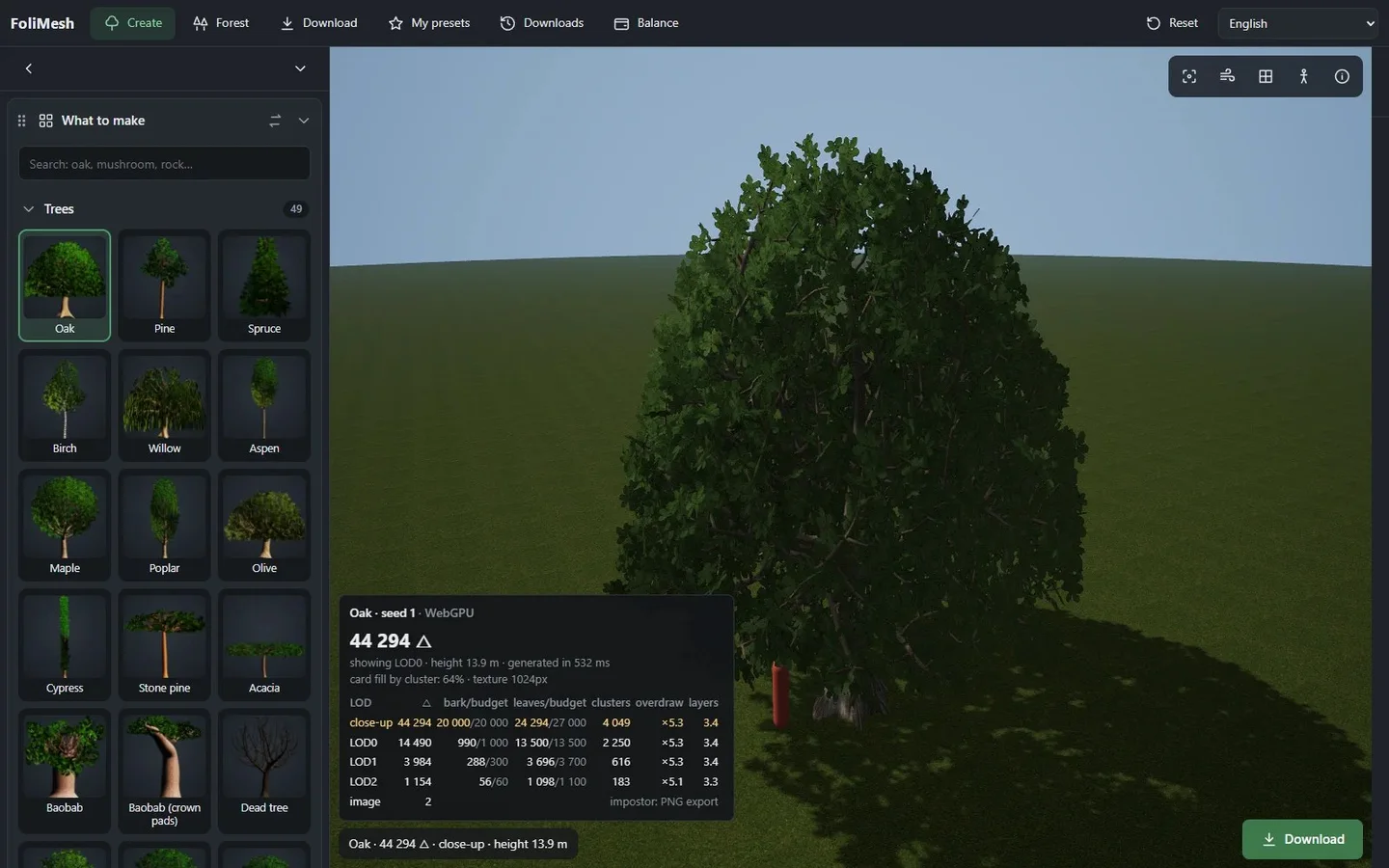
An oak with its full LOD chain: about 44,000 triangles for close-ups, 14,500 for LOD0, 4,000 for LOD1, 1,150 for LOD2 and 2 for the impostor.
Which file format for which engine
| Tool | Best format | Also works | What to check on import |
|---|---|---|---|
| Unity | FBX | GLB (with a glTF importer package), OBJ | Scale factor, LOD naming, material import mode |
| Unreal Engine 5 | FBX | GLB via the glTF importer, OBJ | Up axis, LOD import, collision (UCX) meshes |
| Godot 4 | GLB | FBX, OBJ | Visibility ranges, material transparency mode |
| Blender | GLB or FBX | OBJ | Up axis on export, applied transforms, packed textures |
| Web engines (three.js, Babylon.js) | GLB | glTF | Texture compression, file size |
As a rule of thumb, use FBX for Unity and Unreal Engine, GLB for Godot and the web, and keep OBJ for simple static meshes only, because it cannot store LODs.
Unity trees: from download to terrain
Unity is the most common engine among indie developers, and it offers two main ways to place Unity trees: as regular prefabs with a LOD Group component, or as terrain trees painted with the Terrain tools.
Importing
- Drag the FBX file and its textures into your Assets folder.
- In the model import settings, check the scale factor so the tree matches a 1.8-meter character.
- If the file contains meshes named with LOD suffixes (for example
_LOD0,_LOD1), Unity creates a LOD Group automatically. - Assign leaf materials that support transparency (alpha clipping) and two-sided rendering.
Placing
For hand-placed hero trees, use prefabs with a LOD Group and a Capsule Collider on the trunk. For large areas, paint trees onto the terrain with the Paint Trees tool, which uses GPU instancing and automatically switches distant trees to billboards. Adjust the tree distance and billboard start distance in the terrain settings to balance quality and speed.
Wind
Many game-ready trees store wind weights in vertex colors or a second UV channel. Use a shader that reads that data, or a Wind Zone with compatible materials, so branches move naturally.
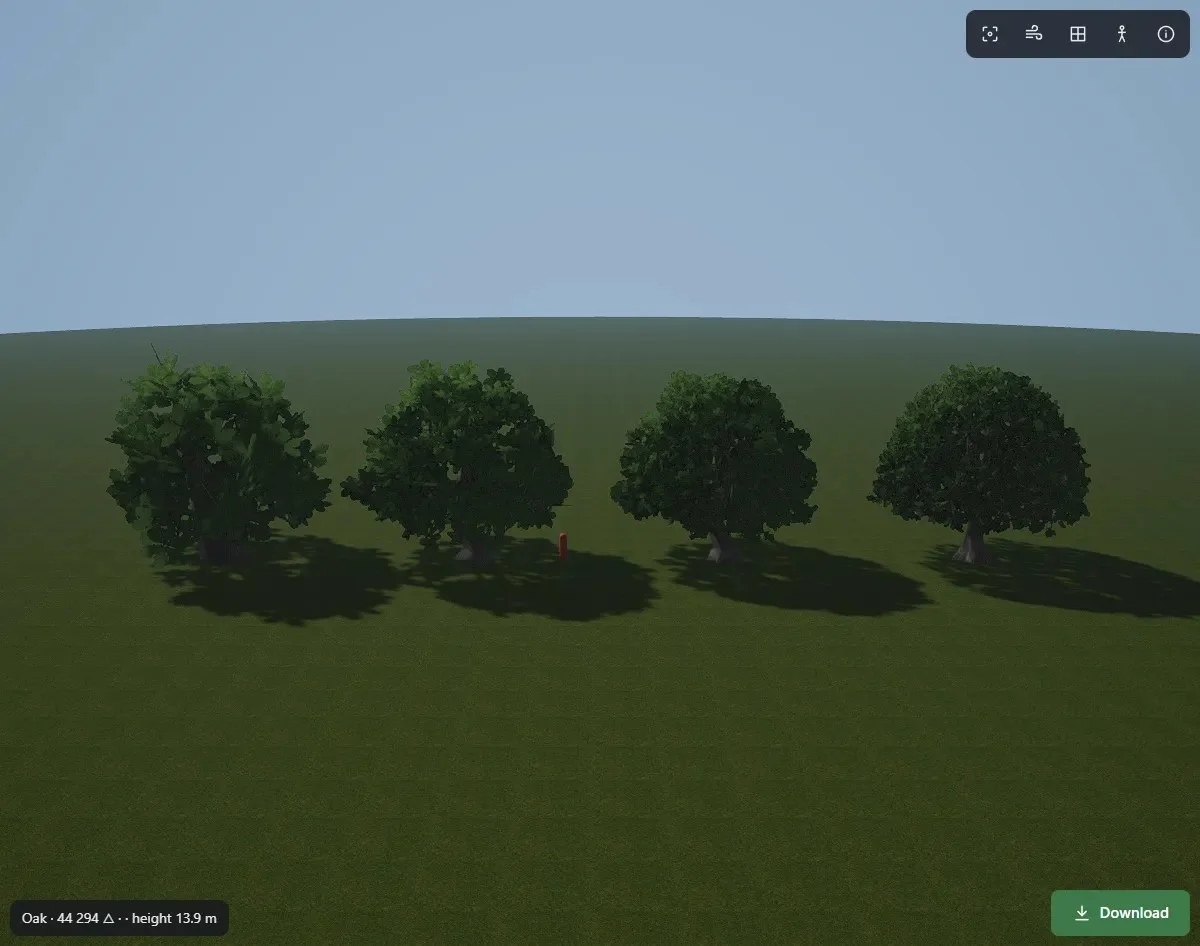
The same oak at different levels of detail in a scene. At gameplay distances the simpler versions are hard to tell apart.
Blender trees: make, fix and export
Blender is where many developers create their first trees or clean up downloaded ones. You can build game-ready trees for Blender in three ways: model them by hand, use a procedural add-on, or start from a generated or downloaded model and adjust it.
Useful options
- Sapling Tree Gen is a free add-on available on the Blender Extensions platform. It creates trees in minutes, but you will still need to add leaves, materials and LODs yourself.
- Geometry Nodes let you build your own procedural trees with full control, at the cost of setup time.
- Imported models from packs or generators can be edited like any mesh: change the crown, trim branches, recolor leaves.
Exporting correctly
- Apply rotation and scale (Ctrl+A) before export.
- Move the origin to the base of the trunk.
- Name LOD meshes consistently, for example
Oak_LOD0,Oak_LOD1. - For GLB, enable texture packing so images travel inside the file.
- For FBX to Unity or Unreal Engine, check the forward and up axis settings.
Unreal Engine 5 foliage
Unreal Engine 5 offers the Foliage mode for painting thousands of instances and procedural foliage spawners for filling large areas automatically. Nanite, the virtualized geometry system, can now be used for foliage too, which lets dense meshes render efficiently without classic LOD chains.
For most indie projects, classic LODs are still the safest choice because they work on every platform, including mobile and older GPUs. A practical setup:
- Import FBX trees with their LODs and simple collision meshes (named with the
UCX_prefix). - Use masked materials for leaves with two-sided foliage shading.
- Set cull distances in the Foliage tool so far trees disappear or switch to impostors.
- Test Nanite foliage only if your target hardware supports it well.
Godot 4: MultiMesh and visibility ranges
Godot handles large numbers of identical objects best with MultiMeshInstance3D, which draws many copies of a mesh in a single call. For levels of detail, Godot’s visibility ranges let you show different meshes at different distances, while automatic mesh LOD simplifies a single mesh on the fly.
- Import trees as GLB files; Godot reads materials and textures directly.
- Split the forest into chunks (for example 64×64 meters) so the engine can cull whole areas outside the camera view.
- Use alpha scissor rather than alpha blending for leaves, which is cheaper and sorts correctly.
Performance budgets for PC, mobile and web
| Platform | Triangles per tree up close | Visible trees | Leaf texture size | Tips |
|---|---|---|---|---|
| PC and consoles | 8,000–20,000 | Thousands with LODs | 1024–2048 px | Use shadows only on the closest LODs |
| Mobile | 1,500–5,000 | Hundreds | 512–1024 px | Low poly or stylized trees, short view distance |
| Web (WebGL, WebGPU) | 2,000–8,000 | Hundreds to a few thousand | 512–1024 px, compressed | Instancing and compressed textures (KTX2) |
| VR | 2,000–8,000 | Hundreds | 1024 px | Stable frame rate matters more than detail |
These are starting points, not hard limits. Always measure on your weakest target device with the full scene loaded.
Free vs paid 3D tree models: when to download and when to buy
| Situation | Free downloads | Paid packs or generators |
|---|---|---|
| Learning, game jams, prototypes | Ideal | Optional |
| One or two hero trees | Often enough | Useful if you need a specific species |
| Whole biome with variety | Hard to keep consistent | Ideal |
| Commercial release | Possible with CC0 or CC-BY, check every model | Clear license for all models |
| Multiple platforms | LODs often missing | LODs and formats included |
Free CC0 libraries such as Kenney and Quaternius are excellent for stylized prototypes. For a commercial game with several biomes, a paid pack or a generator usually wins on consistency and time saved. Generators also scale with your needs: instead of buying another pack, you create more variations of the species you already use. If you only need a handful of trees, buying a small block of downloads from a tree generator is often cheaper than a full pack.
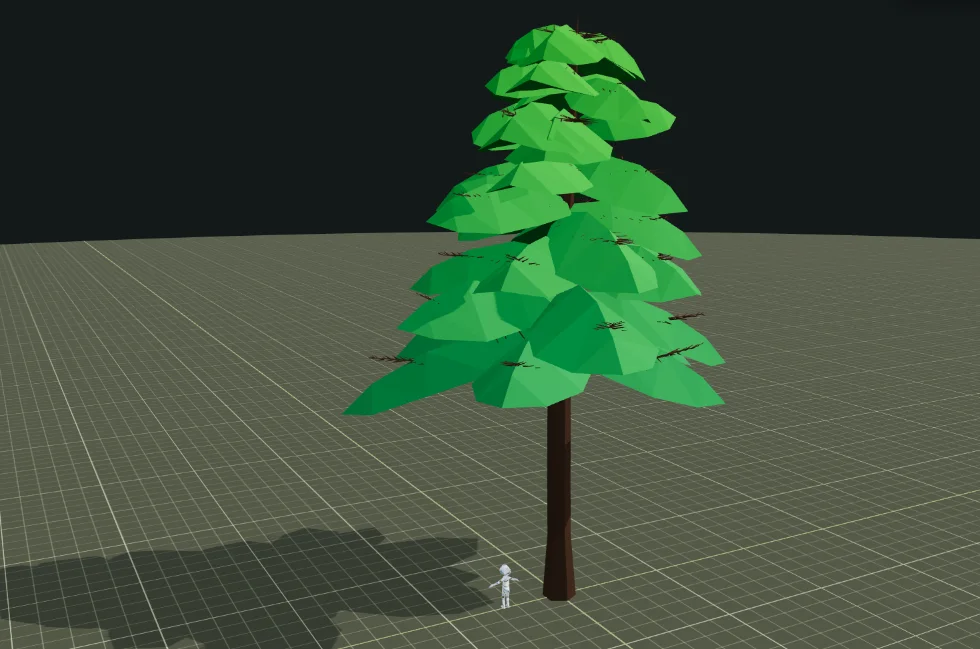
A low poly pine: a good choice for mobile and web games where every triangle counts.
Common problems and how to fix them in each engine
Most tree problems are not caused by the model itself but by small mismatches between the tool that created it and the engine that imports it. The table lists the issues developers report most often and the fastest fix for each.
| Problem | Unity | Unreal Engine 5 | Godot 4 | Blender |
|---|---|---|---|---|
| Tree is lying on its side | Rotate on import or re-export with Y up | Check “Convert Scene” and the up axis in FBX import | Re-export GLB with Y up | Apply rotation before export |
| Tree is 100 times too big or small | Adjust the model scale factor | Set the import uniform scale | Set the scale in the import dock | Apply scale, check unit settings |
| Leaves are black from behind | Use a two-sided leaf shader | Enable “Two Sided” in the material | Set cull mode to disabled | Disable backface culling for preview |
| Leaf edges look jagged or sort badly | Use alpha clipping, not transparency | Use a masked blend mode | Use alpha scissor | Use alpha clip in the material |
| LODs are not detected | Name meshes with _LOD0, _LOD1 | Enable “Import Mesh LODs” | Use visibility ranges or automatic LOD | Name LOD meshes consistently before export |
| Frame rate drops in dense forests | Terrain trees, GPU instancing, billboards | Cull distances, instancing, impostors | MultiMesh chunks, visibility ranges | Not a runtime issue; reduce polygons before export |
Two habits prevent most of these problems: always test a new tree alone in an empty scene before placing it widely, and keep one source file per species so a fix is made once and applies everywhere.
Choosing trees for your engine and style
Your engine choice also influences which trees fit best. Unity and Godot projects are often stylized or low poly and target several platforms at once, so lightweight trees with three or four LODs are the sweet spot. Unreal Engine 5 projects lean toward realism and high-end PCs, where denser trees and Nanite make sense. Blender sits in the middle as the place where trees are adjusted before they go anywhere else.
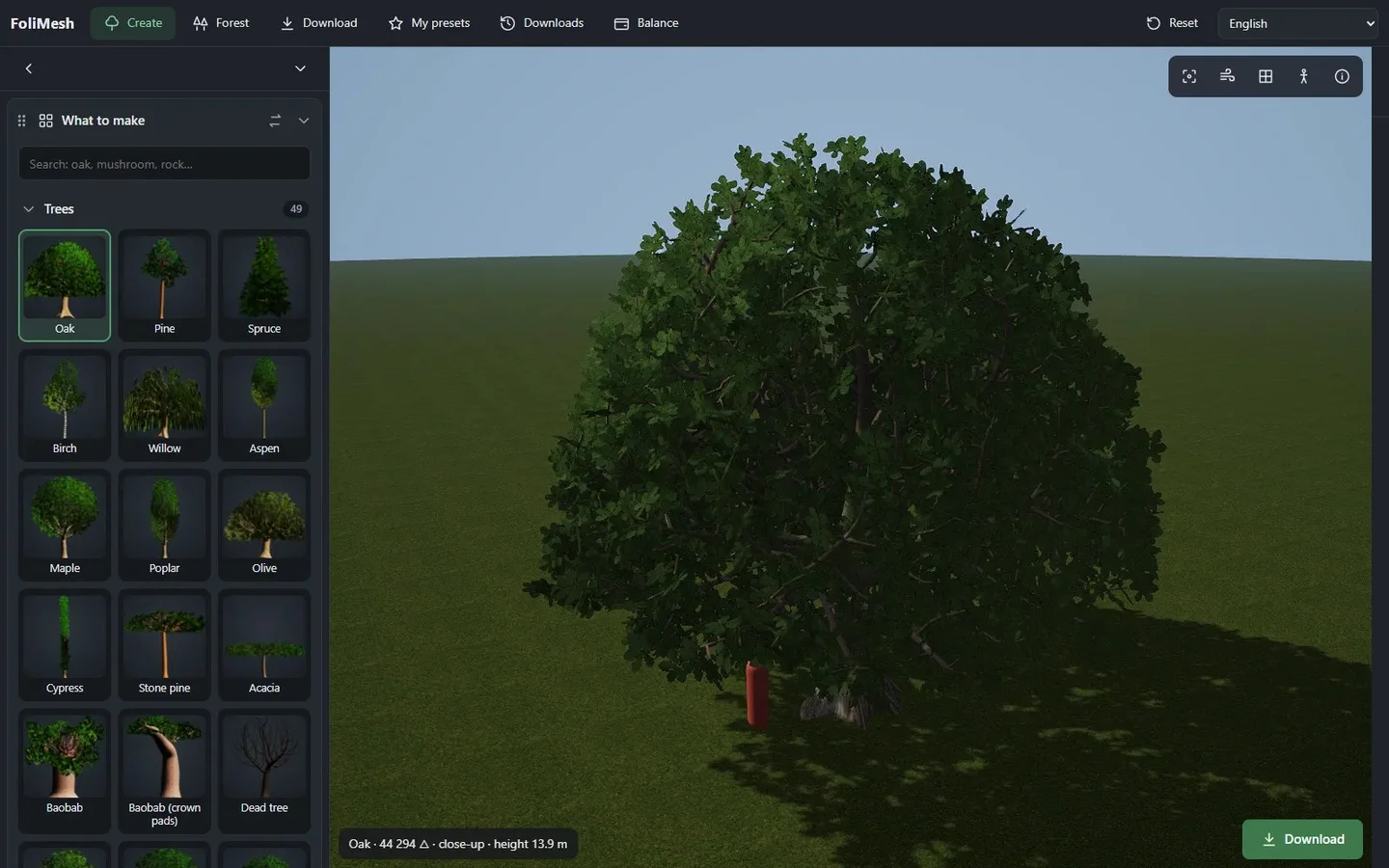
A browser-based tree generator: pick a species, adjust it and export it for Unity, Unreal Engine, Godot or Blender.
A simple workflow that works in every engine
- Pick the style (realistic, low poly or stylized) and stick to it everywhere.
- Set budgets for close and far trees on your weakest platform.
- Choose 4–8 species per biome and get several variations of each.
- Test one tree: scale, pivot, collision, two-sided leaves, LOD switching.
- Stress-test 500 copies in an empty scene before building the level.
- Paint the forest with clusters, clearings and supporting plants.
- Profile again with the final level and adjust distances.
FAQ
What is the best file format for Unity trees?
FBX is the most reliable format for Unity. It keeps levels of detail, materials and scale. GLB also works if you install a glTF importer package.
Where can I download trees for Blender?
Free options include CC0 libraries such as Kenney, Quaternius and Poly Haven, and the Sapling Tree Gen add-on for creating your own. Paid packs and online tree generators provide GLB and FBX files that open directly in Blender.
Can I use Blender trees in Unreal Engine or Unity?
Yes. Export as FBX with applied transforms and the correct axis settings, keep the origin at the base of the trunk, and name LOD meshes consistently so the engine detects them.
How many trees can I have in a scene?
With LODs, instancing and culling, PC games can show thousands of trees at once. Mobile and web projects usually stay in the hundreds. The real limit depends on triangle counts, materials, shadows and your target hardware.
Do I need LODs if I use Nanite in Unreal Engine 5?
Nanite reduces the need for classic LODs on supported hardware, but LODs remain the safe choice if you target mobile, older GPUs or other engines.
Are free 3D trees allowed in commercial games?
Many are. CC0 models can be used without credit, CC-BY requires credit, and store licenses usually allow use in your games. Models marked non-commercial cannot be used in paid or monetized games.
Why do my tree leaves look black or disappear?
This usually means the leaf material is one-sided or the normals face the wrong way. Enable two-sided rendering and alpha clipping for leaf materials.
Conclusion
Getting good trees into Unity, Unreal Engine, Godot or Blender comes down to the same fundamentals: the right format, correct scale and pivot, levels of detail, simple collision and a license you can ship with. Start with free models while you learn and prototype, then move to paid packs or a generator when you need consistent, varied forests across your whole game.