
Building out a Windows desktop app which stores and retrieves info is a great way to develop software engineering skills and to also solve day to day business issues. Many companies use desktop software to manage inventory, maintain student records, track customer info, and for financial transactions. Without a reliable database these applications may use scattered files or temporary data which in turn becomes hard to manage as info grows.
C# is a good language for which to develop Windows apps, also we have in(SQLite) and (SQL Server) which are great for storing structured info. By using these tech stacks developers are able to create software which takes in user input, save records, search present info, update out of date details and remove what is not needed. This tutorial goes over how to put together a simple inventory management app using C#, Windows Forms, and SQLite which also includes database connections, form design, validation, security, backups, and error handling.
Database Driven Windows App.
WinForms gets information from users, C# handles their actions, and SQLite puts that info away for later use. Out of this structure of responsibilities which we see in these components it also makes the app easier to maintain, test and as new features come along we can improve it.
Choosing Between SQLite and SQL Server
SQLite is a great base for small desktop apps which also does not require that developers install and manage separate database servers. Also, its database is put in a file, this in turn simplifies deployment and also makes it very convenient for single user inventory systems, personal projects, and for use in class room presentations. SQL Server as a counter does provide server based database solutions that are beneficial when you have multiple users or applications which need managed access to shared info.
Also it provides features for setting permissions, handling concurrent transactions and in general what one would expect from a larger business load. What system you choose really does by what your application needs, not what the programming language is. For our tutorial we will be using SQLite at first which will in turn reduce set up time but at the same also will be able to demonstrate the very same important database operations present in more complex systems. At a later stage developers can then adapt the design to SQL Server should their software grow in size and need a centralised storage and more administrative control.
Step 1: Set up the Development Environment.
The first step is to go ahead and get the software tools you’ll need to develop and test your app. Get a version of Visual Studio that supports Windows Forms development with C# and do that also install a current supported version of.NET into Visual Studio. Name your project something like InventoryManager and let Visual Studio set up the basic structure of the application. Also within Visual Studio via the NuGet Package Manager install the modern version of the SQLite database provider we will be using in this example which is Microsoft.Data.Sqlite it includes the classes to connect to a SQLite database and to run SQL commands from within C#.
To do this open the NuGet Package Manager, search for the package and add it to your project. After the install is complete your application will have the Windows interface elements and the database access components it needs.
Installing the SQLite Package
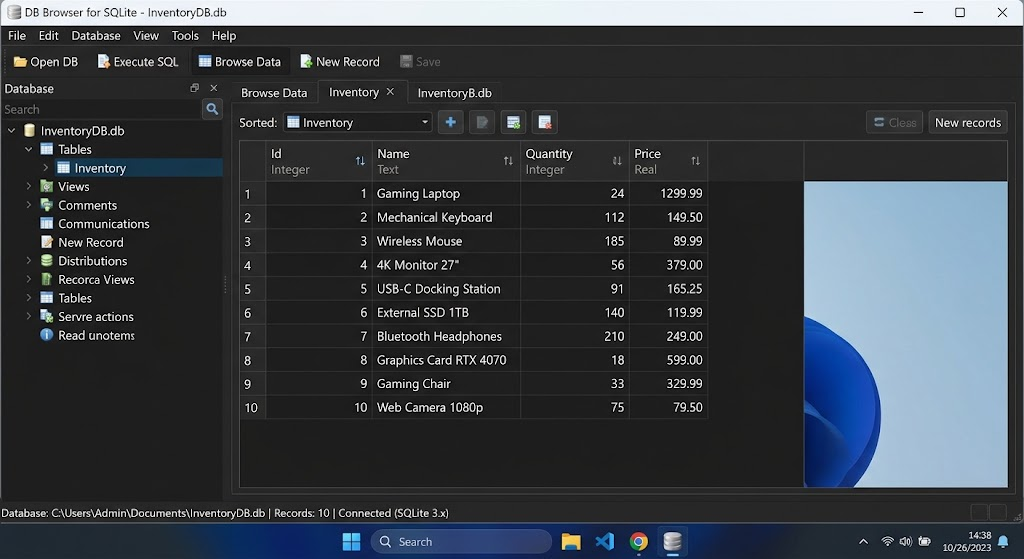
A database provider serves as the interface between application code and the database engine. Microsoft.Data.Sqlite provides classes like SqliteConnection, SqliteCommand, and SqliteDataReader which enable connection of the databases, execution of SQL statements, and getting out the results of queries. Out of these classes it is that developers have what they need to work with structured info without having to go in to edit the database file. Also it is helpful to see how graphic database tools fit into the development process.
For example as a developer works with a desktop app through SQL they can use interfaces that make databases look up and query a breeze. Though this tutorial uses C# code for performing database actions a database viewer can also be used to look at tables, check out which records were put in and to look into strange results during the test phase. After which the provider is installed, note that you build the project to see that all is well before moving on. By sorting out package issues early you can avoid confusing them with what may be application level database logic errors.
Step 2: Create Inventory database and table.
An inventory manager requires a structured system for product info. We put in a unique ID, product name, quantity on hand, and unit price for each record. A relational database table is what we use as it allows each product to be a row with its attributes in separate columns. We have put together this SQL which creates a table named Products which has those fields. The Id field is our primary key which allows us to identify each record even when we have products with the same name. The Name field is for the product description, Quantity and Price fields note the available stock and cost per unit. We also put in constraints which improve data quality by rules out bad data from getting in in the first place. For example quantity can’t be negative and price can’t drop below zero. By setting these rules in before we put in the interface we make validation and database management more of a predictable process.
CREATE TABLE IF NOT EXISTS Products .
Id INTEGER PRIMARY KEY AUTOINCREMENT,
Name TEXT NOT NULL,
Quantity of type integer and must be greater than or equal to zero.
Price IS NOT NULL CHECK (Price 0).
);
SQLite will create the database file at the time of the first connection which a new file is used in an application. Also, no manual creation of the file is required from the developer prior to the first run. But the application also has to set up the table structure; which is done by running the provided SQL command at startup. By including the SQL code in your application you guarantee that the proper tables will be present every time the program runs. In large scale projects we recommend using a planned migration process for handling changes in the database schema instead of randomly amending present tables. This guide however is for a small application so a simple init routine is what is presented here. Once the database schema is set up, the program can then start to add product info and also retrieve them out of the inventory as the user goes into the manager.
Step 3: Set up a secure database connection.
The application requires a connection string to find its SQLite database file. A connection string which has the info required by the database provider to set up a connection. For a local inventory application that database path may be put in the app’s config or we may use a predictable application-data dir. Do not use the current working directory as it may vary based on how the program is run. In this example we use a database file named inventory.db within the application’s local application-data dir. Also we create the dir if it doesn’t exist and we prepare the connection string for further use.
using Microsoft.Data.Sqlite;
using System.IO;
string folder = Path.Combine(
Environment.GetFolderPath( GetEnvironmentPath.
Environment.SpecialFolder.LocalApplicationData), AppData Local, which is a subfolder of Environment Special Folder, also known as Local Application Data.
“InventoryManager”);
Directory. FolderCreate(folder);.
string databasePath = Path.Combine(folder, “inventory.db”);
string connectionString =
$”Data Source={databasePath}”;
After we define the connection string we will put in place a re-usable method which initializes the database. This method opens a connection, runs the table creation code and then disposes of the database objects at the end of the process. The using statement is key here as it also takes care of resource release even in the case of an exception. SQLite connections should be held open only while they are needed for the task at hand. This approach also helps to reduce the chance of resource leaks and makes the database access code easier to work with. In a large scale application with many forms we recommend to put the database interactions in a separate repository or data access class instead of putting connection management code in each interface. This structure also gives us a chance to better improve error handling, change database settings, and test database related code without having to go through and touch each button event handler.
private void InitializeDatabase()
{
using var connection =
new SqliteConnection(connectionString);
connection.Open(); Connection.Open( which also may be written as connection.Open;.
string sql = “””
CREATE TABLE IF NOT EXISTS Products .
Id INTEGER PRIMARY KEY AUTOINCREMENT,
Name TEXT NOT NULL,
Quantity is an integer which is not to be null and also is checked to be greater than or equal to 0.
Price IS NOT NULL CHECK (Price 0).
);
“””;
Using command new SqliteCommand(sql, connection);.
command.ExecuteNonQuery(); Command.ExecuteScalar(;.
}
Initialize Database( at startup of the main form before you present existing inventory records to the user. This is to see that the required tables are present at the time of the first query. Also make the connection string available to the class which handles database operations but do not expose it to components which have no business with it. Also do not assume that every database operation will succeed. The dir may be inaccessible, the disk full, or the db file locked by another process. We must put in place proper error handling which reports failures to the user in a clear fashion. Thus initialisation must be treated as a real application level operation which has the possibility to fail and not a sure fire thing which we count on in any and all circumstances.
Step 4: Create the data entry form.
A good desktop application has a user friendly interface for input and management of info. In Windows Forms designers add text boxes for product name, quantity, and price and also add buttons for add, search, update, and delete actions. A DataGridView control to present the products in a table which in turn makes it easy to see the inventory and pick out a record to edit. Also for each control use descriptive names like txtName, txtQuantity, txtPrice, btnAdd and dgvProducts.
Which in turn will improve the code’s readability when you are writing event handlers and also make debugging easier. Also the form should have labels that go into detail about what the user is to put in. For example the quantity field should let the user know that it is for whole numbers, and the price field should tell the user that it is for money values. Also a well thought out interface will reduce user errors and help them to understand the application’s flow without the need for in depth instructions.

Validate User Input Before Saving
Validation of input is put in place to avoid getting into the database anything which is either incomplete or incorrect. Before a product is inserted we check that the name is present, the quantity is a valid non negative integer, and the price is a valid non negative decimal. We use decimal.TryParse for price checks which is better for monetary calculations as the decimal type tends to be more precise than floating point types. Also we have the application report back to the user what they need to correct if they put in invalid input instead of the program breaking with an exception. The below example shows how to do this input validation before carrying out an insert.
if (string.IsNullOrWhiteSpace(txtName.Text))
{
MessageBox.Show(“Enter a product name.”); UI message box display “Please enter a product name.
return;
}
if (!int.TryParse(txtQuantity.Text, out int quantity)
|| quantity < 0)
{
MessageBox.Show(“Enter a valid non-negative quantity.”); Input a valid non-negative quantity.
return;
}
if (!decimal.TryParse(txtPrice.Text, out decimal price)
|| price < 0)
{
MessageBox.Show(“Enter a valid non-negative price.”); Input a valid non-negative price.
return;
}
Input validation at the interface and database levels is a must which each performs different functions. In Windows Forms we see users corrected by the system before they submit a report, while at the server end we have database constraints which are there to protect stored info if some other part of the program tries out invalid inputs. That is especially true when the application scales to also handle imports, background jobs, or additional forms that all use the same database. Also put into play practical issues like max product name length and proper price precision. With monetary fields, pay attention to the fact that not every decimal value can be precisely represented in SQLite’s numeric field type; instead , pick a round off and storage approach which is constant. At the end of it all, what we see is that together clear error messages, proper data types, and database constraints add up to a more reliable inventory manager.
Step 5: Insert New Data with Parameterized Queries.
After validation of the form fields we proceed to save the new product to the database. In SQL we use the INSERT statement to create a record, but the application must not build a query by putting user input directly into the SQL string. That practice introduces SQL injection vulnerabilities and also causes issues when names which contain apostrophes or other special characters are used. We solve this issue with parameterized queries which separate the SQL command from the values which the user supplies. The database provider treats those values as data rather than executable SQL. The below method we have which inserts a product uses parameters for its name, quantity and price. Also we have included in the example the price which we have converted to a value that SQLite can use, we then execute the command and refresh the display of the inventory after successful insertion.
private void AddProduct(
string name,
int quantity,
decimal price)
{
using var connection =
new SqliteConnection(connectionString);
connection.Open(); Connection.Open( which also may be written as connection.Open;.
string sql = “””
INSERT INTO Products (Name, Quantity, Price)
VALUES (quantity, price);”””;usingvarcommand=newSqliteCommand(sql,connection);command.Parameters.AddWithValue(“name”, name);
command.Parameters.AddWithValue(“quantity”,quantity);command.Parameters.AddWithValue(“price”, price); Command.Parameters.Add(“quantity”, quantity);command.Parameters.Add(“price”, price);.
command.ExecuteNonQuery(); Command.ExecuteQuery(;.
}
Connect this method to the Add button’s click event after we validate the form values. Once the insert completes successfully we will clear the input fields and reload the product table which in turn will make the new record visible. In the event of a database operation failure we will present the user with an appropriate error message and where possible we will retain what the user has entered to avoid them from having to retype everything. We use parameters in our queries even when the application is stand alone as users may put in unexpected characters and in the future we may allow import of info or use data from other sources. Also by consistently using parameters we make our queries easy to maintain and we reduce the chance of introducing security issues as the application grows.
Step 6: Fetch and View Current Records.
A database application is of value when users are able to access saved info. For the inventory manager the SELECT statement brings up product records which in turn is limited by a WHERE clause which in turn is for products that match. Also we may present users with a very basic search feature which allows them to type in a part of a product name and at which point we display matching records in a DataGridView. The application in this case should make use of parameterized search queries instead of putting the search text directly into the SQL. Also we present the following example which searches for product names that include the given text and also does an alphabetical sort of the results. We use a data reader to go through the returned rows and put the results in a DataTable which in turn is put into the grid.
using System.Data;
private void SearchProducts(string searchText)
{
using var connection =
new SqliteConnection(connectionString);
connection.Open(); Connection.Open( which also may be written as connection.Open.
string sql = “””
SELECT Id, Name, Quantity, Price
FROM Products
WHERE Name LIKE @search;”””;using var command new SqliteCommand(sql, connection); command.Parameters.AddWithValue(“search”, ” ” searchText” “;.
using var reader = command.ExecuteReader();
var table = new DataTable();
table.Load(reader); Table.LoadFromReader(reader);.
dgvProducts.DataSource = table; DgvProducts.DataSource table;.
}
When the user clicks the Search button go ahead and call SearchProducts(txtSearch.Text). To display the full inventory pass an empty string, which in turn will match every product name as the search criteria. Developers should note that the percent and underscore characters are special in SQL LIKE contexts. If the application is to use these characters literally in a search term they must be properly escaped and you will also need to include an explicit escape character in your query. For typical product name searches the provided example is a good base to start from. For a more in depth implementation we also put in options to search by product ID, to put in filters for quantity, or to only show products which have fallen below a certain stock level. These changes will make the application very useful for small businesses which require to keep an eye on their inventory and identify which products are low.

Step 7: Modify present records.
Inventory information is constantly changing as products are put out or taken in, and also reprice themselves. We have an update feature which allows the user to edit an existing record without having to delete and create a new one. The application will identify which product is chosen via its primary key which is unique for each product as we do not want to base it only on the product name which may be the same for different products. Upon a user’s choice of a row in the DataGridView we will copy over the selected record’s info into the entry fields. Once the user is done making their changes we have an Update button that will run an SQL UPDATE command. Below is the method which updates the product based on its ID and also we are to use parameters for each given value which includes the record ID. Also we should treat the ID parameter just as we do the product name or price parameters.
private void UpdateProduct(
int id,
string name,
int quantity,
decimal price)
{
using var connection =
new SqliteConnection(connectionString);
connection.Open(); Connection.Open( which also may be written as connection.Open;.
string sql = “””
UPDATE Products
SET Name = $name,
Quantity = $quantity,
Price = $price
WHERE Id = id;”””;usingvarcommand=newSqliteCommand(sql,connection);command.Parameters.AddWithValue(“name”, name);
command.Parameters.AddWithValue(“quantity”,quantity);command.Parameters.AddWithValue(“price”, price); Command.Parameters.Add(“quantity”, quantity);command.Parameters.Add(“price”, price);.
command.Parameters.AddWithValue(“id”, id);.
int affectedRows = command.ExecuteNonQuery();
if (affectedRows == 0)
{
MessageBox.Show( MsgBox(.
The product you were looking for does not exist anymore.
}
}
Before performing the update run the same input validation that is done at product add time. Validation isn’t to be applied only to new records as edited info can also contain errors. After a successful update, refresh the grid and empty the form out to avoid presentation of old data. Also the application should clearly indicate which record is in edit mode in large scale inventory management. If another process has deleted the record since it was chosen the app should inform the user that the update affected no rows. This feedback is to prevent users from thinking changes were saved when in fact the record they are working with is no longer a thing.
Step 8: Wipe Out Records Safely.
Deleting out of the system is a way for users to get rid of products which are no longer present in the inventory. But deletion must be done with care as an accidental action may remove info which the business still requires. Before deleting a chosen product we present a confirm dialog which identifies the record and asks the user if they are sure they want to proceed. If the user aborts, the application leaves the database as is. If the user gives ok, we run a parameterized DELETE command which uses the selected product’s ID. The below method removes the specified record and reports back if a row was actually deleted.
private void DeleteProduct(int id)
{
using var connection =
new SqliteConnection(connectionString);
connection.Open(); Connection.Open(;.
String sql “DELETE FROM Products WHERE Id @id;”; using var command new SqliteCommand(sql, connection); command.Parameters.AddWithValue(“@id”, id);.
int affectedRows = command.ExecuteNonQuery();
if (affectedRows == 0)
{
MessageBox.Show(“No matching product was found.”); System.Windows.Forms.MessageBox.Show(“There is no product that matches your search.”;.
}
}
Connect this feature to the Delete button and have it run only after the user confirms the action. Once delete is successful, refresh the product grid for the removed item to disappear from the interface. In business apps which require an audit trail, full deletion may not be the best approach. Instead the app can mark a record as in active or archived which in turn allows for recovery of info by authorized users or review of past transactions. An inventory manager may also want to keep records related to past sales or purchase orders. What the best deletion strategy is depends on the app’s business rules — at the same time every implementation should include protection against accidental delete and clear communication to the user of what transpired.
Step 9: Handle Issues with Database Transactions.
Error prevention is key which is to say that database errors which are out of the app’s control do happen. Maybe the db file is inaccess, a disk may hit its space limit out of blue, or a set of values a user is trying to put in may break a db rule. Also instead of the program crashing out on the user, we as developers must catch what is relevant and report it at proper points. For example, from within a button event handler which calls a save function, report that the action didn’t go through but don’t also throw in file paths and other tech jargon the user doesn’t care about. At the same time do log that into a secure file for us to look at later. Also do not ignore the error which in turn reports false success. The app should very clearly note what did and what did not go through, in particular when that has business impact.
Transactions are also put in place for when many database changes have to happen at once. For example in a sale we may note the transaction and also reduce the product quantity. Should one succeed and the other fail, the database will have inconsistent info. A transaction groups related actions which can either all go through or none at all. Also it is a tool for rolling back if we do have an issue. SQLite has transactions supported and the Microsoft.Data.Sqlite provider which puts forth transaction related features via its connection and command classes. For a simple single record insert a transaction may not be required as the action itself is atomic. As an application grows to include purchase, sale, and stock movement functions, the role of transactions becomes more key. Use exception handling and transactions as the case may be and also see to it that errors are reported exactly as they are instead of putting out a message that a change went through when in fact it did not.
Step 10: Protect the Database and Do Backups.
A database kept on a local computer can still have great value to a business which means that it needs proper protection. Use the file permissions of the operating system to restrict access to the database file and its directory. Do not put the database in a public folder or a directory which is available to unrelated users which may modify it. While SQLite does not have the same in-built user account and server side permission structure as SQL Server, applications that require such features must implement them in the surrounding operating system and application architecture. Also for sensitive info may require at rest encryption based on the application’s use and also what is required by law. A connection string for a database does not in itself secure the database or in place of access controls. Also do not include private info in error messages or diagnostic logs. Security should be a primary consideration from the start instead of adding it in after the application has been developed and is already storing important info.
Regular updates of your data protect against loss due to accident deletion, file corruption, hardware failure, and other issues which may make your stored info inaccessible. For a small SQLite application which may see little use a backup plan might include a set of routine copies of the database to a secure location, also make some extra copies which are kept separate from the computer which runs the application. Also note that at times a copy of the database while it is in use may produce an off which in some cases may render your backup useless. Use what SQLite provides for backup options or a custom backup method that takes into account that the database may be in use at the time of the backup and also related database files. Also do periodic tests of the restore process to make sure that your backups do in fact get you usable data out. A backup system which has not been put through a test should not be counted on to work. For larger scale use look into automatic backup systems, set up retention policies, access controls, and have documented recovery procedures which detail how the application will return to normal service after data loss.
Step 11: Test and improve the application.
Before release of the inventory manager to end users do a thorough testing which includes use of real world scenarios. For each of the core functions add in some out of the box products, search for a certain product name, change a quantity, and delete a record after which to confirm the action. Also include tests with invalid inputs like empty product names, negative quantities, invalid prices, and very long search terms. At the end of the test session close the application and re-open it to see that the information still is there this will show that data is saved persistently and not just in memory. Where possible also test the database responses which may include trying to access a read only area or to work with a database file that does not open. Also check that the interface still responds well and the program reports useful messages when a failure happens. These tests bring to light issues that may not present themselves during the regular development process and also help ensure the app will perform as expected in a variety of situations.
Validate input, parameterize SQL queries, manage database resources carefully, protect at rest data, and handle failures explicitly. A robust design which is also maintainable is that which introduces new features without at the same time reducing the reliability of existing ones.
Conclusion
Building out a Windows desktop app with a database is more than just putting together a form and saving some values in. What we see in a reliable solution is a clean interface, a well thought out database structure, secure query execution, input validation, and consistent error management. C#Windows Forms, and SQLite give a great base to develop an inventory manager which is able to add, search, update and delete product info as well as preserve info between app sessions. We use parameterized queries to secure database actions against SQL injection and proper connection handling which in turn prevents unnecessary resource use.
Transactions we use to maintain data integrity when many operations must succeed as a set and we do tested backups to protect important info against unexpected loss. By following these we see that students and small business developers are able to produce practical Windows apps that solve present needs and at the same time which serve as a base for more complex database driven applications.