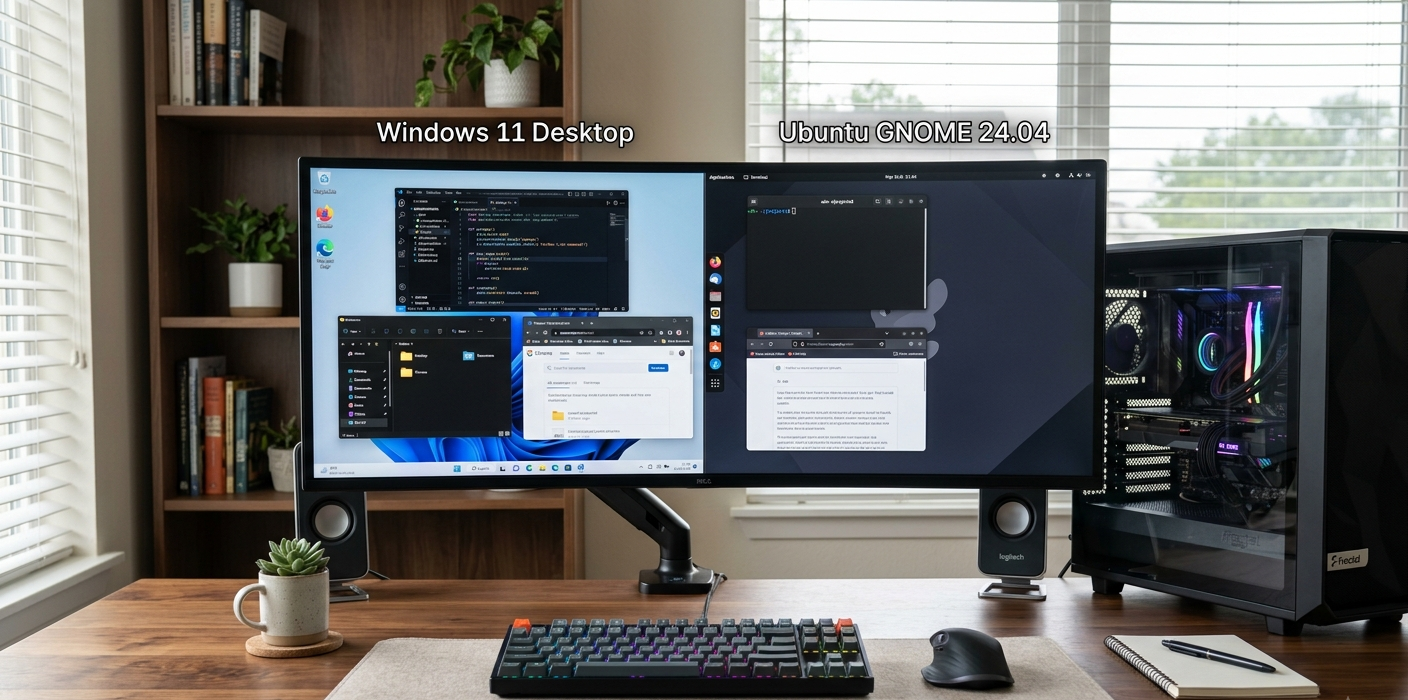
Running two operating systems on one computer can be helpful if different tasks need to be performed in different operating systems. For instance, one might choose to run Windows for the majority of the applications and games they use, and then Linux for programming, network, system administration or learning to build open-source software. Fortunately, it’s not a requirement to either own more than one operating system or to buy more than one computer. There are two popular solutions that are known as dual-boot and virtualization, which are two ways that are dissimilar.
Dual booting means having two operating systems stored on the computer’s storage media with the ability to switch between them when the computer is started. Virtualization, however, is the ability to execute one operating system on top of another via a virtual machine. It is helpful to appreciate the distinction between these approaches, as the performance, storage needs, convenience, hardware access, security and ease of management can differ considerably from one to the other.
What’s Dual Booting?
Dual Booting is to install two operating systems on the same computer and set up the computer to boot from a choice of operating systems at start-up. For instance, running Windows alongside a Linux distribution like Ubuntu, Linux Mint or Fedora. The computer will not boot both operating systems at once, it will be one at a time. When the computer boots, a boot manager displays a list of operating systems to choose from and the user chooses from that. If the user selects Windows, the computer will function as a normal Windows computer. If Linux is checked, then Linux will be launched and directly use the computer hardware. For those who wish to have the best of both worlds but lack the funds to buy two computers, these concepts of dual booting are highly beneficial.
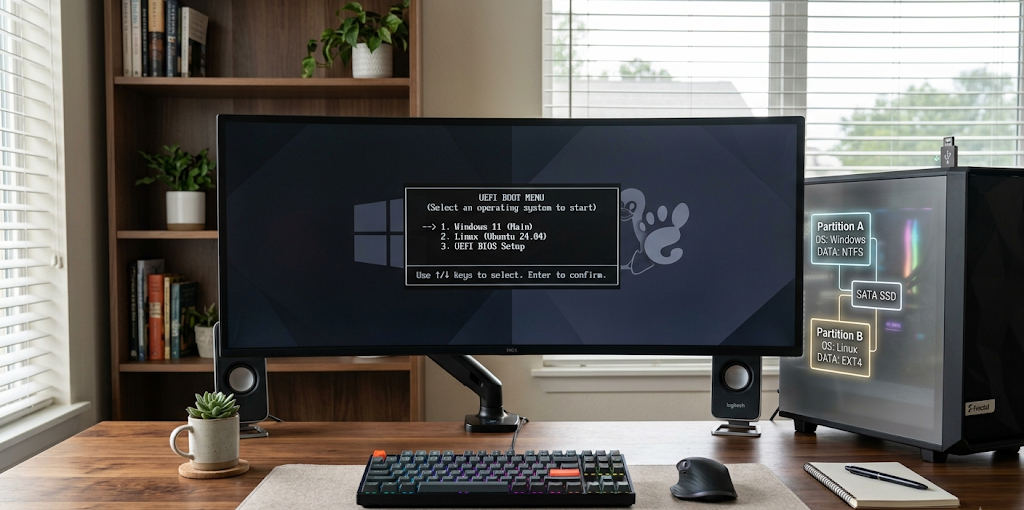
Typically, dual booting involves having some space dedicated to both operating systems. This doesn’t have to be done at the hardware level – modern computers allow for one hard drive to be partitioned into several drives. You can install Windows in one partition, and Linux with its files in the other. This is dependent on the computer, operating systems and method of installation. The user should pay attention to the installation process as it could cause the loss of valuable data if the storage option isn’t the right one. Therefore it is essential to make a backup of important documents, schoolwork, photos and other files before changing partitions. For a dual boot system to run, the operating system chosen can use a computer’s processor, memory, graphics and storage devices without sharing them with another operating system in use at the same time, which can provide excellent performance.
What is a Virtual Machine?
A virtual machine, also known as a VM, does not. Virtualization is the process of running one operating system on another operating system within a software based computer environment, rather than installing two operating systems and having to choose between them and run one of them. The operating system on top of the virtual machine is called the guest, and the operating system that the virtual machine runs on is called the host. Operated by software called a hypervisor, this virtual computer offers virtual hardware, including processor, memory, storage, and network adapter. Examples of virtualization applications are VirtualBox, VMware Workstation and other virtualisation platforms. A user running Windows as his/her primary operating system, for instance, might install a virtual machine running Ubuntu Linux. The Linux operating system would then come up on a screen in the Windows desktop, enabling the user to move back and forth between the two operating systems without shutting down the real machine.
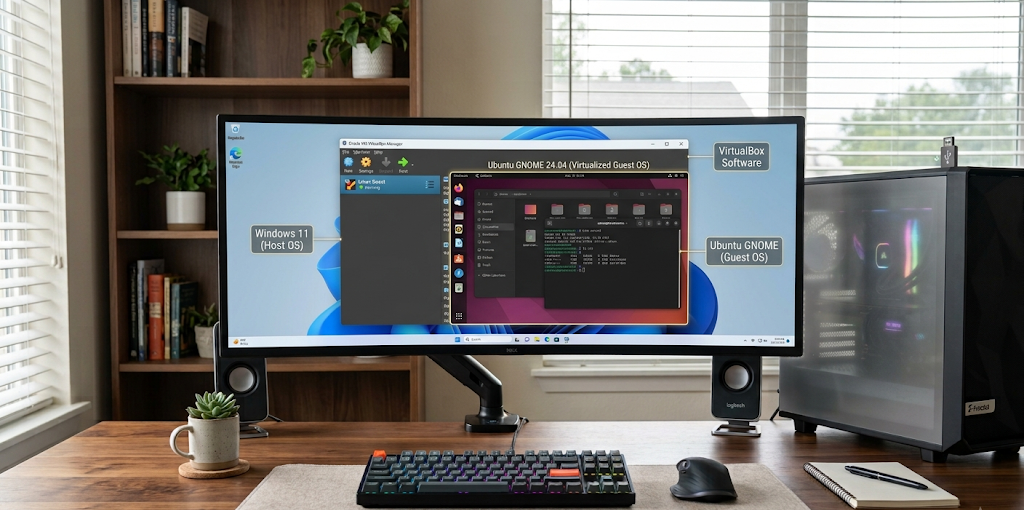
When users require two operating systems simultaneously, virtual machines are particularly useful. A student might be able to run Windows programs without closing them and use Linux programs in a virtual machine, or try new programs on Linux. Virtual machines can be used by the developers to perform various tests on the applications in various operating systems without modifying the boot configuration of the main computer. Virtualization also offers helpful isolation as the virtual machine sits somewhat detached from the physical machine’s surroundings as a result of the virtualization software. But a virtual machine doesn’t provide additional hardware resources on its own. The computer has limited amounts of RAM, processor power, storage, etc., and will need to allocate memory and processing power between the host and guest. Running a virtual machine can slow down both the virtual machine and the host computer if the machine in question has limited memory or a relatively weak processor.
The Main Difference between Dual Booting and Virtual Machine
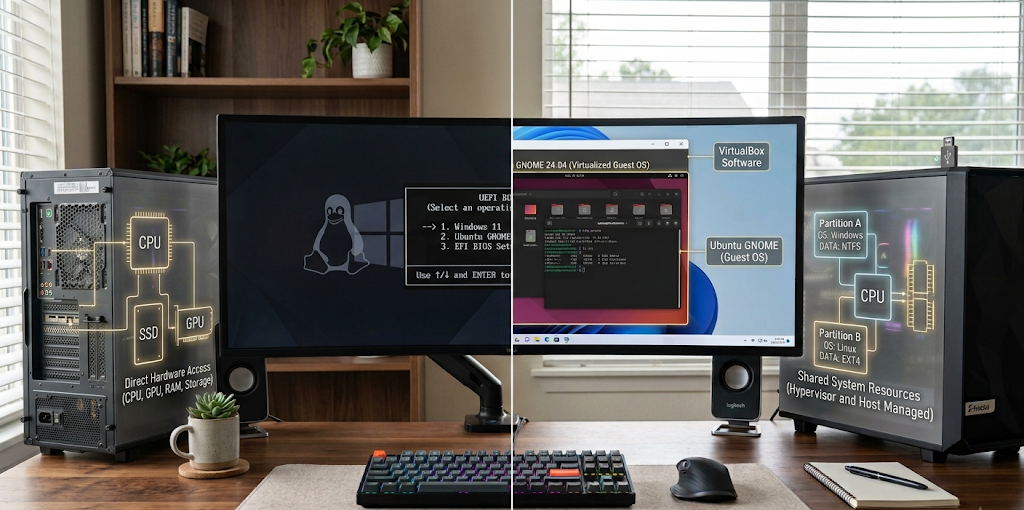
The main difference between dual booting and virtualization is how the two operating systems utilize the physical computer. If the operating systems are dual booted, then during normal operation, only one operating system will boot, and that operating system will benefit from most or all of the resources of the computer’s hardware. Virtualization, the host and guest operating systems are operating at the same time, and the host will need to allocate resources to the virtual machine, which it will still be operating. This difference can significantly impact performance. A dual boot configuration is typically the more suitable option when the user requires demanding applications, intensive graphics processing or maximum hardware performance. Virtualization is more useful in cases where the guest operating system can’t be operated at the best possible performance, convenience, quick switching, experimentation, or running two environments at the same time.
The other big difference has to do with how people switch between operating systems. Dual booting means that the user has to reboot the computer each time he/she wishes to switch from the Windows operating system to the Linux operating system and vice versa. This will be cumbersome if there is a need to transfer from one system to the other regularly. With virtualization, that restart is done away with, because the guest operating system is a virtual application running on the host. The user may leave a browser, document, or other program open in the host and interact with the virtual machine next to the opened program. This makes virtualization pretty cool for testing, development, education, and, well, testing out Linux for recreation every now and then. But convenience has a price tag in terms of resources. A virtual machine might not be as fast as an operating system that is installed directly on the computer, especially when running more intensive applications, such as graphics or other hardware-related tasks.
Benefits of Dual Booting
The biggest pro of a dual boot is performance. Since the computer is typically used only by one operating system at a time, the processor, RAM, storage and graphics hardware can be used directly by the selected operating system. This is ideal for tasks where you need the most hardware for the job and you can simply switch operating systems if you need to. For example, an individual wishing to play more challenging games in Windows, yet still program in Linux would want to have dual booting. When Linux is running, it can also access hardware directly without depending on virtual hardware provided by a virtualization program. The other benefit is that it is not necessary to allocate a significant proportion of RAM to a virtual machine while the host system is operating. Most resources available to the computer when it is booted to one of the operating systems are devoted to that one operating system.
Another advantage of dual booting is that it allows users to get a full experience with both operating systems. A Linux installation running directly on the computer can interact with supported hardware and peripherals, storage devices and networking components without the extra virtualization layer. This might be useful for those learning Linux administration or other technical courses where hands-on experience with Linux is important. But, the downside to dual booting is that it has its drawbacks. A change of operating systems needs a reboot and handling partitions can be more difficult than installing a virtual machine. Other factors to consider are bootloader configuration, available storage, updates to the operating system and compatibility. There can be problems during installation or partition management, hence it is important to take backups and be cautious during installation.
Benefits of Virtual Machines
The advantage of using virtual machines is that users can run two environments at the same time. You can boot Windows normally and then boot a virtual machine running Linux without rebooting the machine. This is especially handy if the other OS is only going to be used for a short time and not constantly. Virtual machines can also enhance the ease of experimentation, allowing users to create separate virtual machines for testing software, learning commands or exploring operating system settings. Many virtualization platforms have an ability to create snapshots or other features to save the virtual machine at a specific moment in time. In case of an experiment that fails to run smoothly, the user can restore the virtual machine to the previous state without having to rebuild the environment again.
Virtualization can also minimize the need to alter the layout of the physical disk in the computer. Typically, the user can create a virtual disk file for the guest operating system rather than resize partitions and/or modify the boot configuration. This helps many beginners to set up the system. The main disadvantages are performance and resource consumption. The computer must have sufficient memory and CPU available for the host system to operate during the guest system’s operation. Graphics intensive applications may be more complex as well since the virtual machine may not have direct access to the graphics hardware like a native application. Virtualization can be an effective way to learn Linux, to practice programming, to use the CLI, and to run lightweight applications, but it is not the ideal solution for heavy workloads.
Performance Comparison
If you’re mostly concerned about performance, dual booting is typically preferred. The operating system installed on the computer directly on the hardware itself does not have to compete with another operating system running concurrently on the same computer. This becomes apparent when using intensive software or applications like video editing, heavy development and simulation software, or running games. A virtual machine adds a level of abstraction between the guest operating system and the physical machine. With modern virtualization technology, this layer can be relatively efficient, but it still needs resources from the host. Losses in performance will depend on a range of factors, including the computer hardware, virtualization software, guest operating system, workload, configuration and hardware support. Anyone considering using the two methods should think about the intent in choosing between the two, and not presume that one method is always superior.
There are hardware specifications that also play into the decision. The key is that a computer with a more modern multi-core processor that has ample amount of RAM and a fast solid-state drive is more suited toward virtualization than an older machine with less memory and storage. For instance, a virtual machine could run fine with enough resources to practice command-line Linux, but an intensive graphical task might need significantly more resources. Dual booting may be worthwhile if the user desires the second operating system to be able to directly access the computer’s resources. But these methods don’t necessarily make a computer faster. The aim is to select that combination which maximises the use of set resources to complete the set tasks.
Considerations for Safety and Security
There are security issues with both methods and neither are necessarily “safe” just because they involve multiple operating systems. Dual Booting means that both operating systems are installed directly on the computer and might be able to access different partitions, devices and files depending on the configuration of the computer. A problem is not inherently a problem for the other OS environment but can be coupled through shared storage and user activities. Consumers should therefore ensure both operating systems are kept up to date and that they use strong account passwords, install software from trusted sources and have backups of important files. Some modern firmware settings and Secure Boot could also impact the installation of Windows and Linux side by side, and users are encouraged to consult the documentation for their particular piece of hardware and Linux distribution prior to modifying the settings.
A VM can be a helpful layer of separation as the guest system runs via the virtualization software instead of directly controlling the physical computer as a native installation would do. This should not be taken as a guarantee of full isolation, however. Virtual machines can be connected to the host machine’s folders, clipboard, networking, USB devices and other resources. The more integration enabled between the host and guest, the more carefully the user should consider security. It seems prudent to maintain virtualization software and guest operating system up to date and not over-allocate resources to the guest operating system. A virtual machine setup set-up may be a practical solution; in particular, if the user wishes to experiment with some new software which they have never used before and can revert to or delete once they are finished.
Basic Requirements to EnableDual Booting
The first step in setting up a dual-boot computer is to make sure that the computer is compatible with both operating systems. This involves verifying processor architecture, available RAM, storage space, graphics compatibility, firmware settings and driver support. The user should also have the installation media for the second OS, typically burned onto a USB flash drive, and make sure to have a backup of any important files that are not on the computer. There should be enough free space on the disk where the new installation is going to take place, and the user should have an idea of how the disk is divided before making changes. Also, it’s good practice to check the compatibility requirements for the particular version of Windows and distribution of Linux. Doing careful preparation is much safer than beginning an installation straight away without knowing the current storage and boot configuration.
The main steps are: Backup important data, make installation media, make free space/partitions, install the second OS and make configuration to boot the OS at boot time. The specific screens and options differ according to computer and Linux distribution; users are encouraged to follow the official installation manual for the operating system of their choice. When installing, particular care needs to be given to storage and partition choices – if they are wrong, Windows or personal data may be lost. Once it is installed, the user should restart the computer and try both operating systems. If both are present and show up in the boot menu, the dual-boot is normally available for normal use.
Basic requirements for a Virtual Machine
Generally, a computer that can run virtualization software, RAM and storage to accommodate the guest system, an operating system installation image, and a compatible virtualization application are required to set up a virtual machine. Most contemporary processors have hardware virtualization capabilities, which may require a setting in the computer’s firmware (configuration). It varies depending on the virtualization program and the guest operating system. A light weight distro of Linux could need less resources than a full Desktop. Users should determine the amount of RAM and disk space required by the guest operating system before they create the virtual machine and then ensure that the host operating system has sufficient storage and memory to accommodate the guest virtual machine without being utilized to the extent that it becomes unusable.
The overall procedure is as follows: Install a virtualization application, create a virtual machine, specify the operating system type, allocate memory and processor resources to a virtual machine, create a virtual disk, attach the operating system installation image. The virtual machine can then be started and the guest operating system installed in the virtual machine. Once installed, users can install virtualization tools or integration components that are supported by the platform that they have selected to extend their capabilities, such as resizing screens, integrating mouse actions, file sharing, and more. The allocation of resources must be sensible; if too much memory or processor is allocated to the guest, not enough is left to use for the host. Typically, it’s best to start on reasonable settings and then tweak them based on the virtual machine’s performance.
So, which method is best suited for you?
Depending on the user’s expectations of the second operating system, the best choice will be made. Dual booting is generally the better choice for those who require the highest possible performance, direct hardware access capabilities, gaming features, or applications that are likely to be heavy and not run smoothly in a virtual machine. It is also helpful for those who wish to work with Linux for a significant amount of time instead of using it on a regular basis. The sacrifice is convenient since changing between systems involves rebooting the computer. Users should also be familiar with managing storage and may experience bootloader or partition problems. If you’re ready to make those compromises, then dual booting can be a great way to get both Windows and Linux in one physical computer.
For those who wish to run two operating systems simultaneously, test software, acquire Linux expertise, practice technical commands, or occasionally have access to apps that aren’t available in their current environment, virtualization is more convenient. Never reboots the computer and does not often involve altering the physical disk’s partition layout. The downside is that the virtual machine uses resources during its execution and some workloads might not run as well as they do on a native install. For many beginners, students, developers and others who are trying out Linux, this convenience is more important than the performance gain. The key is that there isn’t a one-size-fits-all solution; the correct way to do it will vary based on the hardware of the computer and the individual’s objectives.
Conclusion
There is no need to buy a second PC to have Windows and Linux running on one, and there are two ways to do so which are practical: dual booting and virtualization. Dual booting is a process that installs two operating systems on the computer and lets the user then choose which OS to boot up during start, which means that the selected OS will be able to access the computer’s hardware directly. Virtualization, on the other hand, is a software implementation of a computer running concurrently with the main computer system.
With dual booting, there are improved performance and hardware access benefits, whereas virtualization is a more convenient, easier switching environment and a benefit for testing and learning. Regardless of which is chosen, preparation is key. Users should confirm hardware compatibility, make backups, ensure storage needs, update software, and adhere to trusted installation instructions. A practical Windows and Linux environment for learning, productivity, development and experimentation can be created with the proper method and setup using one computer.