Can I Turn Off Face ID on My iPhone? Easy Guide
Yes, you can turn off Face ID on your iPhone anytime. Apple allows users to disable Face ID completely, remove saved faces, or switch to a passcode instead.
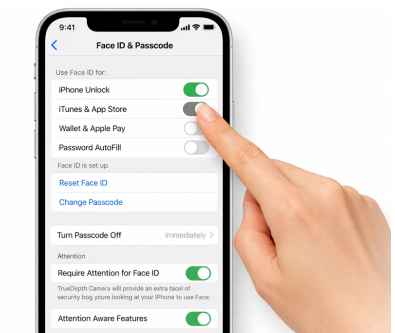
You simply open Settings → Face ID & Passcode, enter your passcode, and turn off the features you don’t want.
Many people do this when:
- They share their phone with family
- Face recognition stops working properly
- They prefer using a simple passcode instead of Face ID
The good news is that turning off Face ID does not affect your data or apps. Your phone will simply use your passcode for unlocking and authentication.
What Is Face ID on iPhone?
Before turning it off, it helps to understand what Face ID actually does.
Face ID is Apple’s facial recognition security system. It uses the iPhone’s TrueDepth camera to scan your face and unlock the device.
It can also be used for:
- Unlocking your phone
- Downloading apps from the App Store
- Paying with Apple Pay
- Logging into apps and websites
- Auto-filling passwords
For many people it feels fast and convenient. But sometimes users prefer turning it off for privacy or convenience reasons.
How to Deactivate Face Lock on iPhone
If you want to deactivate Face ID completely, the process only takes about 20 seconds.
Step-by-step method
- Open Settings
- Tap Face ID & Passcode
- Enter your iPhone passcode
- Toggle off the options you want to disable
You will see options like:
- iPhone Unlock
- iTunes & App Store
- Wallet & Apple Pay
- Password AutoFill
Turn these off and Face ID will stop working for those actions.
If you disable everything, Face ID will effectively be turned off.
How to Remove Someone’s Face From Your iPhone
Sometimes you may have added another person’s face during setup. For example, a spouse or family member.
Apple allows only one Face ID profile, but it can include an alternate appearance.
To remove a saved face:
- Go to Settings
- Tap Face ID & Passcode
- Enter your passcode
- Tap Reset Face ID
This deletes all saved facial data.
After that, your phone will ask you to set up Face ID again if you want to use it.
Can I Remove My Face ID but Keep the Passcode?
Yes. In fact, this is the safest alternative.
When Face ID is disabled, your phone automatically switches to the passcode lock.
Your passcode will still protect:
- Phone unlocking
- Payments
- App downloads
- Password access
Many people prefer passcodes because:
| Feature | Face ID | Passcode |
| Convenience | Very fast | Slightly slower |
| Works with mask | Sometimes | Always |
| Privacy concerns | Some users worry | No facial scanning |
So if you remove Face ID, your phone remains fully secure.
Temporary Way to Disable Face ID Quickly
There’s also a quick emergency trick many iPhone users don’t know.
You can temporarily disable Face ID instantly.
Method
Hold Power button + Volume button together for a few seconds.
Your iPhone will show the Emergency SOS screen.
Once that screen appears, Face ID is temporarily disabled until you enter your passcode.
People use this when:
- They feel unsafe
- Someone tries to unlock their phone with their face
- They want extra privacy
After entering the passcode, Face ID will work again.
Why Some People Turn Off Face ID
Face ID is secure, but not everyone likes it.
Here are common reasons users disable it:
Privacy concerns
Some people simply prefer not using facial recognition.
Face recognition problems
Sometimes Face ID fails when wearing:
- sunglasses
- masks
- helmets
- hats
Shared phones
Families sometimes disable Face ID so anyone can use the phone with a passcode.
Battery saving
While the difference is small, some users feel turning off sensors saves battery.
If you enjoy learning simple tech tricks like this, you can also explore more practical mobile guides on Techoble. The website shares easy tutorials about smartphones, apps, privacy settings, and everyday tech problems. Many beginners find it helpful because the guides explain things step-by-step in clear language. For example, if your iPhone settings confuse you or an app stops working, Techoble often has quick solutions that make fixing the issue much easier.
Which iPhones Use Face ID?
Face ID is available on most modern iPhones.
Examples include:
- iPhone X
- iPhone XS / XS Max
- iPhone XR
- iPhone 11 series
- iPhone 12 series
- iPhone 13 series
- iPhone 14 series
- iPhone 15 series
Older models like iPhone 8 and iPhone SE use Touch ID instead.
Is Face ID Safe to Use?
Yes. Apple designed Face ID with strong security.
Key security features include:
- 3D facial scanning
- Encrypted storage in Secure Enclave
- No photo unlocking
- Works even in low light
Apple claims Face ID has about 1 in 1,000,000 chance of false unlocking.
However, identical twins may occasionally unlock each other’s phones.
Common Problems With Face ID
If Face ID stops working, you might see messages like:
- Face ID not available
- Move iPhone lower
- Face not recognized
Quick fixes include:
- Clean the front camera
- Remove screen protector covering the sensor
- Restart the phone
- Reset Face ID
If nothing works, turning off Face ID and using a passcode may be easier.
FAQ
Can I turn off Face ID on my iPhone without deleting data?
Yes. Turning off Face ID does not delete photos, apps, or settings. It only changes how your phone unlocks.
Can Face ID be hacked?
It is very difficult. Face ID uses 3D depth mapping, not just a picture. Normal photos cannot unlock the phone.
How do I remove Face ID but keep Face ID for apps?
You cannot partially remove the face itself, but you can disable Face ID for specific uses in the settings.
Does Face ID drain battery?
Not significantly. The sensor only activates when you wake the screen.
Final Thoughts
So, can you turn off Face ID on your iPhone? Absolutely. Apple gives users full control over their phone security.
You can disable Face ID entirely, remove saved facial data, or simply switch to a passcode.
For many users, Face ID feels fast and convenient. But if you prefer a more traditional way of unlocking your phone, turning it off is quick and safe.
In the end, the best security method is the one you feel comfortable using every day.