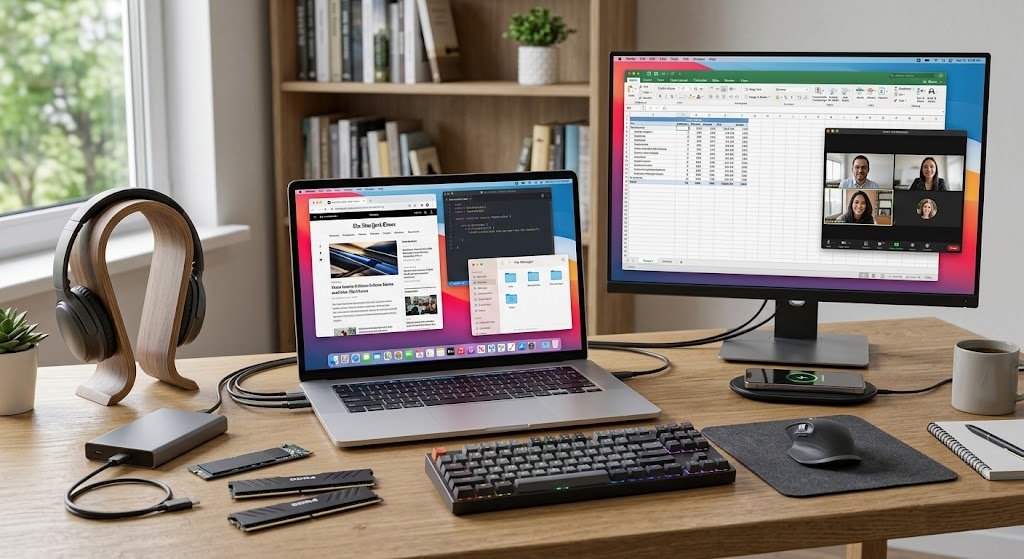
If you spend eight or more hours a day staring at a screen, you already know the toll it takes — the headaches, the neck stiffness, the blurred vision by mid-afternoon. For office workers, a poor monitor isn’t just an inconvenience; it’s a daily productivity drain. The good news is that choosing the right display can make a measurable difference in how you feel and perform throughout the workday.
IPS desktop monitors have become the go-to solution for professionals who need reliable visual clarity, consistent color accuracy, and a comfortable viewing experience during long sessions. Whether you’re analyzing spreadsheets, collaborating on design projects, or managing back-to-back video calls, an IPS panel delivers the kind of screen quality that keeps up with demanding office tasks.
This guide is designed to help you make a confident, informed decision. We’ll walk through the core advantages of IPS technology, the specifications that matter most for productivity, ergonomic features like adjustable monitor stands, practical strategies for reducing eye strain, and what to look for in warranty coverage — finishing with a clear, step-by-step selection process you can apply right away.
Understanding IPS Technology and Why It’s Superior for Office Tasks
IPS, or In-Plane Switching, is a display panel technology that aligns liquid crystals horizontally, allowing light to pass through more consistently across the entire screen. This design fundamentally improves how color and brightness are reproduced compared to older panel types, making it a natural fit for professionals who depend on visual accuracy throughout the workday.
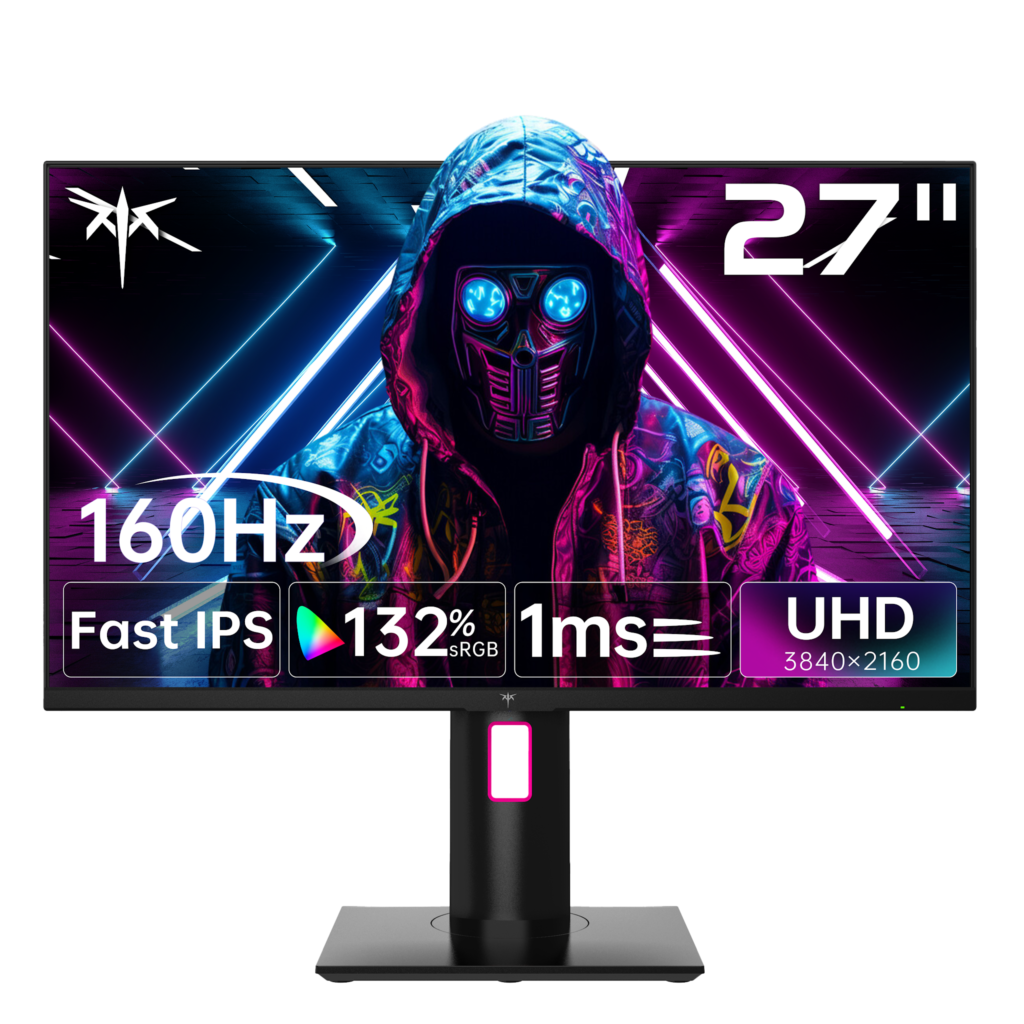
To understand why IPS stands out, it helps to compare it with the two main alternatives. TN (Twisted Nematic) panels are fast and affordable but suffer from narrow viewing angles and washed-out colors — fine for casual gaming, but frustrating in collaborative office settings where colleagues often view your screen from the side. VA (Vertical Alignment) panels offer better contrast and deeper blacks, yet they struggle with color consistency at off-angles and can exhibit noticeable ghosting during fast motion. IPS panels strike the right balance: wide viewing angles of up to 178 degrees, accurate color reproduction, and stable image quality that holds up whether you’re looking straight on or from across a conference table.
For day-to-day office work, these advantages translate directly into better outcomes. Reviewing dense documents becomes less fatiguing when text appears sharp and contrast stays consistent. Design teams benefit from reliable color accuracy when reviewing presentations or marketing materials. Even routine tasks like managing spreadsheets or attending video calls feel more comfortable on an IPS display because the image remains clear and natural without the color shifting that plagues other panel types. Simply put, IPS technology reduces the visual effort your eyes exert — and that adds up significantly over an eight-hour workday.
Essential Monitor Specifications to Evaluate for Office Productivity
Knowing which monitor specifications actually matter for office work saves you from paying for features you’ll never use — or worse, settling for a display that undercuts your daily performance. Start with resolution. Full HD (1920×1080) remains a practical baseline for standard office tasks, but if your work involves reading dense documents, editing detailed visuals, or running multiple windows side by side, a QHD (2560×1440) or 4K (3840×2160) panel delivers noticeably sharper text and finer detail. Crisper text means less squinting, which directly reduces eye fatigue over long sessions.
Screen size and aspect ratio shape how comfortably you can multitask. A 24-inch display suits focused, single-application work, while a 27-inch or larger screen gives you room to place two documents or applications side by side without constant window-switching. Ultrawide monitors with a 21:9 aspect ratio take this further, effectively replacing a dual-monitor setup with a seamless horizontal workspace — useful for spreadsheet-heavy roles or project management dashboards.
Refresh rate and response time are often dismissed as gaming-only concerns, but a 75Hz refresh rate compared to the standard 60Hz produces noticeably smoother cursor movement and scrolling, which reduces the subtle visual effort your brain exerts tracking motion across the screen. For brightness, aim for at least 250–300 nits to maintain comfortable visibility in well-lit offices; higher values matter if your desk sits near a window. A contrast ratio of 1000:1 or better ensures text stays crisp against backgrounds without washing out.
Finally, connectivity options determine how seamlessly the monitor integrates into your existing setup. HDMI handles most standard connections, while DisplayPort supports higher resolutions and refresh rates simultaneously. USB-C with Power Delivery is increasingly valuable — it lets you connect a laptop, charge it, and transmit video through a single cable, reducing desk clutter and simplifying your workflow considerably. Monitors from brands like KTC, for instance, have incorporated USB-C connectivity alongside HDMI and DisplayPort in their office-oriented IPS lineup, reflecting how standard this combination has become for modern workstations.
Ergonomic Design: The Critical Role of an Adjustable Monitor Stand
Even the best IPS panel can’t compensate for a monitor positioned at the wrong height or angle. Poor monitor placement is one of the leading contributors to neck stiffness, shoulder tension, and lower back pain among office workers — problems that compound quietly over months and years. An adjustable monitor stand addresses this directly by letting you dial in a viewing position that suits your body, your chair height, and your specific desk setup rather than forcing you to adapt to a fixed screen.
The four adjustments that matter most are height, tilt, swivel, and pivot. Height adjustment lets you align the top of the screen with your eye level, keeping your neck in a neutral position rather than angled downward toward a low display. Tilt allows you to angle the screen slightly backward or forward to eliminate glare and reduce the effort of focusing. Swivel lets you rotate the monitor horizontally — useful when turning the screen toward a colleague during a review. Pivot, the ability to rotate the display 90 degrees into portrait orientation, is particularly valuable for developers, writers, or anyone who scrolls through long documents regularly.
Fixed stands, which ship with many budget monitors, offer none of this flexibility. They lock you into a single position that may or may not suit your posture, making ergonomic compromises inevitable. Monitors with fully adjustable stands — or those compatible with VESA-mount aftermarket arms — give you the control needed to build a genuinely comfortable workstation.
Types of Adjustable Stands and How to Choose One
Stand mechanisms fall into two main categories: manual adjustment stands, which use friction or click-stop systems to hold position, and gas-spring stands, which allow smooth, near-effortless repositioning with one hand. Gas-spring options are worth the premium if you frequently shift between sitting and standing or share a workstation with colleagues of different heights. When evaluating stands, also check for integrated cable management channels — these route power and data cables neatly through the stand’s column, keeping your desk clear and reducing the tangled-cable frustration that builds up over time. For desk space considerations, a stand with a smaller base footprint preserves more usable surface area, while a wider base provides greater stability for larger screens. If your monitor lacks a built-in adjustable stand, a universal VESA-compatible monitor arm offers maximum flexibility and works across most screen sizes.
Reducing Eye Strain: Monitor Features and Best Practices
After hours of focused screen work, eye strain isn’t inevitable — it’s largely preventable when you choose a monitor with the right protective features and pair it with smart daily habits. The discomfort most office workers experience by late afternoon stems from a combination of screen flicker, excessive blue light exposure, harsh reflections, and poor brightness calibration. Addressing these factors at the hardware level makes a meaningful difference before you even adjust your behavior.
Key Monitor Features for Eye Comfort
Flicker-free technology is one of the most impactful features to prioritize. Traditional monitors regulate brightness by rapidly flickering the backlight at frequencies the eye can’t consciously detect — but the brain registers the instability, causing cumulative fatigue. Monitors using DC dimming instead of PWM (Pulse-Width Modulation) eliminate this flicker entirely, resulting in noticeably less strain during extended sessions. Equally important are Low Blue Light modes, which reduce the high-energy wavelengths that disrupt focus and interfere with sleep cycles after evening work. Look for hardware-level blue light filtering rather than software overlays, which tend to shift color accuracy more aggressively. Anti-glare coatings scatter ambient light from windows and overhead fixtures, preventing the sharp reflections that force your eyes to constantly readjust. Beyond hardware, the 20-20-20 rule remains one of the most effective habits you can build: every 20 minutes, look at something 20 feet away for 20 seconds, allowing your eye muscles to fully relax. Keep screen brightness matched to your room’s ambient light level — a display that’s significantly brighter or dimmer than its surroundings forces constant pupil adjustment, compounding fatigue over time.
Warranty and Reliability: Ensuring Long-Term Value and Peace of Mind
A monitor is a long-term office investment, and warranty coverage is the safety net that protects that investment when hardware inevitably faces wear or defects. For office environments, a 3-year warranty is the benchmark worth holding out for. It signals manufacturer confidence in the product’s durability and provides meaningful coverage across the typical lifespan of a business display — far more reassuring than the 1-year warranties that ship with budget options, which often expire just as problems begin to surface.
When reviewing warranty terms, look beyond the headline duration. Understand what’s actually covered: panel defects, backlight failure, and dead pixels should all be included. Some manufacturers offer zero-dead-pixel guarantees, which is worth prioritizing for color-sensitive work. Check whether the policy requires you to ship the unit back at your own expense or provides on-site or advance-replacement service — the latter minimizes workflow disruption significantly. Return policies matter too; a reasonable return window lets you identify issues before you’re locked in. Before purchasing, register your monitor with the manufacturer to activate full coverage and keep your proof of purchase accessible. For office budget planning, a solid 3-year warranty reduces the hidden cost of premature replacements and unplanned repair expenses.
Step-by-Step Guide to Choosing and Setting Up Your IPS Desktop Monitor
With a clear understanding of IPS technology, specifications, ergonomics, eye care, and warranty coverage, you’re ready to turn that knowledge into a confident purchase. Start by auditing your actual office tasks — document-heavy roles prioritize resolution and screen size, while collaborative environments demand wide viewing angles and flexible stands. Measure your desk space before committing to a screen size. Next, match specifications to your workload: QHD resolution for detail-intensive work, USB-C connectivity if you use a laptop, and a 75Hz refresh rate for smoother daily interaction. When evaluating ergonomic features, consult hands-on reviews specifically mentioning stand adjustability — height range and gas-spring smoothness are details that rarely appear in spec sheets but matter enormously in practice. Confirm that your shortlisted monitor includes flicker-free and Low Blue Light hardware features, then commit to the 20-20-20 habit from day one. Before finalizing, verify the warranty duration, dead-pixel policy, and replacement process. After delivery, spend fifteen minutes calibrating brightness to match your room’s ambient light, position the screen so the top edge aligns with your eye level, and route cables through the stand’s management channel. Small setup investments like these pay dividends across every workday that follows.
Making the Right Choice for a More Productive Workday
Choosing the right IPS desktop monitor is one of the most impactful investments you can make in your daily work experience. Throughout this guide, we’ve covered the core advantages of IPS technology — wide viewing angles, consistent color accuracy, and reduced visual fatigue — along with the specifications that genuinely move the needle for office productivity, from resolution and refresh rate to USB-C connectivity. Ergonomic features, particularly a fully adjustable monitor stand, transform a standard desk setup into a workstation that supports your posture through every hour of the day. Pairing the right hardware with eye care features like flicker-free technology and Low Blue Light modes, combined with habits like the 20-20-20 rule, keeps fatigue manageable even during demanding sessions. And a solid 3-year warranty ensures your investment holds its value without exposing you to unexpected replacement costs.
The step-by-step selection process outlined here gives you a practical framework to apply immediately — assess your tasks, match specifications to your workload, verify ergonomic flexibility, confirm eye care features, and check warranty terms before committing. Take these insights with you the next time you evaluate a monitor, and you’ll move past spec-sheet confusion toward a decision grounded in real-world comfort and performance. Your screen is where your workday lives — it’s worth getting right.