Mastering an efficient translation tool can significantly improve work and study efficiency. For those who need to handle multilingual information, engage in cross-border communication, or learn foreign languages, choosing and becoming proficient in using suitable translation software is especially important. Youdao Translation software, with its simple and efficient interface and rich features, has become one of the preferred tools for users. This article provides you with a complete guide and practical tips, covering everything from installation preparation and procedures to feature configuration and actual application.
Installation preparation
Confirm system environment
Youdao Translate(有道翻译) software supports Windows, Mac, and mobile operating systems. Before installation, please ensure your device’s operating system version meets the software requirements and that you have sufficient remaining storage space. For desktop users, it is recommended to reserve at least 500MB of free space to ensure smooth installation and operation.
Network environment and permission settings
A stable network environment is a prerequisite for downloading and activating the software. It is recommended to use a high-speed broadband or reliable Wi-Fi connection, and ensure that your device has the necessary installation permissions. For example, in Windows systems, administrator privileges are required for software installation; otherwise, installation may fail or some functions may be unavailable.
Download the official installation package
To avoid security risks, please download the software installation package from the Youdao official website or official app store. Avoid using third-party download sources to prevent the introduction of viruses or malicious plugins. After downloading, you can perform an MD5 checksum verification on the installation package to ensure file integrity.
Installation process
Start the installation program
Double-click the downloaded installation package, and the system will pop up the installation wizard interface. The wizard usually includes steps such as license agreement, installation path selection, and configuration of add-ons.
Read and agree to the license agreement
Before installing the software, you must agree to the user license agreement and understand the software terms of use, privacy policy, and data collection instructions. For enterprise users or individual users sensitive to privacy, it is especially recommended to carefully read the agreement terms to avoid potential risks.
Select installation path
The default installation path is usually the “Program Files” directory on the system drive, but you can customize the installation path if there is insufficient space on the system drive. It is recommended to choose a directory that is easy to manage and has enough space for future upgrades or uninstallation.
Configure additional options
During installation, you will be prompted whether to create a desktop shortcut, a launch menu shortcut, or associate file types. Choose according to your personal usage habits. For example, if you frequently need to translate document content by right-clicking, you can check the file association function to improve operational efficiency.
Installation and initial startup complete
After installation, launch the software for initial configuration, including language preference settings, translation engine selection, and account login. Logging into your Youdao account allows you to sync your translation history, saved entries, and personalized dictionaries, improving translation efficiency.
Function configuration and optimization
Interface layout adjustment
Youdao翻译 Translate offers a clean and simple main interface with a layout that can be customized to suit different user preferences. Commonly used functions such as text translation, document translation, voice translation, and screenshot translation can be set as shortcuts to reduce repetitive operations.
Translation engine selection
The software supports multiple translation engines, allowing users to choose the most suitable engine based on the language and scenario. For example, for Chinese-English translation, a neural network translation mode can be selected to obtain more natural and fluent results, while for multilingual translation, a multi-engine joint translation mode can be selected to ensure accuracy.
Quick Operation Configuration
Keyboard shortcuts can be configured in the tool settings, such as Ctrl+C+C to quickly launch the translation window, or F12 for screenshot translation. Using keyboard shortcuts effectively can significantly reduce operation time and improve daily work efficiency.
Security and Privacy Settings
To protect personal information, users can disable automatic document uploads or restrict cloud translation usage in their settings. For enterprise users, it is recommended to use local translation mode for sensitive documents to avoid the risk of data leakage.
Practical application skills
Text translation
Text translation is the most basic and frequently used function. Besides directly inputting or pasting text, the software supports batch translation and full-page document translation. For papers, reports, or emails, documents can be imported all at once for quick translation, saving a significant amount of time.
Voice translation
The voice translation function is suitable for meetings, online classes, or cross-border communication scenarios. When using it, you can select real-time translation mode; the software will automatically recognize the speech and display the corresponding text. It also supports audio playback, which can be used to practice listening or speaking skills.
Screenshots and Image Translation
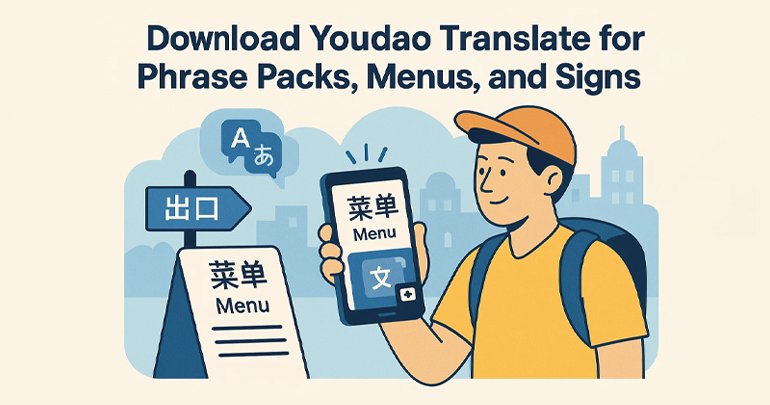
Screenshot translation is ideal for quickly extracting content when reading web pages, PPT presentations, or books. Users simply need to capture a portion of the screen, and the software can recognize the text and provide a translation. For images with complex layouts, OCR recognition mode is recommended to improve accuracy.
Document and PDF Translation
Youdao Translate software supports multiple document formats such as Word, Excel, and PDF. Its document translation function preserves the original layout while outputting editable translations, making it suitable for work reports or academic research.
Multilingual collaboration
Multilingual collaboration is a common requirement in multinational teams. The software’s built-in multilingual translation mode allows for quick translation of messages, emails, or documents into the target language, enabling efficient communication. Combined with vocabulary saving and frequently used phrase features, team collaboration efficiency can be further enhanced.
Usage Tips and Efficiency Improvement
Make good use of historical records
The software automatically saves translation records, which users can review or reuse at any time. Properly managing history and favorites can save a significant amount of time spent on repetitive tasks in daily work and study.
Custom dictionaries and phrases
Customizable thesaurus and phrases are available for specific fields or projects. For example, pre-entering commonly used terms in legal, financial, or technical documents into the thesaurus can significantly improve translation speed and accuracy.
Multi-device synchronization
By logging into the same account, data can be synchronized across PC, mobile, and web platforms. Whether in the office, classroom, or traveling, translation records and saved content can be kept consistent, ensuring continuity of learning and work.
Improve translation efficiency
Mastering the installation and usage skills of Youdao Translate software can not only improve translation efficiency but also optimize learning and workflows. From installation preparation and software configuration to functional application, every step is related to user experience and efficiency. By properly setting up shortcuts, using multilingual translation modes, managing history, and customizing dictionaries, users can achieve more efficient and accurate communication in learning, work, and cross-border exchanges.