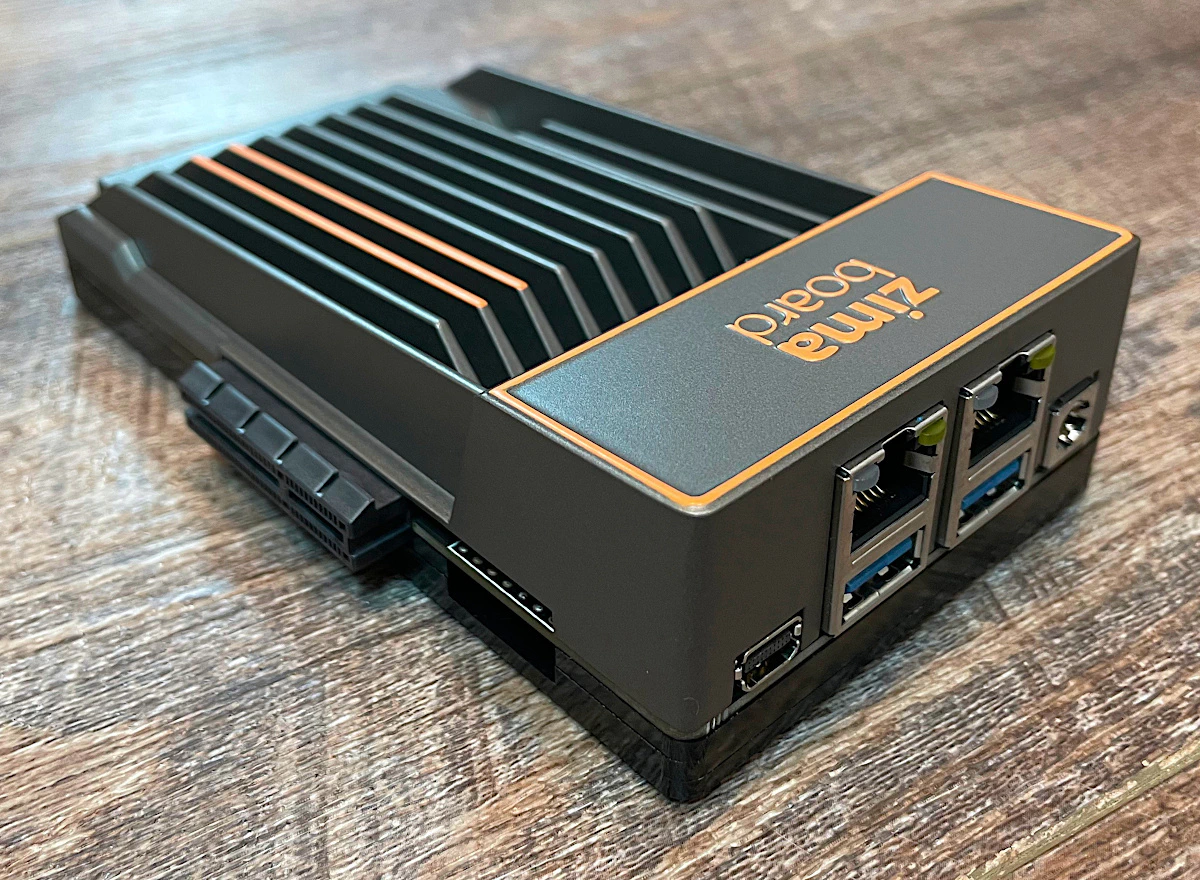
Low cost mini PCs have become the backbone of modern homelab projects, offering impressive computing power in compact, energy-efficient packages. From running containerized applications to managing network storage, these versatile machines enable advanced tinkerers to build sophisticated infrastructure without breaking the bank. However, one critical challenge often emerges: ensuring seamless compatibility with specialized hardware like Zima products. These innovative devices promise to enhance your homelab capabilities, but only if your mini PC can properly support them. For enthusiasts who invest time and resources into building optimized setups, compatibility issues can derail entire projects and waste valuable effort. This article cuts through the confusion by providing clear, actionable solutions to verify and achieve compatibility between your low cost mini PC and Zima products. Whether you’re expanding an existing homelab cluster or starting fresh, you’ll discover essential checks, step-by-step integration guides, and best practices to ensure your hardware works together reliably and efficiently.
Understanding Zima Products and Project Compatibility Essentials
Zima products represent a specialized line of hardware designed to enhance homelab environments, focusing on network-attached storage, data management, and containerized application hosting. These devices integrate seamlessly into personal server ecosystems, offering features like RAID configurations, Docker support, and network file sharing capabilities. For homelab enthusiasts, Zima products bridge the gap between consumer-grade hardware and enterprise-level functionality at accessible price points. Compatibility with low cost mini PCs becomes critical because these systems often serve as the compute layer that manages and orchestrates Zima devices. When hardware specifications don’t align properly, you face performance bottlenecks, connection failures, or inability to utilize advanced features. Key compatibility factors include PCIe lane availability for expansion cards, sufficient USB bandwidth for external connections, network interface capabilities for high-speed data transfer, and adequate system resources to run management software. Project compatibility extends beyond simple plug-and-play functionality—it encompasses the entire ecosystem where your mini PC’s processor architecture, operating system support, and firmware versions must harmonize with Zima’s requirements to deliver the reliable, optimized performance that advanced tinkerers demand for their sophisticated homelab deployments.

Evaluating Your Low Cost Mini PC for Zima Compatibility
Before integrating Zima products into your homelab, conduct a thorough assessment of your mini PC’s capabilities. Start by examining the processor architecture—verify that your CPU supports the instruction sets required by Zima’s management software, particularly for containerized workloads. Check your available RAM against Zima’s minimum requirements, ensuring at least 8GB for basic operations, though 16GB provides better headroom for multiple services. Storage considerations extend beyond capacity to interface speed; NVMe drives deliver superior performance for database operations and virtual machine hosting compared to SATA alternatives. Connectivity evaluation proves equally crucial—count available USB 3.0 ports for external Zima devices, confirm Gigabit Ethernet or faster network interfaces for optimal data throughput, and identify any PCIe expansion slots if you plan to add network cards or storage controllers. Use system information tools like HWiNFO or lshw to generate detailed hardware reports, then cross-reference specifications against Zima’s published compatibility matrices. BIOS version matters too; outdated firmware can prevent proper device recognition or limit power delivery to connected peripherals. Document your findings systematically, noting any gaps between your current configuration and recommended specifications to prioritize necessary upgrades or workarounds before attempting integration.
Step-by-Step Solution: Ensuring Zima Product Compatibility
Begin compatibility resolution by downloading the latest Zima product documentation and firmware from official sources, ensuring you’re working with current specifications. Power down your mini PC completely and physically inspect all connection ports for damage or debris that could interfere with device recognition. Boot into BIOS settings and enable any disabled USB controllers, verify that PCIe configurations match your expansion needs, and confirm that secure boot settings won’t block Zima device drivers. Install your preferred operating system—Ubuntu Server 22.04 LTS or Debian 12 offer excellent Zima support—and immediately update all system packages to resolve known hardware compatibility bugs. Connect your Zima device to the highest-bandwidth USB port available, typically USB 3.2 ports located directly on the motherboard rather than front-panel connectors. Monitor system logs using dmesg or journalctl commands to identify device enumeration issues, noting any error codes that indicate power delivery problems or driver conflicts. If the device fails to mount automatically, manually install kernel modules specific to your Zima product’s chipset, often available through manufacturer repositories or community-maintained packages. Configure network settings to assign static IP addresses for consistent device access, especially important for storage-focused Zima products that require reliable network paths. Test data transfer speeds using tools like iperf3 or dd commands to verify you’re achieving expected throughput—anything below 100MB/s on Gigabit connections suggests configuration problems. Address thermal management by monitoring CPU and device temperatures under load, as mini PCs’ compact form factors can throttle performance if airflow is restricted. Create a validation checklist documenting successful device recognition, driver loading, network connectivity, and performance benchmarks before proceeding to production workloads.
Configuring Software and Drivers
Identify your Zima product’s required software stack by consulting the compatibility matrix on the manufacturer’s support portal. For storage-focused devices, install filesystem utilities like ZFS or Btrfs along with their management tools, ensuring kernel versions meet minimum requirements—typically Linux 5.15 or newer. Docker and container runtime environments require proper configuration of storage drivers and network bridges; use docker info to verify your setup matches Zima’s recommended overlay2 storage driver. Install Zima’s proprietary management interface through official package repositories, avoiding third-party sources that may contain outdated or modified versions. Configure udev rules to maintain consistent device naming across reboots, preventing storage pool failures caused by changing device identifiers. Update firmware on both your mini PC’s network interface cards and the Zima device itself using manufacturer-provided utilities, as firmware mismatches frequently cause intermittent connectivity issues.
Testing and Validation Procedures
Execute comprehensive validation by running stress tests that simulate production workloads—use fio for storage I/O testing with mixed read-write patterns, and stress-ng to verify system stability under sustained load. Create a test dataset of at least 50GB and perform repeated transfer operations between your mini PC and Zima device, monitoring for speed degradation or connection drops. Deploy a lightweight containerized application stack using Docker Compose to verify that your mini PC can simultaneously manage Zima storage while running services. Document baseline performance metrics including IOPS, latency, CPU utilization, and network throughput, then repeat tests after system reboots to confirm consistency. Run extended burn-in periods of 48-72 hours with continuous data operations to expose thermal issues or hardware instability that won’t appear in short tests. Validate backup and recovery procedures by intentionally simulating failures, ensuring your configuration can survive power loss or network interruptions without data corruption.
Best Practices for Building and Managing Homelab Clusters
Building an efficient homelab cluster with low cost mini PCs requires strategic planning beyond individual device compatibility. Start by establishing a dedicated management network separate from your production traffic, using VLANs or physical network segmentation to isolate cluster communication and prevent bandwidth contention. Implement centralized orchestration tools like Kubernetes or Docker Swarm to distribute workloads intelligently across your mini PC nodes, ensuring resource utilization remains balanced rather than overloading single units. Configure high availability by distributing critical services across multiple mini PCs, so network-attached storage remains accessible even if one compute node fails. Network configuration demands particular attention—aggregate network interfaces where possible to increase throughput, and position your mini PCs close to network switches to minimize latency. Resource allocation benefits from monitoring tools like Prometheus and Grafana, which provide visibility into CPU, memory, and storage usage patterns across your cluster, enabling data-driven decisions about workload placement. Power management becomes crucial when running multiple mini PCs continuously; use smart power strips with remote management capabilities and configure wake-on-LAN for nodes that don’t require 24/7 operation. Document your cluster topology meticulously, including IP addressing schemes, service dependencies, and failover procedures, creating a reference that simplifies troubleshooting and future expansion as your homelab grows in complexity and capability.
Integrating Backup Solutions with Your Mini PC Homelab
Data protection forms the foundation of any reliable homelab infrastructure, making backup solutions essential rather than optional for environments running Zima products and low cost mini PCs. Without proper backup strategies, hardware failures, software corruption, or configuration errors can instantly destroy months of work and irreplaceable personal data. Implement automated backup systems using tools like Restic or Borg, which offer encryption, deduplication, and incremental backups that minimize storage overhead while maximizing protection. Configure your mini PC to schedule backups during low-activity periods, typically overnight hours when system resources remain available without impacting production workloads. Zima storage devices excel as backup targets due to their capacity and reliability, but follow the 3-2-1 rule: maintain three copies of data on two different media types with one copy stored off-site or in cloud storage. Establish clear retention policies that balance storage capacity against recovery needs—keeping daily backups for one week, weekly backups for one month, and monthly archives for one year provides comprehensive coverage without excessive storage consumption. Test recovery procedures quarterly by restoring random datasets to verify backup integrity and confirm your ability to recover quickly when disasters strike, ensuring your homelab remains resilient against unexpected failures.
Real-World Project Compatibility Scenarios and Case Studies
A network engineer transformed three Intel N100 mini PCs into a resilient homelab cluster paired with ZimaBoard devices, achieving 10Gbps throughput for media streaming and Docker container orchestration. The project initially faced PCIe bandwidth limitations until BIOS adjustments enabled proper lane allocation, demonstrating how firmware configuration directly impacts compatibility outcomes. Another enthusiast integrated ZimaBlade units with AMD Ryzen-based mini PCs for a home surveillance system, discovering that USB controller chipset differences required custom udev rules to maintain consistent device mounting across reboots. A software developer successfully deployed a Kubernetes cluster using five budget mini PCs connected to ZimaCube storage, learning that network switch quality mattered more than individual device specifications—upgrading to a managed switch eliminated packet loss that had plagued the initial setup. These scenarios reveal common patterns: compatibility challenges rarely stem from single factors but emerge from interactions between firmware versions, driver support, and network infrastructure. Successful integrations share key characteristics including thorough pre-deployment testing, incremental configuration changes with validation at each step, and maintaining detailed documentation of working configurations. Advanced tinkerers benefit most from community forums where users share specific hardware combinations and configuration files, accelerating troubleshooting and providing proven templates adaptable to individual requirements and budget constraints.
Achieving Seamless Mini PC and Zima Integration
Successfully integrating Zima products with low cost mini PCs requires systematic compatibility verification, careful hardware assessment, and methodical configuration. By evaluating your mini PC’s processor architecture, connectivity options, and system resources against Zima’s requirements, you establish a foundation for reliable operation. The step-by-step solutions presented—from BIOS configuration and driver installation to comprehensive validation testing—provide actionable paths to resolve compatibility challenges before they disrupt your homelab projects. Best practices for cluster management, including network segmentation, centralized orchestration, and resource monitoring, ensure your infrastructure scales efficiently as demands grow. Implementing robust backup solutions protects your investment of time and data, while real-world case studies demonstrate that most compatibility obstacles can be overcome through informed troubleshooting and community knowledge. For advanced tinkerers building sophisticated homelab environments, these insights transform potential frustration into confident deployment. Take time to document your configurations, test thoroughly before production deployment, and engage with community resources that share proven hardware combinations. Your low cost mini PC can absolutely deliver the performance and reliability needed for Zima products when you approach compatibility with the systematic methodology outlined here, enabling cost-effective infrastructure that meets professional-grade standards.