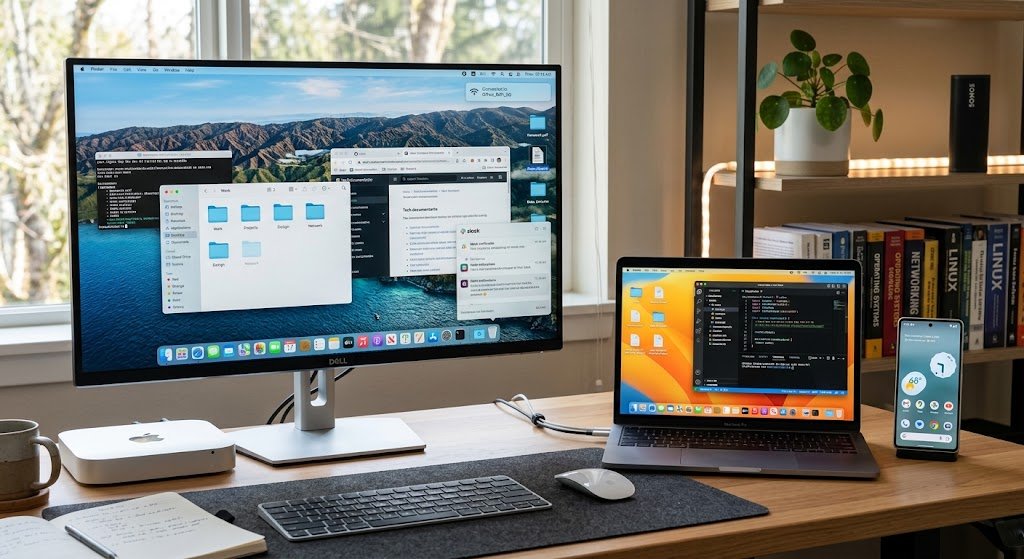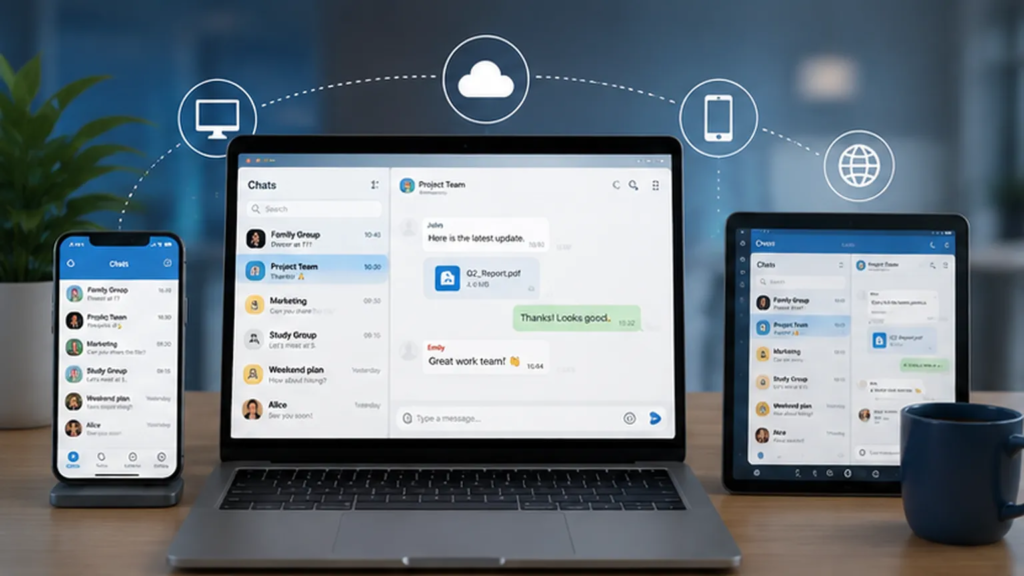
Before installing a messaging application everywhere, consider how you really plan to use it. More connected devices are not always better.
For many users, a phone and one computer are enough. Others may genuinely need access from several devices because they move frequently between work, home, and travel environments.
Mobile Devices
A smartphone is usually the most convenient option for quick communication. Mobile apps work particularly well for:
- receiving alerts;
- taking and sharing photos;
- sending voice messages;
- responding while away from a desk;
- accessing conversations while traveling.
The disadvantage is screen size. Long conversations, large documents, and intensive group management can become less comfortable on a small display.
Desktop and Laptop Computers
A desktop application is often more practical for longer work sessions. A physical keyboard, larger screen, and access to local folders can make it easier to:
- write longer messages;
- review files;
- manage several conversations;
- copy information between applications;
- organize downloaded documents.
For people who already spend most of the working day on a computer, desktop messaging can reduce the need to constantly reach for a phone.
Web Browsers
Browser access can be useful when installing software is not possible. However, web sessions deserve extra attention on computers that are shared with other people.
If you use a browser on a temporary or shared machine, always make sure the session is closed when you finish.
Be Careful Before Downloading Any Messaging App
Security begins before installation. Popular applications often attract third-party websites, modified packages, unofficial clients, and pages designed to look more trustworthy than they really are.
That does not mean every third-party guide is dangerous. Many websites simply explain installation steps or provide information for particular language communities. The important point is to distinguish between reading a guide and trusting a software file.
Before downloading anything, check:
- which operating system the file is designed for;
- what type of installer is being offered;
- whether the source is clearly identified;
- whether additional programs are bundled with the installer;
- whether the page makes exaggerated promises;
- whether the software requests unexpected permissions.
Chinese-speaking Telegram users may also encounter the informal term “纸飞机,” meaning “paper airplane.” People researching installation information may therefore see resources discussing 纸飞机下载 when comparing desktop and mobile options.
Whatever terminology is used, users should still verify the actual application package before installing it. A guide can explain the process. It should not replace basic verification.

Check Compatibility Before Installing
One of the easiest ways to avoid setup problems is to confirm compatibility first.
Operating System
Make sure the application supports the version of Windows, macOS, Android, iOS, or another platform currently installed on the device. Very old operating systems may not support newer application versions.
Storage
Messaging software can accumulate more data than users expect. Over time, a messaging application may store photos, videos, voice recordings, documents, cached media, and temporary files. A computer with very little free storage can quickly become cluttered.
Permissions
Review permission requests instead of approving everything automatically. A messaging application may reasonably require access to notifications, storage, a microphone, or a camera depending on the features being used. Unexpected permissions deserve a second look.
Prepare the Desktop Environment
Desktop messaging can be more efficient than mobile messaging for many work-related tasks, but the computer environment should be prepared first. Confirm that the operating system is supported, that there is sufficient storage for files and cached media, and that the user account has the permissions needed to install software.
It is also worth checking whether the application launches automatically when the computer starts. Automatic launch can be convenient, but it can create unnecessary distractions on machines used for focused work.
Users who prefer communicating from a computer can review Telegram download and setup options before configuring a desktop messaging environment. As with any third-party guide, use the information as a reference and verify the actual application source before installation.
Review Settings Immediately After Installation
Many people install an application, sign in, and begin using it without checking any settings. A better approach is to spend a few minutes reviewing the account immediately after setup.
Important areas include privacy, active devices, two-step verification, notifications, media downloads, storage, language, and startup behavior. Doing this at the beginning is much easier than trying to understand months of accumulated settings later.
Keep Active Sessions Under Control
A multi-device messaging account may remain signed in on devices that users have forgotten about. Examples include an old laptop, a previous smartphone, a work computer, a browser used while traveling, or a tablet that is no longer used.
Review the active-session list periodically. If a device is unfamiliar or no longer necessary, remove it. This is particularly important after selling, losing, or replacing a device.
A forgotten session does not automatically mean an account has been compromised, but reducing unnecessary sessions makes the account easier to monitor.
Protect Verification Codes
Verification codes should be treated like passwords. If someone receives a login code intended for your account, that information should not be forwarded to another person simply because they ask for it.
Be cautious of messages claiming that you must urgently send a code to prevent account deletion, confirm your identity, recover an account, unlock additional features, or assist a support agent.
Unexpected requests for login information should always be treated carefully. Where available, enable an additional password or two-step verification feature. This creates another barrier if someone obtains temporary access to a verification code.
Manage Downloads and Attachments Carefully
File sharing is one of the most useful features of modern messaging apps. It is also an area where users should use common sense.
Do not open a file merely because it arrived through a messaging platform. A contact’s account can be compromised, and unexpected files can be distributed through an otherwise familiar conversation.
Exercise additional caution with executable files, compressed archives, unfamiliar document formats, unexpected software installers, and attachments accompanied by urgent instructions. If the file arrives without context, ask the sender about it before opening it.
Control Automatic Media Downloads
Automatic downloading can be convenient, but it can also create unnecessary storage problems. A busy group may send dozens of images, videos, and documents every day. Automatically storing all of them can quickly fill a phone or computer.
Review automatic-download settings separately for mobile data, Wi-Fi, desktop connections, private conversations, and groups. A user with limited mobile data may want different settings from someone using a home broadband connection.
Know Where Desktop Files Are Stored
Desktop users should identify the folder where messaging downloads are saved. This simple step makes file management much easier.
A clearly organized download location helps users locate documents later, delete old files, review storage usage, scan suspicious downloads, and separate messaging files from other work.
Leaving thousands of files scattered across the default Downloads folder eventually makes everything harder to manage. Creating a dedicated folder can be enough to solve the problem.
Prevent Notification Overload
Using the same messaging account on several devices can create an annoying situation: every new message triggers multiple alerts. The phone vibrates, the computer displays a notification, a browser tab makes a sound, and a tablet lights up.
Decide which device should be your primary notification device. For example, keep urgent mobile alerts active, reduce desktop notifications during focused work, mute high-volume groups, and disable browser notifications if a desktop app is already running.
The objective is not to eliminate communication. It is to stop communication tools from constantly interrupting work.
Protect Information Shown in Notification Previews
Notification previews can reveal information even when the application itself is locked. A preview may display the sender’s name, part of a message, a group name, or confidential work information.
This matters when using a computer in an office, classroom, shared home environment, or during presentations. Users who regularly share their screen should consider hiding message previews.
Review Privacy Settings
Privacy preferences vary depending on how a person uses a messaging service. Someone who communicates only with family may have different needs from a user who joins public groups or manages online communities.
Common settings worth reviewing include profile-photo visibility, phone-number visibility, online status, calls, group invitations, forwarded messages, and contact discovery. Default settings are not necessarily wrong, but they may not be ideal for every situation.
Keep Software Updated
Updates are sometimes treated as an inconvenience because they interrupt work or change the interface. However, updates can also address stability issues, compatibility problems, and security weaknesses.
Keep both the messaging application and the operating system reasonably current. A well-maintained messaging app cannot fully compensate for an operating system that has been left outdated for years.
Automatic updates can simplify this process, although users should still pay attention to major application changes.
Think Carefully About Third-Party Bots and Integrations
Some messaging platforms support bots, browser extensions, automation services, and other integrations. These tools can save time, but every integration may introduce new permissions.
Before connecting an external tool, ask:
- Who created it?
- What information can it access?
- Does it need message access?
- Can the permission be removed?
- Is the tool still maintained?
If an integration is no longer used, disconnect it. There is little benefit in leaving unused tools permanently connected to an account.
A Practical Multi-Device Messaging Checklist
Before Installing
- Confirm the operating system.
- Choose the correct software version.
- Review the source.
- Avoid unknown modified installers.
- Check requested permissions.
Immediately After Installation
- Review active sessions.
- Configure privacy settings.
- Enable additional account protection.
- Adjust notification previews.
- Review automatic media downloads.
- Confirm where downloaded files are stored.
Periodically
- Remove devices that are no longer used.
- Update applications.
- Review third-party integrations.
- Clean unnecessary downloaded files.
- Check privacy settings again.
These tasks take only a small amount of time but make a multi-device account much easier to manage.
Final Thoughts
Messaging applications work best when convenience and account management are balanced. Using the same service on Windows, mobile devices, and the web can make communication significantly easier, particularly for people who move between different working environments.
However, each additional device should be treated as another access point to the account. Choosing the correct software version, reviewing download sources, protecting verification codes, managing active sessions, controlling notifications, organizing files, and keeping software updated are all simple habits that reduce unnecessary risk.
A good messaging setup should feel almost invisible. When devices, notifications, files, and account sessions are properly organized, users can focus on the conversations themselves instead of constantly troubleshooting the technology around them.