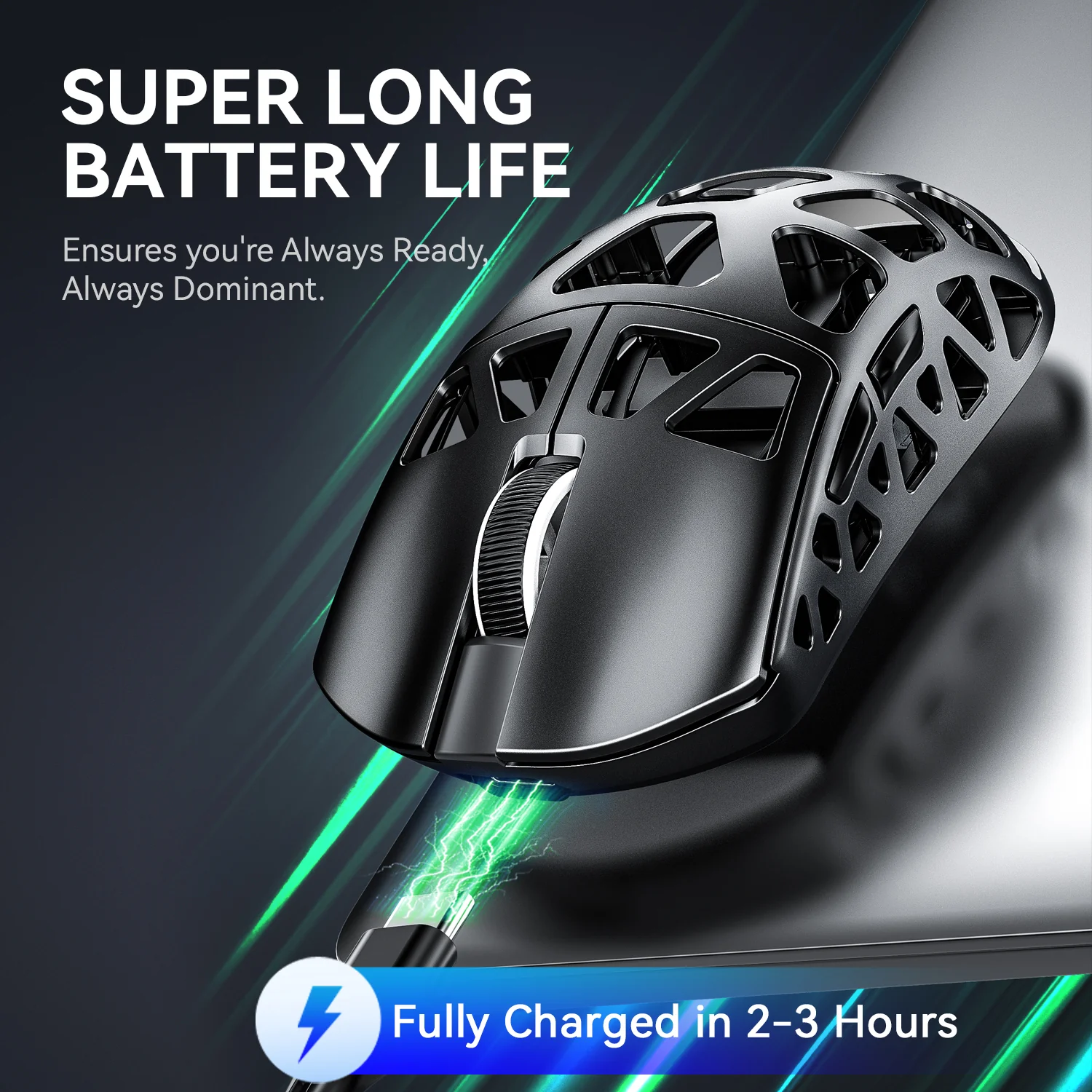
You’re in the middle of a ranked match, your crosshair perfectly lined up for the winning shot, and suddenly your wireless gaming mouse freezes. The cursor stutters, the connection drops for a split second, and by the time it recovers, you’re staring at a death screen. Few things are more infuriating for gamers than unreliable mouse connectivity when every millisecond counts.
Wireless gaming mice have come a long way in performance and responsiveness, but they remain vulnerable to connectivity issues that can cripple your gameplay experience. Whether it’s random disconnections, input lag, cursor stuttering, or phantom double-clicks, these problems stem from identifiable and fixable causes. The good news is that most connectivity failures don’t require a replacement purchase—they require the right troubleshooting approach.
This article walks you through practical, step-by-step solutions to diagnose and resolve wireless gaming mouse connectivity problems. We’ll cover the fundamental differences between Bluetooth vs wireless mice, address the notorious double-click problem, examine how USB ports affect your connection stability, and guide you through essential driver updates. By the end, you’ll have the knowledge to get your mouse performing flawlessly again.
Understanding Wireless Gaming Mouse Technology and Connectivity
Wireless gaming mice communicate with your PC through radio frequency signals, but not all wireless connections are created equal. The two primary technologies you’ll encounter are Bluetooth and 2.4GHz RF (radio frequency) wireless, each with distinct characteristics that directly affect your gaming experience. Understanding which technology your mouse uses is the first step in effective troubleshooting, because the solutions for connectivity problems differ significantly between them.
Bluetooth vs Wireless Mice: Key Differences for Gaming
When comparing Bluetooth vs wireless mice for gaming, the distinction comes down to performance priorities. Bluetooth mice operate on a shared frequency band and communicate through your computer’s built-in Bluetooth radio, which means they compete with other Bluetooth devices for bandwidth. This results in higher latency—typically 7-15ms compared to the 1ms response time that dedicated 2.4GHz wireless mice achieve through their proprietary dongles. Bluetooth connections also tend to be less stable in environments crowded with wireless devices, making them more prone to momentary dropouts during intense gaming sessions. However, Bluetooth offers universal compatibility and eliminates the need for a USB receiver, which preserves precious USB ports on laptops. For competitive gaming, 2.4GHz RF wireless remains the superior choice due to its dedicated communication channel and polling rates that rival wired connections. The connectivity issues you experience will vary accordingly—Bluetooth problems often involve pairing failures and interference from nearby devices, while 2.4GHz issues typically relate to receiver placement and USB port power delivery.
How Wireless Signals and Receivers Work
Your wireless gaming mouse transmits positional data and button inputs as radio signals to a small USB dongle plugged into your PC. This receiver acts as a dedicated antenna, continuously listening for your mouse’s transmissions on a specific frequency channel. The dongle and mouse are factory-paired with encrypted communication to prevent interference from identical devices nearby. Common failure points in this system include the dongle losing its pairing data, physical obstructions between the mouse and receiver creating signal dead zones, and electromagnetic interference from Wi-Fi routers, USB 3.0 devices, or other 2.4GHz equipment degrading the signal quality. The distance between your mouse and receiver also matters—most manufacturers recommend keeping the dongle within one meter of the mouse for optimal performance, which is why many gaming mice include USB extender cables for their receivers.
Diagnosing Common Wireless Gaming Mouse Problems
Before jumping into fixes, you need to accurately identify what’s actually going wrong with your wireless gaming mouse. Connectivity problems manifest in several distinct ways, and each symptom points toward a different root cause. Random cursor freezes lasting one to three seconds typically indicate signal interference or receiver issues. Persistent input lag that makes your mouse feel sluggish suggests bandwidth competition or power management throttling. Complete disconnections followed by reconnection chimes point toward USB port power delivery failures or driver conflicts. Tracking inconsistencies—where the cursor moves erratically or drifts—often relate to sensor surface issues rather than connectivity, so ruling that out first saves troubleshooting time. Start your diagnosis by testing the mouse on a different computer to determine whether the problem follows the mouse or stays with your PC. If it works perfectly elsewhere, your system configuration is the culprit. If problems persist on another machine, the mouse hardware or receiver may be failing.
The Mouse Double-Click Problem: Causes and Identification
The mouse double-click problem is one of the most reported issues among wireless gaming mouse users, and it has both connectivity and hardware origins. When a single click registers as two clicks, the cause is either a degraded mechanical switch (the spring mechanism inside the microswitch losing tension over time), a connectivity glitch where the signal bounces and registers duplicate inputs, or a driver fault that misinterprets input data. To determine which you’re dealing with, use an online click test tool that records every input event with timestamps. If double-clicks occur with perfectly consistent timing regardless of how you press the button, it’s likely a hardware switch issue. If they happen sporadically and correlate with moments of signal instability—perhaps when you move the mouse to the edge of your desk farther from the receiver—connectivity is the culprit. You can also test by connecting the mouse via USB cable if your model supports wired mode. If double-clicking disappears in wired mode, the wireless signal path is introducing the problem rather than a worn switch.
USB Ports and Their Impact on Connectivity
Your USB ports play a more critical role in wireless mouse connectivity than most users realize. A faulty or underpowered USB port can cause intermittent disconnections that mimic wireless signal problems. USB 3.0 ports are known to emit electromagnetic interference in the 2.4GHz band, which can directly degrade your wireless mouse’s signal quality when the receiver is plugged into a port adjacent to an active USB 3.0 device. Windows power management settings can also suspend USB ports to save energy, momentarily cutting power to your receiver and causing brief disconnections. Check your USB ports by examining Device Manager for any entries with yellow warning triangles under Universal Serial Bus controllers. Try moving your receiver to a USB 2.0 port if available, as these produce less interference. If your mouse disconnects specifically when your PC enters light sleep or when other USB devices are actively transferring data, power delivery and bandwidth sharing are likely your primary issues to address.
Step-by-Step Guide to Fixing Connectivity Issues
Now that you’ve identified the likely cause of your wireless gaming mouse problems, it’s time to work through targeted fixes. The following steps are arranged in order of simplicity and likelihood of success—start with the first and progress through each until your connectivity stabilizes. Most users find their issue resolved within the first two steps.
Step 1: Check and Secure USB Ports and Connections
Begin by physically inspecting the USB port housing your wireless receiver. Look for bent pins, dust accumulation, or any visible damage inside the port cavity. Use compressed air to clean out debris that might prevent a solid electrical connection. Remove the dongle and reinsert it firmly—a partially seated receiver can cause intermittent signal loss that’s maddening to diagnose. Next, move the receiver to a different USB port entirely, prioritizing USB 2.0 ports on the rear of your PC rather than front panel ports, which often run through internal headers with weaker power delivery. If you’re using a USB hub, bypass it completely and connect directly to your motherboard. To address Windows power management throttling your USB ports, open Device Manager, expand Universal Serial Bus controllers, right-click each USB Root Hub entry, select Properties, navigate to the Power Management tab, and uncheck “Allow the computer to turn off this device to save power.” Repeat this for every root hub listed. Additionally, navigate to your Windows power plan settings, expand USB settings, and set USB selective suspend to disabled. These changes prevent Windows from momentarily cutting power to your receiver during what it perceives as idle moments—moments that often coincide with you holding still before taking a shot.
Step 2: Update and Manage Drivers for Optimal Performance
Outdated or corrupted drivers are responsible for a surprising number of wireless mouse connectivity failures. Open Device Manager and expand “Mice and other pointing devices” to find your wireless mouse entry. Right-click it, select “Update driver,” and choose “Search automatically for drivers” to let Windows find the latest version. However, Windows Update doesn’t always deliver the most current driver updates—visit your mouse manufacturer’s website directly and download their latest driver package or companion software. Brands like Logitech, Razer, SteelSeries, and ATTACK SHARK maintain dedicated applications that handle firmware updates for both the mouse and its receiver, which is equally important. If your problems started after a recent driver update, roll back by right-clicking your mouse in Device Manager, selecting Properties, going to the Driver tab, and clicking “Roll Back Driver.” Sometimes the newest driver introduces compatibility issues with specific hardware configurations. For a clean slate approach, uninstall the mouse driver entirely, disconnect the receiver, reboot your PC, then reconnect the receiver and let Windows install fresh drivers from scratch. This eliminates corrupted driver files that a simple update might leave behind.
Step 3: Troubleshoot Wireless and Bluetooth Signals
Signal interference is the invisible enemy of wireless gaming mice. Start by identifying potential interference sources near your setup—Wi-Fi routers operating on 2.4GHz, other wireless peripherals, USB 3.0 external drives, wireless headsets, baby monitors, and even microwave ovens all broadcast or leak energy in the same frequency band your mouse uses. Relocate your Wi-Fi router at least three feet from your mouse receiver, or switch your router to the 5GHz band exclusively if your network devices support it. Position your mouse’s USB receiver using the extension cable that came with your mouse (or purchase a short USB extender) so the dongle sits on your desk surface within clear line-of-sight of the mouse, rather than buried behind your PC case where metal shielding blocks signals. For Bluetooth mice specifically, remove the mouse from your paired devices list entirely, then re-pair from scratch—corrupted pairing profiles cause persistent connection instability that no amount of restarting fixes. Access Bluetooth settings, select your mouse, click “Remove device,” then put your mouse into pairing mode and reconnect. If you’re using a 2.4GHz RF mouse and the receiver has lost sync with the mouse, most manufacturers provide a connection utility tool that forces a fresh pairing between dongle and mouse. Check your manufacturer’s support page for this reset procedure, as it varies between brands but typically involves holding specific button combinations while reinserting the receiver.
Pro Tips for Maintaining Your Wireless Gaming Mouse
Fixing connectivity issues is only half the battle—keeping them from returning requires consistent maintenance habits that protect both your hardware and software configuration. A proactive approach saves you from repeating troubleshooting sessions and ensures your wireless gaming mouse delivers reliable performance through every gaming session.
Regular Software and Driver Maintenance
Treat driver updates as routine maintenance rather than something you only pursue when problems arise. Set a monthly reminder to check your mouse manufacturer’s website or companion software for firmware and driver releases, as these updates frequently include connectivity stability improvements and bug fixes that address known issues. Most gaming peripheral software can notify you of available updates automatically—enable these notifications and don’t dismiss them. Firmware updates for your receiver are equally critical, since the dongle’s communication protocol receives patches that improve signal handling and reduce dropout frequency. Keep Windows Update running regularly as well, because chipset drivers and USB controller updates from Microsoft often resolve underlying system-level conflicts that affect peripheral connectivity. If you notice stable performance after a specific driver version, document that version number so you can roll back quickly if a future update introduces regression.
Hardware Care and USB Port Best Practices
Physical maintenance extends your mouse’s connectivity lifespan significantly. Store your wireless dongle in the mouse’s built-in compartment when traveling rather than leaving it exposed in a USB port where it can accumulate dust or suffer physical damage from bumps. Clean your USB ports quarterly with compressed air to prevent debris buildup that causes intermittent electrical contact failures. Avoid daisy-chaining your receiver through USB hubs or extension cables beyond what the manufacturer provides, as each connection point introduces potential resistance and signal degradation. Dedicate a specific USB 2.0 port on your motherboard’s rear panel exclusively for your mouse receiver—labeling it with a small sticker prevents accidental use by other devices. Keep your mouse sensor clean with a microfiber cloth and maintain a consistent, high-quality mousepad surface to prevent the sensor from overworking and draining battery faster, which indirectly affects wireless signal strength as battery voltage drops.
Restore Reliable Performance and Game With Confidence
Wireless gaming mouse connectivity issues don’t have to end your gaming sessions or force an expensive replacement purchase. By understanding the fundamental differences between Bluetooth vs wireless mice and their respective vulnerability points, you can pinpoint problems faster and apply the right fix the first time. Whether you’re dealing with the frustrating mouse double-click problem caused by signal bounce, intermittent disconnections rooted in faulty USB ports or power management settings, or signal interference degrading your 2.4GHz connection, each issue has a concrete solution within your reach.
The troubleshooting path is straightforward: secure your physical USB connections and optimize port settings, perform thorough driver updates for both your mouse and its receiver firmware, and eliminate wireless signal interference through smart receiver placement and device management. These steps resolve the vast majority of connectivity failures without requiring advanced technical knowledge or hardware replacement. Beyond reactive fixes, adopting proactive maintenance habits—regular firmware checks, dedicated USB port assignments, and proper hardware care—prevents these problems from recurring and keeps your wireless gaming mouse performing at the level you paid for. Take twenty minutes today to run through these steps, and you’ll game with confidence knowing your mouse won’t betray you at the worst possible moment.