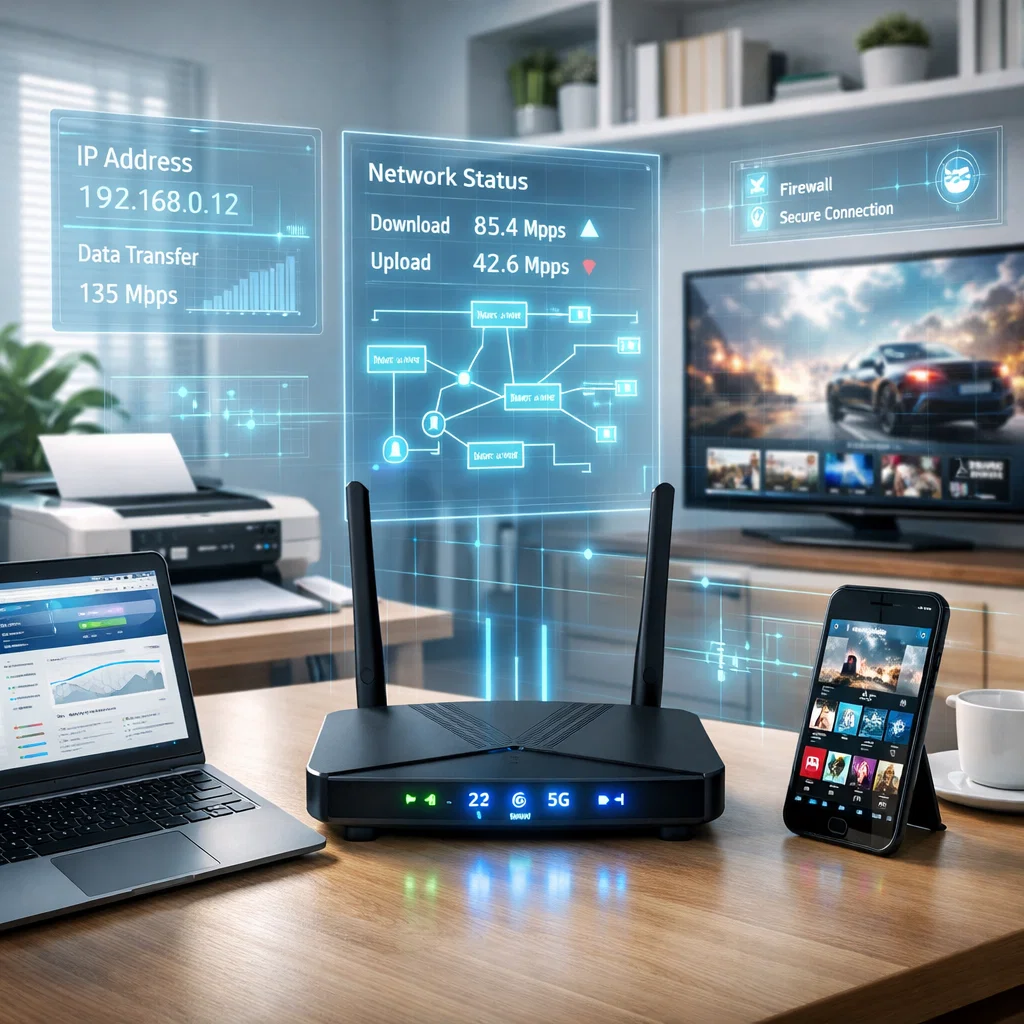
In the digital era that we have today, a properly configured network is what sustains the home and office environment. It is either you are watching high definition videos, conducting online meetings, running cloud applications, or managing a network of devices in a small office, then by just making the right network setup, you will be assured of a good performance, speedy and increased security. The improperly installed networks may result in slow internet as well as frequent disconnection or even security breach.
This manual includes all the information about the network settings configuration, such as IP addresses, DNS, Wi-Fi, router, and advanced office level features. At the end of it, you would have developed a good grasp of how to maximize your network in terms of performance and security.
In case you are interested in knowing how to make the network settings efficient and safe, this article will offer you easy, step-by-step instructions that can be followed by the beginners and those who are to manage small offices.
Understanding IP Addressing
All the devices within a network have to have different IP addresses so as to effectively communicate. Consider an IP address as the digital home address to your device; it helps the data packets to arrive at the desired destination and not get lost on the way.
Public/ Private IP Addresses
Public IP: This is a public IP address which your Internet Service Provider (ISP) assigns to you, and it is visible to the rest of the internet, and it is required when you need to communicate with others.
The private IP: This is an address employed in your internal network whereby devices such as computers, printers and smart devices communicate with each other without exposing them to the outside world.
These differences are important to understand particularly during router, server and remote access tools settings. As an example, a printer in an office network is normally assigned a private IP in order to enable only internal access making it not vulnerable to the internet.
Dynamic and Static IP Addresses
• Static IP: It is permanently assigned to the device, which is suitable to use with servers, printers, or network attached storage.
• Example: A small office with a file server that is internal would have a static IP address to it, so that all employees would be able to access it.
• The benefits: Robust connection, simple management of the devices, the key to the hosting services.
• Its demerits: It has to be manually configured and it can create conflicts without tracking it appropriately.
• Dynamic IP: This is automatically assigned by DHCP (Dynamic Host Configuration Protocol) and it is useful in general devices such as laptops, smartphones, and tablets.
• Example: Dynamic IPs, which vary with time, but which are managed automatically, are typically used in Smartphones and laptops at home.
• Benefits: Simple to install, does not need manual assignment, minimizes the conflicts.
• Pro/Cons: The devices might be assigned new IPs every now and then, which can cause one to get distracted in the process of carrying out other sophisticated functions such as remote desktop connections.
How to Check your IP Address
• Windows: Open Command Prompt >type ipconfig > check IPv4 Address.
• macOS: system preferences Network Select the active network view IP address.
• Linux: Terminal: ifconfig or ip addr list.
Key Notes
• Each equipment should have a different IP within the same network.
• This is because the appropriate IP setup will avoid disconnections and collision.
• Use of a static IP IPs are suitable in devices that require constant access and a dynamic IP is suitable in devices that are used casually.
Setting of DNS (Domain Name System)
DNS (Domain Name System) is critical in changing domain names such as the one at www.google.com to IP addresses, which can be interpreted by the computers. The selection of an appropriate DNS can enhance the speed, reliability and security.
The selection of the suitable DNS Servers
• ISP-based DNS: Standard, stable, though at times slower, or lacks security capabilities.
• Public DNS Google DNS (8.8.8.8, 8.8.4.4), Cloudflare (1.1.1.1, 1.0.0.1) and OpenDNS (208.67.222.222) are faster and more reliable and have some extra features (malware blocking, etc.) that make them safer to use.
Setting DNS Manually
• Windows: Control Panel Network and Internet Adapter options Properties IPv4 Use the following DNS addresses.
• osx: System Preferences Network Advanced DNS Add DNS server addresses.
• Mobile Devices: Wi-Fi configuration: Network modification: Static IP: Primary and Secondary DNS.
Best Practices
• Test DNS- Check through commands such as nslookup to ensure that the speed of resolution is correct.
• Use DNS that is both fast and reliable, and secure.
• Avoid conflicts: check DNS entries after updating.
Example Scenario: A small office that is changing their ISP DNS to Cloudflare DNS can be surprised by the evidence of faster page load times and response times of cloud applications.
Wireless Internet Installation at Home and Office
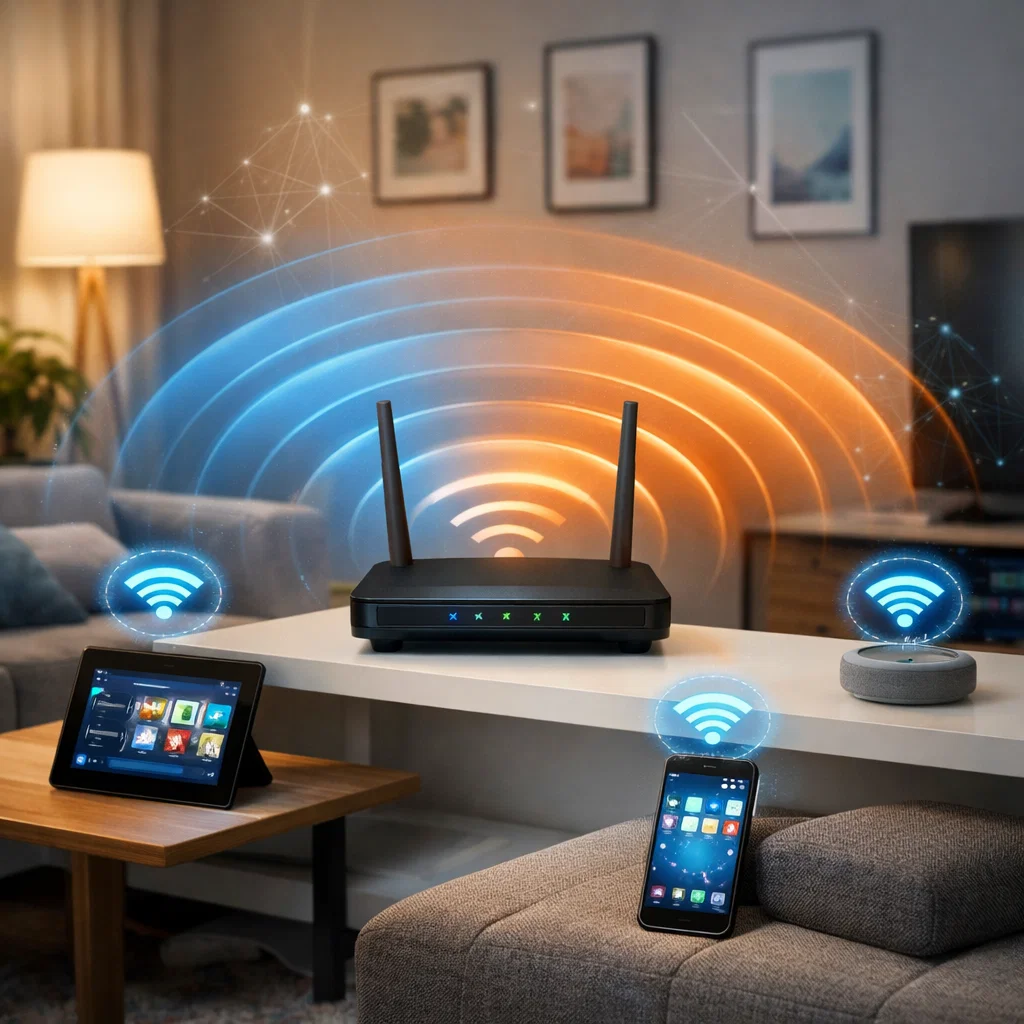
Happy: Wi-Fi system is well established, so connections are stable at all times.
The most used form of network media is the Wi-Fi. Lack of proper Wi-Fi connections leads to low-speed connections and disconnections as well as security threats.
Configurations to Wi-Fi
• SSID Naming: It should have a unique recognizable name. Do not use default names such as TP-Link-1234 because they are easily attacked by computer hackers.
• Passwords: WPA2/WPA3 is a strong encryption that should be used to avoid unauthorized users. An amalgamation of letters, numbers and symbols.
• Channel Choice: Choose a channel that has the least amount of interference particularly in a dense apartment building. The equipment such as Wi-Fi analyzers is useful.
• Guest Networks: Have different networks in place where the guests will not have any access to internal sensitive gadgets.
Wi-Fi Performance Optimisation Tips
• Place the router in the middle of the room, preferably on a high place.
• Keep routers in non-metallic, non-mirror, and non-electronic areas.
• Limit connected devices: This is done to avoid congestion.
• Periodically update router software to eliminate vulnerabilities.
Examples: A home office that uses several laptops, smart TVs, and IoT devices will require a dual-band router (2.4GHz + 5GHz) to provide a means of distributing the devices effectively and minimize interference.
Router Configuration Basics
Happy: Network: Network is equipped with the correct router set that is safe and efficient.
The routers control the flow between the local and the internet. Poorly set up routers may leave your devices vulnerable to security threats or may slug your network.
Accessing Router Settings
• Enter the router’s IP (usually 192.168.0.1 or 192.168.1.1) in a web browser.
• Log-in as an administrator (change the credentials used immediately after using the first time).
Essential Router Settings
• Change Default Admin Credentials: It is also advisable to modify default usernames and passwords in order to secure it.
• DHCP Range: configure the dynamical IP ranges and issue the key devices permanent IP addresses.
• Notice: To guarantee the safety of the internal devices, firewall is recommended to be on and NAT is on.
• Port Forwarding: Only the ports which are essential such as VoIP, game servers or remote desktop are to be opened.
Firmware Updates
• The manufacturer of the check has a router interface or a web site where one can check to update the firmware.
• In cases where security is fixed, addition of new features or increased speed is obtained, then updates are used at that point.
Scenario: The case can be a situation when an old office router with an outdated edition of the firmware is attacked. It further provides that the employees are safe in terms of their equipment through firmware update.
Developed Network Routing (Optional to the offices)
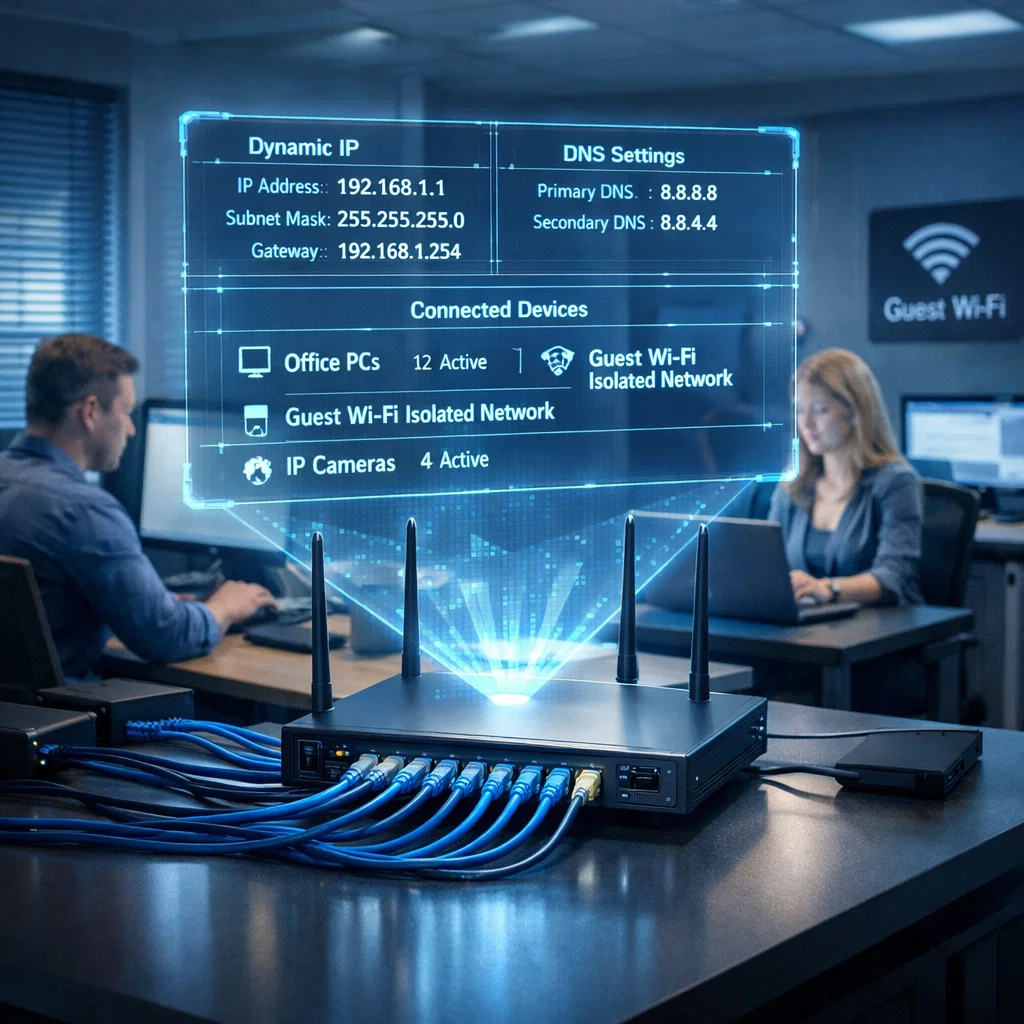
Additional settings may be added in order to enhance the performance, security and manageability of small offices or complicated home configurations.
• VLANS: This isolates the network traffic within the network depending on the department or kind of device to minimize the congestion and enhance security.
• QoS (Quality of Service): Bandwidth priority Use the video calls or VoIP which is important.
• VPN Installation: The remote workers have their traffic secured, as well as their privacy of the data is ensured.
• Network Surveillance: Suspicion identification and removal of wastage of bandwidth.
Example: VLANs may be applied in a small office in order to separate the workstations of the employees and the guest Wi-Fi to provide safe control of the data and not to lock the visitors to the internet.
The Trouble-shooting of the Common Network Problems
Happy: Network problems are resolved fast and therefore, there is no downtime.
The well-configured networks might also have problems. Common problems include:
• No internet connection.
• Poor speed of connection or low connection.
• IP conflicts.
• DNS resolution failures.
Troubleshooting Steps
• Restarting router and machines.
• IP and DNS settings: It is necessary to check IP and DNS settings to ensure that they are all right.
• Rebuke network adapters when there are incessant issues.
• Test the connection with the help of such commands as ping or tracert.
• Get in touch with ISP in case of issues.
Hack: Have a book of network ills. It will help in identifying the patterns and prevention of the problems in the future.
Best practices Network security, Reliability
The proactive approach should be used to ensure that the network and network safety is secure.
• Wi-Fi and router administration should be done using strong passwords.
• Maintain the updates of the firmware to contain the vulnerabilities.
• Nevertheless, the service such as WPS and UPnP should be turned off.
• Check gadgets: In this case, attach the gadgets on a periodic basis.
• Fast re-configuration of network.
• Teach the family members or employees good network practices.
The case in point: After a visitor has left an infected machine it is still connected to the network, there is also the possibility of infecting the network unless they are separated appropriately. This is prevented by frequent inspections.
Conclusion
It is important to note that in the small offices and the home users, appropriate configuration of the network should be done. With the information concerning the IP addressing, DNS, Wi-Fi optimization and router set-up one can create the quick, dependable and secure network. The most effective, the use of the advanced settings where it is necessary and effective troubleshooting can help you to avoid the downtime, improve productivity and prevent network threats.
With the same guideline, you will be assured of the set-up of network properties and the provision of high-speed network-based environment to all the devices to ensure the realisation of ease of connection and secure online experience.