In the current job environment, remote and home-based work have increasingly become the order of the day. These working styles are comfortable and flexible, but also carry considerable threats to our body, especially, in relation to the health of the spine. This is possible because of poorly designed working space and sitting environments, which may contribute to an endless number of musculoskeletal problems such as back soreness, neck rigidness and shoulder muscles ache.
However, through a couple of important changes and acquiring essential ergonomic tools for your home office enhancement or working space, you can go a long way to reducing strain on your body and make your workspace conducive.
This ultimate checklist will guide you on how to make your home office a home of ergonomic bliss.
Understanding the Importance of Ergonomics
The science of designing and organizing the workplace, systems and products to fit the human working with them is called Ergonomics. Within the setting of a home office, ergonomics is the analysis of how to best organize your workstation to reduce the possibility of physical exertion and instead improve efficiency.
The proper application of an ergonomic setup supports the body, maintains proper posture, and locates movements that are more natural, so there is less chance of developing musculoskeletal disorders.
It is possible to have a chain reaction of problems when ergonomics is ignored. Pain in the back is one of the most prevalent diseases affecting remote workers and it is usually caused by the lack of support of a chair and incorrect sitting position.
Neck and shoulder pain may occur due to a poor placement of the monitors and also when one uses the computer extensively. The other possible effects of a non-ergonomic workspace are the headaches, carpal tunnel syndrome, and fatigue.
By taking these problems by the horns and dealing with them through proper ergonomic tools and setups, you would be able to protect your health and improve your working experience in general.
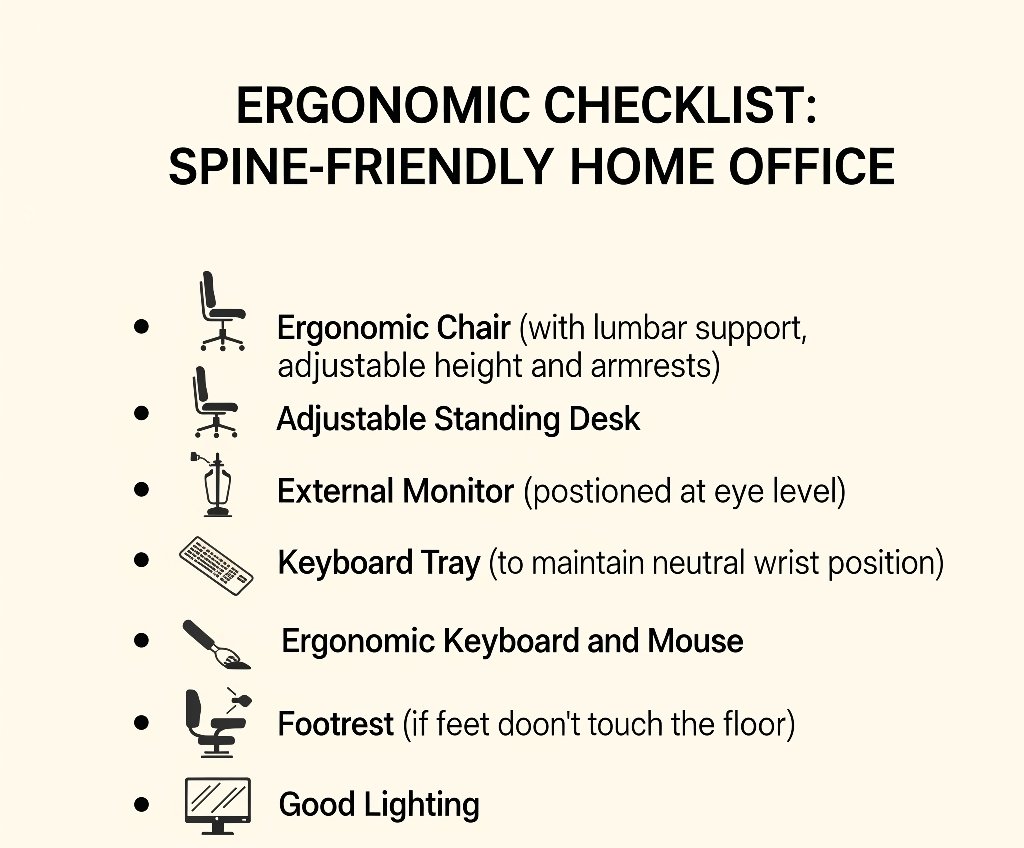
The Ultimate Ergonomic Checklist: Your Guide to a Spine-Friendly Home Office
The purpose of this checklist is one that is both practical and easy to work through and as such, it will give you firsthand steps that you can take in order to develop an ergonomic work area that fits your spinal priorities.
1. The Ergonomic Chair: foundation of good posture
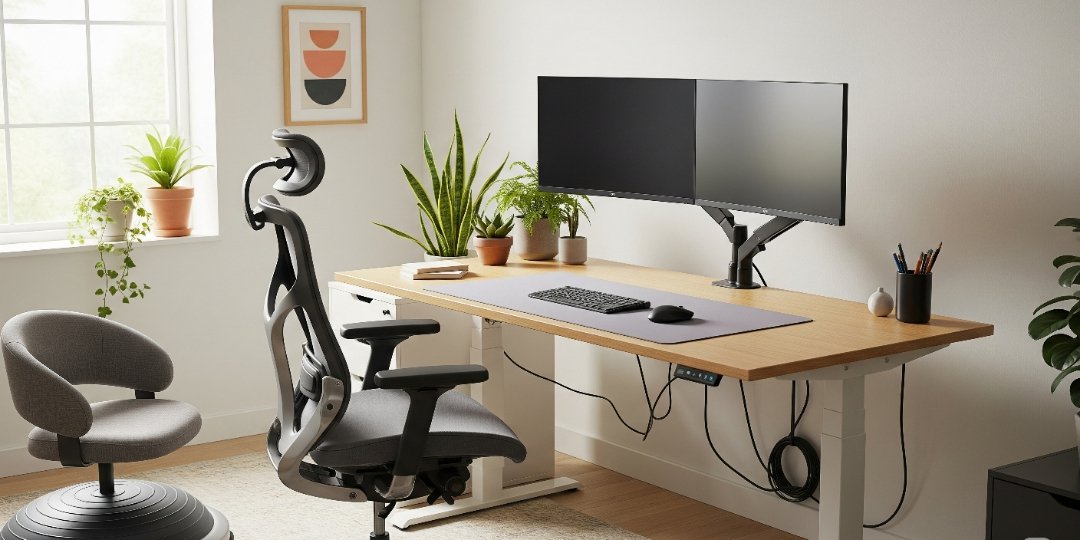
The backbone of a spine friendly home office is an ergonomic chair. It is adjustable and provides the needed support to cover your individualized body requirements and healthy posture during your workday. When deciding on an ergonomic chair, consider the following major criteria:
Adjustable Seat Height: See to it that you can be seated with your feet flat on the floor or on a footrest with your thighs parallel to the ground. This will facilitate the correct position of the hips, and it will spare your lower back.
Lumbar Support: A good ergonomic chair needs adjustable lumbar support which fits with the natural shape of your lower back. This aids in retaining the natural S-shape of the spine, as well as avoiding slouching which causes back pains.
Adjustable Armrests: The armrests must be adjustable up-down and in-out so that when you are sitting, the arm rests can support your arms and your shoulders need not be spread. This lessens the load in your neck and upper back.
Adjustable seat depth: When in a seated position, the seat pan ought to be deep such that it does not exert any strain on the rear side of your knees.
Adjusting Backrest: A backrest that can tilt back will enable you to change your posture every so often so as to put less strain on your back. Look for a chair with a reclining feature that you may lock at various angles.
Swivel Base and Casters: With a swivel base you can easily get to any part of your workspace without turning your torso, and casters with smooth roll will enable you to move the chair wherever you need it.
2. The Monitor Setup: Positioning for Neck and Upper Back Health

Your monitor’s position plays a crucial role to preserve the neck and back health. Poor location of monitors may result in craning the neck, hunching of shoulders and strained eyes. To have an optimal set-up of the monitor, do the following:
Monitor Height: Your monitor display screen top must be at or even a bit below eye level when you are seated in your ergonomic chair. This makes your neck neutral and does not have you looking around a lot either up or down. Adjust monitor so that it is at the correct height using a monitor stand or adjustable monitor arm.
Monitor Distance: The monitor should be one arm length away. It is a comfortable distance of viewing that minimizes fatigue to the eyes.
Dual Monitor Setup: When having two monitors, place your main monitor in front of you and secondary monitor a little off. This reduces too much twisting of the neck.
Reduce Glare: Avoid having your monitor too close to a source of light that may cause glare which may trigger eye strain and headaches. Also consider anti glare screen protectors.
3. The Keyboard and Mouse: Reducing Strain on Wrists and Forearms
Prolonged typing and use of the mouse may impose a lot of pressure on your wrists and forearms and may cause ailments such as carpal tunnel syndrome. To improve ergonomics, it is quite important that the keyboard and the mouse are optimized in terms of location and design:
Keyboard Tray: A keyboard tray lets you adjust the positioning of your keyboard to the right down and in front (just below elbow height) position and angle (neutral or slightly negative tilt). This assists in holding a straight position of the wrist and limiting strain.
Neutral Wrist Posture: Do not bend your wrists; type in a relaxed position. Do not curve them up, down or sideways.
Mouse Positioning: Place the mouse near your body and at the same height as your keyboard, to reduce reaching and also limit the risk of shoulder pains.
Ergonomic Mouse: An ergonomic mouse could be an option, something easy to hold in your hand and allow you a neutral wrist position.
4. Lumbar Support: Maintaining the Natural Curve of Your Spine
Your lower spine, which is referred to as the lumbar curve, has a natural curve inward that is needed to maintain good posture and equal distribution of weight. Lack of support in the lumbar region may cause flattening of this curve, which causes lower back pain and strain.
Integrated Lumbar Support: As part of the ergonomic chairs, there are built-in adjustable lumbar support. Make sure this support is placed so that the curve of your lower back is comfortably accommodated by this support when you are sitting.
Lumbar Support Cushions: You may need a separate lumbar support cushion when your chair does not provide enough support. Select a firm one that fits your spine natural form. Place it at the back of your lower back to keep the lumber curve.
Correct Adjustment: Adjust the height and depth of the lumbar support until a position that is comfortable and supportive is located. You will experience some light pressure on your lower back that will prompt you to sit upright.
5. Footrest: Aids Maintaining Healthy Leg and Hip Posture
Footrest is a very important tool of ergonomics to people whose feet fail to comfortably touch the floor when seated. It assists in:
Good Alignment of the Legs: A footrest also helps you maintain a flat foot and 90-degree angle at the knees, which aids blood flow and less stress on the legs.
Keep Your Hip Aligned: A footrest will also keep your pelvis stable and your hips in alignment, which helps to support the natural curve of your spine.
Less Lower Back Pressure: Dangling feet may cause an additional strain on your lower back. Footrest reduces the pressure by offering a solid contact point on which the feet rest.
6. Document Holder: Reducing Neck Strain While Reading and Typing
A document holder is a useful ergonomic accessory. It assists in:
Neck Strain: A document holder places documents at or close to eye level, so you are not constantly looking down at flat documents on your desk. This relieves your neck muscles and avoids neck pain and stiffness.
Better Posture: With your papers at a higher level, chances are that you will sit up straight instead of crouching on your table.
Enhance Productivity: It can also make you type faster and more accurately as your documents are in a comfortable line of sight.
7. Standing Desk or Desk Converter: Promoting Movement and Decreasing Sedentary Lifestyle
Sitting has been associated with numerous risks to health, such as back problems, obesity, and heart diseases. These risks can be alleviated by including standing periods in your workday, thus improving your overall health.
Standing Desks: A standing desk is a piece of equipment that enables one to work standing in a comfortable position. A standing desk that is adjustable in height so you can alternate between sitting and standing is one idea you could consider investing in.
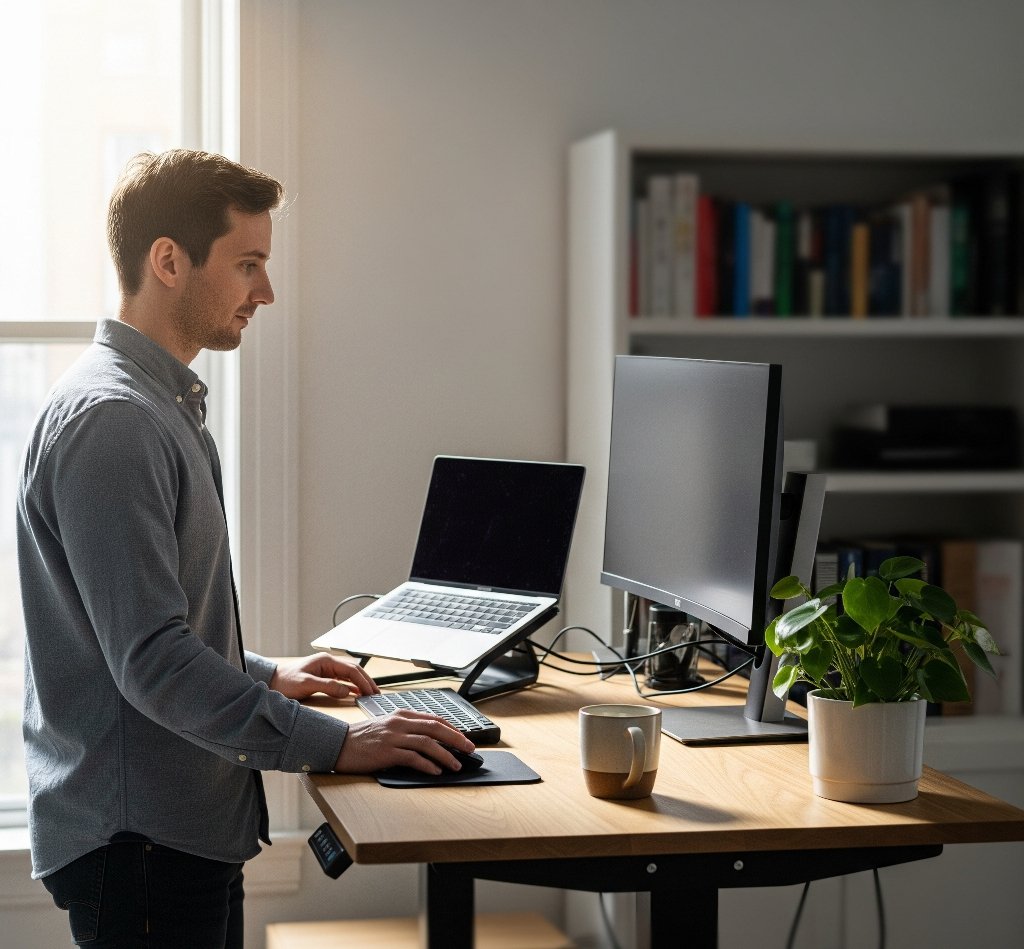
Desk Converters: In case you are not willing to change the current desk, a less expensive alternative is to use a desk converter. These are devices that stand above your existing desk and can be adjusted to sit or stand and work.
Standing benefits: Standing up and sitting down will help increase circulation, relieve back pain and stiffness, increase energy, and even help one focus.
8. Task Lighting: Reducing Eye Strain and Promoting Comfort
Well placed and sufficient lighting is a key component of a comfortable and productive home office. Unpleasant lighting may cause the feeling of eye strain, headache, and tiredness. Here are reasons and tips:
Reduce Glare: Position your work area to eliminate direct glare to the computer screen either by windows or overhead lights. Use curtains as blinds to manage any incoming natural light.
Task Lamps: Having a specific task lamp and using it to read documents, or when performing close work also gives focused lighting. Set the lamp in a position that it shines on your work table but not create stern shadows and the reflection is not in your eyes.
Adjustable Brightness and Direction: Your task lamp should have the option of adjustable brightness as well as swivel options in case you want to control the direction to focus light where it is most needed.
Think of Blue Light Filters: One of the ways that may help avoid that potential eye strain is to use blue light filters in your devices or use blue light glasses to block blue light emitting devices and screens.
9. Deliberate Rest and Movement: Fighting Sedentary Posture
Sitting at any posture long enough is harmful to your health regardless of how good the ergonomic setup is. Taking frequent breaks in your daily work schedule along with moving around is important to avoid stiffness, pain, and fatigue.
Set Frequent breaks: Try to take small breaks (e.g. 5-10 min) occasionally every hour and stand up stretch and walk.
Micro-Breaks: Take Micro-breaks that keep you healthy include taking a 30-60 second stretch care of your neck, shoulders, and back.
Ergonomic Exercises: In your breaks, add in some ergonomically focused exercises and stretches to help ease any muscle tension and to promote flexibility.
Final Thoughts
To switch to an ergonomic home office environment, one does not have to do it overnight. Begin with the most important things, the chair position and monitor position. However, slowly add in other important ergonomic equipment as your finances and requirements permit. Monitor the state of your body and make adjustments accordingly.
With some positive attitudes toward ergonomics, you can develop a home office space that may be beneficial to your health, comfortable to work in, and more productive than ever before.