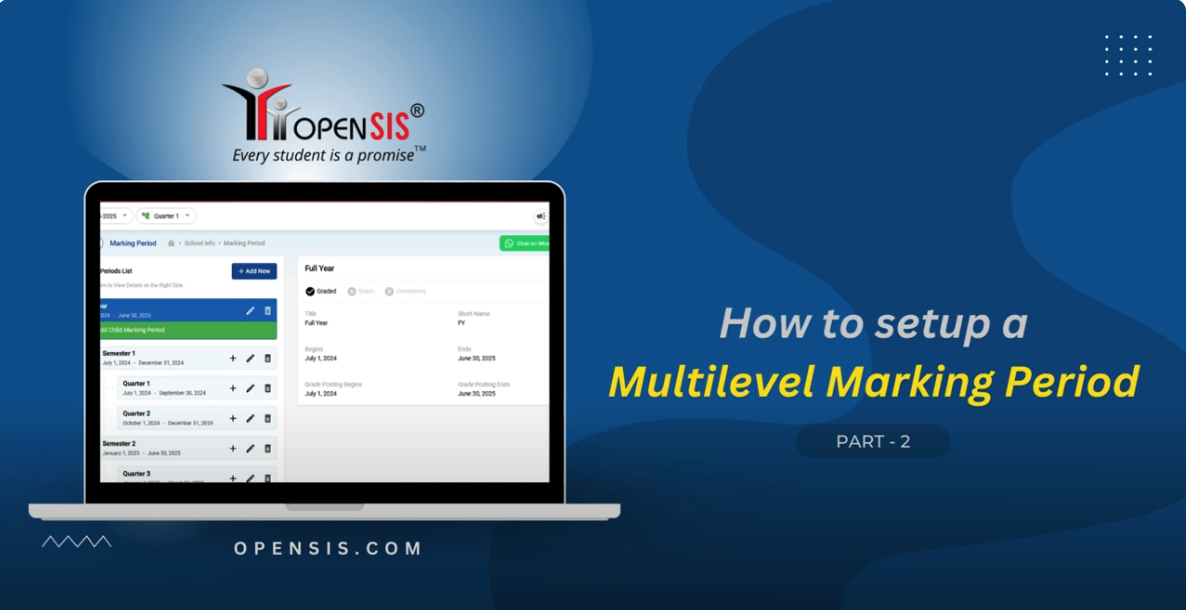
Setting up a multi-level marking period in openSIS can significantly enhance the flexibility and customization of your school’s academic calendar. Whether your institution follows a semester system, trimesters, or quarters, openSIS allows you to tailor marking periods to fit your specific needs. This guide will walk you through the steps to set up a multi-level marking period in openSIS.
Step 1: Access the Marking Period Setup
- Log in to openSIS : Begin by logging into your openSIS admin account. Ensure that you have administrative privileges to access and modify the marking period settings.
- Navigate to School: From the School menu, select Marking Periods. This is where you can define the academic year, terms, and marking periods.
Step 2: Create the Academic Year
- Add a New Academic Year: Before setting up marking periods, you need to define the academic year. Click on ‘Add New’ and enter the start and end dates for the academic year.
- Save the Academic Year: After entering the details, click ‘Save.’ This step sets the foundation for all the marking periods and terms you will create.
Step 3: Define Terms (Primary Level)
- Create Terms: In openSIS, terms are the primary divisions of the academic year, such as semesters or quarters. Click on ‘Add New Term’ and define the term name (e.g., Semester 1, Semester 2), start date, and end date.
- Assign Terms to the Academic Year: Ensure that each term is associated with the correct academic year by selecting the appropriate year from the dropdown menu.
- Save the Terms: Once you’ve added all the necessary terms, click ‘Save.’
Step 4: Set Up Sub-Terms (Secondary Level)
- Add Sub-Terms: Sub-terms are the divisions within a term, such as quarters within a semester. To create sub-terms, click on the term you wish to divide and select ‘Add New Sub-Term.’
- Define Sub-Terms: Enter the sub-term name (e.g., Quarter 1, Quarter 2), start date, and end date. These dates must fall within the parent term’s date range.
- Save Sub-Terms: After configuring the sub-terms, click ‘Save’ to ensure they are correctly associated with the primary term.
Step 5: Establish Multi-Level Marking Periods
- Add Multi-Level Marking Periods: You can add additional layers of marking periods, such as progress reports or midterms, under each sub-term. Click on a sub-term and select ‘Add New Marking Period.’
- Configure the Marking Periods: Enter the details for each marking period, including the name, start date, and end date. Ensure these dates align with the overarching sub-term or term dates.
- Save Marking Periods: Once all marking periods are set up, click ‘Save’ to finalize the configuration.
Step 6: Review and Edit
- Review Your Setup: After saving, review the hierarchy of your marking periods to ensure they are correctly structured. openSIS will display them in a nested format, showing terms, sub-terms, and marking periods.
- Edit if Necessary: If any adjustments are needed, you can click on the respective term, sub-term, or marking period to edit the details.
Conclusion
Setting up a multi-level marking period in openSIS may seem complex, but by following these steps, you can create a flexible and efficient academic calendar tailored to your institution’s needs. Whether you are managing semesters, trimesters, or any other system, openSIS provides the tools to organize and track student progress effectively. Take the time to configure these settings correctly, and you’ll enjoy a smoother, more organized academic year.