I started searching how to combine PDF files with digital signature after a signed document was rejected because of a simple mistake. At the time, I didn’t even realize I had done anything wrong. I merged the files the same way I always did, saved the result, and sent it off. Everything looked normal. The signature was still visible on the page. But when the document was reviewed, it failed validation. That experience forced me to slow down and actually understand how digital signatures work inside a PDF.
Digital signatures aren’t like images or stamps that sit on top of a page. They are directly tied to the internal structure of the document. Even small changes, such as page order or file size, can affect them. When you merge incorrectly, the signature may still appear exactly where it was, but it no longer proves integrity. In this article, I’ll explain what actually happens when signed PDFs are merged, the methods I rely on to avoid problems, and how UPDF fits into my workflow when I need predictable results.
Can You Combine Digitally Signed PDFs?
The short answer is yes, you can combine digitally signed PDFs, but there are limits that matter. A digital signature validates a document exactly as it existed at the moment it was signed. That includes content, page order, and internal references. Once any of that changes, the signature no longer matches the file.
This is why people run into trouble when they try to merge digitally signed PDF files using basic merge tools. The merge itself succeeds. The files combine into one document. But the signature integrity does not survive the process. From a technical standpoint, the document has changed, so the signature no longer represents the current version.
Over time, I realized there are only two practical ways to handle this situation:
- Accept that signatures will no longer be valid after merging
- Remove signatures, merge the files, and apply a new digital signature
There’s also a third option that avoids altering the signed documents at all, which I’ll explain later using a PDF portfolio. Each approach has a purpose. The key is knowing which one fits the situation instead of merging blindly and hoping for the best.
How To Combine Digitally Signed PDF Files
Before doing anything, I always make a decision first. Do I need the final document to remain legally valid, or do I just need everything in one place for reference? That answer determines the method I use.
Option 1: Remove Signatures, Merge, And Re-Sign (Most Reliable)
This is the method I rely on whenever the final document needs to stand up to scrutiny. Contracts, approvals, compliance records, and anything that may be verified later all fall into this category.
Step 1: Remove Existing Digital Signatures
I start by opening each signed PDF in UPDF and removing the existing signature. This step feels uncomfortable at first, but it’s necessary. A signed document is locked by design. Trying to merge it without clearing the signature is what causes validation failures later.
Steps I follow:
- Open UPDF on my computer.

Alt: open-updf-on-computer
- Open the digitally signed PDF.
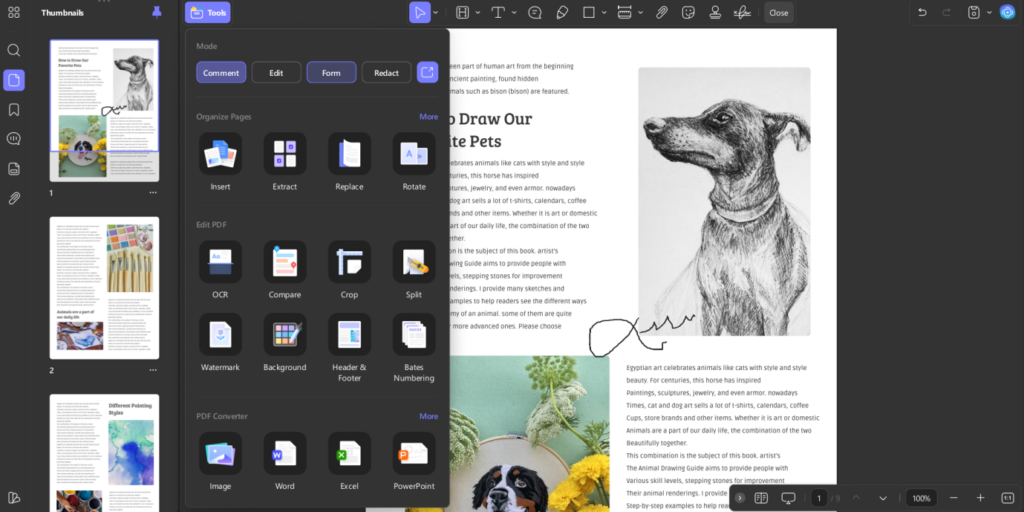
- Click on the existing signature field.
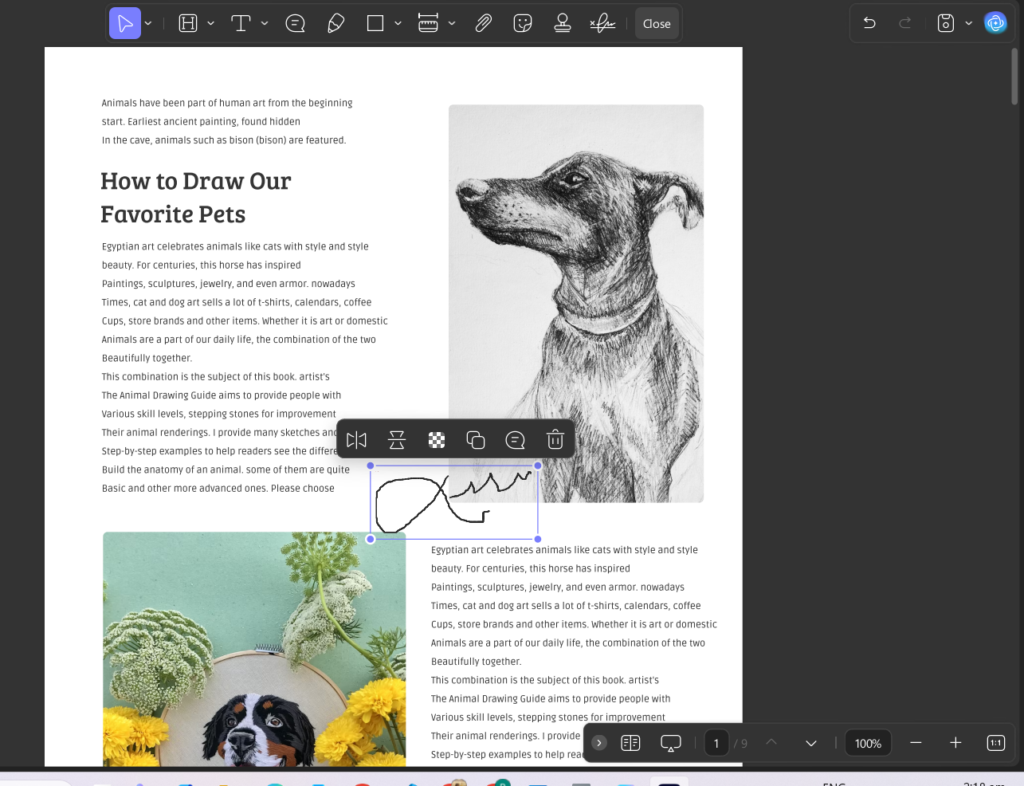
Alt: remove-signature
- Choose the option to remove or clear the signature.
- Save the file without the signature.
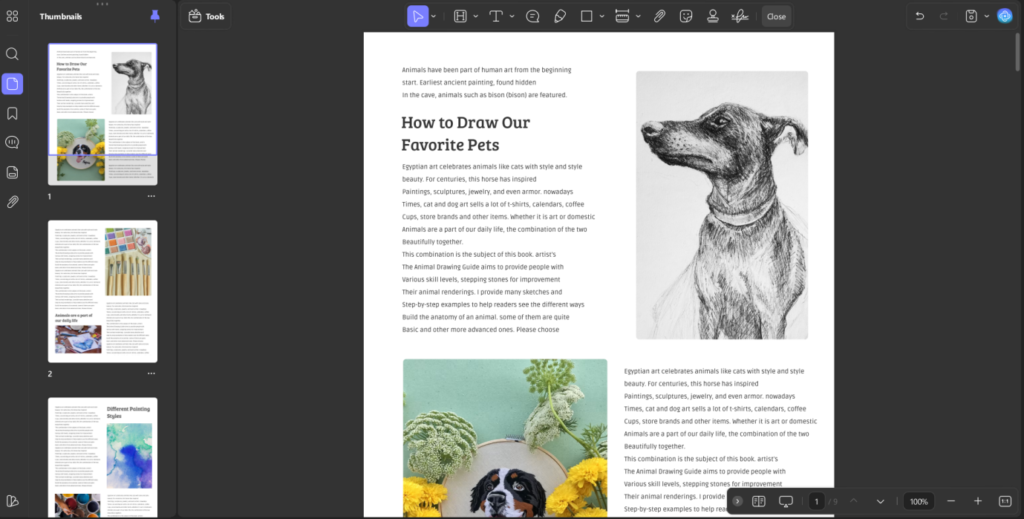
Alt: save-the-file
Once the signature is removed, the file behaves like a normal PDF again. At that point, it’s safe to edit, rearrange, or merge.
Step 2: Merge The PDFs
After removing signatures from all files, I merged them into one document. This step is straightforward, but I still pay attention to order and structure.
Steps:
- Open UPDF and go to Tools.
Alt: open-updf
- Choose the merge or combine PDF option.
- Add all the unsigned PDF files.

Alt: add-unsigned-files
- Arrange them in the correct order.

Alt: arrange-them-in-the-order
- Click merge and save the combined file.
At this stage, I always scroll through the merged file once. I check page order, headers, and any cross-references. It’s easier to fix issues now than after signing again.
Step 3: Add A New Digital Signature
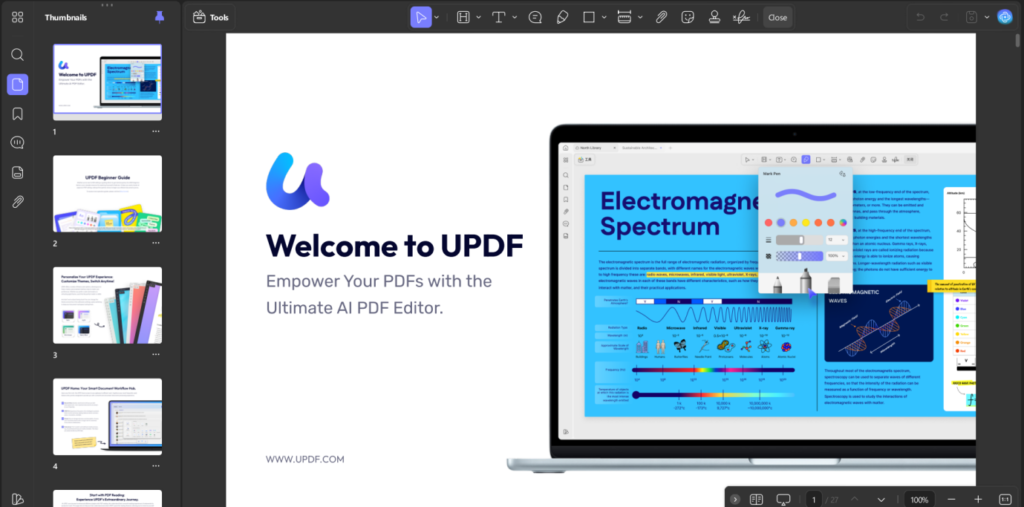
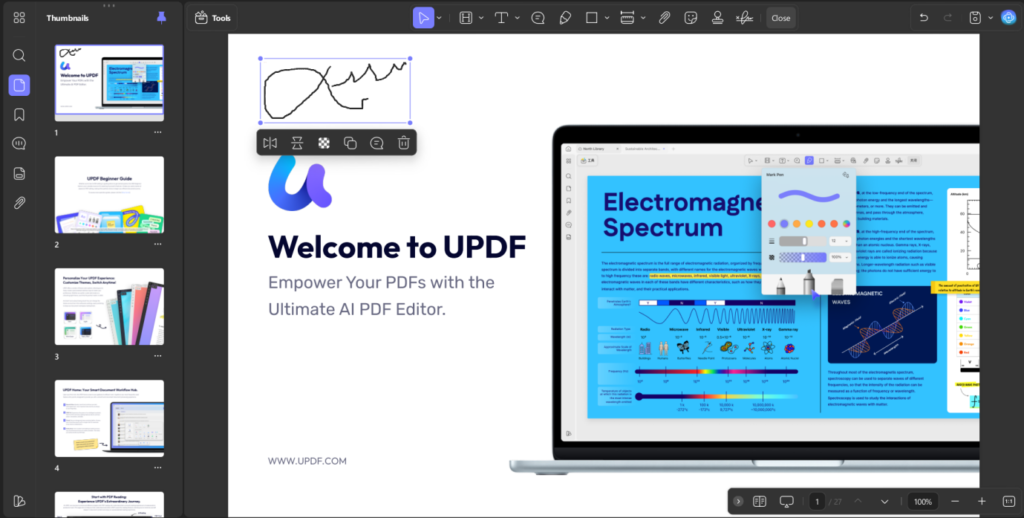
Once the merged document in UPDF looks correct, I apply a new digital signature. This signature now represents the entire document as a single unit, not just one part of it.
Steps I use:
- Open the merged PDF in UPDF.
Alt: open-merged-pdf
- Go to the signing tool.
- Choose to create or add a digital signature.
Alt: add-signature
- Place the signature field where needed.
- Select or create a digital certificate.
- Apply the signature and save the document.
This step restores trust. Anyone verifying the file later sees one signature that covers the full document.
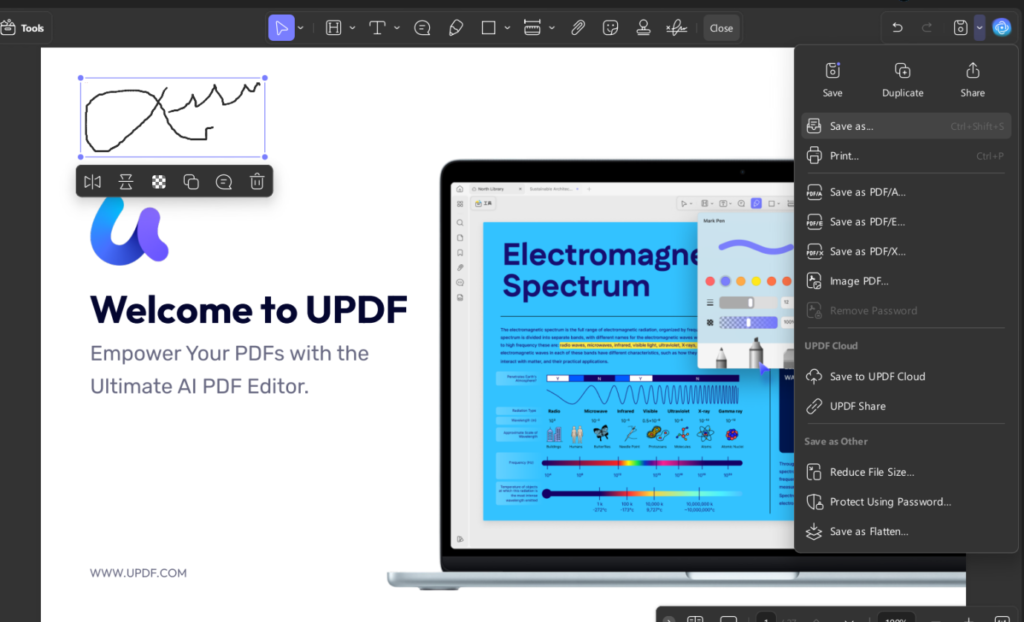
Step 4: Save And Share The Final File
Once the new signature is applied, I treat the document as final. I save it, name it clearly, and share it. I avoid making any further changes, since even small edits would invalidate the new signature.
Alt: save-file
Tip: Merge Without Removing Signatures (Visual Only)
There are times when legal validity doesn’t matter. For internal reference, archives, or visual review, I sometimes merge signed PDFs without removing signatures first.
Steps:
- Open UPDF.
- Choose merge PDF.
- Add the digitally signed files.
- Merge and save.
The signatures remain visible on their original pages, but they are no longer functional. I only use this method when everyone involved understands that the signatures are no longer valid.
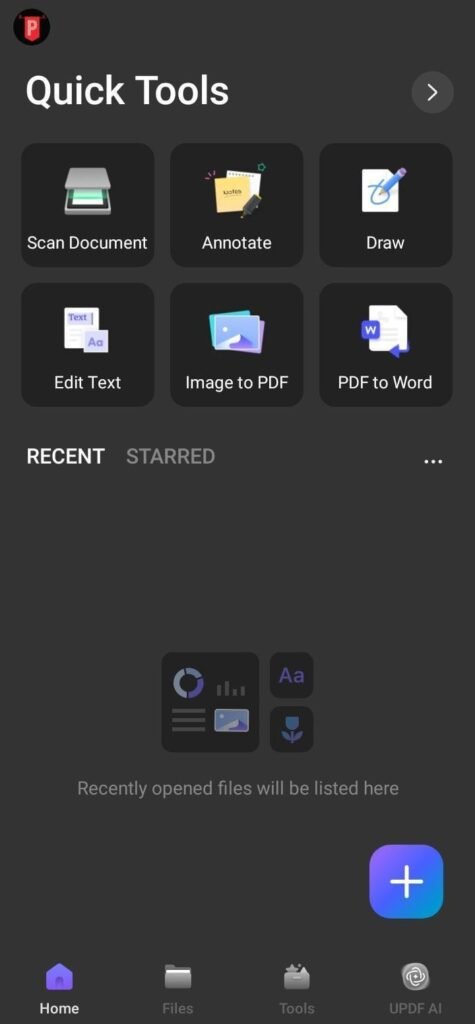
I can also do this on my phone using UPDF Mobile from the App Store or Google Play, which is useful when I need a quick reference file.
- Open UPDF and click on the Add button
Alt: open-updf-on-phone
- Add your files
- Go to the Tools button and scroll down to use the Merge PDF option.
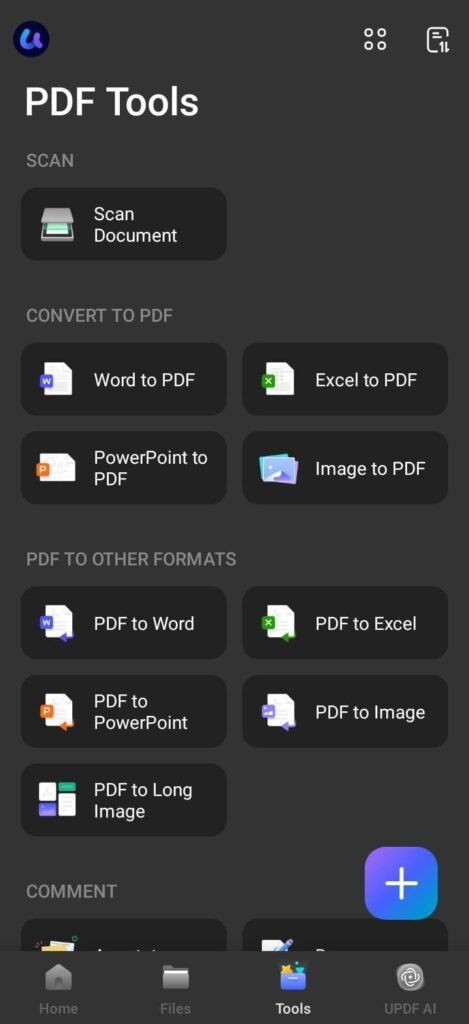
Alt: choose-merge-files-option
Option 2: Use A PDF Portfolio (Preserves Original Signatures)
When I don’t want to touch the signed files at all, I avoid merging entirely and use a PDF portfolio instead.
A PDF portfolio is a single PDF container that holds multiple files inside it. Each document remains separate. Because the files themselves are unchanged, their digital signatures remain valid and verifiable.
This is different from a folder or ZIP file in a few important ways:
- Everything opens inside a PDF viewer
- Files keep their original properties
- Signatures remain verifiable
Step 1: Add Signed PDFs To The Portfolio
Steps:
- Open UPDF.
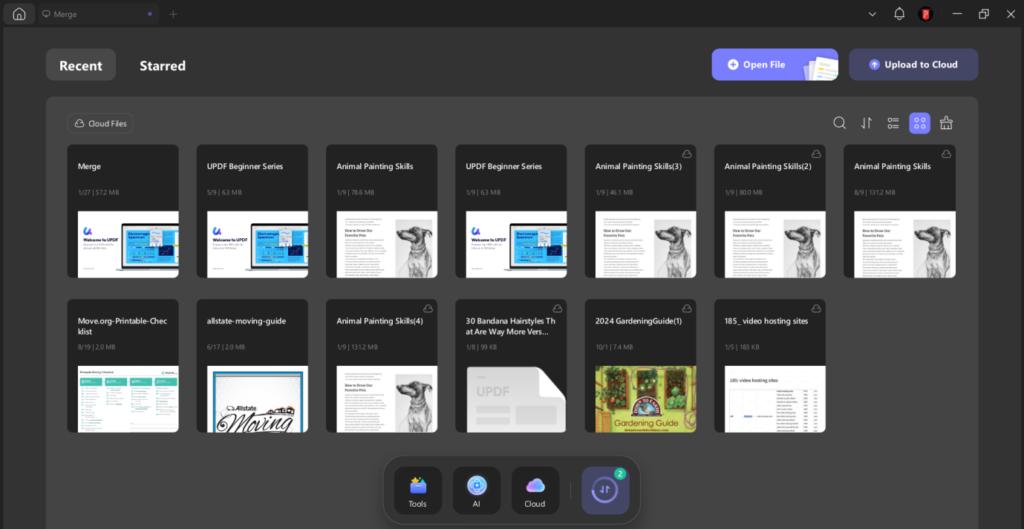
Alt: open-updf
- Create a new PDF portfolio.
- Add each digitally signed PDF as an individual item.

Alt: add-files
Step 2: Save The Portfolio
Steps:
- Save the portfolio as one PDF file.

Alt: save-file
- Share it like a normal document.
Each signed PDF inside the portfolio can still be opened and verified independently. This is the safest option when signatures must remain untouched.
Wrapping it Up!
Getting to know how to combine pdf files with digital signature changed how I handle signed documents. Merging without understanding how signatures work leads to invalid files, even when everything looks correct on screen. When validity matters, I remove signatures, merge the files, and re-sign using UPDF. When preservation matters more, I use a PDF portfolio instead. Having both options available means I no longer guess or risk breaking important documents.