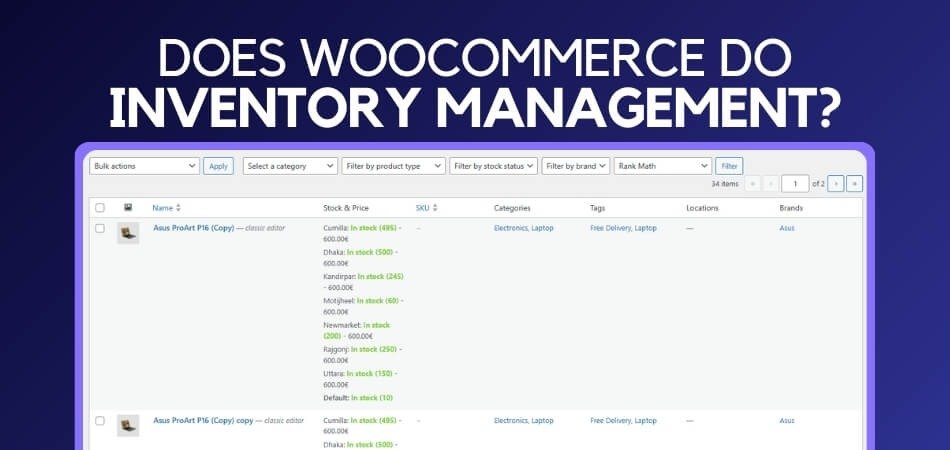
If you are searching for a clear answer to the question does woocommerce do inventory management, the simple answer is yes. WooCommerce includes basic stock control such as product-level quantity tracking, stock status updates, low stock alerts, and automatic stock reduction after each order. These tools work well for small stores that operate from a single inventory source.
In this guide, you will learn what WooCommerce can manage on its own, where it becomes limited, and when a multi-location inventory setup becomes necessary. I will also use a plugin as an example to show how multi-location workflows function in real WooCommerce stores.
What WooCommerce Can and Cannot Do?
WooCommerce includes a simple set of inventory tools that work well when everything is managed from a single stock source. Its built-in system lets you track product quantities, update stock automatically after each order, and receive alerts when levels run low. For many small or starter stores, this basic setup is often enough.
As your inventory needs grow, the limitations of the core WooCommerce system become easier to notice. It does not separate stock by warehouse or store location, and it cannot handle location-based pricing, fulfillment rules, or advanced reporting without additional tools.
What WooCommerce’s Built-In System Can Do
- Track stock quantity for simple and variable products
- Reduce stock automatically after each order
- Allow or block backorders
- Display in stock or out of stock status
- Send low stock notifications
- Set custom low stock thresholds
Where the Built-In System Falls Short
- No support for multiple warehouses or store locations
- Cannot display stock availability per location
- No location-based order routing
- No per-location pricing or stock rules
- Limited reporting and no demand forecasting
Does WooCommerce Do Inventory Management?
To fully answer this question, we need to look beyond basic capabilities and explore how WooCommerce handles real operational tasks. This section covers two core parts: what WooCommerce offers out of the box, and where the built-in system begins to fall short.
What WooCommerce Offers for Inventory Management (Built-in Features)
WooCommerce includes several useful tools inside the product editing interface. These features focus on giving store owners control over how each item behaves in the inventory system.
Product-Level Inventory Panels
Each product includes an Inventory tab where store owners can define SKUs, enable stock management, set quantities, and choose how WooCommerce should react when stock changes. This gives you fine control at the product level without needing global stock rules.
Variation-Specific Inventory Structures
Variable products let you assign separate SKUs and stock quantities for each variation. If you sell items in different sizes or colors, each option can have its own inventory values and availability logic.
Catalog and Visibility Control
WooCommerce lets you control how out-of-stock products appear in your store. You can choose to hide them or keep them visible with an “out of stock” tag, depending on how you want customers to browse your catalog.
Custom Alerts and Threshold Options
Store owners can set notification thresholds to receive alerts when stock reaches a certain point. This helps maintain stock accuracy without manually checking quantities.
Batch Editing Tools
A built-in bulk editor allows you to update multiple products at once. You can adjust inventory-related settings for groups of products, making it easier to prepare for sales events or new seasonal collections.
Automatic Handling Based on Product Type
Inventory behavior automatically adjusts based on whether an item is physical, virtual, or downloadable. Physical products rely on quantity-based logic, while digital goods follow more flexible availability settings.
These tools make WooCommerce an efficient system for merchants who manage a single storage location and have predictable stock movement.
Limitations of WooCommerce’s Default Inventory System
WooCommerce works well for simple setups, but the built-in system has structural limitations. These issues become more noticeable as stores expand or begin using more advanced warehouse workflows.
No Location-Based Stock Organization
WooCommerce stores inventory as a single number for each product. There is no built-in way to assign quantities to different warehouses, branches, or storage rooms. Because of this, stores exploring WooCommerce multi locations inventory management eventually need dedicated tools to reflect how stock is distributed in real operations.
No Intelligent Order Routing
WooCommerce does not decide which location should fulfill an order, even if you operate multiple facilities. This forces fulfillment teams to manually coordinate shipping, which becomes time-consuming as order volume grows.
Operational Disconnect Between Teams
Since WooCommerce displays only one unified stock number, warehouse staff, retail employees, and online teams all rely on the same global value. This creates confusion when returns arrive, partial shipments are prepared, or store-specific stock differs from warehouse inventory.
Challenges With Large Product Catalogs
As SKU volume increases, managing everything through product-level settings becomes inefficient. High-volume stores often require automation, segmented stock pools, and structured product workflows that WooCommerce does not offer by default.
No Physical Inventory Support Tools
WooCommerce does not include barcode scanning, pick lists, packing slips, or batch assignment tools. These features are essential for businesses with active warehouse operations, large shipments, or multiple fulfillment teams.
Limited Reporting and Inventory Insights
WooCommerce offers only basic stock status information. It does not report on turnover rates, aging stock, per-location performance, or predictive restocking needs.
These limitations are not problems for small stores, but they become significant when your business expands.
When is WooCommerce’s Built-in Inventory System Enough?
The default WooCommerce inventory tools are often a good fit for stores that operate with simple stock requirements. The situations below highlight when the built-in system can fully support everyday inventory needs.
Single Stock Location Setup
Stores that keep all inventory in one physical place can manage stock easily with WooCommerce. A single inventory source avoids complexity, keeps quantity updates straightforward, and fits naturally with WooCommerce’s single-pool stock structure.
Small or Medium Product Catalog
Shops with a limited range of SKUs can maintain stock efficiently using product-level settings. Basic inventory options and bulk editing provide enough control without requiring advanced automation or multi-location features.
Straightforward Fulfillment Workflow
Businesses that ship all orders from one point benefit from WooCommerce’s simple stock behavior. Without multiple delivery routes or distribution centers, inventory remains easy to track through the core system.
Digital, Preorder, or Slow-Moving Items
Product types that do not rely on constant stock movement work well with default settings. Digital downloads, low-turnover goods, and made-to-order items require minimal inventory handling, making WooCommerce’s built-in tools sufficient.
Preference for Manual Stock Updates
Some businesses prefer hands-on control when adjusting inventory. WooCommerce’s interface supports uncomplicated manual updates, which are suitable for stores with predictable demand and low-volume restocking activities.
When Will You Need an Inventory Management Plugin?
WooCommerce’s built-in inventory tools are designed for simple workflows, but growing businesses eventually require more advanced capabilities. A plugin becomes essential once stock needs expand beyond a single location or manual management becomes inefficient.
Multiple Warehouses or Storefronts
Businesses operating from several stock locations need separate quantities for each site. WooCommerce cannot divide inventory by facility, making a plugin necessary for accurate tracking, smoother fulfillment, and clear visibility across all warehouses or branches.
Selling Through Multiple Channels
Stores that operate both online and offline, or sell on marketplaces alongside WooCommerce, require synced inventory. Without automation, stock levels become inconsistent across channels, leading to errors, overselling, and customer dissatisfaction.
Need for Location-Based Pricing or Availability
Some stores offer different prices or availability depending on the region or warehouse. WooCommerce cannot create these rules on its own, so a plugin is needed to manage location-specific stock and customer-facing display settings.
Preventing Overselling Across Locations
Managing stock manually across several facilities increases the risk of selling items that are unavailable in a specific location. A plugin maintains independent stock levels, preventing mistakes and keeping each location’s quantities accurate.
Large Product Catalogs Requiring Automation
Stores with hundreds or thousands of SKUs need automated syncing, advanced bulk updates, and organized workflows. WooCommerce’s manual tools become inefficient at this scale, making a structured inventory system essential.
Need for Advanced Reporting and Insights
Growing operations often rely on analytics such as turnover rates, warehouse performance, or restocking trends. These insights go beyond what WooCommerce provides, and are typically available only through dedicated inventory management plugins.
When these situations arise, a multi-location inventory plugin becomes the most dependable and scalable way to manage stock while keeping operations accurate and efficient.
How to Enable Multi-Location Inventory in WooCommerce (Using the Plugin)
Setting up multi-location inventory in WooCommerce becomes simple once the plugin is installed and configured. Below is a concise walkthrough covering installation, location creation, product assignment, location selector setup, and management tools.
Installing the Plugin
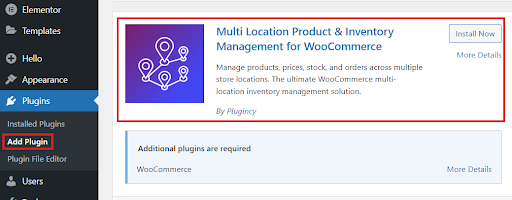
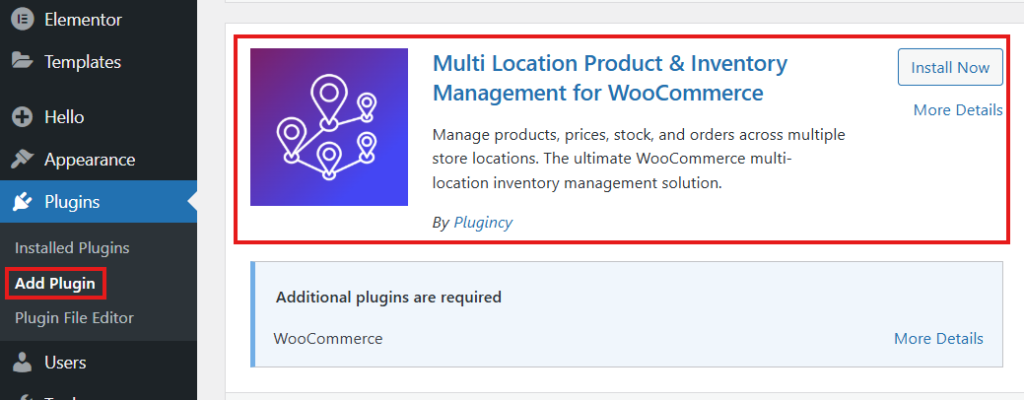
The Multi Location Product & Inventory Management for WooCommerce plugin can be installed through the dashboard or by manual upload.
Option 1: Install via WordPress Dashboard
- Log in to your WordPress admin panel.
- Go to Plugins → Add New.
- Search for Multi Location Product & Inventory Management.
- Find the plugin in the results and click Install Now.
- When installation completes, click Activate.
Option 2: Install via Manual Upload
- Download the plugin ZIP file from the WordPress Plugin Directory.
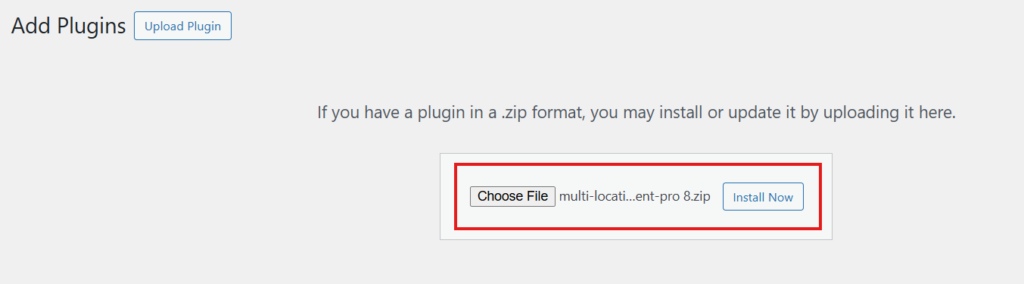
- In WordPress, go to Plugins → Add New → Upload Plugin.
- Click Choose File, select the ZIP file, and press Install Now.
- After installation, click Activate Plugin.
Activating the Pro Version (If Purchased)
- Go to Location Manage → Settings → Plugin License.
- Paste the license key sent after purchase.
- Click Activate License to unlock premium features.
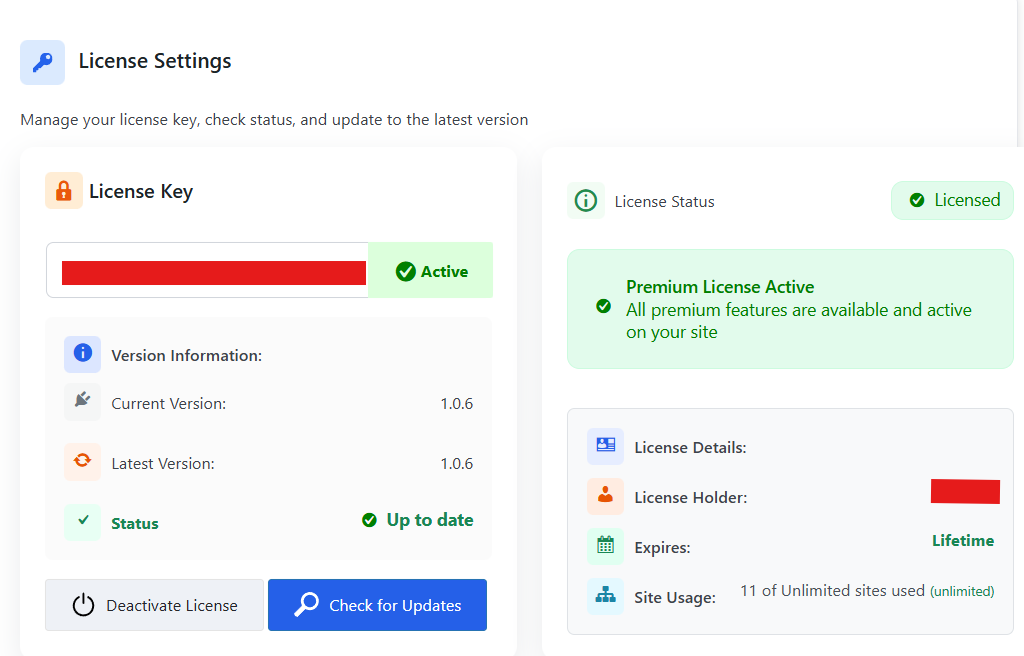
Once activated, the plugin is ready for setup.
Setting Up Multi-Location Inventory
Before assigning stock, locations must be created.
Creating Locations
- Navigate to Location Manage → Locations.
- Fill in the required details such as location name and description.
- Click Add New Location.
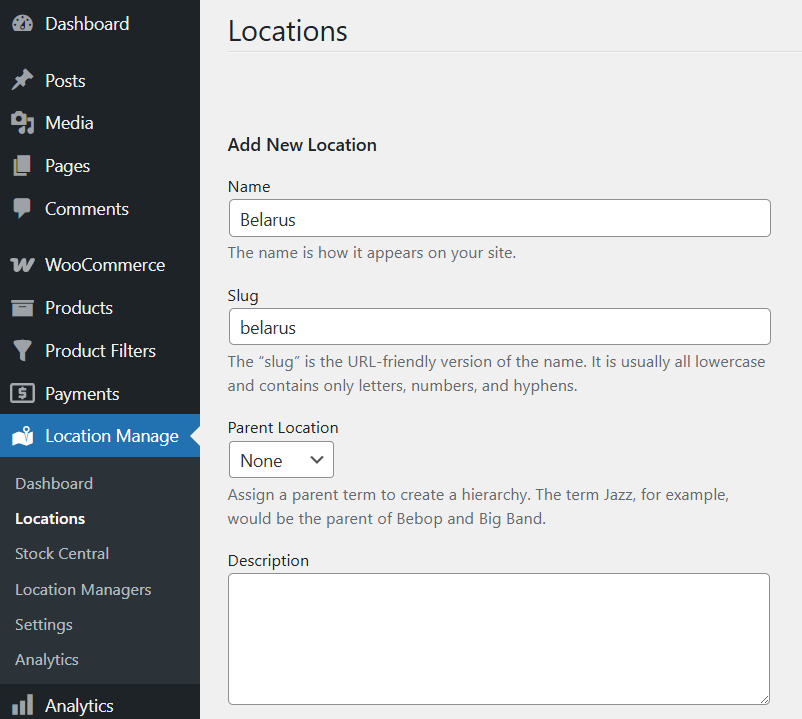
You can create as many locations as needed.
Assigning Products to Locations
After creating locations, assign each product to its appropriate stock source.
Steps to Assign Products
- Go to Products → All Products and open a product for editing.
- On the right-hand side, find the Location section displaying the locations you created.
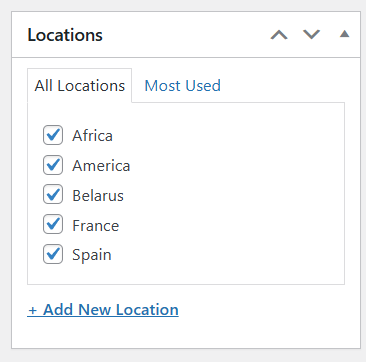
- In Product Data → Inventory, check Track stock quantity for this product.
- Enter the total product quantity.
- Open Location Settings to assign:
- Stock Quantity
- Regular Price
- Sale Price
- Backorders
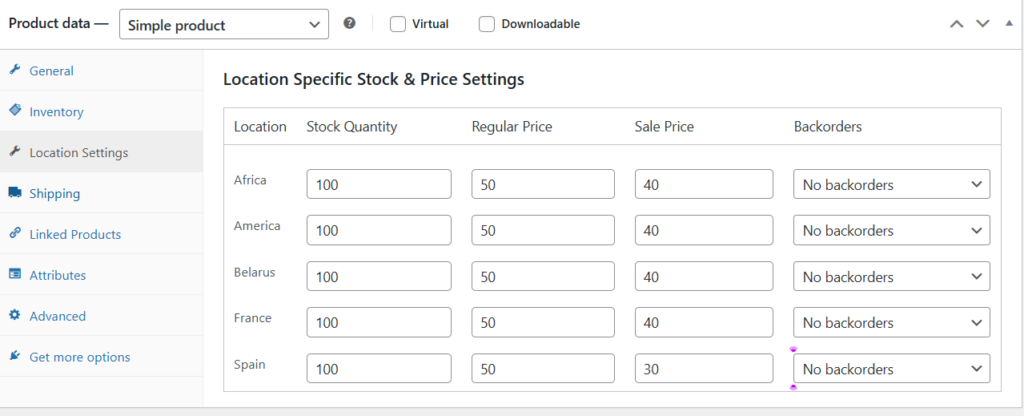
Click Update to save changes. Product stock and pricing will now vary by location.
Adding a Location Selector to Your Store
A location selector helps customers view products available in their chosen area. The plugin offers two ways to add it.
Method 1: Add Location Selector Using Widgets
- Go to Appearance → Widgets.
- Open the Header widget area.
- Add a Shortcode block.
- Insert:
[mulopimfwc_store_location_selector title=”Select Your Location”]
- Click Publish or Update.
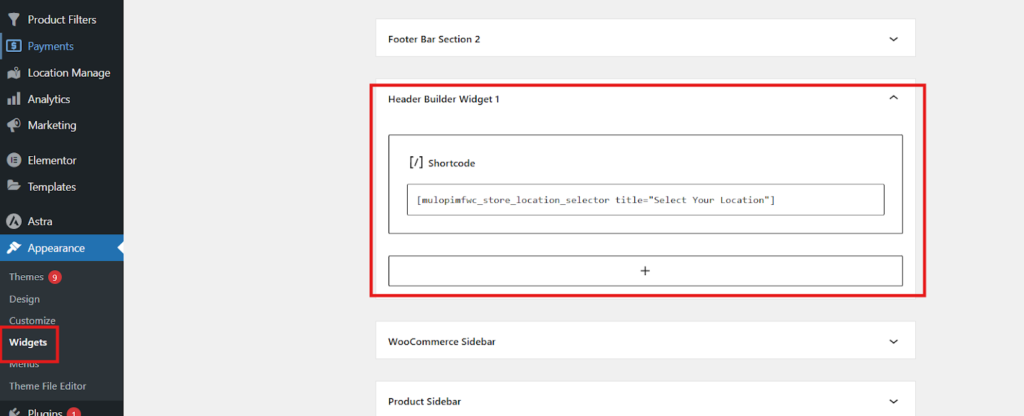
A location dropdown will now appear in your header.
Method 2: Add Location Selector Through the Customizer
- Open the Shop Page and click Customize.
- Go to the Header section.
- Hover to reveal a + icon and select a widget area.
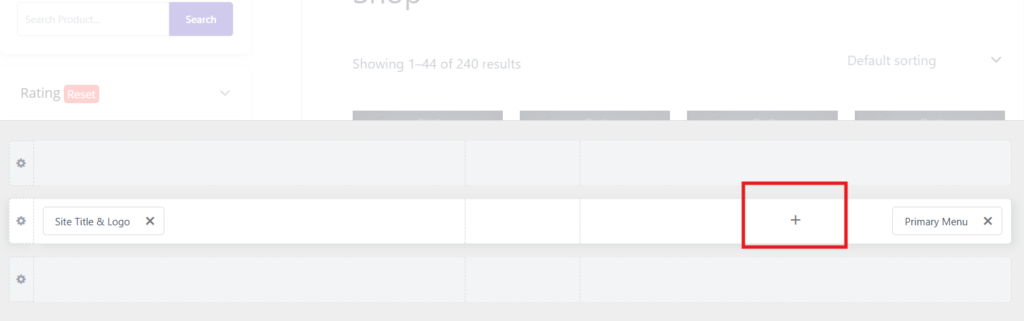
- Add a Shortcode block with:
[mulopimfwc_store_location_selector title=”Select Your Location”]
- Save your changes.
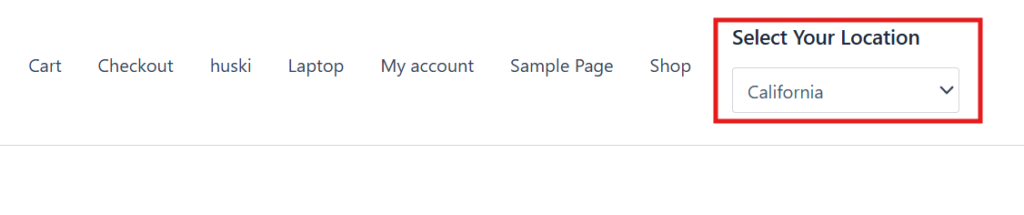
Customers can now choose a location, and the store will automatically filter products based on availability.
Showing Location-Wise Stock on Product Pages
To display stock details per location:
- Go to Location Manage → Settings → General.
- Find Location Display Format.
- Choose your preferred style and click Save Changes.
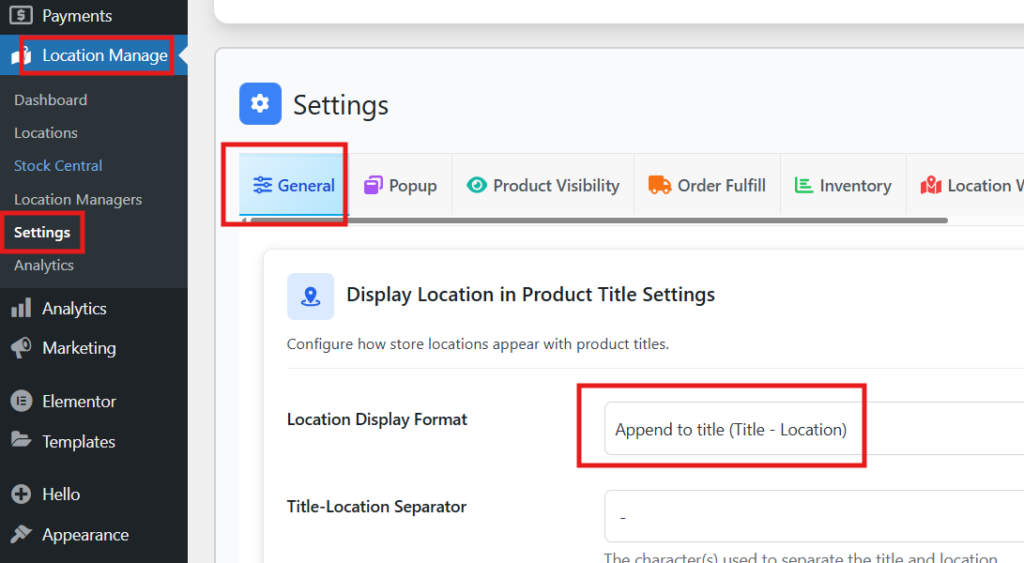
Product pages will now show stock per location.
Creating Location Managers
For stores with multiple branches, you can assign specific managers to each location.
Steps to Create Managers
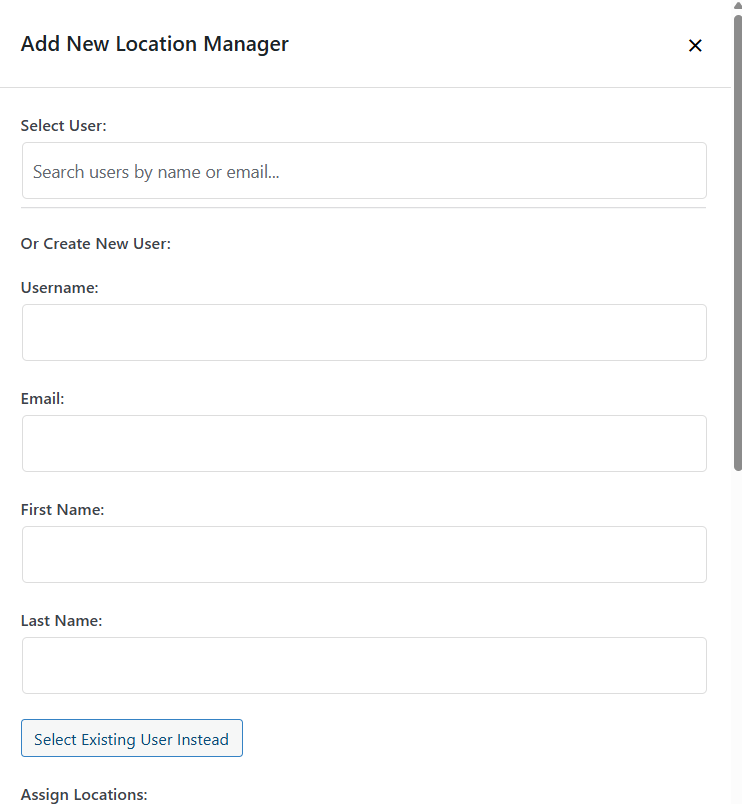
- Go to Location Manage → Location Managers.
- Click Add New Location Manager.
- Enter the manager’s details.
- Assign the location and set permissions.
- Click Save Manager.
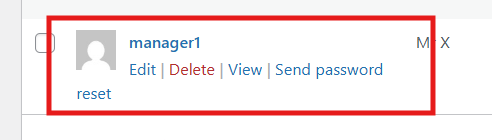
Then go to Users → All Users, open the new manager’s profile, and set a password. Managers will only access the locations assigned to them.
Dashboard and Notifications
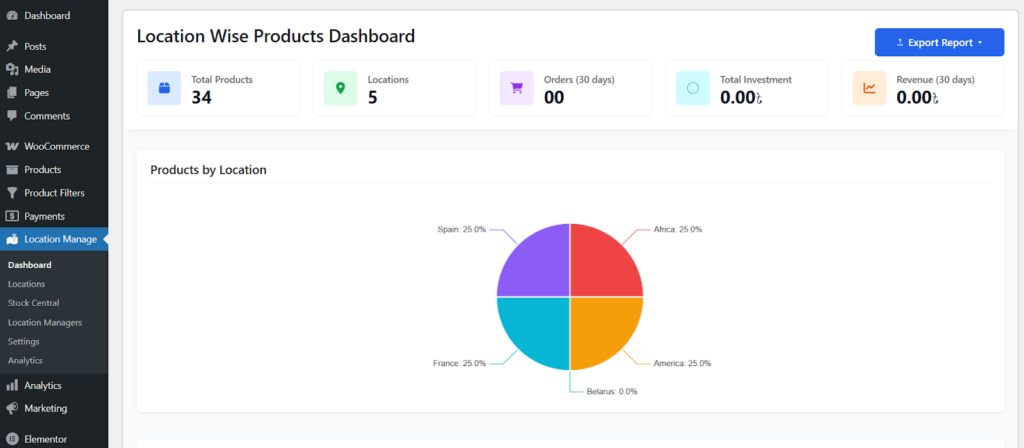
The plugin includes an internal dashboard to help you maintain accurate inventory across all locations. From here you can:
- View stock levels for each location
- Receive alerts for low-stock and out-of-stock items
- Restock products efficiently
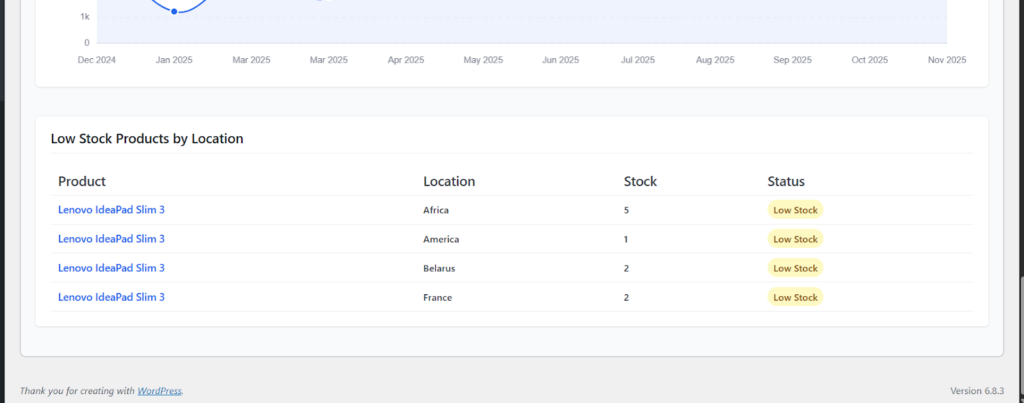
This keeps your multi-location inventory organized and up-to-date without spreadsheets or manual monitoring.
WooCommerce Inventory Management vs Dedicated Multi-Location Inventory Systems
Below is a clear comparison that shows how default WooCommerce stacks up against plugin-enhanced inventory systems.
| Feature | WooCommerce Built-In | WooCommerce + Multi-Location Plugin |
| Inventory Source | Single unified pool | Unlimited separate locations |
| Stock Per Variation | Yes | Yes, per location |
| Customer Location Selector | No | Yes |
| Location-Based Pricing | No | Yes |
| Order Routing | No | Yes |
| Per-Location Analytics | Minimal | Detailed |
| Large Catalog Scalability | Limited | Much smoother |
| Operational Workflow Tools | None | Included, depending on the plugin |
This comparison makes it clear that WooCommerce is strong for simple setups, but becomes far more capable when paired with multi-location tools.
Common Issues WooCommerce Store Owners Face Without Proper Inventory Setup
When stores rely on the default WooCommerce system while expanding operations, inventory accuracy and workflow efficiency can suffer. The issues below are among the most common challenges businesses face when handling complex stock requirements without proper tools.
Overselling Across Multiple Locations
WooCommerce keeps all stock in a single pool, so orders may go through even if a specific warehouse has no inventory left. This often results in canceled orders, delayed shipments, and customer dissatisfaction from inaccurate availability.
Limited Visibility of Location-Based Stock
Inventory may appear available storewide even when certain branches or warehouses have run out. Without separate stock values per location, customers and staff cannot rely on product availability displayed in the storefront or dashboard.
Slow and Inefficient Fulfillment Workflows
Without location-based order routing, teams need to coordinate manually to determine where each order should be packed and shipped. This increases handling time and can lead to delays, especially during busy sales periods.
Difficulty Managing Large or Expanding Catalogs
Managing hundreds or thousands of SKUs in a single stock pool becomes difficult without automation. Frequent updates, stock adjustments, and pricing changes require significant manual effort, increasing the risk of mistakes.
Complications During Product Returns
WooCommerce does not identify which location originally fulfilled an order, making restocking confusing. Returned items may be placed into the wrong warehouse or recorded incorrectly, leading to inventory inconsistencies over time.
Frequent Inventory Mismatches and Errors
Manual bulk updates or inconsistent communication between staff can cause stock discrepancies across locations. These mismatches become more common as order volume grows, increasing the need for structured, location-based inventory tracking.
When stores begin to experience these issues, adopting a proper multi-location inventory solution becomes essential for maintaining accuracy, efficiency, and a smooth customer experience.
Conclusion
WooCommerce can manage basic stock tasks well, but its built-in system works best for single-location stores with simple workflows. As operations grow and inventory spreads across multiple warehouses, relying on the default setup becomes limiting. This is where a multi-location inventory plugin provides the structure needed for accurate tracking and efficient fulfillment.
By understanding the full picture of does woocommerce do inventory management and recognizing what the core platform can and cannot handle, you can choose the right tools to support long-term growth. With the proper setup, your WooCommerce store can scale smoothly while keeping stock accurate across every location.