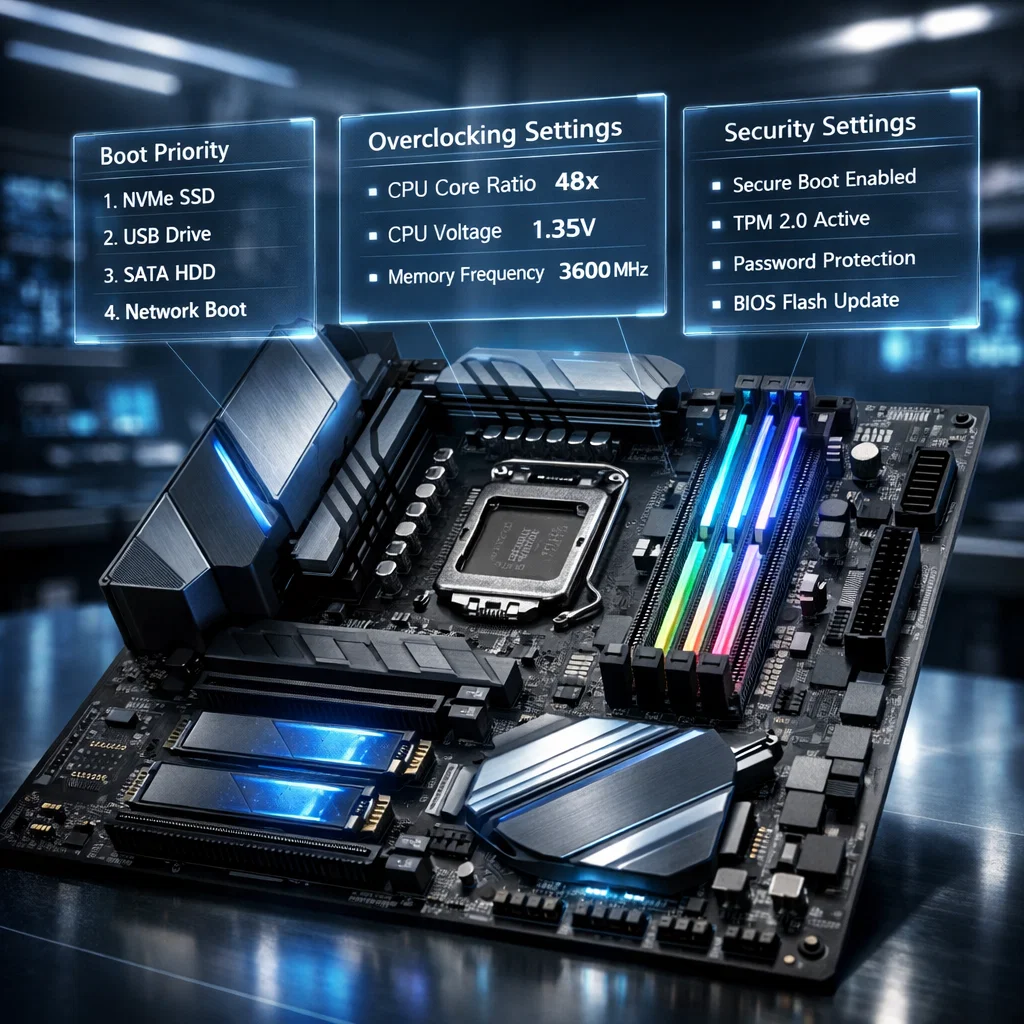
When you push the power button on a computer, a hidden but crucial system starts working straight away. That system is known as BIOS/UEFI firmware and it is the one that first initializes hardware, conducts checks, and loads the operating system.
Although many users never really come into contact with BIOS/UEFI, knowing what it is might even give you power to optimize performance, troubleshoot problems, enable features like virtualization or overclocking, and security, all these without negative side effects (probably even with a positive one!).
In this article, we’ll take a closer look at BIOS/UEFI configuration and cover the important settings as well as how to update them responsibly.
What Is BIOS/UEFI Firmware?
BIOS/UEFI firmware is a kind of built-in software that you can find on your motherboard. It is sort of a hardware/software mediator as well as it prepares the CPU, RAM, and storage for the operation.
WHAT BIOS/UEFI DOES DURING STARTUP:
- Launches the hardware such as CPU, RAM, and storage devices
- Conduction POST (Power-On Self-Test) to ensure that the system is intact
- Detects the devices connected and setting the priority of bootable drives
- Passing the baton to the operating system
BIOS VS UEFI:
- BIOS (Basic Input/Output System): Old school, text-based and rather limited in scope
- UEFI (Unified Extensible Firmware Interface): New generation, more features, can be used graphically, supports big storage devices, and boots faster
Here are just a few of UEFI’s highlights:
- The boot process is much faster
- Has support for drives bigger than 2TB
- Offers user-friendly graphical interfaces with mouse navigation
- The security capabilities can be enhanced with features like Secure Boot
Why BIOS/UEFI Configuration Matters
Even tiny tweaks to your BIOS/UEFI settings can have ripple effects affecting your system’s performance and its stability. Wrong settings can stop your system from booting or make the system work less efficiently.
CORE FUNCTIONS OF BIOS/UEFI:
- System Startup: Decides what device the PC boots from
- Hardware Initialization: Confirms that CPU, RAM, and storage are set up correctly
- Performance Management: Activities like overclocking, memory speed, and CPU edits
- Security Enforcement: Assists with Secure Boot, TPM, and password entry
Being aware of these helps you to make better decisions about the changes that you decide to make.
Accessing BIOS/UEFI
To make changes, you first need to get to the BIOS/UEFI screen.
STEPS TO ACCESS:
- Restart or switch on your computer
- Quickly hit a specific key:
You may have gone back and forth a couple of times before you find exactly which one it is. Don’t worry, just try again it’s the same.
Understanding the BIOS/UEFI Interface
In general, UEFI interfaces nowadays aim at making users feel comfortable when operating with them which is a positive thing since not everyone is able to manage complex text-based menus or such.
FEATURES:
- Mouse + keyboard control
- Graphical menu and well-arranged sections
- Temperature, fan speed, voltage monitoring
COMMON MENU SECTIONS:
- Main/System Information: Information about CPU, RAM, motherboard, and BIOS version
- Boot: Set boot priority and boot mode
- Advanced: Tweaks concerning CPU, memory, and other hardware
- Security: Passwords, TPM, Secure Boot
- Power: Fan control, sleep states, energy management
Key BIOS/UEFI Settings Explained
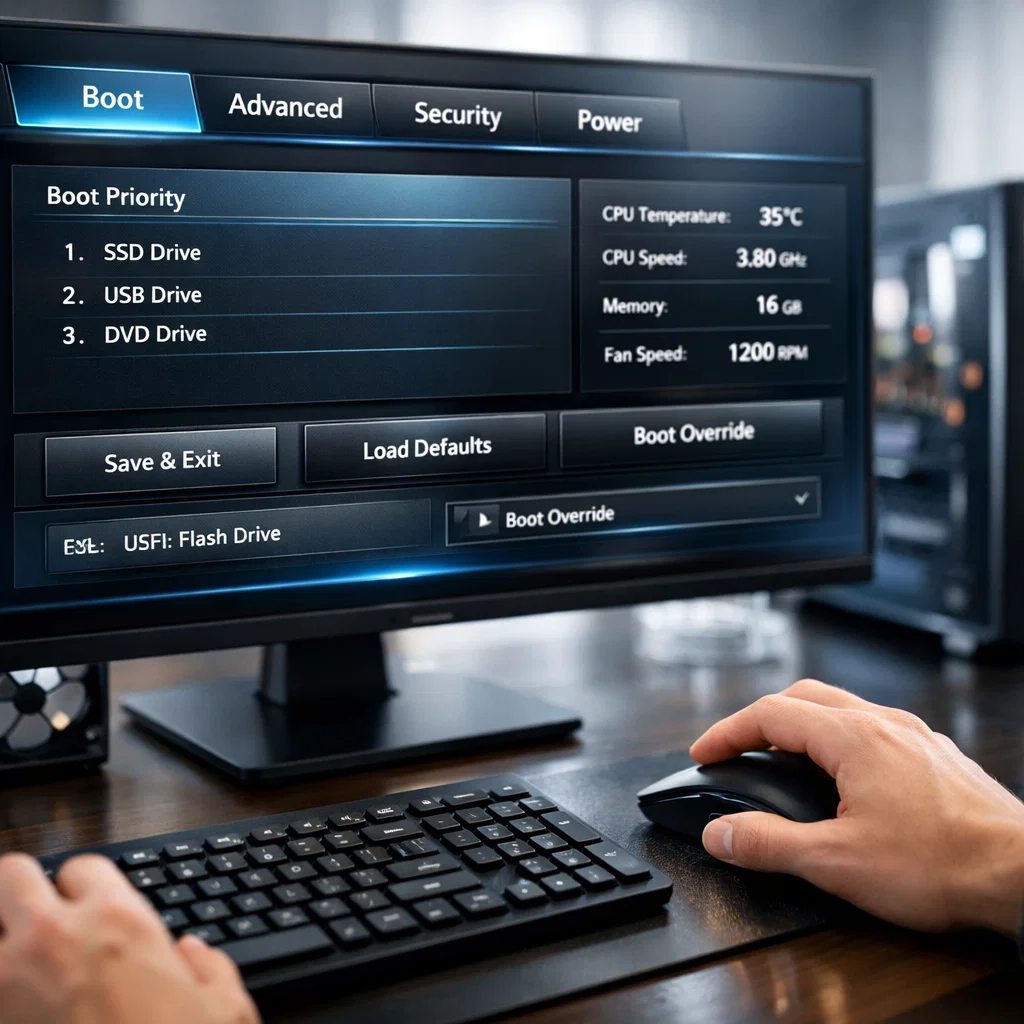
BOOT ORDER: Controlling Startup Devices
BOOT ORDER is the parameter defining which device is used first for starting the system.
COMMON DEVICES:
- SSD/HDD
- USB drives
- Optical drives
- Network boot
WHY IT MATTERS:
- It is a must during operating system installation or repair
- An erroneous order might disable booting
BEST PRACTICE:
- Keep the main disk at first place
- Change the order only for OS installation or troubleshooting purpose
BOOT MODE: Legacy vs UEFI
BOOT MODE is a system configuration which is related to system boot process.
OPTIONS:
- Legacy BIOS mode
- UEFI mode
RECOMMENDATION:
- To run your system in a faster and safer way, switch to UEFI
- Legacy BIOS mode is just for special cases when an older operating system must be used
FAST BOOT: Reducing Startup Time
FAST BOOT sacrifices a few hardware checks in order to shorten the boot time.
ADVANTAGES:
- Boot up faster
DISADVANTAGES:
- Getting into BIOS can be more difficult
- Skipping hardware diagnostics sometimes
TIP: Only turn it on if you don’t change hardware often.
VIRTUALIZATION SUPPORT: Running Multiple OS
VIRTUALIZATION SUPPORT is a feature that allows the processor to handle multiple virtual machines effectively.
TECHNOLOGIES:
- Intel VT-x
- AMD-V
APPLICATIONS:
- Executing virtual machines for testing purposes
- Creation of development environments
- Installing multiple OS
TIP: Enable this feature always if you want to use virtualization software.
OVERCLOCKING SETTINGS: Boosting Performance
OVERCLOCKING SETTINGS are features that enable you to push your CPU or RAM speeds further than their factory preset levels.
CHANGABLE PARAMETERS:
- CPU frequency
- RAM speed via XMP profiles
- Voltage
ADVANTAGES:
- Increased performance for resource intensive tasks or games
DOWNSIDES:
- Possibility of overheating
- Crashes or instability
- Shortening of physical lifespan
MEASURES TO AVOID RISKS:
- First step raise the settings a little bit
- Keep a close eye on the temperatures
- Make use of quality cooling solutions
MEMORY SETTINGS (XMP): Optimizing RAM
XMP PROFILES are sets of memory settings defined in advance by the manufacturer which help in the automatic performance optimization of your RAM.
BENEFITS:
- It is an easy way to improve performance without having to configure manually
- Helps avoid misconfiguration
TIP: Check the compatibility of your RAM before turning on the XMP feature.
CPU SETTINGS: Fine-Tuning Processors
Processor features grant the ability to influence how CPUs carry out their tasks.
CHOICES:
- Turning cores on/off
- Hyper-threading
- Power constraints
ADDED VALUE: Pushes performance, power savings, and stability to optimal levels.
STORAGE CONFIGURATION: Handling Drives
STORAGE SETTINGS specify the way your drives function.
MODES:
- AHCI: Most common
- RAID: Advanced
TIP: Do not turn RAID on until you fully comprehend the advantage and disadvantages of it.
SECURITY FEATURES: Safeguarding Your System
SECURE BOOT: A feature that prevents loading software that hasn’t been verified at the point of booting up.
TPM (Trusted Platform Module): Segment capable of element-based hardware encryption.
BIOS PASSWORD: Makes sure only authorized persons can enter the BIOS/UEFI.
TIP: Password and TPM combination is a holistically secure way plus providing ultimate care for credentials.
POWER MANAGEMENT: Energy Saving and Cooling
Power settings focus on how system uses energy and controls the level of heat.
OPTIONS:
- Sleep and hibernation
- CPU power states
- Fan speed curves and thresholds
BENEFITS: It helps save energy, avoid heating too much, and extend the life of the hardware.
HARDWARE MONITORING: System Health at the Moment
Today’s BIOS/UEFI often come with hardware monitoring functions.
YOU CAN VIEW:
- CPU/GPU temperatures
- Voltages
- Fan speeds
IMPORTANCE: It is always better to find problems on time so that the damage to hardware can be avoided.
BIOS UPDATES: Keep your device up to date
Updating your motherboard’s BIOS/UEFI can be a great way to bring more stability and compatibility.
ADVANTAGES:
- Fixing bugs
- Enhancing hardware functionality
- Implementing security improvements
CAUTION: If a motherboard update is accidentally interrupted, it can cause irreparable damage.
COMMON MISTAKES TO AVOID
- Not understanding the ramifications of changed settings
- Disabling security safeguards
- Overclocking the system without ensuring enough cooling
- Ignoring the heating-up signals of the system
SAFE CONFIGURATION GUIDELINES
- Save the original settings before changing
- Make minimal changes and check the result each time
- If in doubt, use the default settings
- Perform stability tests regularly
WHEN TO MODIFY BIOS/UEFI SETTINGS
CHANGE SETTINGS WHEN:
- You are installing a new OS
- You want to make use of hidden features
- You want to raise the system’s performance level
DON’T CHANGE WHEN:
- You have not experienced a computer crash
- You are not clear on how a particular setting works
Summary
Your PC’s BIOS/UEFI firmware is an essential element that controls the activity at startup, as well as security and performance.
Although the concept may scare you, it will be useful to understand its potential as a way to perform upgrades, troubleshoot, and access exclusive features.
Nevertheless, it is very important to be prudent as well. You should undertake risk only after due consideration and awareness of the changes as well as stability of the system.
With adequate knowledge, BIOS/UEFI will cease to confuse you and instead be a tool at your disposal to tap into the power of your computer.