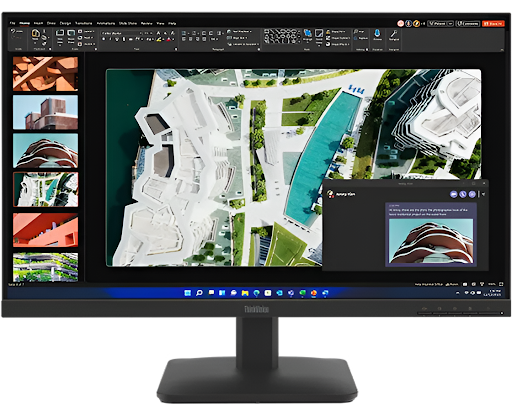
Selecting a monitor for photo editing feels like picking the perfect lens. You want every pixel to tell the truth. Most photographers focus on color gamut or resolution. They often forget the silent killer of great edits, which is poor uniformity. A monitor with bad uniformity shows different brightness levels across the screen. This ruins your perception of exposure and contrast. You might darken a corner of your photo because the screen looks too bright there. In reality, the photo is fine, but the monitor is lying to you.
This article explores how to catch these lies. We will look at eight essential tests to ensure your display stays consistent from edge to edge. Your creative work deserves a canvas that remains faithful to your vision.
1. The Full White Canvas Check
Start your journey by filling your screen with a pure white image. This simple step reveals the most obvious flaws in your backlight. You want to see a clean and bright surface without any shifts. Look for areas that seem slightly yellow or blue. These color casts ruin your ability to judge white balance accurately. A high-quality monitor for photo editing keeps brightness and color tone consistent across the entire screen, with no visible tint or dim areas.
- Set your monitor brightness to your usual editing level.
- Open a blank white document in full-screen mode.
- Move your head slightly to check for viewing angle shifts.
- Note any dimming near the corners of the frame.
2. The Deep Grey Shadow Hunt
White tests show brightness, but grey tests reveal subtle tonal shifts. Grey is the hardest color for a monitor to display evenly. Any slight variation in the liquid crystal layer appears here instantly. Professional editors call this the “dirty screen effect” because it looks like dust behind the glass.
Spotting Inconsistent Shadows
Consistency in mid-tones ensures your gradients look smooth. If you see blotches on a grey screen, you will struggle with sky or skin retouching. These patches mislead your eyes during delicate dodging and burning tasks.
Neutral Density Accuracy
A perfect monitor treats every section of the panel with equal power. You should see a flat and boring grey wall without any texture. Texture indicates a lack of manufacturing precision in the backlight unit.
3. The Midnight Black Bleed Test
Turn off the lights in your room for this specific evaluation. Display a completely black image on your monitor. This test exposes “IPS glow” or backlight bleeding. Light should not leak from the edges of the bezel into the display area. Severe bleeding makes it impossible to edit night photography or high contrast portraits.
- Ensure the center remains as dark as the edges.
- Look for “clouding,” which looks like white vapor on the screen.
- Verify that the black looks like a deep ink rather than dark navy.
4. The Edge-to-Edge Color Consistency
Colors should not change their hue as they move across the display. The red car that exists at the center of the area must appear identical to the red car that stands at the left boundary. The two different color tints, which extend from one side of the screen to the other, display on cheap monitors because they use inferior display technology. This happens because the internal filters are not perfectly aligned.
Testing for color shifts saves you from chasing phantom tints in your files. You will stop adding green to “fix” a corner that was already neutral. This builds trust between your eyes and the hardware. After checking colors, you should focus on the physical light output.
5. The Grid Luminance Mapping
Divide your screen into 9 equal parts. This action can be achieved with a digital light meter or a calibration tool. Measure the brightness in the center square first. Then measure every other square and compare the values to the center. A professional monitor should stay within a 10 percent margin of error.
- The center is usually the brightest point of any display.
- Corner drop-off is common, but should stay minimal.
- Large deviations signify a failing backlight or poor panel quality.
- Record these numbers to track your monitor health over time.
6. The Moving Target Ghosting Test
Uniformity also involves how pixels react to motion across different areas. Drag a small white window across a black background. Watch for trails or “ghosts” that appear longer in certain zones. While photographers work with still images, this test reveals slow pixel response times. Slow pixels can cause blurriness when you zoom or scroll through high-resolution files.
7. The Text Clarity and Fringe Evaluation
Tiny details should look sharp everywhere on the screen. Move a block of small text from the center to the extreme corners. If the text becomes blurry or shows color fringing, the panel has poor corner sharpness. This often results from a cheap coating on the screen surface. Clean text ensures you can check the focus of your photos without doubting your hardware.
Evaluating Sub-Pixel Alignment
Each pixel consists of red, green, and blue sub-pixels. These must align perfectly to create crisp edges. Misalignment causes a soft look that mimics an out-of-focus photograph.
Coating Interference
Some matte screens have a heavy grain that interferes with clarity. You want a finish that stops reflections without turning your image into a “sparkly” mess.
8. The Heat Soak Stability Run
Monitors change as they warm up over several hours. A screen might look uniform when you turn it on, but shift after three hours of work. Run your monitor for at least an hour before doing any critical color grading. Heat affects the LEDs in the backlight and can create temporary uniformity issues.
- Calibrate your monitor only after it reaches a stable temperature.
- Check for “flicker” that might appear as the components expand.
- Observe if the corners get darker as the screen stays active.
- Ensure the cooling vents stay clear to prevent heat spots.
Conclusion
Your monitor is the window into your digital art. If that window is warped or tinted, your art will suffer. Using these eight tests ensures you have a reliable and high-quality monitor for photo editing. Consistency brings confidence to every slider movement in your editing software. You will spend less time questioning your eyes and more time creating beautiful images. High uniformity is the mark of a truly professional workspace. Take the time to verify your screen today and see your photos in a whole new light.